Tracking work time efficiently
Regardless of the billing method you use (per hour or per project), tracking time is a great way to assess the productivity of your team and each of its members and make the necessary corrections to achieve the best results.
This article describes how to track time and manage your timesheet using the Time Tracking feature offered by Projects.
Accessing the Projects module
Sign in to your portal and click the Projects link.
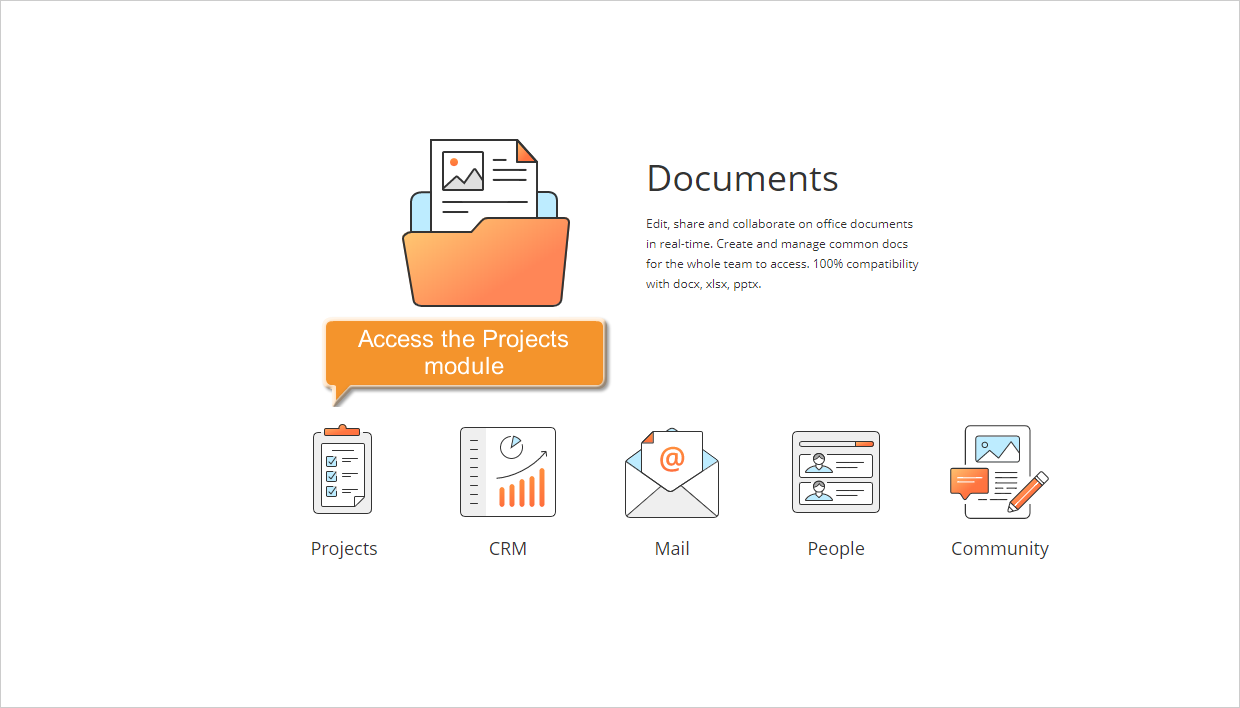
If you are already signed in and have been using the portal for some time, you can access the Projects module from any portal page: use the drop-down list in the upper-left corner of the page and select the corresponding option.
Getting a complete picture of the time spent
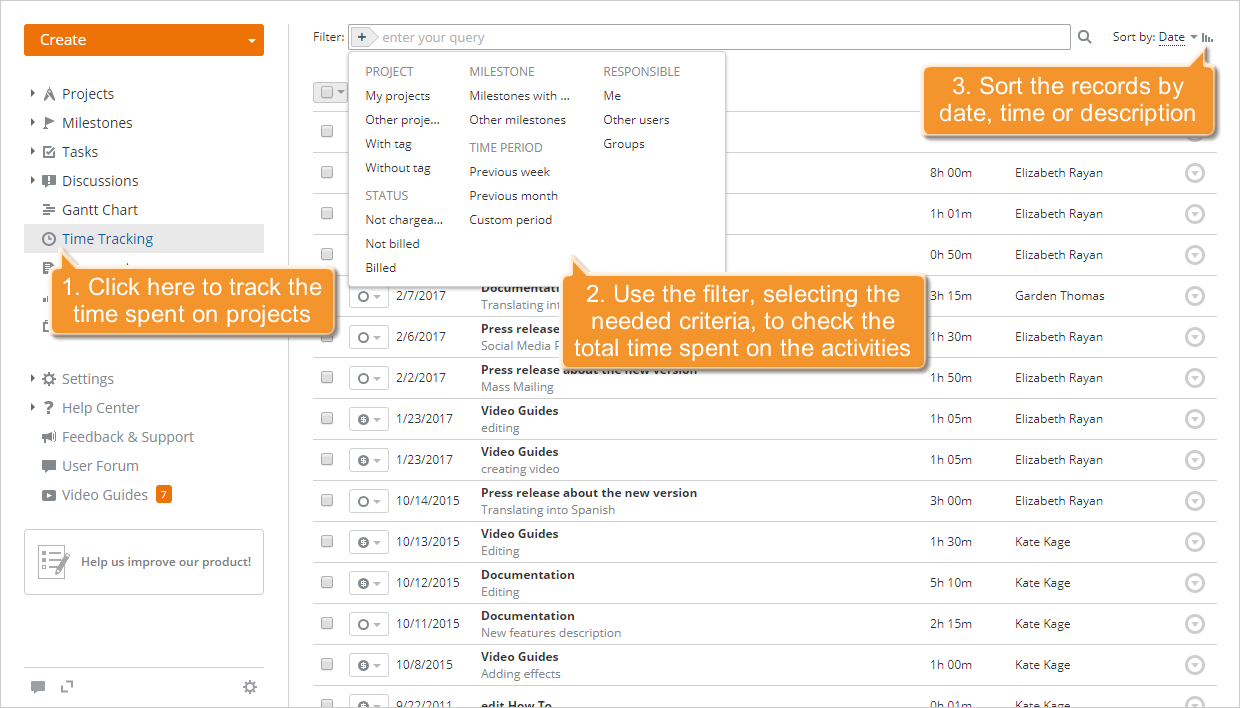
Click the Time Tracking link in the left-side panel. You will be presented with the whole list of the hours spent on your projects.
To see the total time spent on performing a specific task, on achieving a specific milestone, etc., or to facilitate the monitoring process, use the Filter available at the top of the page. Click the  button and select one of the options:
use the PROJECT list to display the hours spent on your projects, on the projects you do not participate in, or on the projects with a specified tag or without tags;
use the MILESTONES list to display the hours spent on the tasks assigned to a specified milestone;
use the RESPONSIBLE list to display the hours spent on the tasks assigned to you, to a specific user, or a group;
use the STATUS list to display the hours that are already billed, the hours that are not billed yet, or the hours that cannot be billed (not chargeable);
use the TIME PERIOD list to display the hours recorded during the previous week, the previous month, or a specified time period.
You can also enter the hour description, entirely or partially, in the field and press the Enter key to display the records you need.
By default, the records are sorted by date in descending order (earlier dates first). If necessary, you can sort them by Time or Description by opening the Sort by drop-down list to the right of the Filter field and selecting the option you need. To change the sorting order from Descending to Ascending, click the  icon.
icon.
Editing the records
Making changes is an integral part of any process. While tracking time, you might need to correct some data, such as time and hours, or complete the description. To do that, click the  icon to the right of the record you need to edit and select the Edit option from the drop-down list. The Time Tracking window opens:
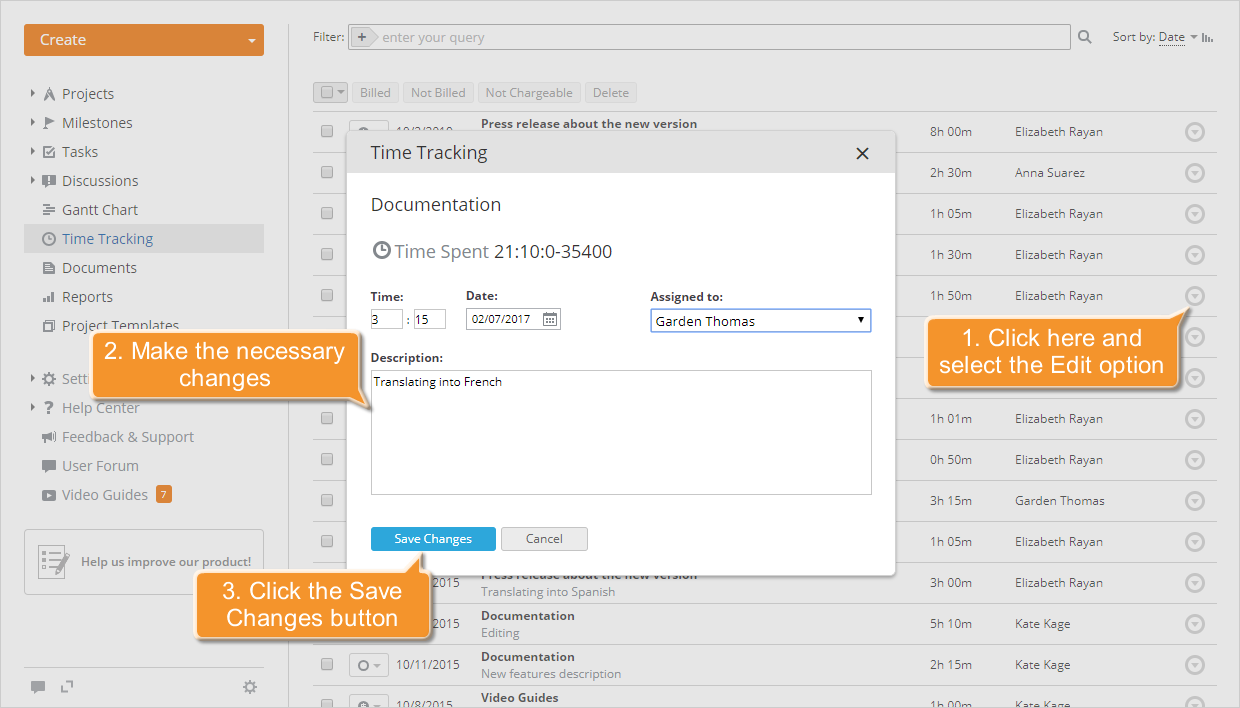
Here you can check the total time spent on this task and make changes: change the time and date, select another responsible person, and modify the description.
To apply all the changes you made, click Save Changes.
To delete a record you no longer need, click the icon to the right and select the Delete option from the drop-down list.
Managing billable and non-billable hours
The Billable time is the hours spent on a client project that you are paid for. It can be billed or not billed. The Non Billable (Not Chargeable) time is the hours spent on performing administrative tasks that you are not paid for directly.
As a project manager or a Projects administrator, you can set the payment status for each record or activity: Billed, Not Billed, Not Chargeable.
To do that, click the  button to the left of the record or activity you need and select the status from the drop-down list.
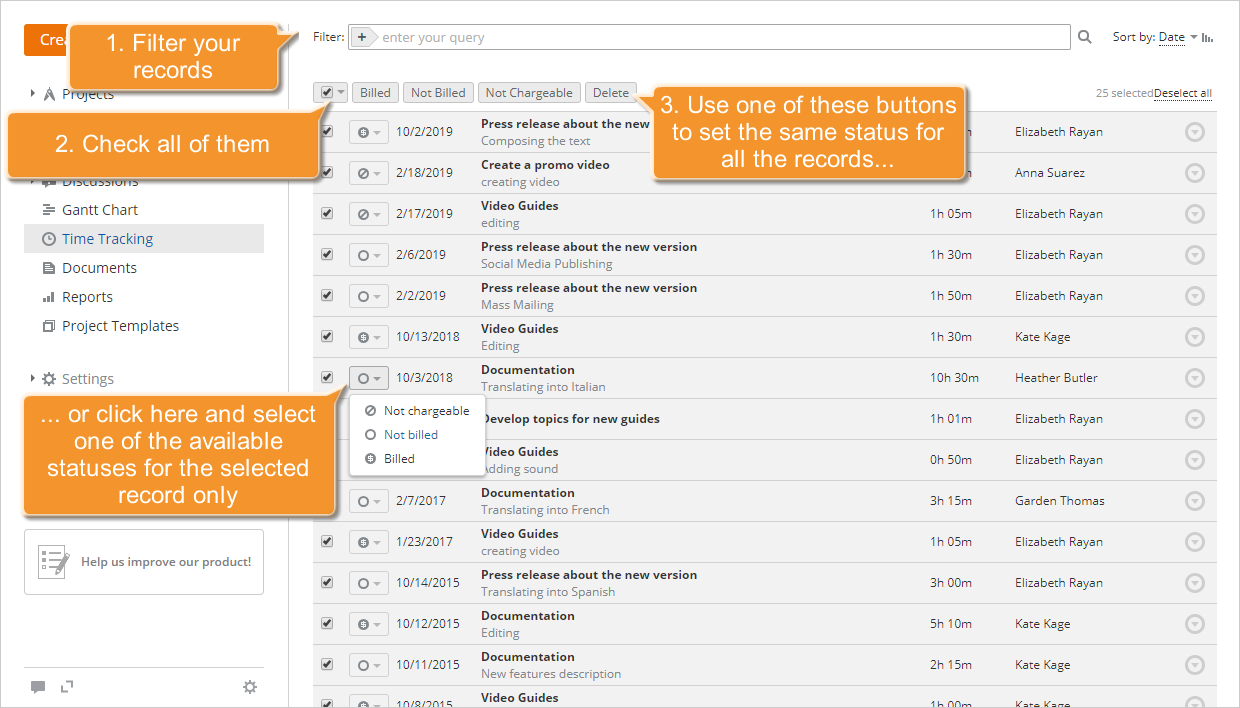
If you need to set the payment status for multiple records at once, select the records you need by selecting the checkboxes to the left and use one of the buttons at the top of the list.
You have been paid for the hours you spent on achieving a certain milestone. To quickly change the status of all the records and activities that belong to the tasks assigned to this milestone, first use the Filter. Click the button and select the filter option you need: Milestones with my tasks or Other milestones, then select the milestone you need. All the records and activities matching this criterion will be displayed. Select all of them by clicking the very first checkbox to the left of the list and using the Billed button. The status of all the records will be set to Billed  .
.
Generating reports
To get a report of the time spent and assess the productivity, click the Reports link in the left-side panel and select the Time Tracking report type from the list that opens.
Now you need to specify what you want to include in your report by configuring the report parameters:
- select a Group or a User whose productivity you want to assess;
- specify the Payment Status of the activities you want to include in your report;
- set the Time period you need;
- select the View by user tasks radio button if you want to include the tasks and the project the user spent time on, or leave the View by user radio button selected if you do not need any details about the spent time.
When all the parameters are set, click Generate Report.
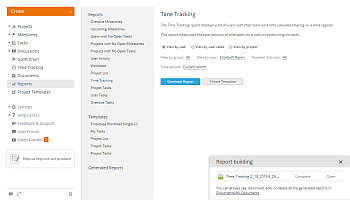
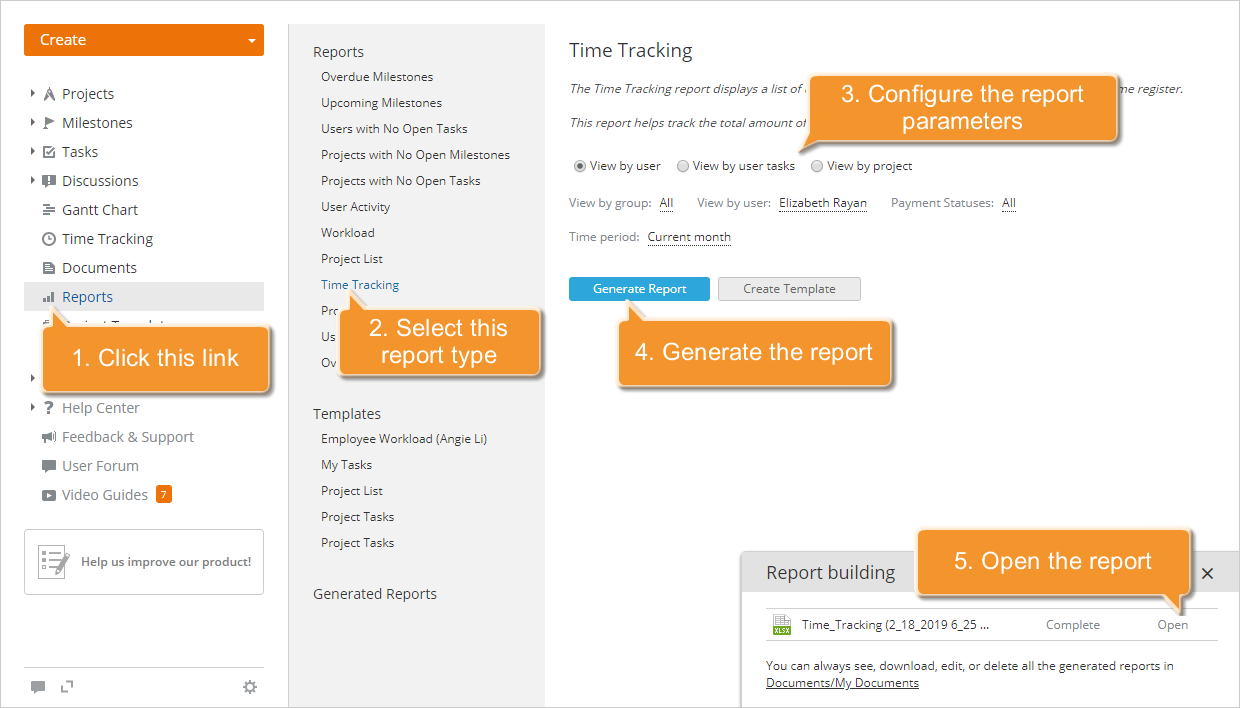
Once the report is generated, click the Open link in the lower-right corner to view the report. The file will open in the Spreadsheet Editor, and you will be able to edit, print, or download it if necessary.
- To print the report, click the
 Print icon on the top toolbar.
 - To download the report, select the File tab on the top toolbar, click the Download as... option in the left sidebar, and select the file format you need.