Receiving audit trail data
Introduction
The Audit Trail section of the Control Panel allows you to browse through the list of the latest changes (creation, modification, deletion, etc.) made by users to the entities (tasks, opportunities, files, etc.) on your portal.
To access the Control Panel, sign in to your portal and click the Control Panel link on the Start Page. Alternatively, you can go to the portal Settings and click the Control Panel link in the left-side panel.
Viewing audit trail data
Go to the Control Panel within the portal you need and open the Audit Trail page in the PORTAL SETTINGS section in the left sidebar.
This page displays only the last 20 records. Each record shows which action took place, who performed it, and when the event occurred. You can also set the period to store the data. By default, it is set to 180 days.

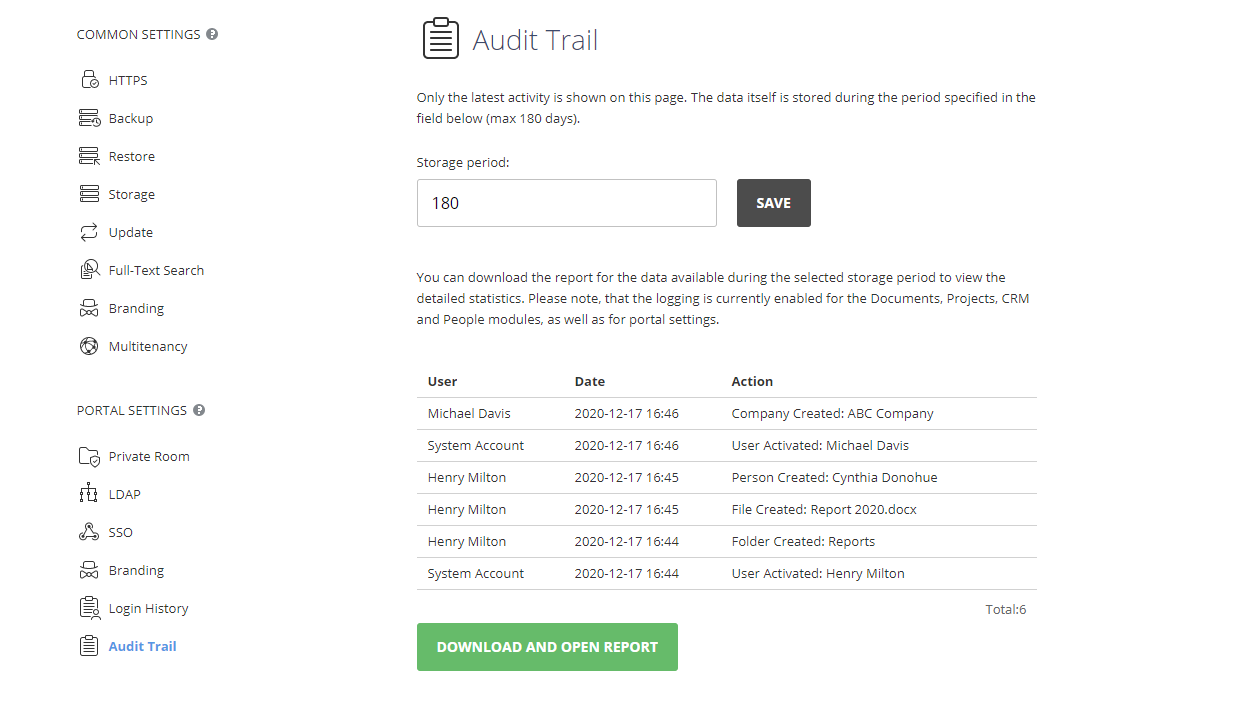
To view the detailed statistics for the last six months, click Download and open report. The report will open in an .xlsx spreadsheet (AuditTrail_ReportStartDate-EndDate.xlsx).
The audit trail report includes the following details: user IP address, Browser and Platform that were used when the registered event occurred, Date and time of the event, name of the User who performed the operation, portal Page where the action was performed, generic Action Type (for example, download, attach, updated access), specific Action (for example, Projects [Product development and promotion]. Tasks [Distribute coupons]. Status Updated: Closed ), Product and Module that the changed entity belongs to.
The records are sorted chronologically in descending order, but you can sort and filter the data by any parameter or use the search tool to quickly find a specific record.