Introducing the user interface of the PDF Editor
The PDF Editor uses a tabbed interface, where editing commands are grouped into tabs by functionality.
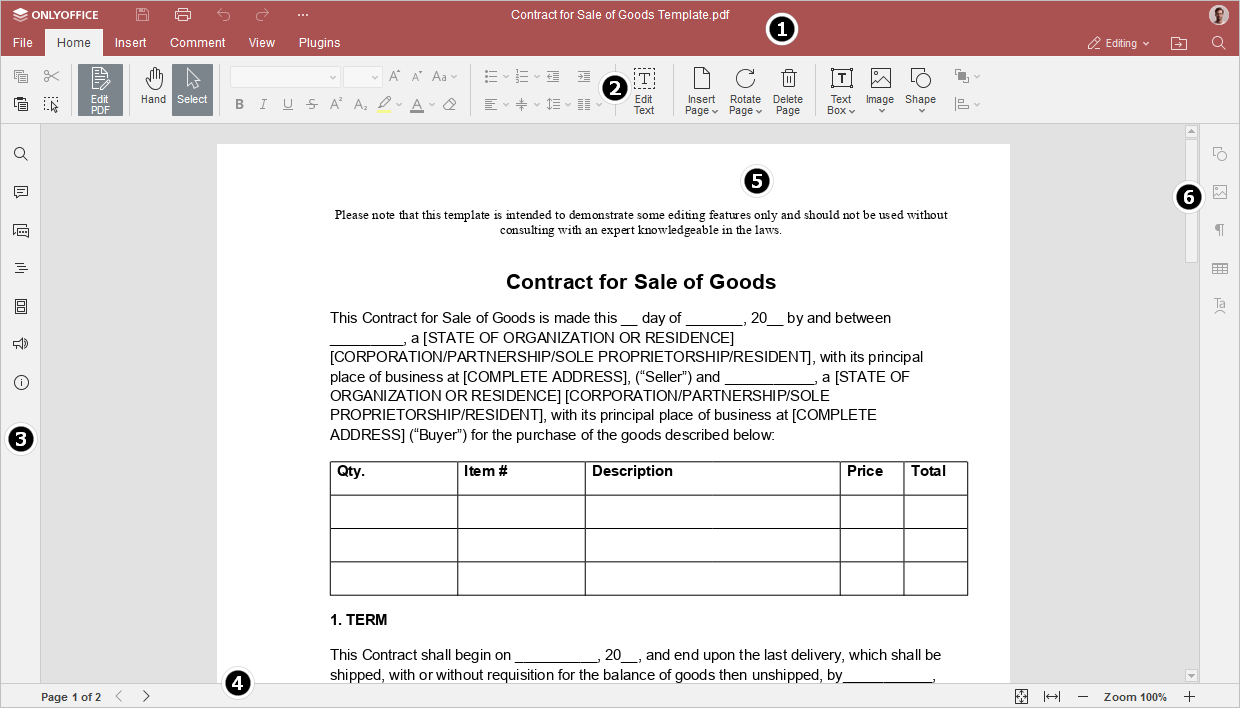
Main window of the Online PDF Editor:
Main window of the Desktop PDF Editor:
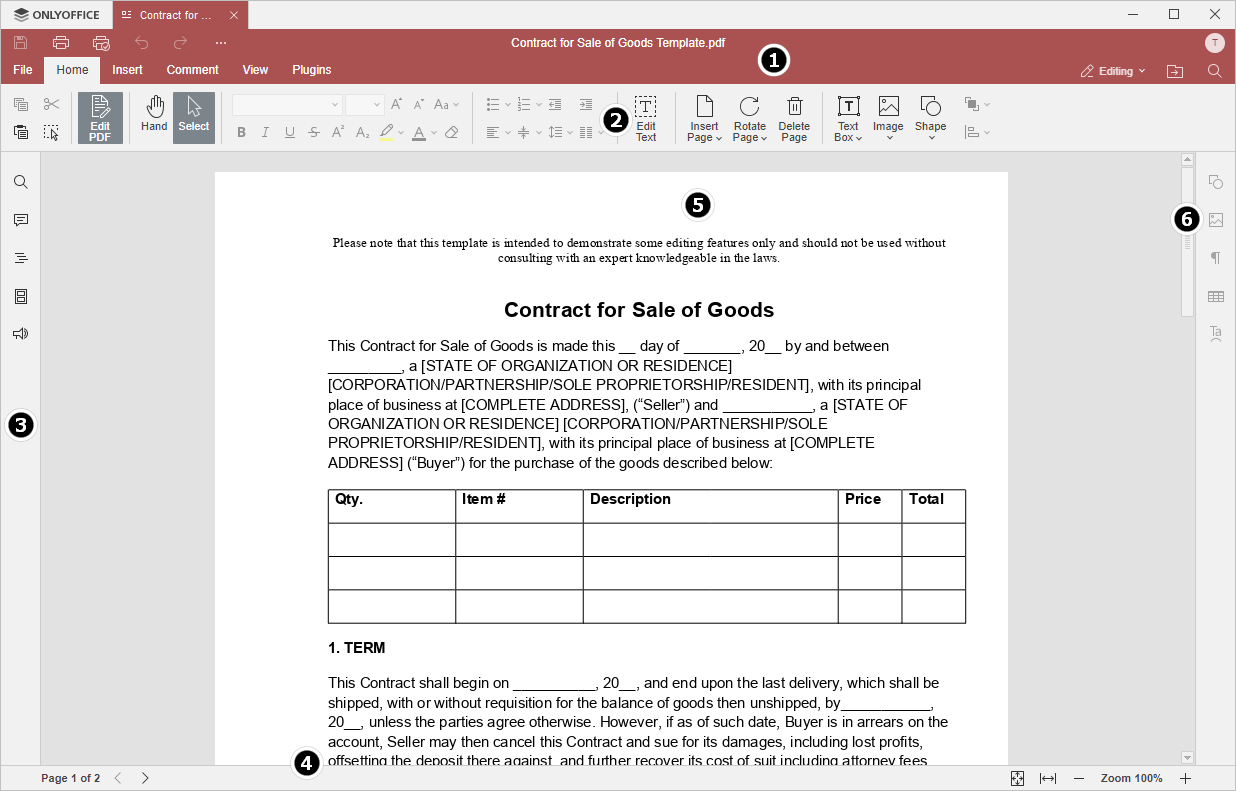
The editor interface consists of the following main elements:
-
The Editor header displays the ONLYOFFICE logo, tabs for all opened documents with their names (in the desktop version), and menu tabs.
On the left side of the Editor header, the Save, Print file, Undo, Redo, and Download buttons are located. Click the dots icon to the right to customize which buttons shall be hidden, if any.

On the right side of the Editor header, along with the username, the following icons are displayed:
 Open file location - in the desktop version, it allows opening the folder, where the file is stored, in the File explorer window. In the online version, it allows opening the folder of the Documents module, where the file is stored, in a new browser tab.
 Share - (available in the online version only) allows setting access rights for the documents stored in the cloud.
 Mark as favorite - click the star to add a file to favorites as to make it easy to find. The added file is just a shortcut, so the file itself remains stored in its original location. Deleting a file from favorites does not remove the file from its original location.
 Search - allows searching the PDF for a particular word or symbol, etc.
-
The Top toolbar displays a set of editing commands depending on the selected menu tab. Currently, the following tabs are available:
- File tab;
- Home tab;
- Insert tab;
- Forms tab;
- Redact tab;
- Comment tab;
- Collaboration tab;
- View tab;
- Plugins tab;
- AI Tools tab.
The
 Copy,
Copy,  Paste,
  Cut and
  Select All options are always available on the left side of the Top toolbar regardless of the selected tab, as are the
  Select and
  Hand tools.
 -
The Left sidebar contains the following icons:
 - allows using the Search and Replace tool,
 - allows opening the Comments panel,
 - (available in the online version only) allows opening the Chat panel,
 - allows opening the Headings panel that displays the list of all headings with corresponding nesting levels,
 - allows for the display of page thumbnails for quick navigation,
 - allows contacting our support team,
 - (available in the online version only) allows viewing the information about the program.
- The Right sidebar allows adjusting additional parameters of different objects. When you select a particular object in the PDF, the corresponding icon is activated on the right sidebar. Click this icon to expand the right sidebar.
- The Status bar located at the bottom of the editor window indicates the page number, as well as displays some notifications (for example, "All changes saved", ‘Connection is lost’ when there is no connection and the editor is trying to reconnect, etc.). It also allows adjusting zoom.
- The Working area allows viewing PDF content, as well as entering and editing data.
- The Scroll bar on the right allows scrolling up and down multipage PDFs.
For your convenience, you can hide some components and display them again when necessary. To learn more about adjusting view settings, please refer to this page.