Connecting Amazon S3 bucket as a cache to ONLYOFFICE Docs
Follow these steps to connect an Amazon S3 bucket as a cache for ONLYOFFICE Docs.
- Sign in to the AWS Management Console and open the Amazon S3 console. Click the Create bucket button. Specify a unique bucket name and save the bucket.
- We recommend creating a new IAM user going forward.
-
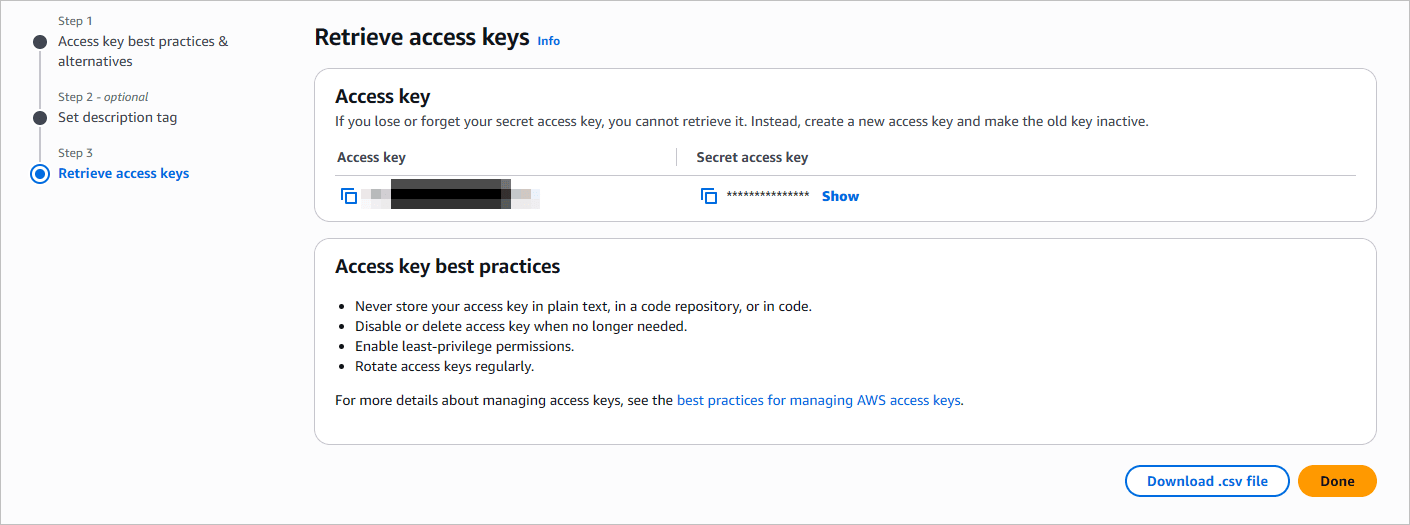
Click the username in the top right corner and go to Security credentials. Expand the Access keys (access key ID and secret access key) section. Click the Create Access Key button. In the table that opens, copy the key from the Access key field. Click the Show button to display the Secret access key and copy it. Alternatively, click the Download .csv file button in the bottom right corner to save the keys on your hard drive.
Then, go to the Access management section and allow access to the bucket. Click Policies, then click the Create Policy button. Switch to the JSON tab and add the following code:
{
    "Version": "2012-10-17",
    "Statement": [
        {
            "Sid": "Stmt1492520443000",
            "Effect": "Allow",
            "Action": [
                "s3:ListAllMyBuckets"
            ],
            "Resource": [
                "arn:aws:s3:::*"
            ]
        },
        {
            "Sid": "Stmt1492520492000",
            "Effect": "Allow",
            "Action": [
                "s3:GetBucketLocation",
                "s3:ListBucket",
                "s3:ListBucketMultipartUploads"
            ],
            "Resource": "arn:aws:s3:::my-s3-bucketname"
        },
        {
            "Sid": "Stmt1492521245000",
            "Effect": "Allow",
            "Action": [
                "s3:AbortMultipartUpload",
                "s3:GetObject",
                "s3:ListBucket",
                "s3:ListMultipartUploadParts",
                "s3:PutObject",
                "s3:PutObjectAcl"
            ],
            "Resource": "arn:aws:s3:::my-s3-bucketname/*"
        }
    ]
}
Replace
my-s3-bucketnamewith your actual bucket name. Then complete the remaining steps to save the new policy. -
In the Amazon S3 console, click your bucket name. Choose Permissions. In the Cross-origin resource sharing (CORS) section, click Edit and add the following code:
[
    {
        "AllowedHeaders": [
            "*"
        ],
        "AllowedMethods": [
            "GET",
            "HEAD"
        ],
        "AllowedOrigins": [
            "https://documentserver_address"
        ],
        "ExposeHeaders": []
    }
]
Replace
https://documentserver_addresswith your actual ONLYOFFICE Docs address. Save the settings. -
Open the ONLYOFFICE Docs configuration file:
/etc/onlyoffice/documentserver/default.jsonIf you change the parameters in thedefault.jsonfile, all changes will be lost after an ONLYOFFICE Docs update or a Docker container restart. To ensure that your changes persist after an update, please edit the/etc/onlyoffice/documentserver/local.jsonfile.Add the settings to connect to the bucket:
"storage": {
                "name": "storage-s3",
                "region": "us-east-1",
                "endpoint": "https://s3.us-east-1.amazonaws.com/",
                "bucketName": "my-s3-bucketname",
                "storageFolderName": "files",
                "urlExpires": 604800,
                "accessKeyId": "***",
                "secretAccessKey": "***",
                "sslEnabled": true,
                "s3ForcePathStyle": false,
                "externalHost": "",
                "useDirectStorageUrls": false
        },
Specify your actual bucket name, Access Key ID and Secret Access Key. Save the changes.
-
Restart the ONLYOFFICE Docs services:
DEB/RPM:
systemctl restart ds-converter ds-docserviceDocker:
sudo docker exec <CONTAINER_ID> supervisorctl restart ds:converter ds:docserviceWindows PowerShell:
Restart-Service DsConverterSvc, DsDocServiceSvc
Article with the tag:
Browse all tags