ONLYOFFICE Localization
ONLYOFFICE is an open-source project, and anyone can contribute to it. One of the ways to take part is to help localize ONLYOFFICE into your language.
We use AI to translate our products, and we invite contributors to review and edit these translations, so that they read naturally and use the correct terminology.
The interfaces of ONLYOFFICE Docs, Desktop Editors, and Documents for Android, as well as the ONLYOFFICE website, are translated in ONLYOFFICE Weblate, a web-based translation platform. You do not need to install any software — everything is done in your browser. Other interfaces and plugins are translated on request — submit your request at documentation@onlyoffice.com.
The ONLYOFFICE team believes that any hard work should be fairly rewarded, so there is a reward system for contributors.
Participation requirements
Anyone can contribute to ONLYOFFICE translations. We especially welcome contributions by ONLYOFFICE users. The only requirement is a good knowledge of English and writing fluency in another language. If you meet this requirement, we’d love to collaborate with you!
Materials to be translated
You can translate the following content into your language. Some of it is available in Weblate, and the rest is provided on request.
Available in Weblate:
- ONLYOFFICE Docs interface: Document Editor, Spreadsheet Editor, Presentation Editor, PDF Editor, Form Creator, and Diagram Viewer. The same translations are also used in the editors of ONLYOFFICE Desktop Editors and in the mobile web editors. The list of currently available languages for ONLYOFFICE Docs can be found here.
- Desktop Editors app interface: the interface of the app itself. The editors are translated together with ONLYOFFICE Docs. The list of currently available languages for ONLYOFFICE Desktop Editors can be found here.
- Documents for Android interface. The list of currently available languages can be found here.
- ONLYOFFICE website: www.onlyoffice.com
Available on request:
- Apps interface. The list of currently available languages for ONLYOFFICE Apps (formerly DocSpace) can be found here.
- Plugins.
- Connectors for third-party platforms.
- iOS app interfaces. The lists of currently available languages can be found here: Documents for iOS, Projects for iOS.
We plan to make more ONLYOFFICE products available in Weblate. Until then, you can translate them on request — see the Translating on request section.
Found a mistake in a translated Help Center article? Write to us at documentation@onlyoffice.com.
Translating in Weblate
In Weblate, you can translate the ONLYOFFICE Docs interface, which is also used in the Desktop Editors, the Desktop Editors app interface, the Documents for Android interface, and the ONLYOFFICE website.
Step 1. Get access and set up your languages
- Send a request to documentation@onlyoffice.com and specify the language you wish to translate into.
- Once your request is approved, follow the instructions in our reply to sign in to ONLYOFFICE Weblate.
- When you sign in for the first time, Weblate asks you to set up two-factor authentication, which is required to use ONLYOFFICE Weblate. Install an authenticator app on your phone, for example, Google Authenticator or Microsoft Authenticator, and follow the on-screen instructions to connect it to your account.
- Open your user menu in the upper right corner and select Settings.
- Switch to the Languages section and select the language you translate into in the Translated languages field. Optionally, select Secondary languages you understand — translations into these languages will be shown above the source text as additional help.
- Save your settings.
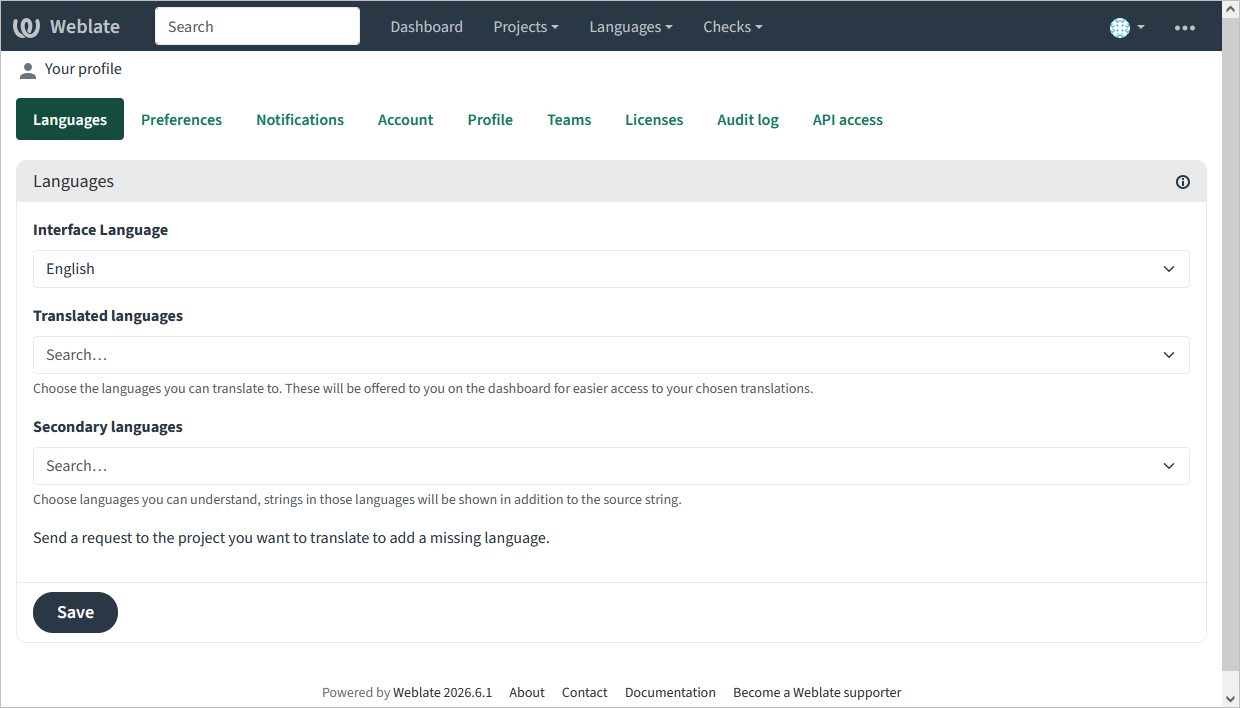
New accounts have limited access at first: you can suggest translations, and our team reviews them. Extended permissions are granted to active contributors over time.
Step 2. Choose what to translate
- Go to Projects > Browse all projects and choose the project you want to work on. You can also go straight to the list of projects.
- Select your language and a component. A component is a group of related strings, for example, a part of the product interface.
- Open Untranslated strings to start with strings that have no translation yet, or Unfinished strings to also include translations that still need work.
- To find a specific string or term, use the search field. Weblate shows examples of search queries you can use.
If your language is not on the list, contact us at documentation@onlyoffice.com.
Step 3. Translate strings
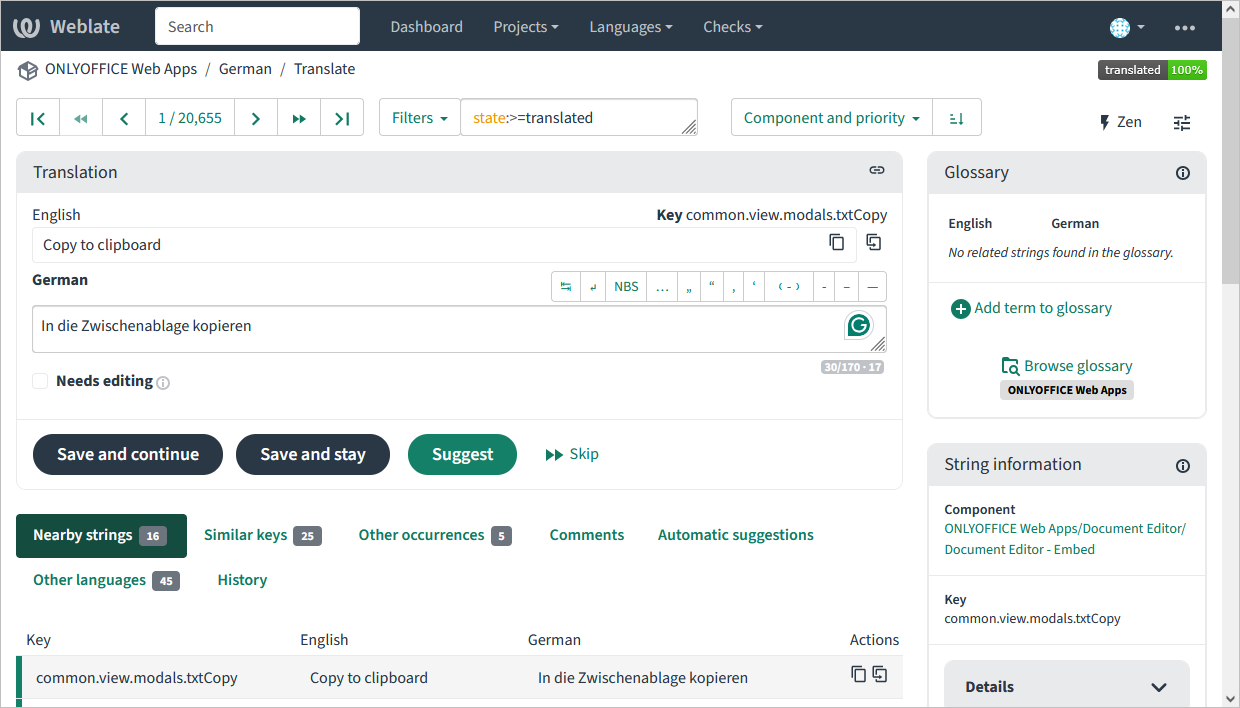
- Read the source text together with any explanation, screenshot, nearby strings, and glossary terms shown in the editor. Short strings can have several meanings — if the context is unclear, ask in the Comments tab.
- Open the Automatic suggestions tab, if available, to see machine translation and translation memory suggestions. You can copy a suggestion and edit it.
- Enter your translation. Write naturally for your language and follow the project terminology. Keep placeholders (for example,
%1or{0}) and markup tags exactly as they are in the source text. - Choose one of the following actions:
- Save and continue: save your translation and open the next string. Use Save and stay to remain on the current string.
- Needs editing: mark a saved translation that still needs work. Clear this mark once the translation is final.
- Suggest: propose a translation for review without replacing the current one.
- Skip: move on without saving. You can return to the string later.
The available actions depend on your permissions. If your account has limited access, only Suggest and Skip are available. Saved translations do not appear in the product immediately — they are reviewed and included in one of the upcoming releases.
Step 4. Check your work
- If Weblate shows failing quality checks for a string, open the check description and fix the problem. Passing all checks does not guarantee that the meaning is correct, so reread your translation.
- Review machine translation and translation memory suggestions as carefully as your own text.
- If you find a mistake in the original English text, leave a comment on the source string.
To return to your work easily, watch the projects you translate and set up notifications in your profile settings. Your dashboard shows the watched translations in your languages.
Translating on request
To translate the Apps, connector, or iOS app interface, or plugins, submit your request at documentation@onlyoffice.com and specify:
- the language you wish to translate into,
- the product you want to translate.
Our team will reply as soon as possible and send you everything you need to get started.
Recommended software
Depending on the material, you will receive files in various formats, for example, .docx or .xliff. We recommend using the following software:
- ONLYOFFICE Document Editor (for
.docx) - Poedit (for
.xliff) — a lightweight editor that is easy to learn and works well for short interface strings - or simply use Notepad++.
Contribution rewards
Since any hard work should be rewarded, by contributing to the ONLYOFFICE project you can get:
- a free ONLYOFFICE cloud with no user limitations and 2 GB of storage;
- a discount for ONLYOFFICE self-hosted solutions;
- free ONLYOFFICE Home Server.