Searching for content on the portal
You always need to find something after signing in to your portal, be it a specific task or a blog post. ONLYOFFICE Workspace offers you a number of search options that will help you achieve your goal as quickly as possible. They are:
- the search bar,
- the filter bar,
- the sorting function.
Search Bar
It can be accessed by clicking the  icon in the upper-right corner.
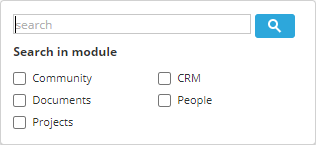
Once you click it, you will see a search bar and the Search in module section. If you know which module your item could be found in, select the corresponding checkbox (or multiple checkboxes), then enter a keyword or word combination into the search bar and press the Enter key. The search will be performed within the selected modules.
If you want to search through all the portal content, leave all the checkboxes unselected, enter a keyword or word combination into the search bar, and press the Enter key. If the Full-Text Search feature is enabled in the Control Panel or your SaaS service plan stipulates the Full-Text Search feature, keywords will be searched not only in the names of documents, emails, contacts, etc., but also in their contents.
icon in the upper-right corner.
Once you click it, you will see a search bar and the Search in module section. If you know which module your item could be found in, select the corresponding checkbox (or multiple checkboxes), then enter a keyword or word combination into the search bar and press the Enter key. The search will be performed within the selected modules.
If you want to search through all the portal content, leave all the checkboxes unselected, enter a keyword or word combination into the search bar, and press the Enter key. If the Full-Text Search feature is enabled in the Control Panel or your SaaS service plan stipulates the Full-Text Search feature, keywords will be searched not only in the names of documents, emails, contacts, etc., but also in their contents.
To facilitate the search process, use the query examples described below:
- Use the * symbol to replace multiple characters in the query. For instance, if you want to find all the words beginning with A, use the A* query.
- Use the ? symbol to replace one character in a query if you are not sure of the correct spelling of a word, for example, solu?ion.
Filter Bar

This filter bar is available in the following portal modules: Documents, Projects, CRM, People, Mail, and Feed.
It helps you find the document, contact, task, etc. you need by entering a keyword and simultaneously using multiple filter parameters at once.
Click the  icon for a hint to improve your filter query performance.
- use the question mark ? to perform a single character wildcard search and to replace one character in a query. For example, when you use the Sm?th query, it will return results for Smith and Smyth.
- use the asterisk * to perform the multiple-character wildcard search. For example, to search for all the words beginning with O, use the O* query.
- use the double quotes "" to focus the results on words that appear as an exact phrase.
- use the tilde ~ at the end of the word to search for words similar in spelling.
The filters that you can apply in each of the modules are the following:
- Documents. Type: Folders, Documents, Presentations, Spreadsheets, Images, Media, Archives, All files; Author: Users, Groups; Search: In content (with Full-Text Search feature enabled only), No subfolders.
- Projects. Responsible: Me, Other users, Groups, No responsible; Milestone: Milestones with My Tasks, No milestone, Other milestones; Creator: Me, Other users; Status: Open, Closed; Project: My projects, Other projects, With tag, Without tag; Due date: Overdue, Today, Upcoming, Custom period.
- CRM. Manager: My, No contact manager, Custom; Accessibility: Public, Restricted; Creation date: Last month, Yesterday, Today, This month, Custom; Show: Companies, Persons, With opportunities; Other: Temperature level, Contact Type, With tag.
- Mail. Status: Unread, Read; By period: Last week, Yesterday, Today, Custom period; Other: Important, With attachments, From sender, To mail address, With tag, With calendar.
- People. Email: Active, Pending; Type: Administrator, User, Guest; Other: Group.
- Feed. Module: Community, Projects, Documents; Period: Today, Current week, Current month, Custom period; User: Other users.
If you want to clear one of the filter parameters, click the cross icon next to the parameter you need.
If you want to clear all the filter parameters, click the  icon.
icon.
Sorting function
Sorting allows you to arrange files, documents, tasks, portal users, etc. in ascending or descending order according to the specified criteria.
The Sort by option is located to the right of the search bar. To change the sorting criteria, click Sort by and select the option that suits you.
Each portal module has its own sorting options:
- Documents: Last modified date, Creation date, Title, Type, Size, Author.
- Projects: Due date, Priority, Creation date, Start Date, Title, Order.
- CRM: Title, Temperature level, Creation date, History.
- Mail: Date.
- People: First name, Last name.
Click the
 icon to arrange the contents in ascending or descending order.