Navigating faster using Full-Text Search feature
Introduction
The Full-Text Search feature provided by the Control Panel allows you to search for the necessary string not only among the names of documents, emails, etc. but also within their content.
ONLYOFFICE uses Elasticsearch, an open-source, broadly-distributable, and ready-scalable search engine. Elasticsearch is built on top of Lucene, a free and open-source search engine software library, and, therefore, it is excellent for fast full-text search. The documents stored in Elasticsearch are distributed across different containers known as shards, which are duplicated to provide redundant copies of the data in case of hardware failure.
Using Elasticsearch not only significantly reduces the time spent searching for a particular file or a text line but also enhances the search precision.
Enabling the Full-Text Search feature
To enable the full-text search within document contents:
- Sign in to your portal and click the Control Panel icon on the Start Page. Alternatively, you can go to the portal Settings and select the Control Panel link in the left-side panel.
- Go to the Full-Text Search section.
- Select the Search in documents content and/or Search in mail messages content checkbox to enable the full-text search in the Documents module or in the Mail module, respectively, and click Save. The stored files will be indexed in the corresponding modules.
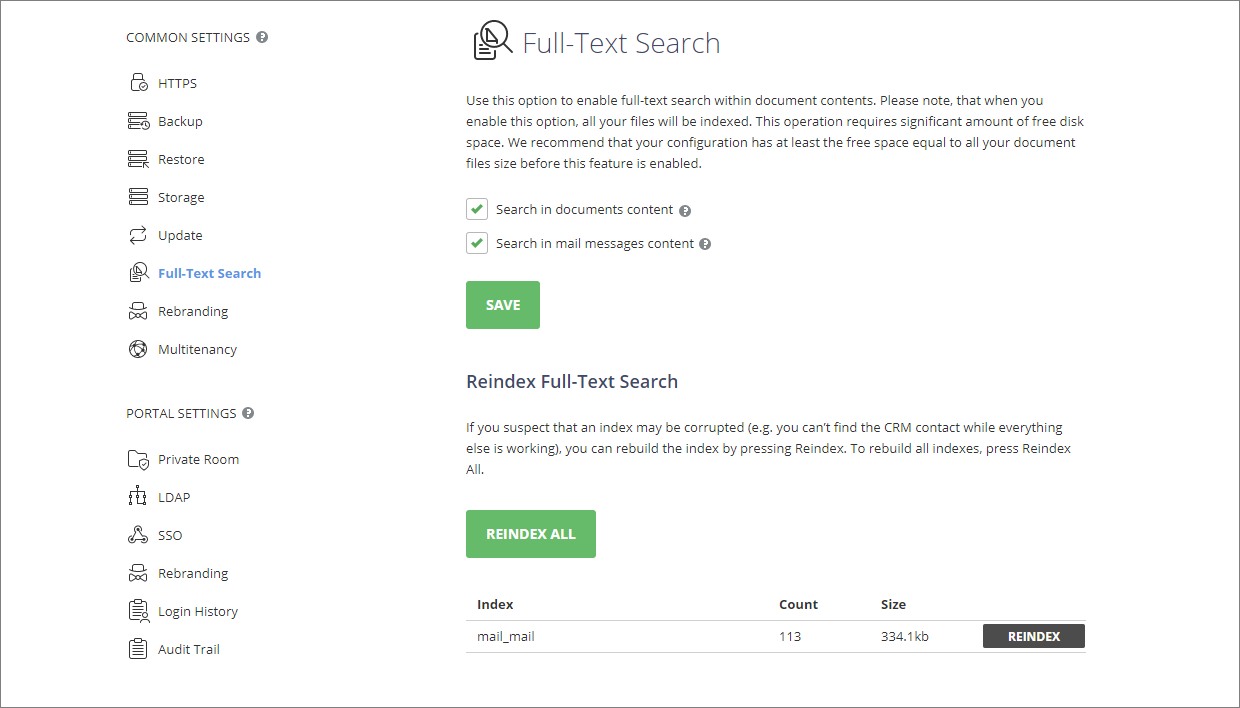
Reindex Full-Text Search
If the file you are looking for is not among the search results (e.g., in the Documents module), and you are sure that it exists, an indexing error might have occurred.
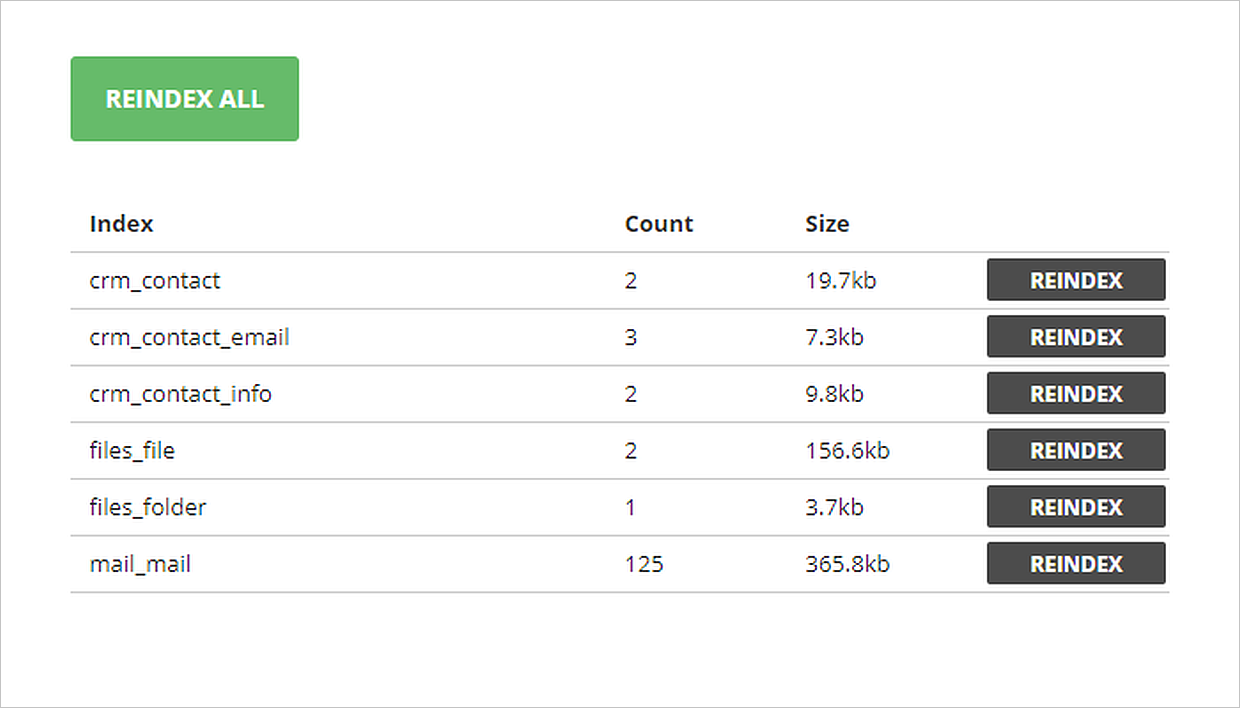
To rebuild indexes in a separately selected portal module:
- Go to the Full-Text Search section in the Control Panel.
- Click Reindex to the right of the module section you need.
To rebuild all indexes:
- Go to the Full-Text Search section in the Control Panel.
- Click Reindex all.
Changing the memory consumed by Elasticsearch
In some cases, you might need to change the amount of memory consumed by Elasticsearch.
To change the consumed memory:
- Open the configuration file:
- For Windows systems:
C:\ProgramData\Elastic\Elasticsearch\config\jvm.options - For Linux systems:
/etc/elasticsearch/jvm.options
- For Windows systems:
- Change the following parameters:
-Xms1g-Xmx1g
The number indicates the amount of used RAM in GB.
- After changing the configuration file, restart the
elasticsearchservice.