Configuring report types
This article describes how to obtain detailed status information for all projects using the Reports feature. Reports provide extensive and detailed information in a convenient format — in a .xlsx file, which can be opened in the Spreadsheet Editor.
There are many different settings and parameters available for generating a report. This guide explains how to generate reports in the appropriate format.
Access the Projects
Sign in to your portal and click Projects.


If you are already signed in, access the Projects module from the drop-down list in the top-left corner of the page and select the corresponding option.
Configure the Report
Click the Reports link on the left-side panel. A new page opens with the list of all generated reports. If you have not created reports before, this list will be empty.

Select a report type from the Reports and configure the available parameters: list and configure the available parametrs:
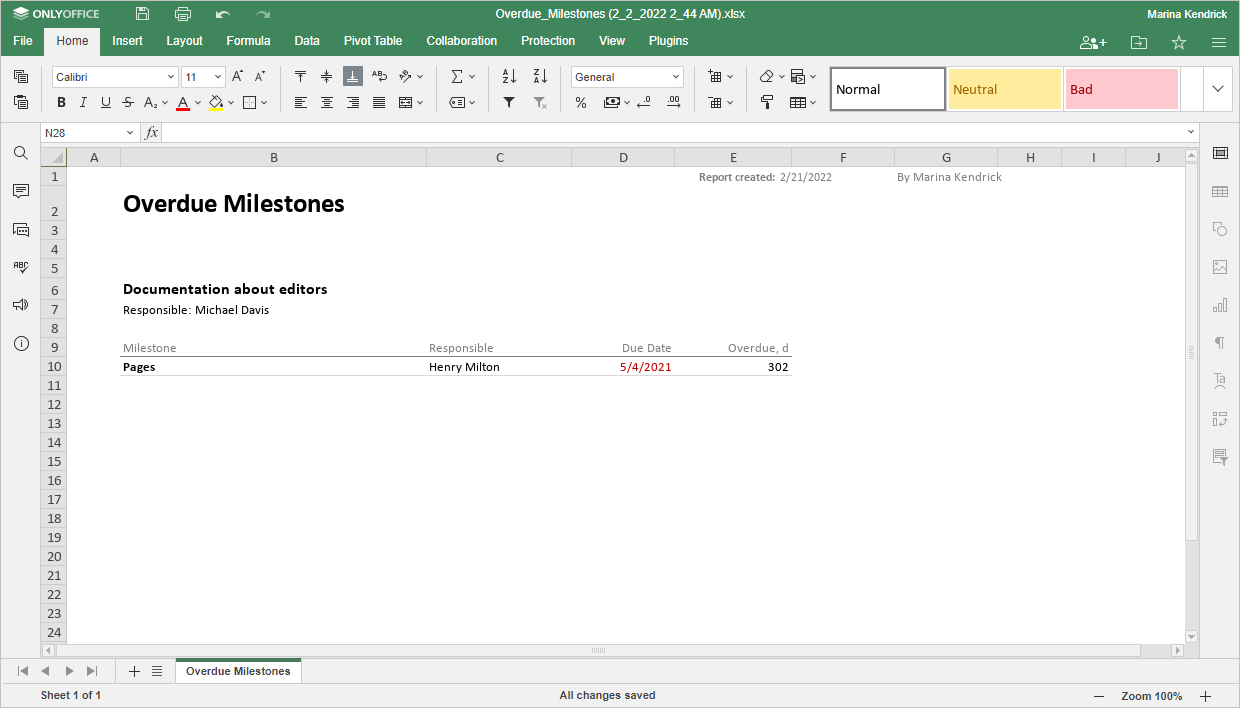
- Overdue Milestones (Tags, Project) - to display a list of overdue milestones.
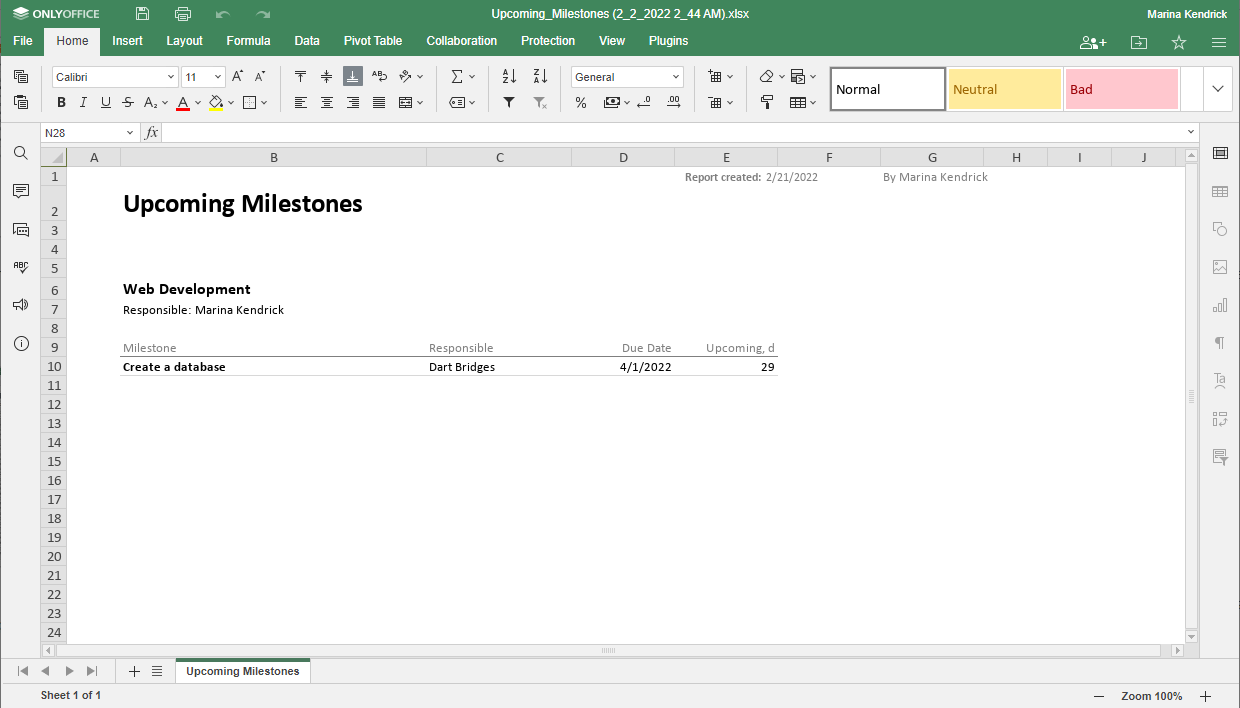
- Upcoming Milestones (Tags, Project, Time Period) - to display a list of upcoming milestones.
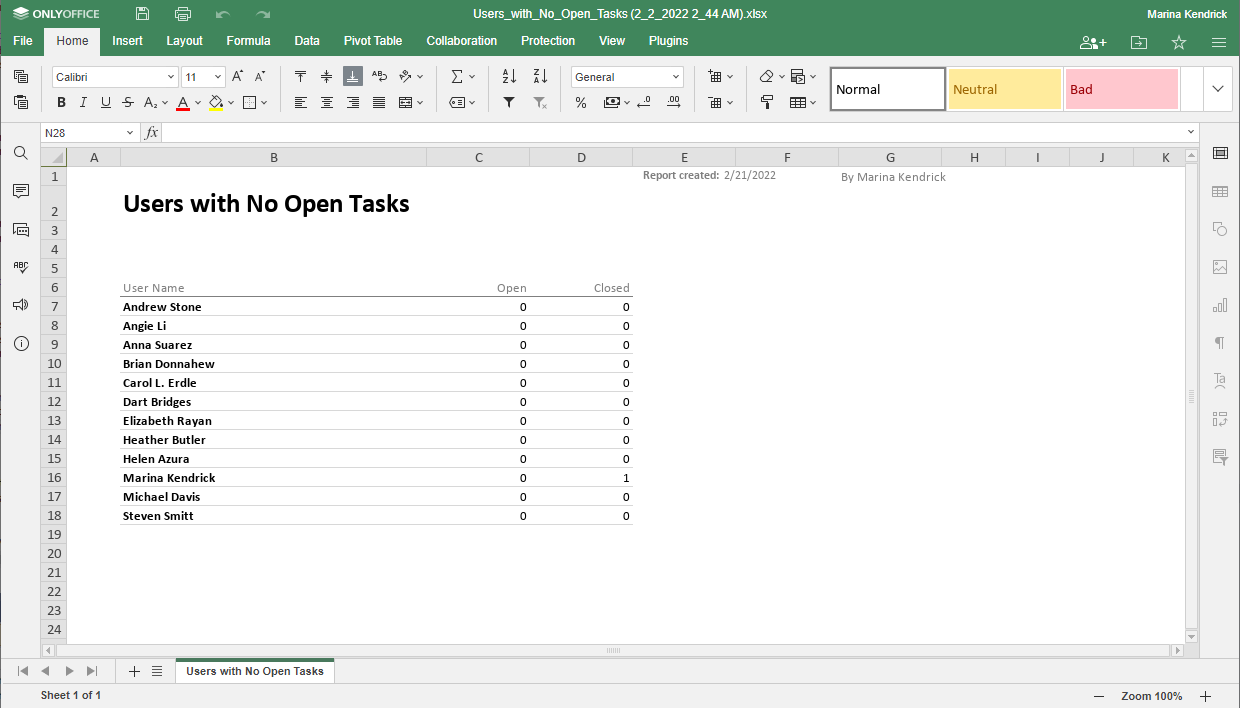
- Users with No Open Tasks (View by group, View by project) - to display a list of the users who have no open tasks at the moment.
- Projects with No Open Milestones (View by group, View by user) - to display a list of projects with no open milestones attached.
- Projects with No Open Tasks (View by group, View by user) - to display a list of projects with no open tasks assigned.
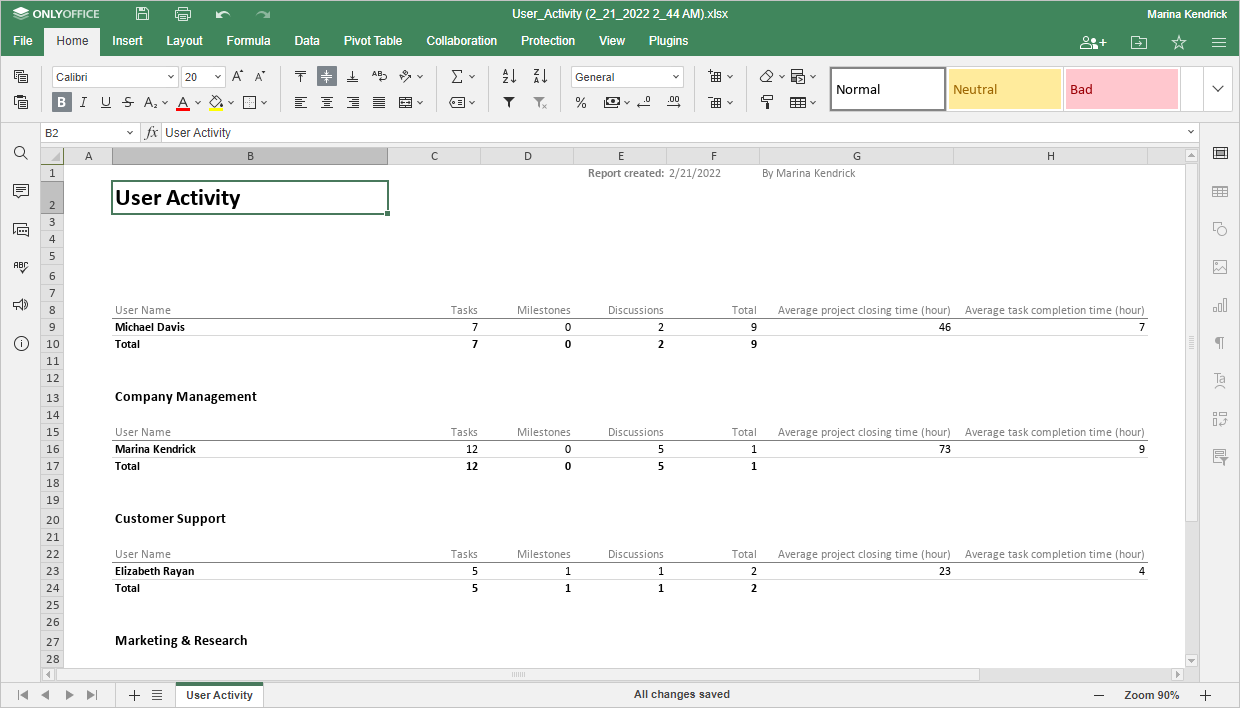
- User Activity - to display all the actions of a particular user within Projects for a given time period:
- View by group (View by group, View by user, Time period, Show average time).
- View by project (Tags, Project, View by user, Time period, Show average time on completing tasks).
- Workload - to display the number of tasks assigned to a user, grouped according to their status:
- View by group (View by group, View by user).
- View by project (Tags, Project, View by user).

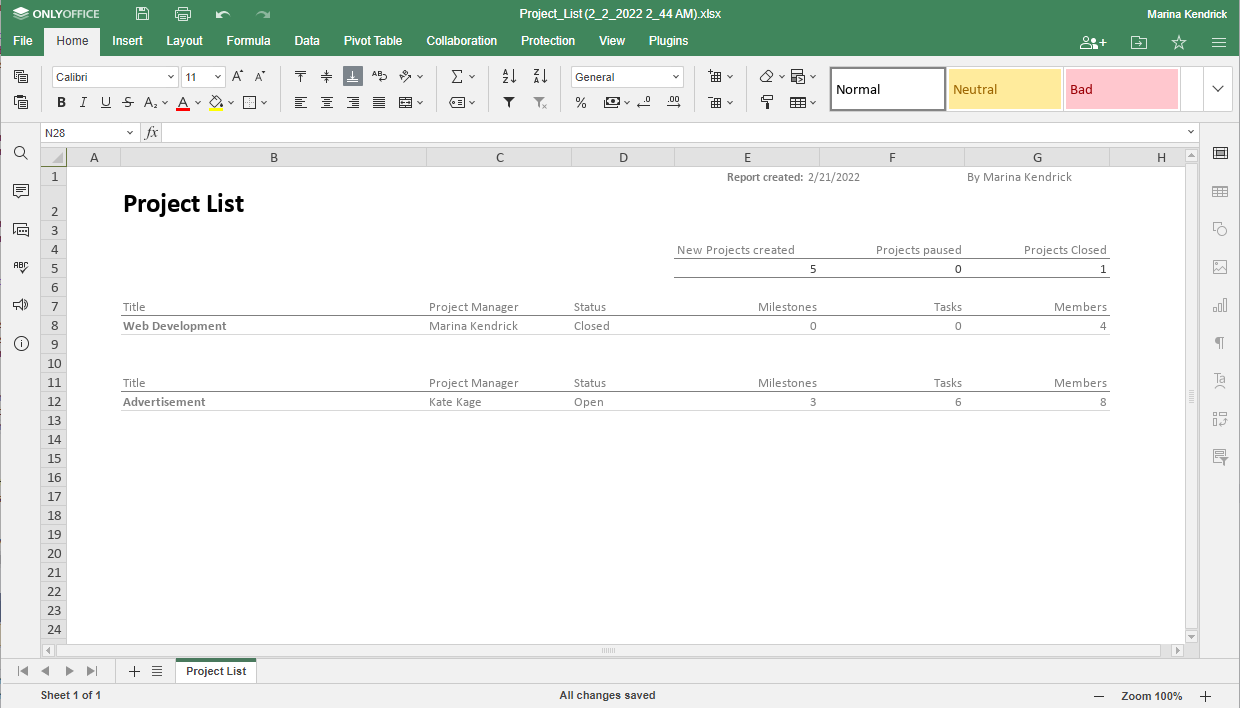
- Project List (View by group, View by user, Time period, Show closed projects) - to display a project list for a specific user or group for a specific period of time.
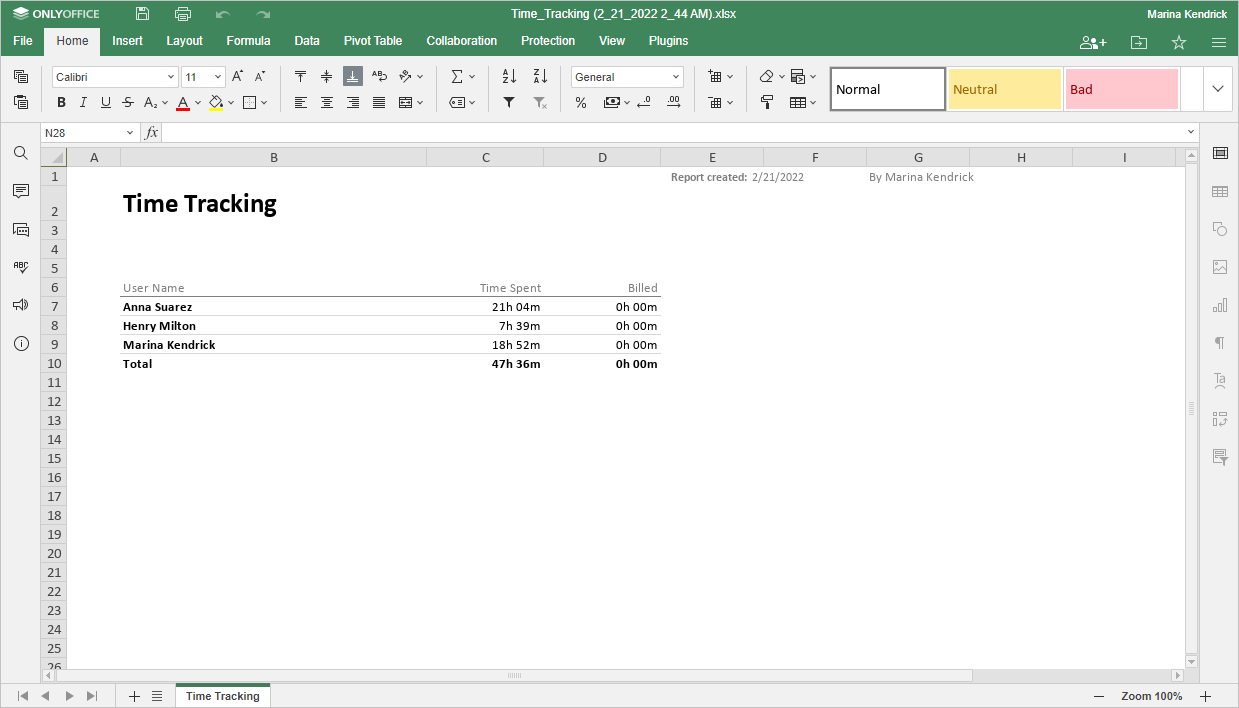
- Time Tracking - to display a list of users with their total work time calculated based on a time register:
- View by user (View by group, View by user, Payment statuses, Time period).
- View by user tasks (View by group, View by user, Payment statuses, Time period).
- View by project (View by group, View by user, Payment statuses, Time period).
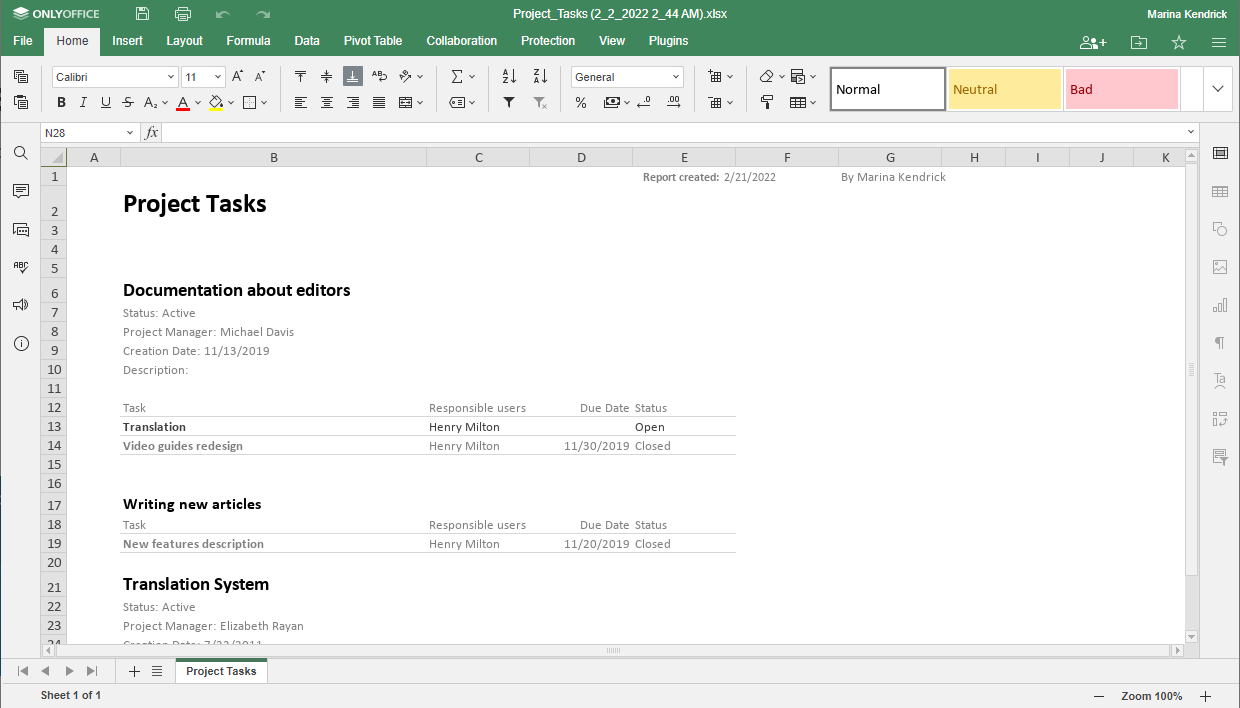
- Project Tasks (Tags, Project, View by user, Creation date, Show tasks, Show tasks without responsible) - to display a list of tasks grouped according to the project and milestone they are attached to.
- User Tasks (View by group, View by user, Creation Date, Show tasks) - to display the list of tasks grouped according to the user they are assigned to.

- Overdue Tasks (Tags, Project) - to display a list of overdue tasks.

Once all settitngs have been configured, click Generate Report.
A status window will appear in the bottom-right corner showing the generated reports. You can then open them in the Spreadsheet Editor by clicking Open.
To simplify the work with reports, you can use Report templates. This allows you to automatically create reports and email them. For further information, refer to this page.