Apply font decoration styles
To apply the formatting to the text, select it and open the text and paragraph settings panel by:
- tapping the
 icon at the top toolbar, or
 - tapping the Edit option in the pop-up menu,
On the Text tab, use one of the available settings. Use the  Back icon on the left to return to the previous settings section.
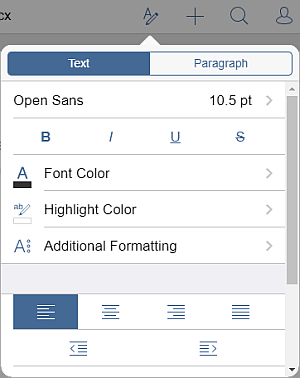
 Bold - tap this icon to make the font bold, giving it more weight.
 Italic - tap this icon to make the font italicized, giving it some right side tilt.
 Underline - tap this icon to make the text underlined, with the line going under the letters.
 Strikethrough - tap this icon to make the text struck out, with the line going through the letters.
Tap the Additional formatting option. Use one of the following options:
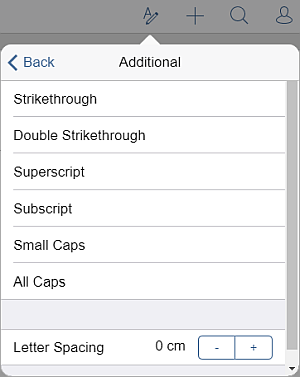
- Strikethrough is used to make the text struck out, with the line going through the letters.
- Double Strikethrough is used to make the text struck out, with the double line going through the letters.
- Superscript is used to make the text smaller and place it to the upper part of the text line, e.g., as in fractions.
- Subscript is used to make the text smaller and place it to the lower part of the text line, e.g., as in chemical formulas.
- Small Caps is used to make all letters lower case.
- All Caps is used to make all letters upper case.
- Letter Spacing is used to set the space between the characters. Tap
 or
or
 icons to decrease or increase the current value.
Article with the tag:
Browse all tags