Setting language and region
Set language and region
Use these settings to control the formula language and how currency, dates, times, and numbers are displayed.
- Tap the
 Tools icon in the top toolbar to open the list of available tools and settings.
 - Tap the
 Language and Region menu item.
 - Open the list under Formula language and choose your preferred language. The default is English, with options including Bulgarian, Chinese, Spanish, Danish, Dutch, Finnish, French, and more.
- Under Regional parameters, choose how you want regional formatting handled:
- Turn the Set automatically switcher on to sync ONLYOFFICE Documents with your phone's regional settings.
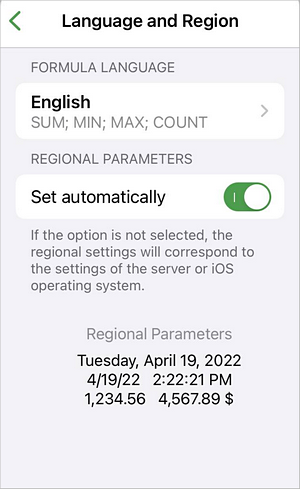
- Turn the Set automatically switcher off to set everything manually:
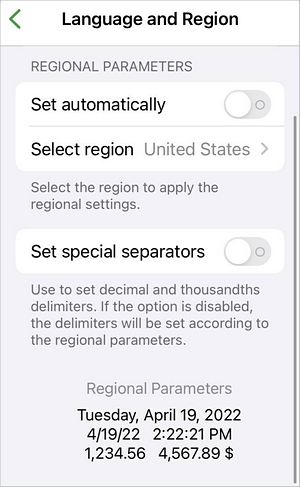
- Select region — tap to choose the display format for currency, date, time, and numbers based on a specific region.
- Set special separators — turn this switcher on to set your own Decimal separator and Thousands separator. Tap each field and enter the character you want. Leave the switcher off to use the separators that come with your selected region.
- Turn the Set automatically switcher on to sync ONLYOFFICE Documents with your phone's regional settings.
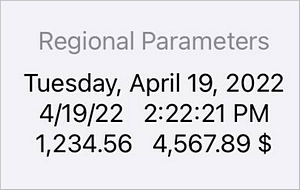
A live preview of your settings appears at the bottom of the screen so you can see how dates, times, and numbers will look before applying your changes.
Article with the tag:
Browse all tags