Inserting formulas
Insert formulas
To perform calculations, you can either enter a formula manually using standard mathematical operators or insert a predefined Function.
To insert a function:
- Select the cell where you want to insert the function.
-
Open the formula insertion panel by:
- tapping the
 Insert Function icon next to the formula bar, or
 - tapping the
 icon on the top toolbar and switching to the
  Function tab.
- tapping the
-
Select a function from one of the following sections:
- Use the Search field to find a function by name.
- Popular — includes commonly used functions such as SUM, MIN, MAX, and COUNT.
- Categories — organizes all available functions by type: Logical, Information, Lookup and Reference, Mathematical, Financial, Database, Engineering, Date and Time, Statistical, and Text and Data.
To view the function description, tap the
 icon.
icon. -
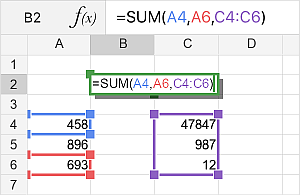
Enter the function arguments using the on-screen keyboard, or drag across cells to select a range. If the function requires multiple arguments, separate them with commas.
Generally, numeric values, logical values (TRUE, FALSE), text values (must be quoted), cell references, cell range references, and other functions can be used as function arguments.
- When editing a formula in the formula field, you can accept or reject changes using the
 button for cancelling and
  button for accepting the changes.
Article with the tag:
Browse all tags