Protecting spreadsheets with a password
Protect spreadsheets with a password
The Spreadsheet Editor offers two ways to protect your work: encrypt the entire file with a password, or protect specific parts of a workbook or sheet from edits.
Encrypt file
Encrypting a file requires anyone opening it to enter the correct password before they can view or edit its contents.
- Tap the
 Tools icon in the right corner of the top toolbar.
 - Tap the arrow next to the
 Protection menu option.
 - Tap Encrypt file.
- Enter the password and verify it.
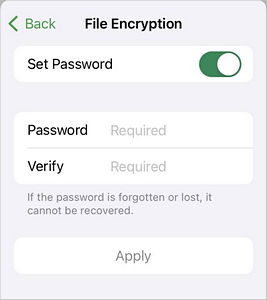 Warning The password cannot be restored. Keep it in a safe place so you don't forget it.
 - Tap Save in the upper right corner to apply the password.
Next time you open this spreadsheet, you'll need to enter the password.
To change or delete the password:
- Tap the Tools icon in the right corner of the top toolbar.
- Tap the arrow next to Protection and choose Encrypt file.
- To delete the password, disable the Set password switcher.
- To change the password, enter and verify the new one.
- Tap Save in the upper right corner.
Protect workbook
Protecting a workbook prevents structural changes — like adding, deleting, hiding, or reordering sheets — without the correct password.
- Tap the Tools icon in the right corner of the top toolbar.
- Tap the arrow next to Protection.
- Tap Protect and choose Protect workbook.
- Enter the password and verify it.
- Tap Save in the upper right corner.
Protect sheet
Protecting a sheet lets you lock specific elements while still allowing other users to perform certain actions you specify.
- Tap the Tools icon in the right corner of the top toolbar.
- Tap the arrow next to Protection.
- Tap Protect and choose Protect sheet.
- Enable the Set password switcher and enter your password.
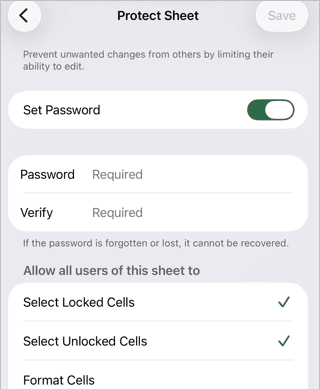
- Under Allow all users of this sheet to, enable the actions you want to permit:
- Select locked cells
- Select unlocked cells
- Format cells
- Format columns
- Format rows
- Insert columns
- Insert rows
- Insert link
- Delete columns
- Delete rows
- Sort
- Use AutoFilter
- Use PivotTable and PivotChart
- Edit Objects
- Edit Scenarios
- Tap Save in the upper right corner.
Article with the tag:
Browse all tags