Drupal

About the ONLYOFFICE and Drupal integration

Drupal is an open-source content management system used for building websites and APIs. ONLYOFFICE offers an official module to integrate ONLYOFFICE Docs with Drupal and edit office documents in your Drupal media library. You can get the ONLYOFFICE integration module either from the official Drupal website by choosing the required version, or add it with Composer, or refer to the GitHub page. The module is distributed under the GNU General Public License v.2.0.

To learn more about how the ONLYOFFICE connector for Drupal works, please visit our API documentation page.
Main features
  • Editing and viewing text documents, spreadsheets, presentations, and PDF forms.
  • Co-editing documents in real-time: two co-editing modes (Fast and Strict), the Track Changes mode, comments, and the built-in chat.
  • JWT support to secure your traffic so that no one can have access to your documents except for the users with proper rights.
  • File preview on public pages.
Supported formats
  • For editing: DOCX, XLSX, PPTX, PDF forms.
  • For viewing only: DJVU, DOC, DOCM, DOT, DOTM, DOTX, EPUB, FB2, FODT, HTML, MHT, ODT, OTT, OXPS, PDF, RTF, TXT, XPS, XML, CSV, FODS, ODS, OTS, XLS, XLSM, XLT, XLTM, XLTX, FODP, ODP, OTP, POT, POTM, POTX, PPS, PPSM, PPSX, PPT, PPTM.

Connecting ONLYOFFICE Docs to Drupal

Requirements

Installing the ONLYOFFICE integration module for Drupal

There are two ways to install the ONLYOFFICE integration module for Drupal, either through the Drupal user interface or using Composer.

Installing through the Drupal user interface
  1. On the Admin toolbar project page on drupal.org, scroll to the Releases section at the bottom of the page. Click the View all releases link.
  2. Choose the required version from the list.
  3. Copy the address of the tar.gz link. Depending on your device and browser, you might do this by right-clicking and selecting Copy link address.
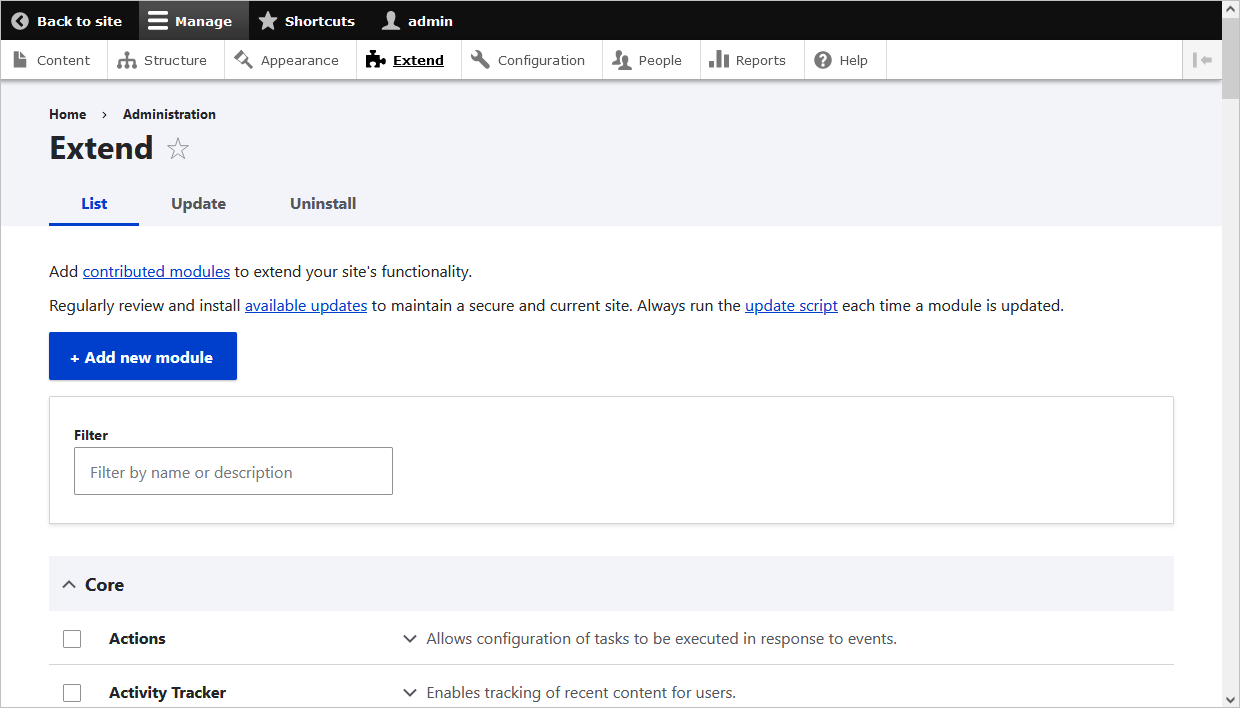
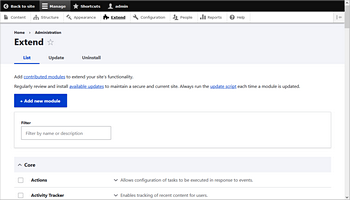
  4. In the Manage administrative menu, navigate to Extend (admin/modules). The Extend page appears.
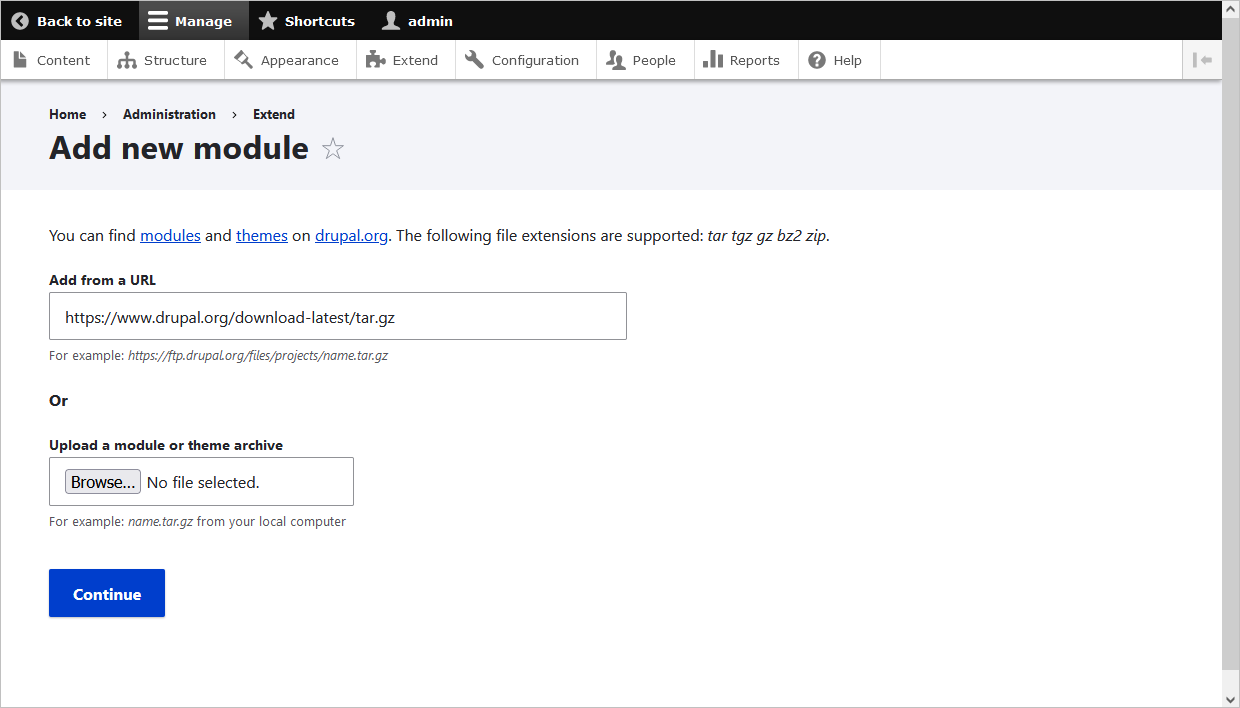
  5. Click the Add new module button. The Add new module page appears.
    ONLYOFFICE_DrupalONLYOFFICE_Drupal
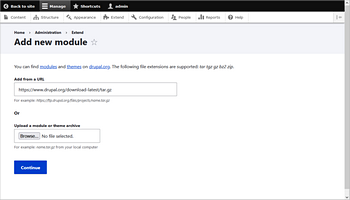
  6. Paste the copied download link into the Add from a URL field.
    ONLYOFFICE_DrupalONLYOFFICE_Drupal
  7. Click Install to upload and unpack the new module on the server. The files are downloaded to the modules directory.
  8. To apply the localization settings, please run the following commands:
    drush locale-check
    drush locale-update
New modules can no longer be uploaded through the Drupal web interface. Please refer to the following instructions for uploading modules to Drupal.
Installing through Composer

Enter the following command at the root of your Drupal site:

composer require onlyoffice/onlyoffice-drupal

If the installation directory is web/modules/contrib/drupal, please run the following commands to apply the localization settings:

drush locale-check
drush locale-update

Enabling the ONLYOFFICE integration module for Drupal

There are two ways to enable the ONLYOFFICE integration module for Drupal, either using the Drupal user interface or via command line.

Enabling the ONLYOFFICE integration module through the Drupal user interface
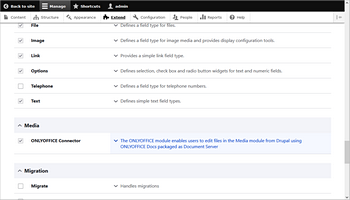
  1. Open the Extend page (admin/modules) via the Manage administrative menu.
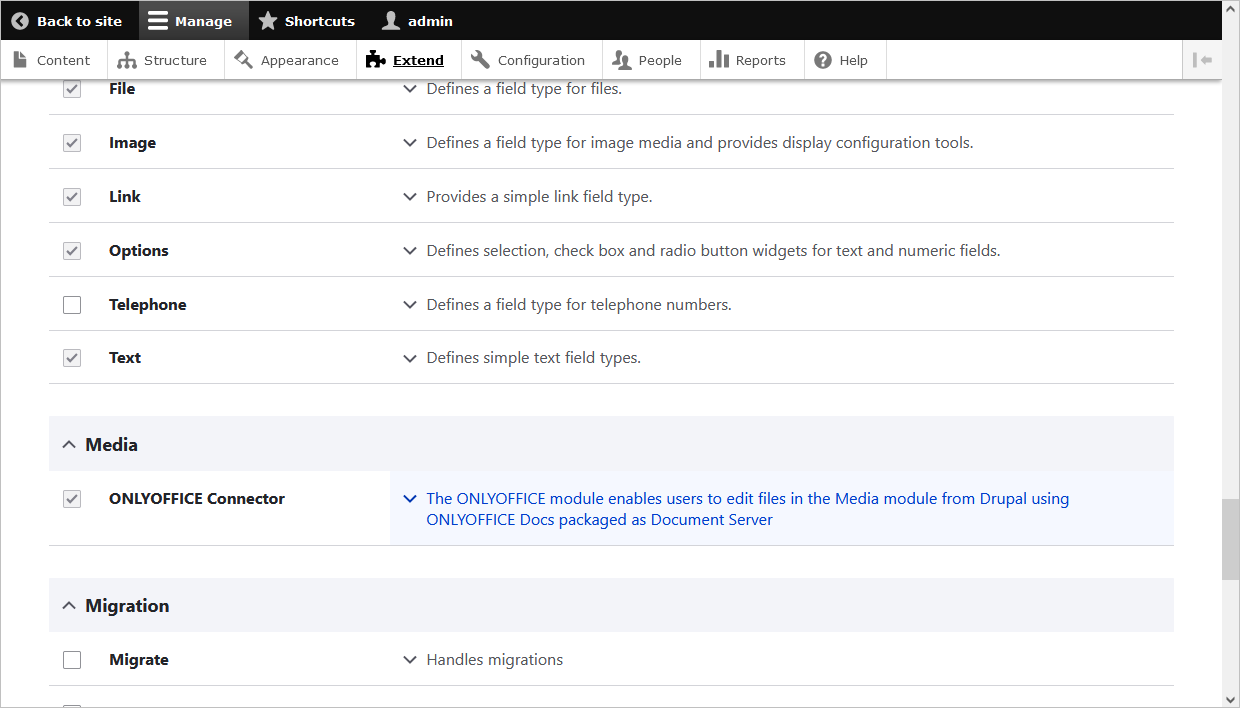
  2. Locate the ONLYOFFICE Connector module and check the corresponding box.
    ONLYOFFICE_DrupalONLYOFFICE_Drupal
  3. Click Install to enable the module.
Enabling the ONLYOFFICE integration module via command line
  1. Run the following Drush command, giving the project name as a parameter:
    drush pm:enable onlyoffice
  2. Follow the instructions of the wizard.

Configuring the ONLYOFFICE integration module for Drupal

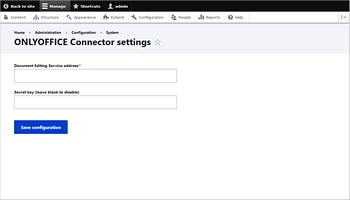
In Drupal, open the ~/config/system/onlyoffice-settings page with administrative settings for the ONLYOFFICE section. Alternatively, follow these steps:

  1. Open the Extend page (admin/modules) via the Manage administrative menu.
  2. Click the arrow in the description of the ONLYOFFICE Connector module to open a drop-down list.
  3. Choose the Configure option.
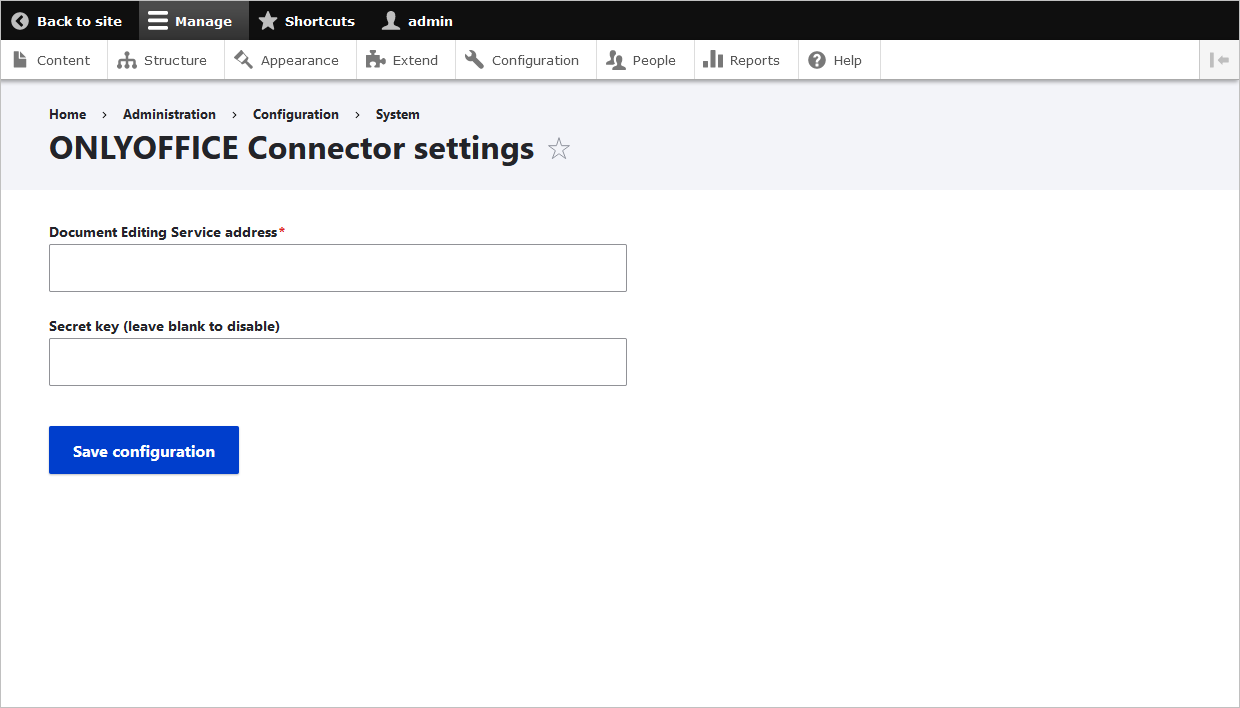
  4. Enter the address into the Document Editing Service address field to connect ONLYOFFICE Document Server:
    https://documentserver/
ONLYOFFICE_DrupalONLYOFFICE_Drupal

Where documentserver is the name of the server with the ONLYOFFICE Document Server installed. The address must be accessible for the user browser and from the Drupal server. The Drupal server address must also be accessible from ONLYOFFICE Document Server to ensure the correct operation.

To restrict access to ONLYOFFICE Document Server and for security reasons and data integrity, the encrypted signature is used. Specify the Secret key in the Drupal administrative configuration. In the ONLYOFFICE Document Server config file, specify the same secret key and enable the validation.

How it works

The user-document interaction is done both at the client side and at the server side.

The main notions used throughout the current documentation are explained below.

The client side includes:

  • Document manager - the list of the documents displayed in the user browser where the user can select the necessary document and perform some actions with it (depending on the provided rights, the user can open the document to view it or edit, share the document with other users).
  • Document editor - the document viewing and editing interface with all the most known document editing features available, used as a medium between the user and the document editing service.

The server side includes:

  • Document storage service - the server service that stores all the documents available to the users with the appropriate access rights. It provides the document IDs and links to these documents to the document manager which the user sees in the browser.
  • Document editing service - the server service that allows performing the document viewing and editing (in case the user has the appropriate rights to do that). The document editor interface is used to access all the document editing service features.
  • Document command service - the server service that allows performing additional commands with document editing service.
  • Document conversion service - the server service that allows converting the document file into the appropriate Office Open XML format (docx for text documents, xlsx for spreadsheets and pptx for presentations) for their editing or downloading.
  • Document builder service - the server service that allows building a document easily without the need to actually run a document processing editor.

Please note that ONLYOFFICE Document Server includes the document editor, document editing service, document command service, document conversion service and document builder service. The document manager and document storage service are either included in the Community Server or must be implemented by the software integrators that use ONLYOFFICE Document Server on their own server.

Enabling JWT for the ONLYOFFICE and Drupal integration

JWT, or JSON Web Token, is a string sent from client to server within the HTTP request to validate the authenticity of the client. JWT is saved on the client-side only, so the transmission between parties is protected and digitally signed.

The token is generated using the JWT (JSON Web Tokens) standard. The tokens are signed by the server's key, so the client is able to verify that the token is legitimate.

ONLYOFFICE Docs validates the token. The data from the payload is considered valid and is used instead of the corresponding data from the main parameters. If the token is invalid, the command is not executed. To learn more, please read the API Security guide.

To protect your documents with JWT in Drupal, open the ~/config/system/onlyoffice-settings page with administrative settings for the ONLYOFFICE section. Alternatively, follow these steps:

  1. Open the Extend page (admin/modules) via the Manage administrative menu.
  2. Click the arrow in the description of the ONLYOFFICE Connector module to open a drop-down list.
  3. Choose the Configure option.
  4. Enter the secret key in the Secret key field.
    ONLYOFFICE_DrupalONLYOFFICE_Drupal
  5. In the ONLYOFFICE Document Server config file, specify the same secret key and enable the validation.

Start using ONLYOFFICE Docs within Drupal

To edit the office documents in Drupal using the ONLYOFFICE Docs, upload the files to Drupal.

Uploading files to Drupal
  1. Go to Manage > Content.
  2. Click the Add content button.
  3. Click the required content type.
  4. Enter the title, language, and body, and set the text format.
  5. In the Add a new file field, click the Browse button and choose the file from your PC hard drive.
  6. Check or uncheck the Published box depending on your preferences.
  7. Click the Save button.
Viewing, editing, and managing files in Drupal
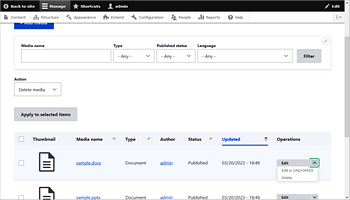
  1. Go to Manage > Content.
  2. Switch to the Media tab at the top of the screen.
  3. Find the required file in the list or use the search field at the top.
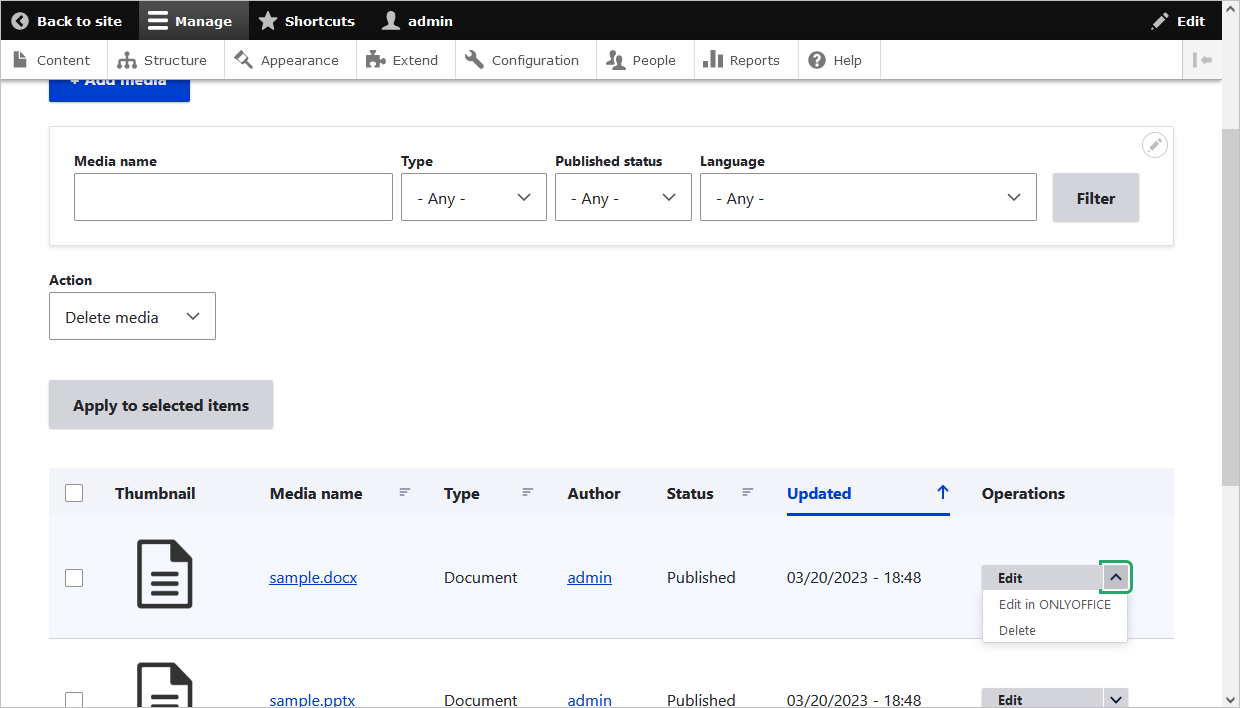
  4. Click the arrow in the Operations column to choose whether you want to Edit the file properties, Edit in ONLYOFFICE or Delete the file.
    ONLYOFFICE_DrupalONLYOFFICE_Drupal
Adding files to posts

When creating a post, you can add the new ONLYOFFICE element.

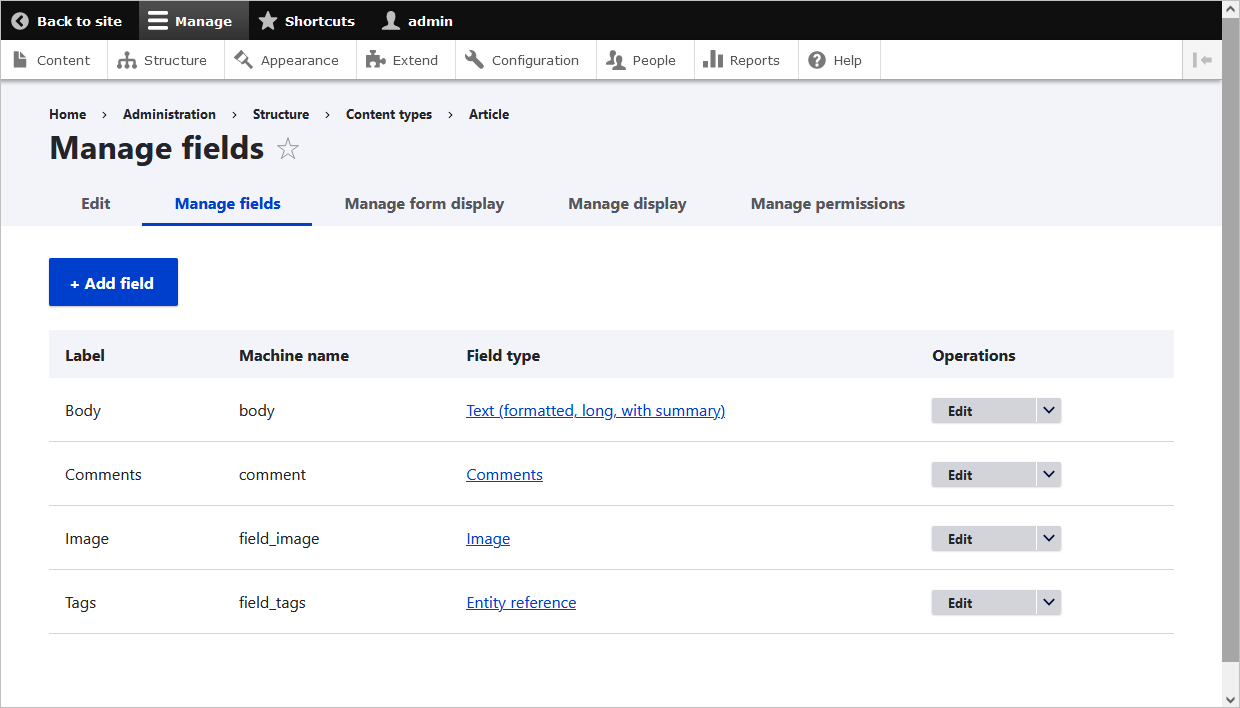
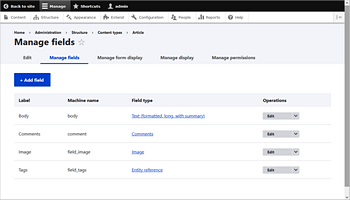
  1. Go to Structure > Content types > click Manage fields next to the required content field. On the opened page, click Add field. Add a new field: General, Number, Reference, or Text. Set the label and save.
    ONLYOFFICE_DrupalONLYOFFICE_Drupal
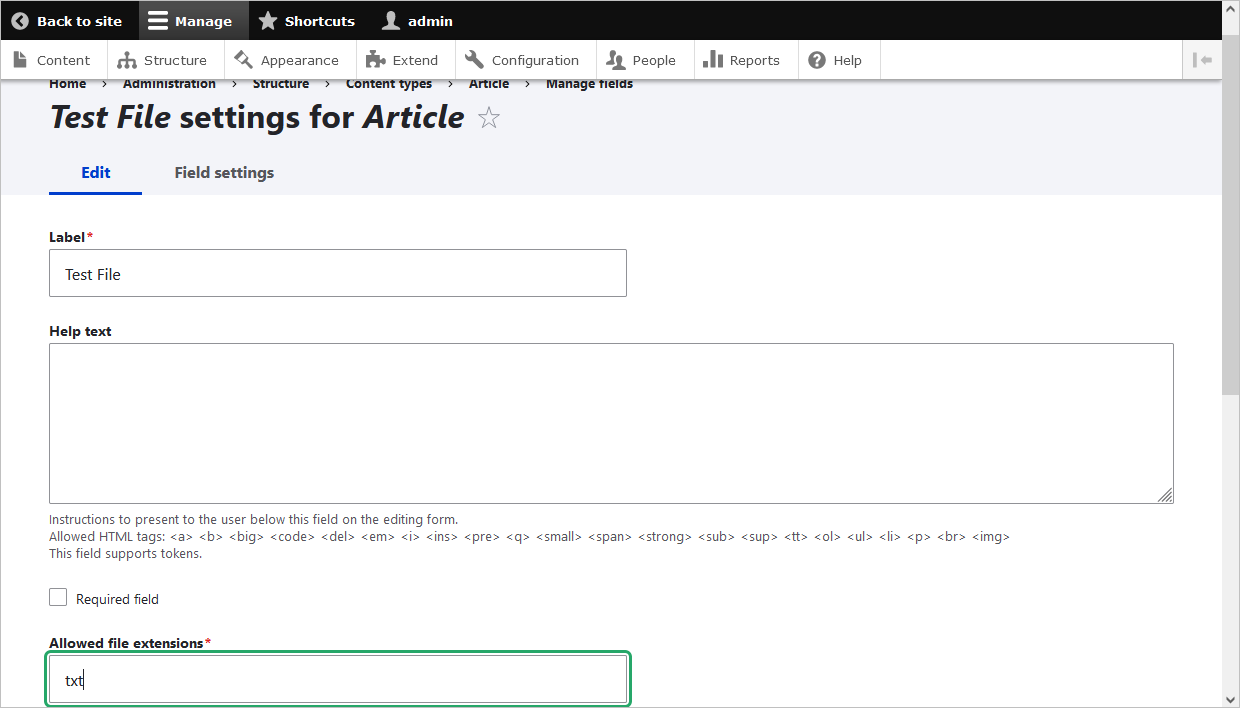
  2. For the added File field, specify the file extensions. Go to Structure > Content types > Manage fields, or stay on the opened page. In the Allowed file extensions field, specify the file formats that will be shown in the editors (docx, xlsx, pptx).
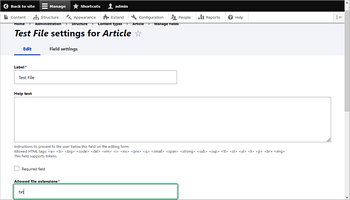
    ONLYOFFICE_DrupalONLYOFFICE_Drupal
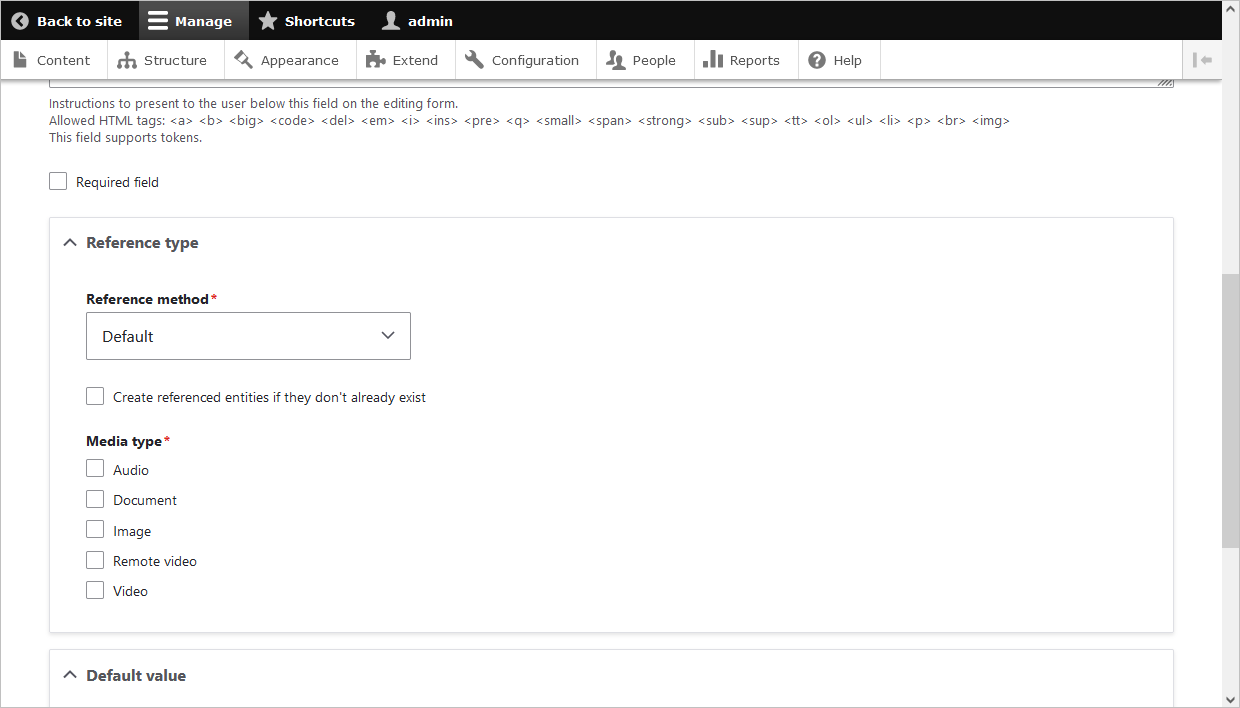
  3. For the added Media field, click the Document checkbox.
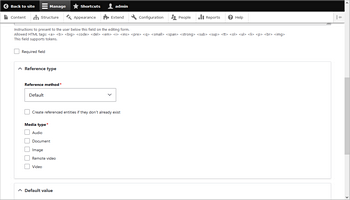
    ONLYOFFICE_DrupalONLYOFFICE_Drupal
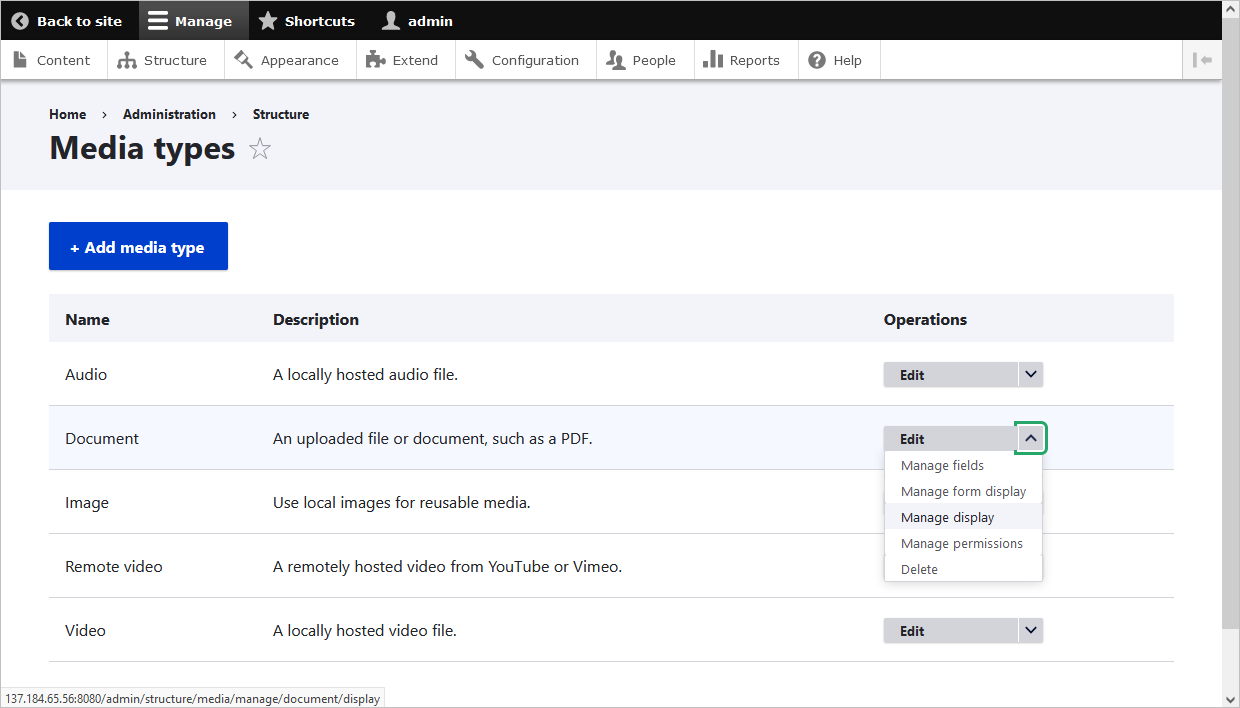
  4. Go to Structure > Media types > Document > open the drop-down list and choose the Manage display option.
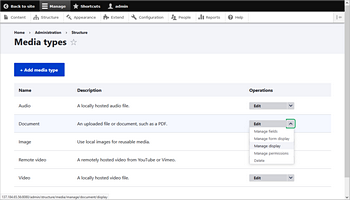
    ONLYOFFICE_DrupalONLYOFFICE_Drupal
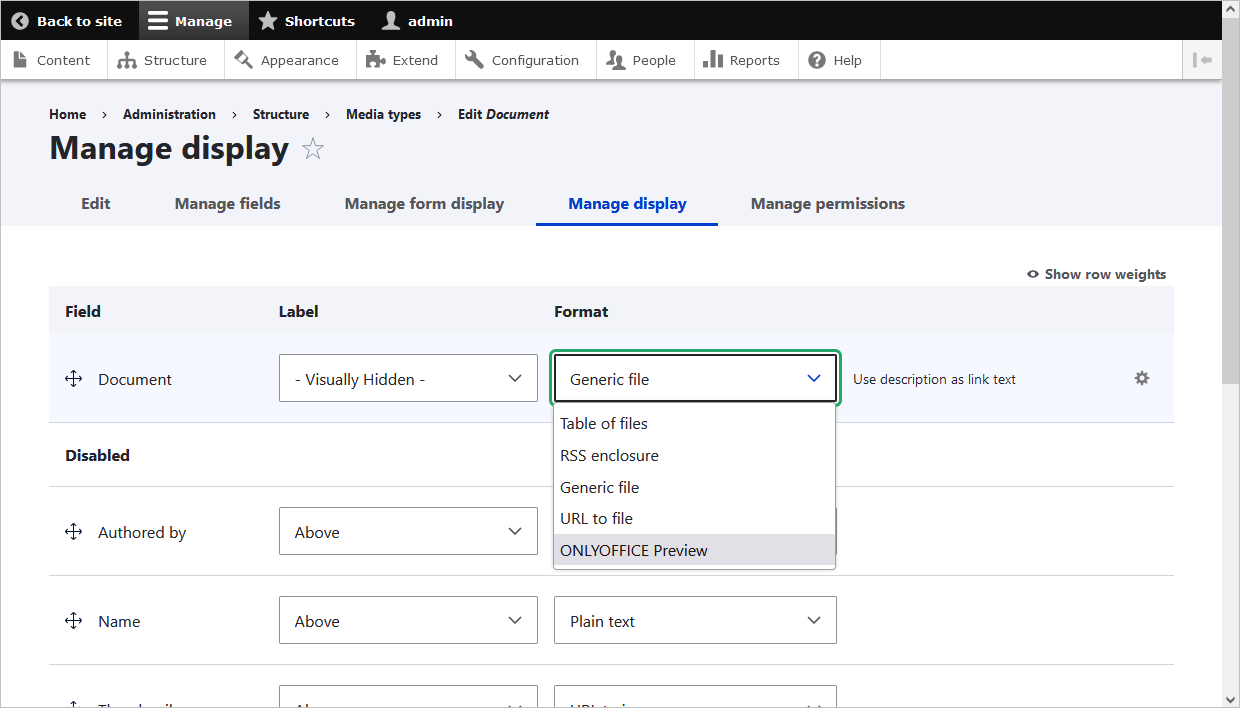
  5. For the Document field, specify the ONLYOFFICE Preview format. By clicking on the gear symbol, you can specify the dimensions of the embedded editor window.
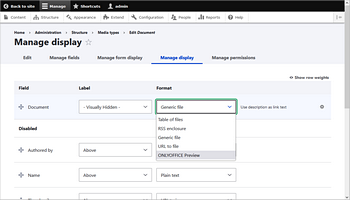
    ONLYOFFICE_DrupalONLYOFFICE_Drupal

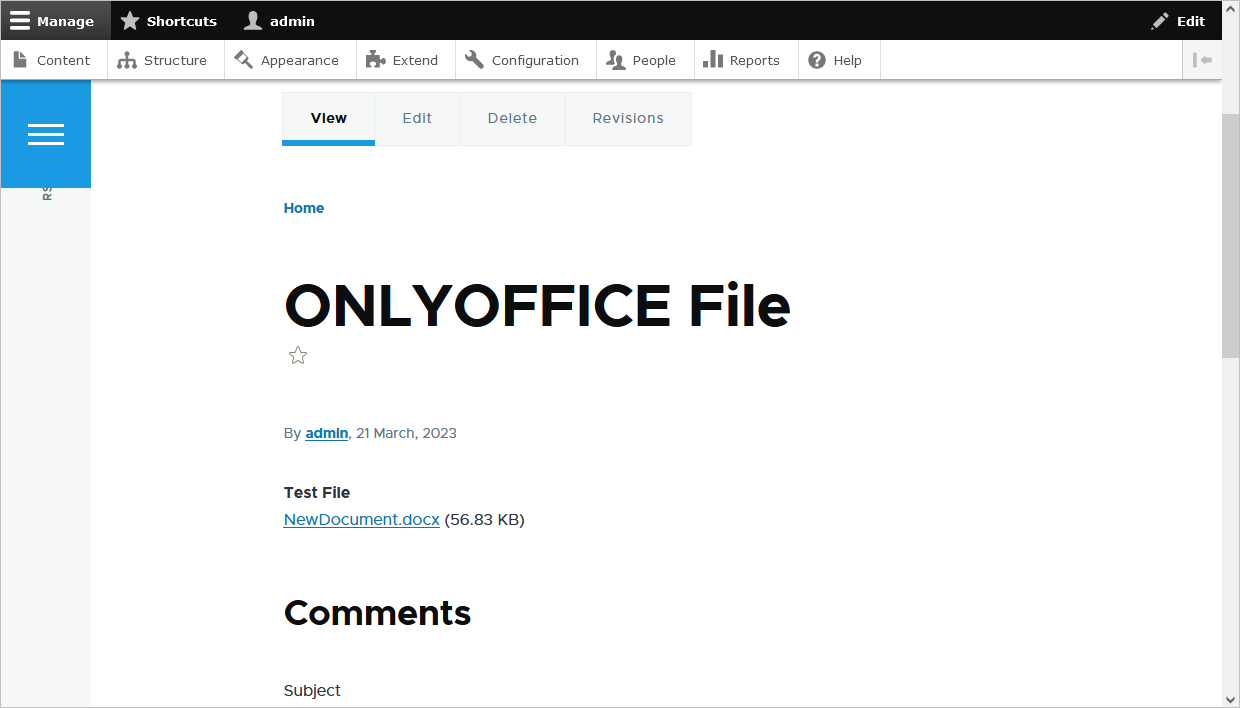
    When you are done with the pre-settings, you can create posts on the Content tab. Click on the Add content button and select the created content.
    ONLYOFFICE_DrupalONLYOFFICE_Drupal
  1. Specify a title and select a file (if the content contains File fields).
  2. For the Media section, specify the name of the previously uploaded file.
  3. Your site visitors will also be able to view the created page (People > Permissions > View published content).
Working with PDF forms
Creating/uploading a PDF form
  1. Go to ManageContentONLYOFFICE form.
  2. Click the Create&Upload button.
  3. Choose the option Blank from the Create form from drop-down menu and enter the file name into the corresponding field to create a new file.
  4. To upload an existing PDF file, choose the Upload option from the Create form from drop-down menu.
  5. The file is now available on the PDF Forms page.
Publishing a PDF form

Pre-configuration

  1. Go to ManageStructureContent type.
  2. Choose the Manage fields option near the required content type.
  3. Click the Create a new field button in the top left corner of the newly opened Manage fields page.
  4. Choose the ONLYOFFICE form option.
  5. Enter the required name into the Label field.
  6. The previously chosen in step 2 content type now has the ONLYOFFICE form type assigned to it.

Publishing

  1. Go to ManageContentContent.
  2. Click the Add content button in the top left corner.
  3. Choose the content type you've previously assigned ONLYOFFICE form type to.
  4. Enter the name of the created form into the ONLYOFFICE form field. If there is no previously created form, click the Create new ONLYOFFICE form button.
  5. Click the Save button to create a form page in Drupal.
Filling out a PDF form
  1. Fill in the form field.
  2. Click the Complete&Submit button on the top toolbar.
  3. You can download the copy of the filled out form. Click the button in the top right corner and choose whether you want to download it as a .docx or a .pdf file.

To learn more about filling out forms, please refer to the following guide.

Working with filled out forms
  1. Go to ManageContentONLYOFFICE formSubmitted forms.
  2. All filled out forms are grouped by the template name. Click on the template name to see all associated forms.
  3. You can view, download, or delete any of the forms.
To learn more about the most common problems and the ways to solve them, please visit our troubleshooting guide.

Host ONLYOFFICE Docs on your own server or use it in the cloud

Article with the tag:
Browse all tags