Pixabay: ajouter des images
The Pixabay plugin allows you to add pictures to your document from an open collection of Pixabay service that offers copyright free images.
The plugin is compatible with the self-hosted and the desktop versions of the ONLYOFFICE editors and can be added to ONLYOFFICE instances manually using the Plugin Manager.
Installation
To install the Pixabay plugin,
- Go to the Plugins tab.
- Open the Plugin Manager.
- Find
 on the marketplace and click the Install button below.
 - Click the
 Pixabay icon in the Plugins tab.
 - Proceed with the plugin configuration.
For more details, please refer to the ONLYOFFICE API documentation.
Configuration
- Log in to your Pixabay account or register a new one.
- Go to the Search Images section of the Pixabay API page.
-
Scroll down to the Parameters list and copy the link under the Key parameter. If you are not logged in, press Login next to the Key parameter.
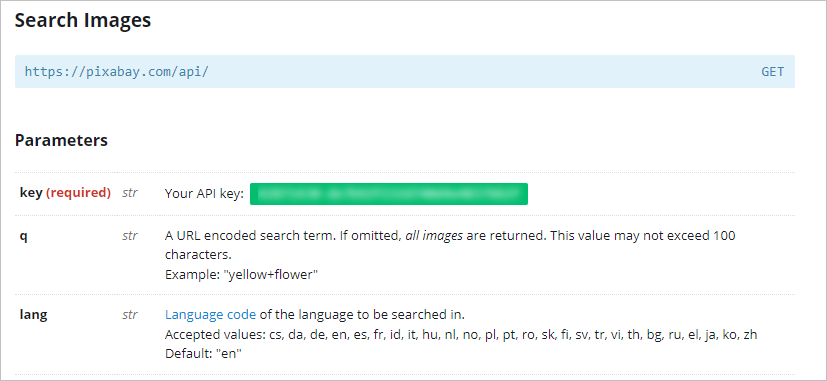
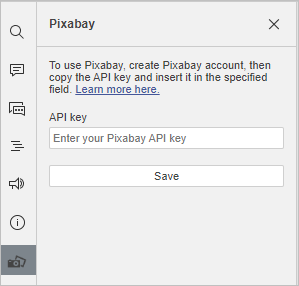
- Paste the key to the API key field on the left panel of the Plugins tab in the Document Editor.
- Click Save.
How to use
- Go to the Plugins tab.
- Click the Pixabay icon.
- On the left panel that opens, type in the keyword you associate with the image you are looking for.
-
Use the Show settings button to refine your search by Language, Image type, Orientation and Category. Click Hide settings to reduce the search section.
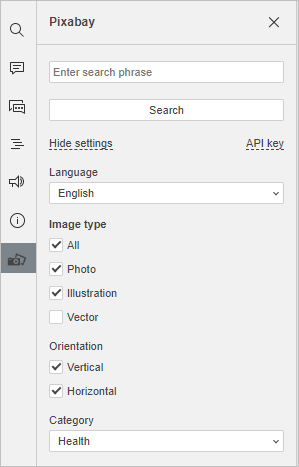
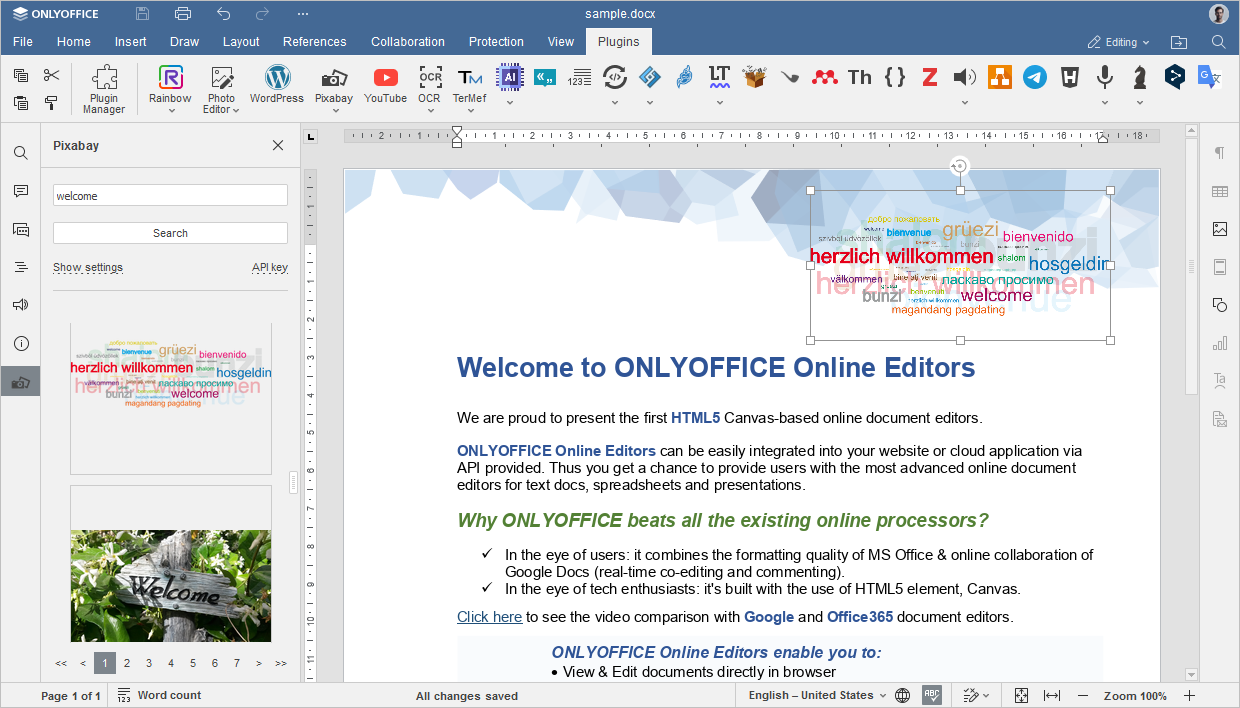
- Click Search.
- Scroll through search results and click the image to add it to your document.
Regarder la vidéo
Ajouter des images et des photos à vos documents ou diapositives avec le module complémentaire Pixabay pour ONLYOFFICE
Le module complémentaire Pixabay pour ONLYOFFICE vous donne un accès instantané à des millions d'images gratuites et de haute qualité, directement depuis vos fichiers PDF, documents texte, présentations et feuilles de calcul.
Articles avec le tag :
Parcourir tous les tags