Using the Admin Panel for ONLYOFFICE Docs
Overview
Starting from version 9.1, the ONLYOFFICE Admin Panel provides a secure web interface for managing server configuration and monitoring. This guide explains how to set up and use the authentication system.
Initial setup
By default, the Admin Panel is disabled. Follow the http://example.com/welcome page instructions to start it.
The example.com is the name of the server with the ONLYOFFICE Docs installed.
First time installation
When you start the Admin Panel for the first time, it requires an initial setup:
-
Open the Admin Panel web interface.
On the
http://example.com/welcomepage, click Admin Panel. In the dialog that appears, click Open Admin Panel. -
Create the first administrator.
The server automatically detects that no admin password is configured. A page opens with commands to create the first administrator. The first administrator can only be created from the host.
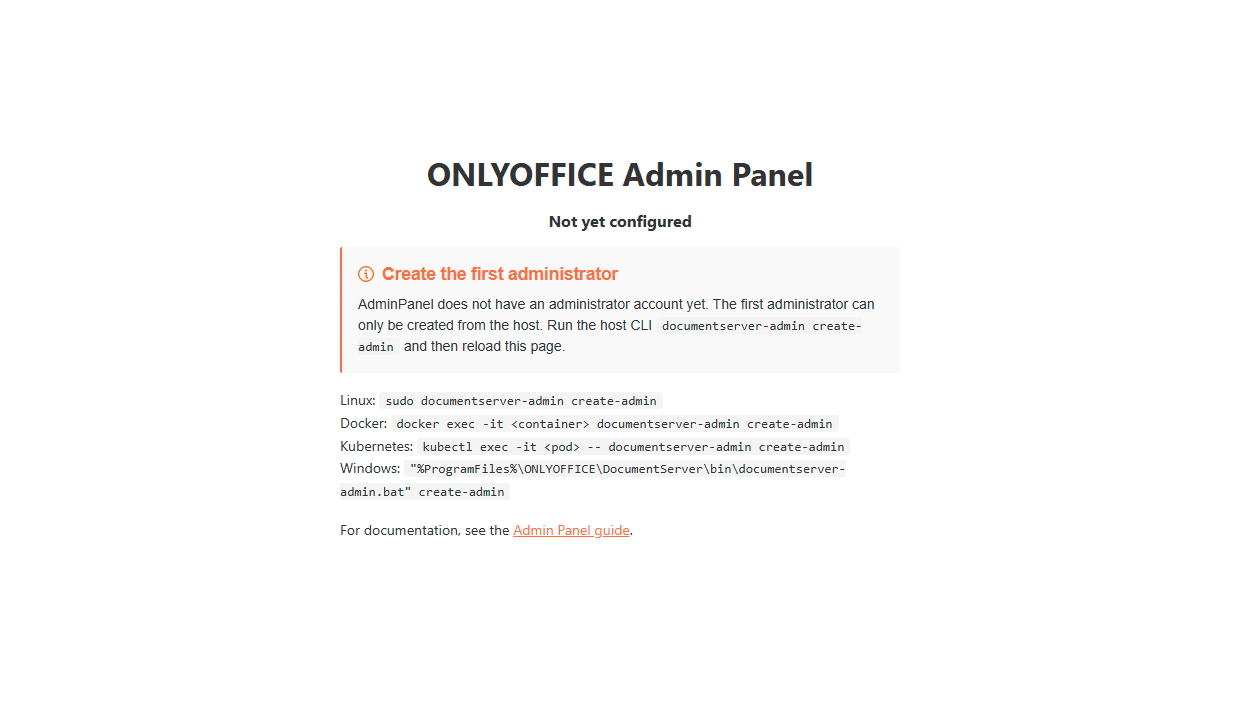
Use the command that matches your installation:
Linux:
sudo documentserver-admin create-adminDocker:
docker exec -it <container> documentserver-admin create-adminReplace
<container>with the container ID or name. To find it, rundocker ps.Kubernetes:
kubectl exec -it <pod> -- documentserver-admin create-adminReplace
<pod>with the pod name. To find it, runkubectl get pods.Windows:
"%ProgramFiles%\ONLYOFFICE\DocumentServer\bin\documentserver-admin.bat" create-adminFollow the CLI prompts to set the administrator password.
-
Reload and log in.
Reload the Admin Panel page, enter the password you created, and click Login.
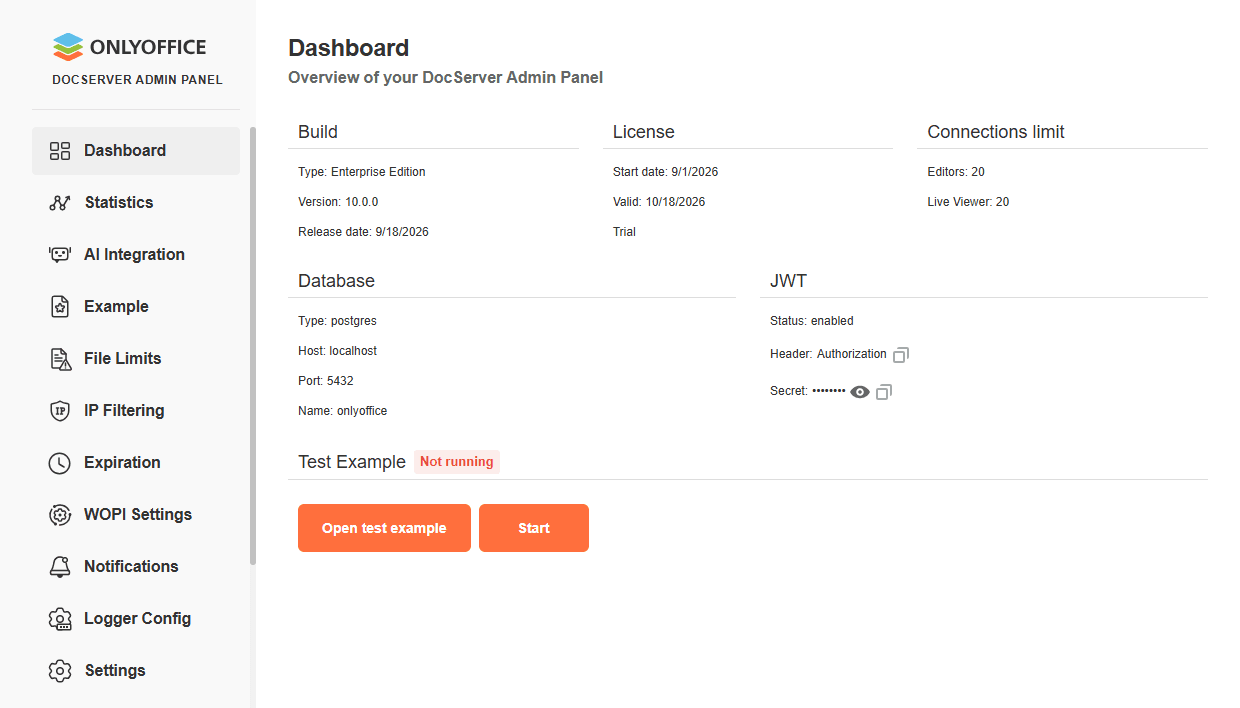
The
runtime.jsonfile will be created, which will contain the modified settings in the Admin Panel. It takes precedence over other configuration files such as local.json, default.json, production.json, etc.The
runtime.jsonfile can be found here:- For Linux -
/var/www/onlyoffice/Data/runtime.json - For Docker -
/var/www/onlyoffice/Data/runtime.json(first, enter the ONLYOFFICE Docs container using thedocker exec -it <containerid> bashcommand) -
For Windows -
%ProgramData%/ONLYOFFICE/Data/runtime.jsonBy default,
ProgramDatais a hidden folder in Windows Server, you can enable hidden items in the File Explorer options to see it.
- For Linux -
Regular login
After initial setup is complete:
- Navigate to
http://example.com/admin. - Enter your admin password.
-
Click Login.
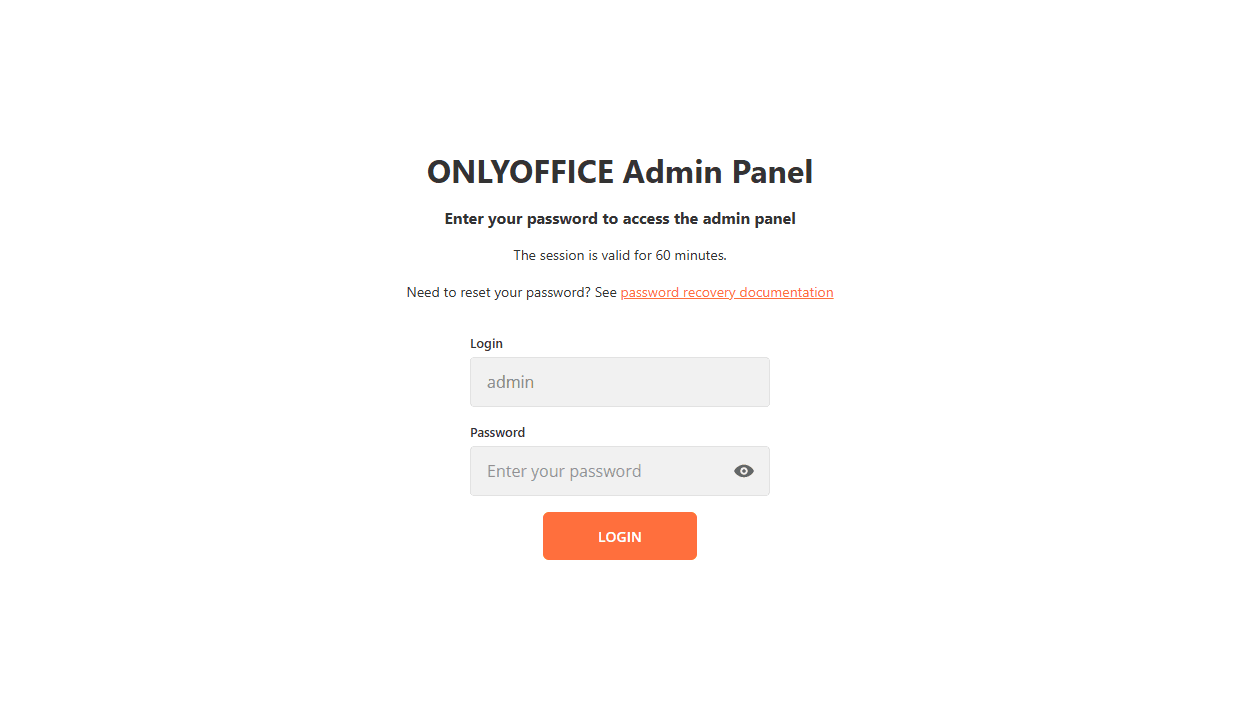
- Your session is valid for 1 hour.
Changing your password
To change your admin password:
- Log in to the Admin Panel.
- Go to the Change Password page.
- Enter your current password.
- Enter your new password.
- Confirm the new password.
- Click Save Changes.
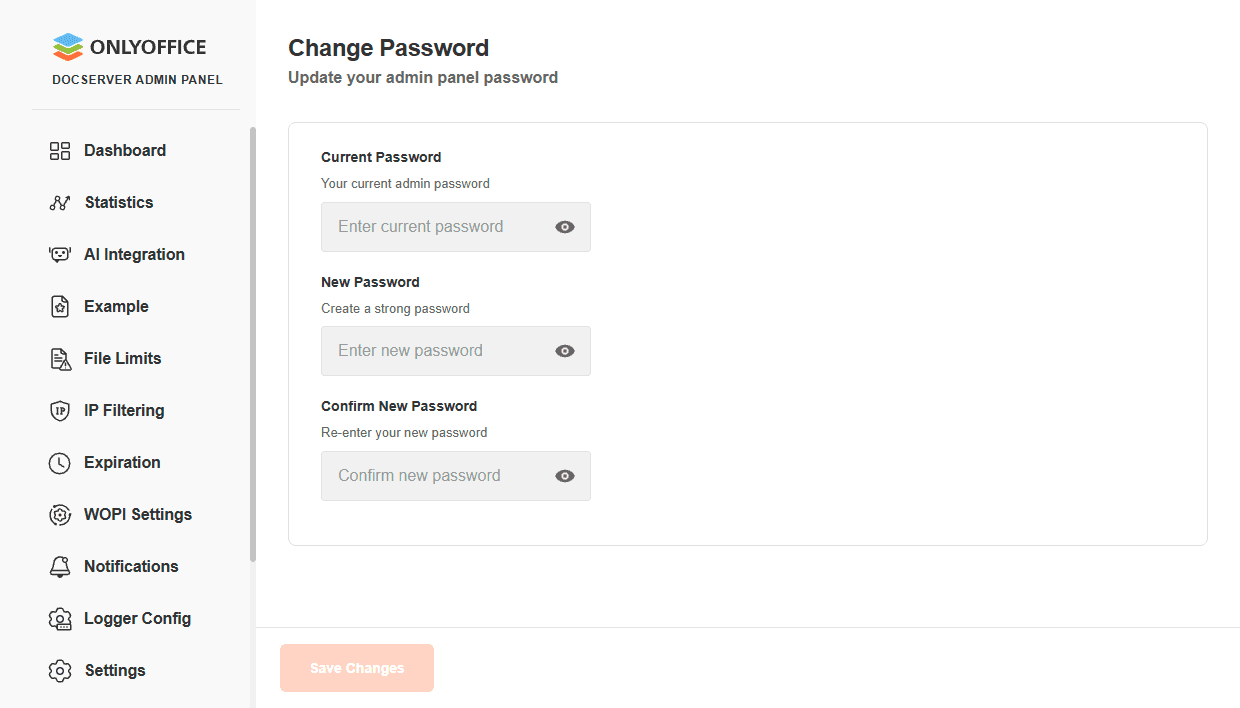
Your session remains active after changing the password.
Password reset / recovery
If you know your current password, use the Change Password page in the Admin Panel.
If you forget your admin password, run the following command on the server:
Linux:
sudo documentserver-admin reset-admin-passwordDocker:
docker exec -it <container> documentserver-admin reset-admin-passwordReplace <container> with the container ID or name. To find it, run docker ps.
Kubernetes:
kubectl exec -it <pod> -- documentserver-admin reset-admin-passwordReplace <pod> with the pod name. To find it, run kubectl get pods.
Windows:
"%ProgramFiles%\ONLYOFFICE\DocumentServer\bin\documentserver-admin.bat" reset-admin-passwordFollow the CLI prompts to set a new administrator password.
Troubleshooting
Settings
The Settings page of the ONLYOFFICE Admin Panel provides a set of tools for monitoring the server configuration, managing certificates, custom fonts, etc. Below is a brief description of the capabilities of this section.
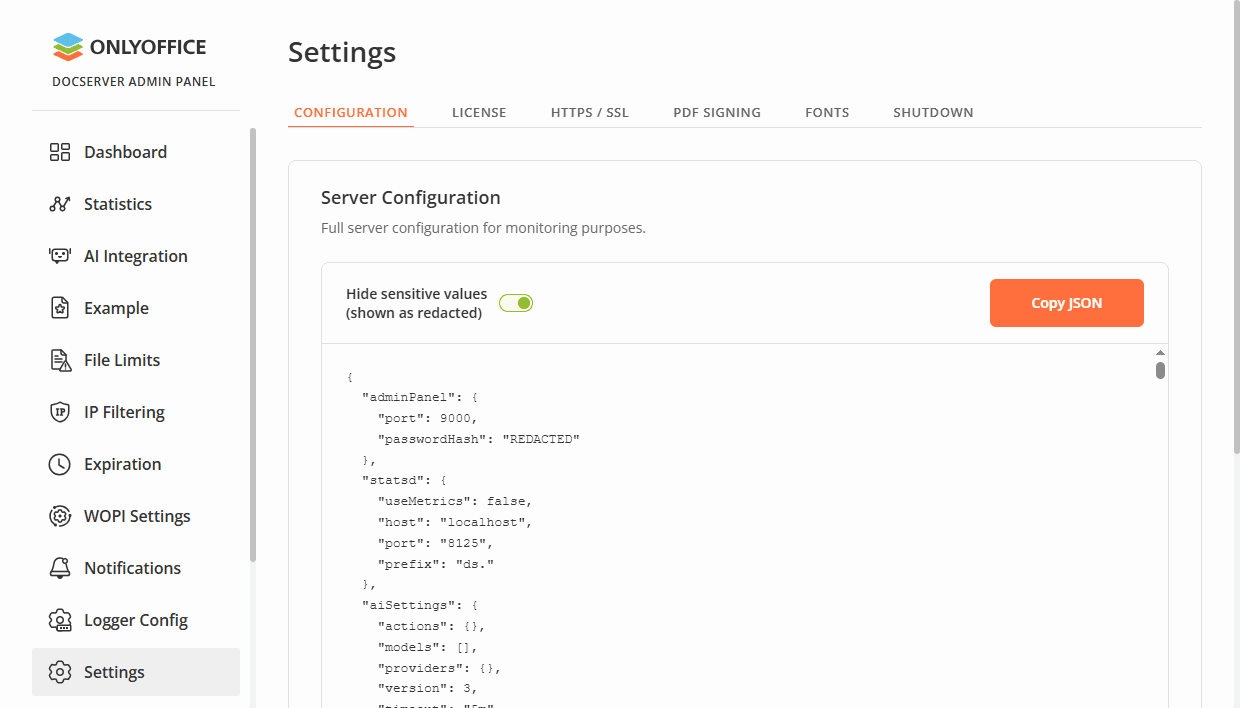
Services
Using this tab, you can enable or disable public API endpoints for specific services.
Disabling a service immediately rejects its public API requests with HTTP 403. Integrations that rely on the disabled endpoints will stop working until the service is re-enabled.
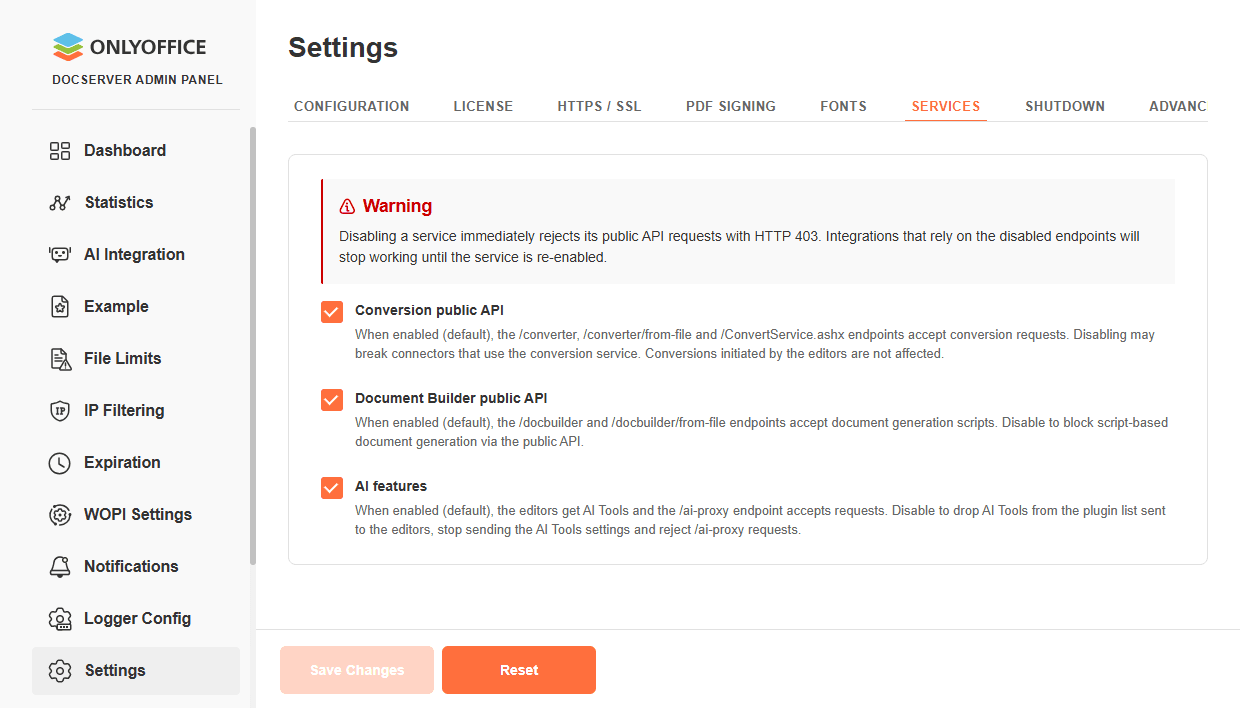
The following options are available:
- Conversion public API. Enable or disable the conversion endpoints. Disabling may break connectors that use the conversion service. Conversions initiated by the editors are not affected.
- Document Builder public API. Enable or disable the document generation endpoints.
- AI features. Enable or disable AI Tools in the editors and the
/ai-proxyendpoint. Disabling removes AI Tools from the plugin list sent to the editors and rejects/ai-proxyrequests.
Advanced Options
Using this tab, you can configure advanced security and document assembly options.
Disabling verification makes the server vulnerable to man-in-the-middle attacks. Use only as a temporary workaround when integrating with services that have self-signed or otherwise untrusted certificates. Re-enable once proper certificates are installed.
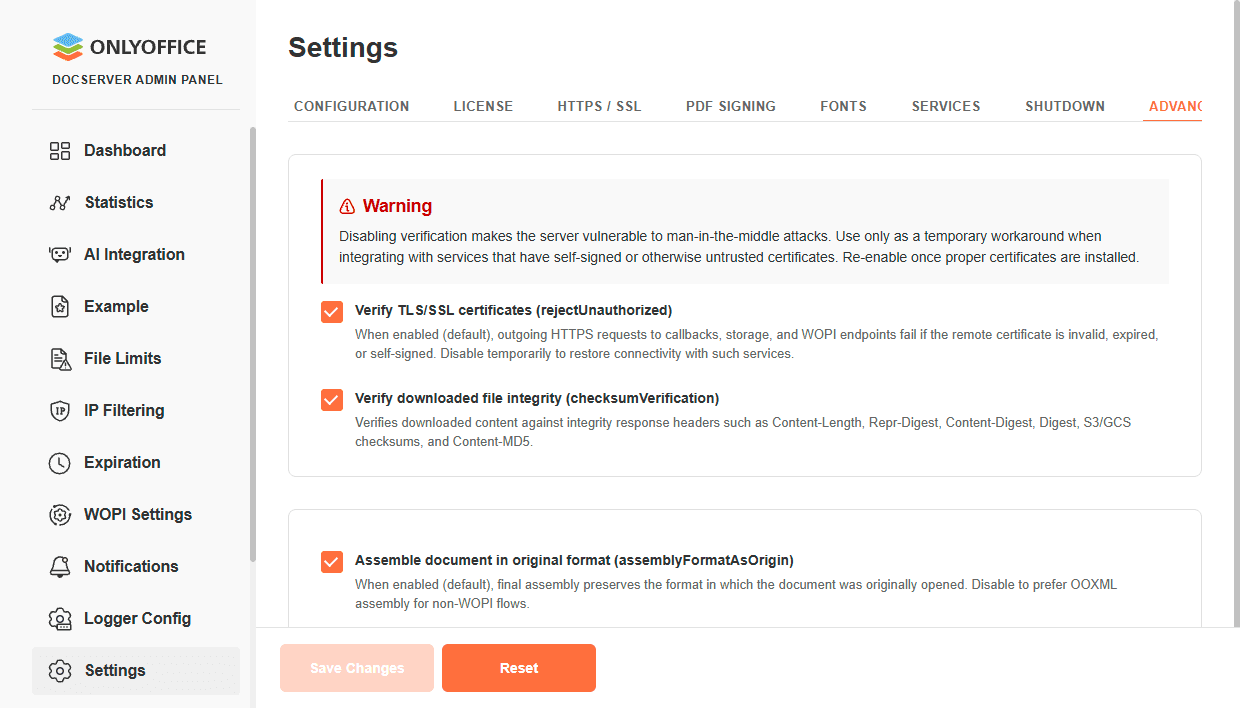
The following options are available:
- Verify TLS/SSL certificates (rejectUnauthorized). Validate remote certificates for outgoing HTTPS requests.
- Verify downloaded file integrity (checksumVerification). Check downloaded content against integrity headers.
- Assemble document in original format (assemblyFormatAsOrigin). Preserve the original document format during final assembly.
IP Filtering
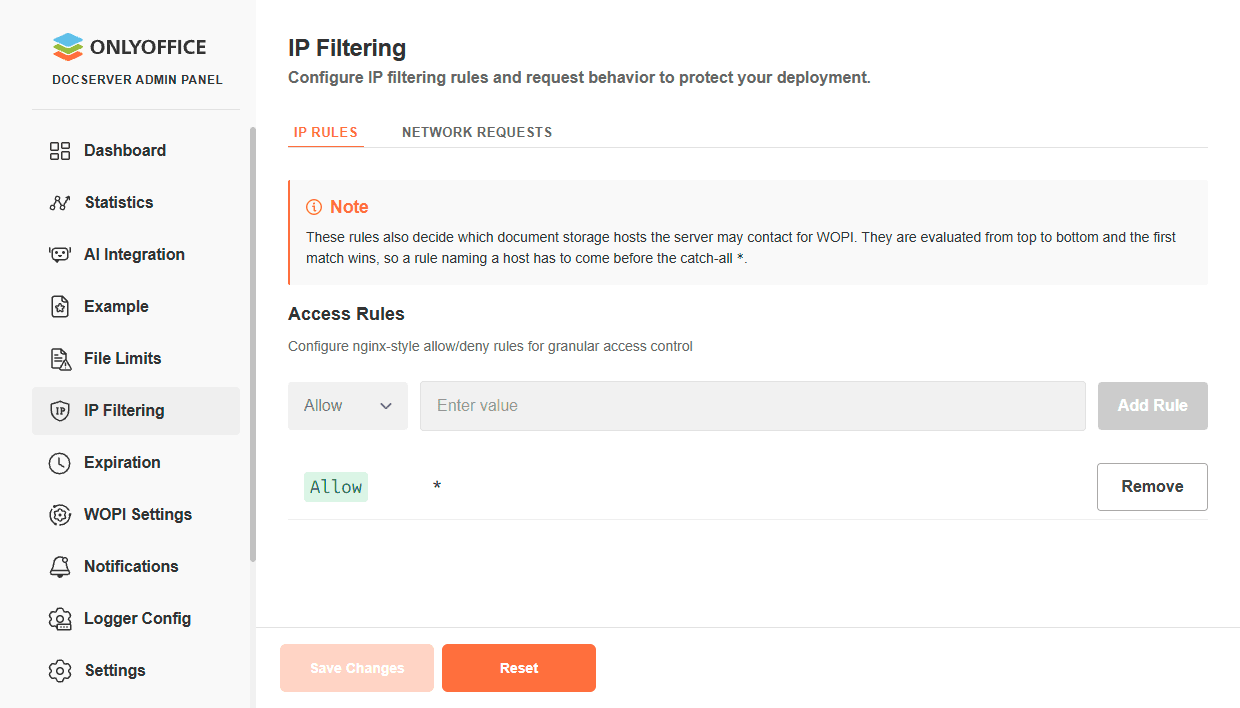
The IP Filtering page lets you define which hosts this server is allowed to contact. Add a rule that names a host to allow the server to contact it. The catch-all * rule matches any host.
Require trusted WOPI hosts controls whether the catch-all * rule is enough to trust a host. When enabled (default), only a rule that explicitly names the host counts — the catch-all does not.
Rules are evaluated from top to bottom, and the first matching rule is applied. Add the rule for your WOPI storage host above the catch-all * rule.
Network Requests
The Network Requests tab controls which callers may reach this server, and how outgoing connections are filtered.
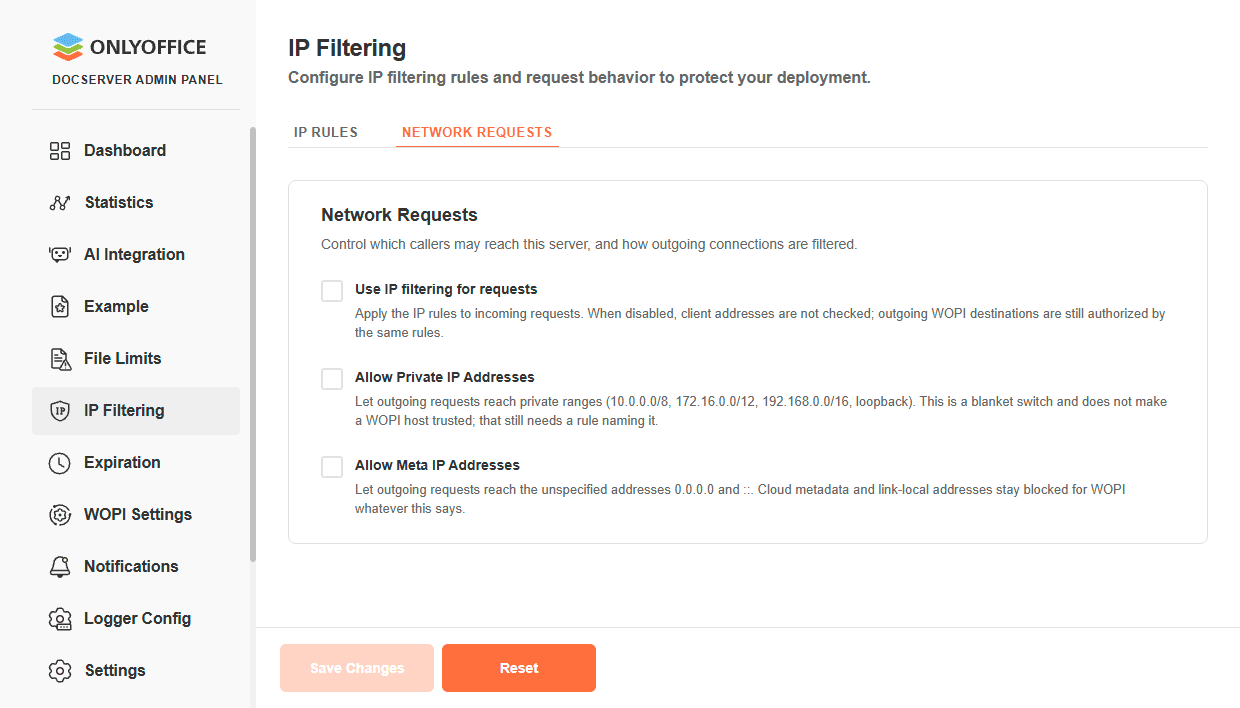
The following options are available:
- Use IP filtering for requests. Apply the IP rules to incoming requests. When disabled, client addresses are not checked; outgoing WOPI destinations are still authorized by the same rules.
- Allow Private IP Addresses. Allow outgoing requests to private ranges and loopback. This does not make a WOPI host trusted.
- Allow Meta IP Addresses. Allow outgoing requests to
0.0.0.0and::. Cloud metadata and link-local addresses stay blocked for WOPI.
WOPI Settings
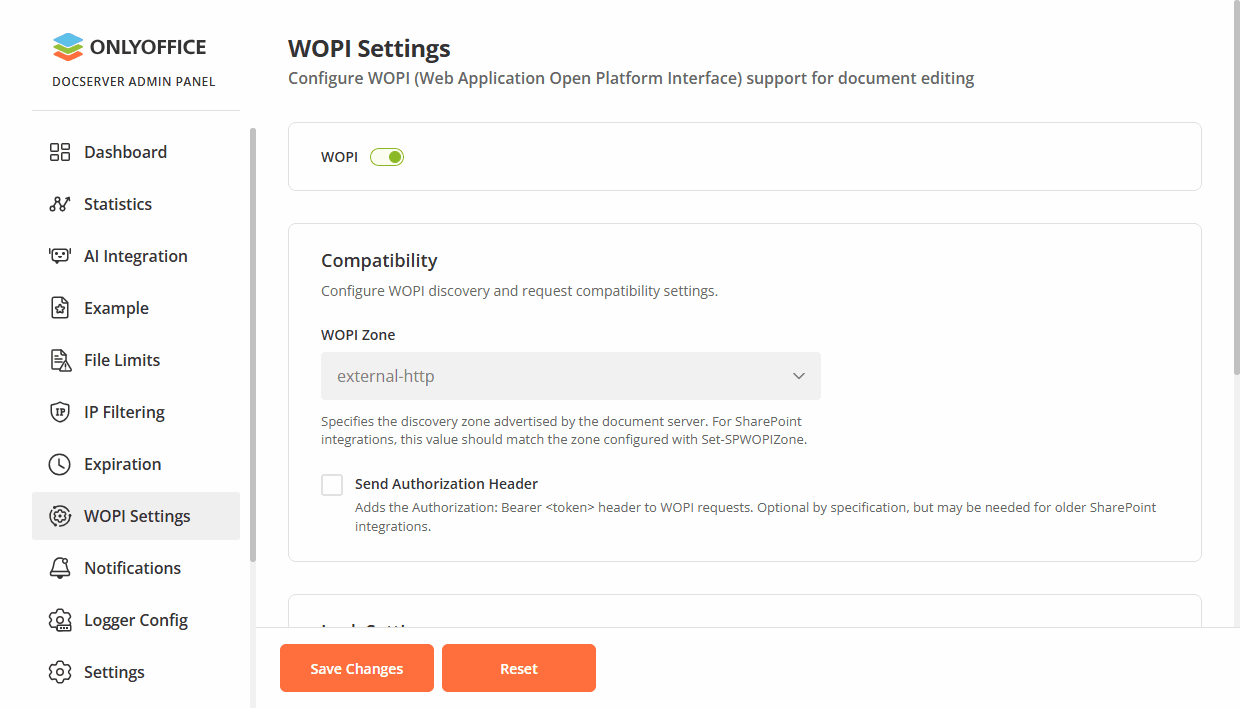
The WOPI Settings page allows you to configure WOPI support for document editing, including trusted WOPI hosts, compatibility settings for SharePoint integrations, document lock behavior, and encryption key management.
Use the WOPI toggle at the top of the page to enable or disable WOPI support entirely.
Trusted WOPI Hosts
This section lets you decide which document storage hosts this server is allowed to contact. The list of trusted hosts is managed on the IP Filtering page, not on the WOPI Settings page.
Require trusted WOPI hosts controls whether the catch-all * rule on the IP Filtering page is enough to trust a host. When enabled (default), only a rule that explicitly names the host counts — the catch-all does not. IP Filtering rules are always used for WOPI destinations; this option does not turn that filtering off.
If no trusted WOPI hosts are configured, a warning is displayed and documents cannot be opened until you add a rule that names your storage host.
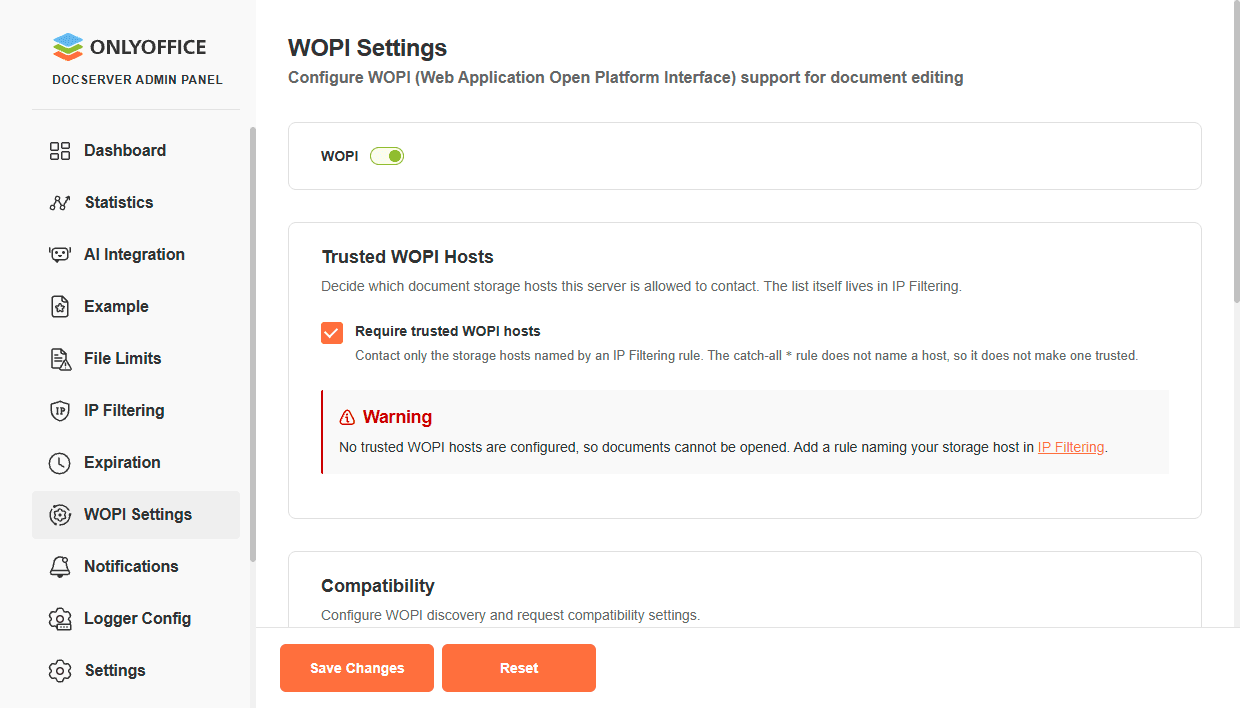
To add a WOPI host to the allowlist:
- On the WOPI Settings page, open the Trusted WOPI Hosts section. In the warning message, click the IP Filtering link.
- On the IP Filtering page, add a rule that names your WOPI storage host. After the rule is saved, that host becomes trusted for WOPI.
When Require trusted WOPI hosts is enabled, the * catch-all rule in IP Filtering does not make a host trusted. Add a rule that explicitly names the storage host.
Compatibility
This section configures WOPI discovery and request compatibility settings for SharePoint and other WOPI-compatible storage integrations.
WOPI Zone
Specifies the discovery zone advertised by ONLYOFFICE Docs. This value must match the zone configured on the SharePoint side with the Set-SPWOPIZone PowerShell command. Available values:
external-httpsexternal-http(default)internal-httpsinternal-http
To check the currently configured zone on the SharePoint side, use the following PowerShell command:
Get-SPWOPIZoneTo change the zone on the SharePoint side, use the following PowerShell command:
Set-SPWOPIZone -Zone "external-http"Send Authorization Header
When enabled, adds the Authorization: Bearer <access_token> header to WOPI requests. This is optional by the WOPI specification, but required for some SharePoint configurations:
- SharePoint Subscription Edition: this option must be enabled. Without the Authorization header, an Invalid access token error occurs and document editing fails.
- SharePoint 2019: this option is optional. The connection works with the token passed in the URI, but enabling the header causes no issues.
This corresponds to the wopi.sendAuthorizationHeader configuration parameter (false by default).
Lock Settings
This section configures the document lock refresh interval for WOPI sessions.
Refresh Lock Interval
Specifies how often document locks are refreshed. Use the format <number><unit>, where the unit is s (seconds), m (minutes), or h (hours). Examples: 10m, 1h, 30s. The default value is 10m.
Key Management
This section allows you to rotate WOPI encryption keys. The Current Public Key field displays the active public key used for WOPI request authentication.
To rotate keys, select the Rotate Keys checkbox and click Save Changes. The current keys will be moved to "Old" and new keys will be generated.
Do not rotate keys more than once per 24 hours. Storage may not refresh in time, which can cause authentication failures.