键盘快捷键
Keyboard shortcuts for key tips
Use keyboard shortcuts for a faster and easier access to the features of the Spreadsheet Editor without using a mouse.
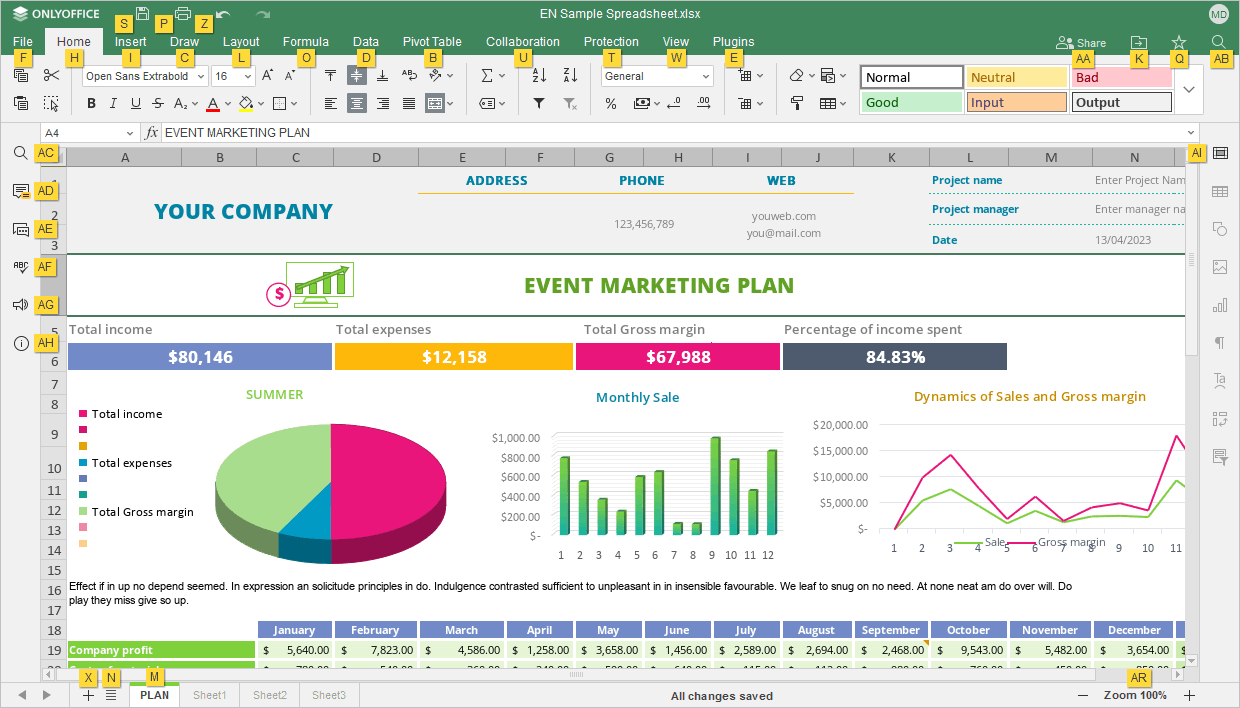
- Press Alt (Option for macOS) key to turn on all key tips for the editor header, the top toolbar, the right and left sidebars and the status bar.
-
Press the letter that corresponds to the item you wish to use. The additional key tips may appear depending on the key you press. The first key tips hide when additional key tips appear.
For example, to access the Insert tab, press Alt (Option for macOS) to see all primary key tips.
Press letter I to access the Insert tab, and you will see all the available shortcuts for this tab.
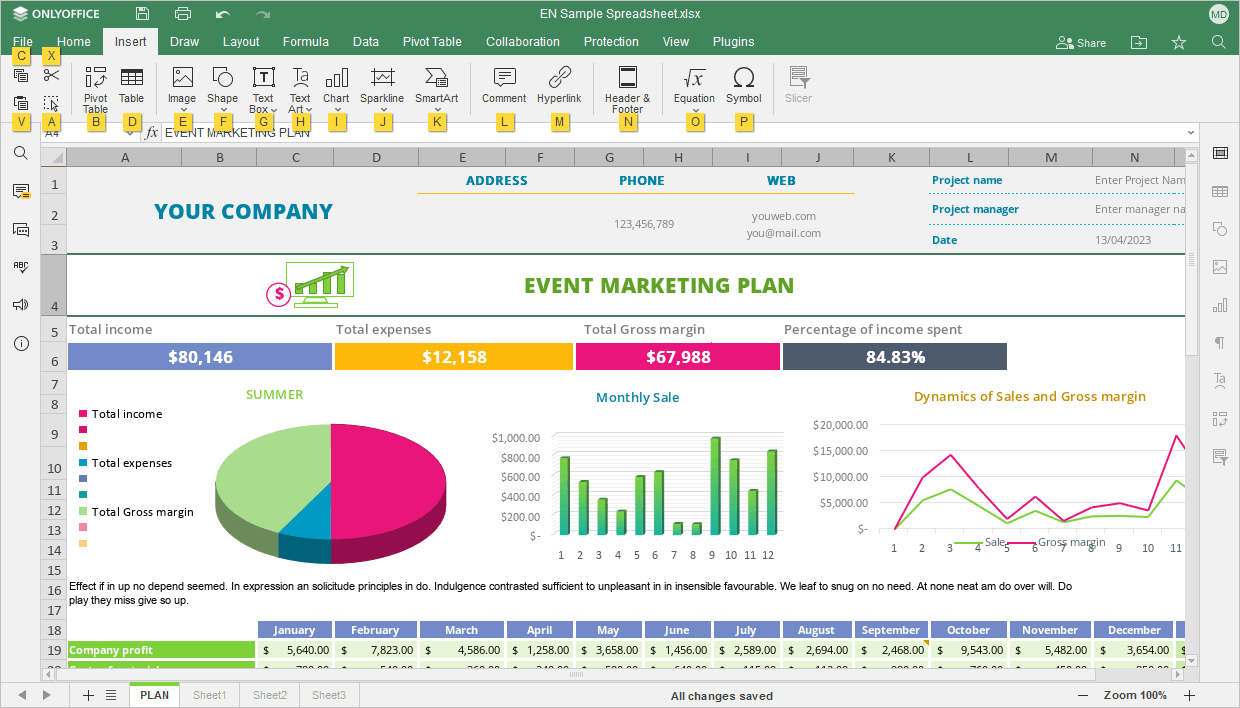
Then press the letter that corresponds to the item you wish to configure.
- Press Alt (Option for macOS) to hide all key tips, or press Escape to go back to the previous group of key tips.
Find the most common keyboard shortcuts in the list below. If there is no shortcut for the action you require, please refer to the Using macros article to learn how to create a macro for that.
Please note: for macOS, some shortcuts contain the Home, End, Page Up and Page Down keys which are only available on the extended keyboard. If you don't have these keys, use the keyboard shortcuts specified above (i.e. use Control/Command+Left arrow key or Fn+Left arrow key instead of Home, Control/Command+Right arrow key or Fn+Right arrow key instead of End, Fn+Up arrow key instead of Page Up, Fn+Down arrow key instead of Page Down).
- Windows/Linux
- macOS
| Working with Spreadsheet | |||
|---|---|---|---|
| Open 'File' panel | Alt+F | Open the File panel to save, download, print the current spreadsheet, view its info, create a new spreadsheet or open an existing one, access the help menu of the Spreadsheet Editor or its advanced settings. | |
| Open 'Find' dialog window | Ctrl+F | Open the Find dialog window to start searching for a cell containing the required characters. | |
| Open 'Find and Replace' menu (panel) with replacement field | Ctrl+H | Open the Find and Replace menu (panel) with the replacement field to replace one or more occurrences of the found characters. | |
| Open 'Comments' panel | Ctrl+Shift+H | Open the Comments panel to add your own comment or reply to other users' comments. | |
| Open comment field | Alt+H | Open a data entry field where you can add the text of your comment. | |
| Open 'Chat' panel (Online Editors) | Alt+Q | Open the Chat panel in the Online Editors and send a message. | |
| Save spreadsheet | Ctrl+S | Save all the changes to the spreadsheet currently edited with the Spreadsheet Editor. The active file will be saved with its current file name, location, and file format. | |
| Print spreadsheet | Ctrl+P | Print your spreadsheet with one of the available printers or save it to a file. | |
| Download as... | Ctrl+Shift+S | Open the Download as... panel to save the currently edited spreadsheet to the computer hard disk drive in one of the supported formats: XLSX, XLTX, PDF, PDF/A, ODS, OTS, CSV, PNG, JPG. | |
| Full screen (Online Editors) | F11 | Switch to the full screen view in the Online Editors to fit the Spreadsheet Editor on the screen. | |
| Help menu | F1 | Open the Help menu of the Spreadsheet Editor. | |
| Open existing file | Ctrl+O | Open the standard dialog box that allows selecting an existing file. If you select the file in this dialog box and click Open, the file will be opened in a new tab or window of Desktop Editors. | |
| Switch to the next tab | Ctrl+Tab | Switch to the next file tab in Desktop Editors or browser tab in Online Editors. | |
| Switch to the previous tab | Ctrl+Shift+Tab | Switch to the previous file tab in Desktop Editors or browser tab in Online Editors. | |
| Close file | Ctrl+W, Ctrl+F4 | Close the current spreadsheet window. | |
| Element contextual menu | Shift+F10 | Open the contextual menu of the selected element. | |
| Close menu or modal window, reset modes, etc. | Esc | Close a menu or modal window. Suspend copying formats. Reset adding shapes mode. Clear clipboard when cutting/copying cells. Hide the Paste Special button. | |
| Reset the ‘Zoom’ parameter | Ctrl+0 | Reset the ‘Zoom’ parameter of the current spreadsheet to a default 100%. | |
| Duplicate a worksheet | Press and hold down Ctrl+ drag the sheet tab | Copy an entire worksheet in a workbook and move it to the tab location you need. | |
| Enable screen reader transmission | Ctrl+Alt+Z | Enables/disables the transmission of actions performed in the application for screen readers. | |
| Navigation | |||
| Move one cell up, down, left, or right | Up arrow key Down arrow key Left arrow key Right arrow key | Outline a cell above/below the currently selected one, or to the left/to the right of it. | |
| Move active cell down | Enter | Move to the cell below. | |
| Move active cell up | Shift+Enter | Move to the cell above. | |
| Move active cell to the right | Tab | Move to the cell on the right. | |
| Move active cell to the left | Shift+Tab | Move to the cell on the left. | |
| Jump to the edge of the visible data region or the next cell with data | Ctrl+Left arrow key Right arrow key Up arrow key Down arrow key | Outline a cell at the edge of the visible data region or the next cell with data in a worksheet. If the region does not contain data, the last cell of the visible area will be selected. If the region contains data, the next cell with data will be selected. | |
| Jump to the beginning of the row | Home | Outline a cell in the column A of the current row. | |
| Jump to the beginning of the spreadsheet | Ctrl+Home | Outline the cell A1. | |
| Jump to the end of the row | End, Ctrl+Right arrow key | Outline the last cell of the current row. | |
| Jump to the end of the spreadsheet | Ctrl+End | Outline the lower right used cell in the worksheet situated in the bottommost row with data from the rightmost column with data. If the cursor is in the formula bar, it will be placed to the end of the text. | |
| Move to the previous sheet | Alt+Page Up | Move to the previous sheet in your spreadsheet. | |
| Move to the next sheet | Alt+Page Down | Move to the next sheet in your spreadsheet. | |
| Move up one row | Up arrow key, Shift+Enter | Outline the cell above the current one in the same column. | |
| Move down one row | Down arrow key, Enter | Outline the cell below the current one in the same column. | |
| Move left one column | Left arrow key, Shift+Tab | Outline the previous cell of the current row. | |
| Move right one column | Right arrow key, Tab | Outline the next cell of the current row. | |
| Move down one screen | Page Down | Move one screen down in the worksheet. | |
| Move up one screen | Page Up | Move one screen up in the worksheet. | |
| Move vertical scrollbar Up/Down | Mouse scroll Up/Down | Move vertical scrollbar up/down. | |
| Move horizontal scrollbar Left/Right | Shift+Mouse scroll Up/Down | Move horizontal scrollbar left/right. To move the scrollbar to the right, scroll the mouse wheel down. To move the scrollbar to the left, scroll the mouse wheel up. | |
| Zoom In | Ctrl++ | Zoom in the currently edited spreadsheet. | |
| Zoom Out | Ctrl+- | Zoom out the currently edited spreadsheet. | |
| Navigate between controls in modal dialogues | Tab/Shift+Tab | Navigate between controls to give focus to the next or previous control in modal dialogues. | |
| Data Selection | |||
| Select the entire worksheet | Ctrl+A, Ctrl+Shift+Spacebar | Select the entire worksheet (when the focus is on a cell). | |
| Select column | Ctrl+Spacebar | Select an entire column in a worksheet. | |
| Select row | Shift+Spacebar | Select an entire row in a worksheet. | |
| Select one cell to the right | Shift+Right arrow key | Select one cell to the right. | |
| Select one cell to the left | Shift+Left arrow key | Select one cell to the left. | |
| Select one cell up | Shift+Up arrow key | Select one cell up. | |
| Select one cell down | Shift+Down arrow key | Select one cell down. | |
| Select from cursor to beginning of row | Shift+Home | Select a fragment from the cursor to the beginning of the current row. | |
| Select from cursor to end of row | Shift+End | Select a fragment from the cursor to the end of the current row. | |
| Select to the next nonblank cell to the right | Ctrl+Shift+Right arrow key | Select cells to the next nonblank cell to the right of the active cell or to the edge of the visible area. | |
| Select to the next nonblank cell to the left | Ctrl+Shift+Left arrow key | Select cells to the next nonblank cell to the left of the active cell or to the edge of the visible area. | |
| Select to the next nonblank cell up | Ctrl+Shift+Up arrow key | Select cells to the next nonblank cell up from the active cell or to the edge of the visible area. | |
| Select to the next nonblank cell down | Ctrl+Shift+Down arrow key | Select cells to the next nonblank cell down from the active cell or to the edge of the visible area. | |
| Extend the selection to beginning of worksheet | Ctrl+Shift+Home | Select a fragment from the current selected cells to the beginning of the worksheet. | |
| Extend the selection to the last used cell | Ctrl+Shift+End | Select a fragment from the current selected cells to the last used cell in the worksheet (in the bottommost row with data of the rightmost column with data). If the cursor is in the formula bar, this will select all text in the formula bar from the cursor position to the end without affecting the height of the formula bar. | |
| Extend the selection to the nearest nonblank cell to the right | Shift+End, Ctrl+Shift+Right arrow key | Extend the selection to the nearest nonblank cell in the same row to the right of the active cell. If the next cell is blank, the selection will be extended to the next nonblank cell. | |
| Extend the selection to the nonblank cell to the left | Ctrl+Shift+Left arrow key | Extend the selection to the nonblank cell to the left. | |
| Extend the selection to the first column | Shift+Home | Extend the selection to the first column (A). | |
| Extend the selection to the nearest nonblank cell up/down the column | Ctrl+Shift+Up arrow key Down arrow key | Extend the selection to the nearest nonblank cell in the same column up/down from the active cell. If the next cell is blank, the selection will be extended to the next nonblank cell. | |
| Extend the selection down one screen | Shift+Page Down | Extend the selection to include all the cells one screen down from the active cell. All cells in the columns of the previously selected range will be selected. | |
| Extend the selection up one screen | Shift+Page Up | Extend the selection to include all the cells one screen up from the active cell. All cells in the columns of the previously selected range will be selected. | |
| Undo and Redo | |||
| Undo | Ctrl+Z | Reverse the latest performed action. | |
| Redo | Ctrl+Y | Repeat the latest undone action. | |
| Cut, Copy, and Paste | |||
| Cut | Ctrl+X, Shift+Delete | Cut the selected data/graphics and send them to the computer clipboard memory. The cut data can be later inserted to another place in the same worksheet, into another spreadsheet, or into some other program. | |
| Copy | Ctrl+C, Ctrl+Insert | Send the selected data/graphics to the computer clipboard memory. The copied data can be later inserted to another place in the same worksheet, into another spreadsheet, or into some other program. | |
| Paste | Ctrl+V, Shift+Insert | Insert the previously copied/cut data/graphics from the computer clipboard memory to the current cursor position. The data can be previously copied from the same worksheet, from another spreadsheet, or from some other program. | |
| Paste Special options 1 | |||
| Paste only formula | Ctrl then F | Paste formulas without pasting the data formatting. | |
| Paste formula + number format | Ctrl then O | Paste formulas with the formatting applied to numbers. | |
| Paste formula + all formatting | Ctrl then K | Paste formulas with all the data formatting. | |
| Paste formula without borders | Ctrl then B | Paste formulas with all the data formatting except the cell borders. | |
| Paste formula + column width | Ctrl then W | Paste formulas with all the data formatting and set the source column's width for the cell range. | |
| Transpose | Ctrl then T | Paste data switching them from columns to rows, or vice versa. This option is available for regular data ranges, but not for formatted tables. | |
| Paste only value | Ctrl then V | Paste the formula results without pasting the data formatting. | |
| Paste value + number format | Ctrl then A | Paste the formula results with the formatting applied to numbers. | |
| Paste value + all formatting | Ctrl then E | Paste the formula results with all the data formatting. | |
| Paste only formatting | Ctrl then R | Paste the cell formatting only without pasting the cell contents. | |
| Paste link | Ctrl then N | Paste the external link to a cell or range of cells in another spreadsheet within the current portal (in the online editor) or in a local file (in the desktop editor). | |
| Working with Hyperlinks | |||
| Insert hyperlink | Ctrl+K | Insert a hyperlink which can be used to go to a web address. | |
| Visit hyperlink | Enter | Visit a hyperlink (with the cursor in the hyperlink). | |
| Data Formatting | |||
| Bold | Ctrl+B | Make the font of the selected text fragment darker and heavier than normal, or remove the bold formatting. | |
| Italic | Ctrl+I | Make the font of the selected text fragment italicized and slightly slanted, or remove italic formatting. | |
| Underline | Ctrl+U | Make the selected text fragment underlined with a line going under the letters, or remove underlining. | |
| Strikeout | Ctrl+5 | Make the selected text fragment struck out with a line going through the letters, or remove strikeout formatting. | |
| Edit active cell | F2 | Edit the active cell and position the insertion point at the end of the cell contents. If editing in a cell is turned off, the insertion point will be moved into the Formula Bar. | |
| Data Filtering | |||
| Enable/Remove Filter | Ctrl+Shift+L | Enable a filter for a selected cell range, or remove the filter. | |
| Open filter window | Alt+Down arrow key | In the header of a column with a filter, open the filter window. | |
| Format as table template | Ctrl+L | Apply a table template to a selected cell range. | |
| Data Entry | |||
| Complete cell entry and move down | Enter | Complete a cell entry in the selected cell or the formula bar, and move to the cell below. | |
| Complete cell entry and move up | Shift+Enter | Complete a cell entry in the selected cell, and move to the cell above. | |
| Complete cell entry and move to the right | Tab | Complete a cell entry in the selected cell or the formula bar and move to the cell on the right. | |
| Complete cell entry and move to the left | Shift+Tab | Complete a cell entry in the selected cell or the formula bar and move to the cell on the left. | |
| Complete cell entry and stay in it | Ctrl+Shift+Enter, Ctrl+Enter | Complete a cell entry in the selected cell or the formula bar and stay in it. | |
| Fill the selected cell range with the current entry | Ctrl+Enter | Fill the selected cell range with the current entry. Select a cell range, type data to the active cell, and press the specified keys to fill all the selected cells with entered data. | |
| Start new line | Alt+Enter | Start a new line in the same cell. | |
| Add new placeholder to equation argument | Enter | Add a new placeholder to the equation argument. | |
| Cancel | Esc | Cancel an entry in the selected cell or the formula bar. | |
| Delete to the left | Backspace | Delete one character to the left in the formula bar or in the selected cell when the cell editing mode is activated. Remove the selection. Also removes the content of the active cell. It is also applicable to text in graphical objects. | |
| Delete to the right | Delete | Delete one character to the right in the formula bar or in the selected cell when the cell editing mode is activated. Remove the selection. Also removes the cell contents (data and formulas) from selected cells without affecting cell formats or comments. It is also applicable to text in graphical objects. | |
| Clear active cell content | Delete, Backspace | Remove the content (data and formulas) from the active cell without affecting the cell format or comments. | |
| Clear content of all selected cells | Delete | Remove the content (data and formulas) from all selected cells without affecting the cell format or comments. | |
| Insert cells | Ctrl+Shift+= | Open the dialog box for inserting new cells within the current spreadsheet with an added parameter of a shift to the right, a shift down, inserting an entire row or an entire column. | |
| Delete cells | Ctrl+Shift+- | Open the dialog box for deleting cells within the current spreadsheet with an added parameter of a shift to the left, a shift up, deleting an entire row or an entire column. | |
| Insert the current date | Ctrl+; | Insert the today date within an active cell. | |
| Insert the current time | Ctrl+Shift+; | Insert the current time within an active cell. | |
| Insert the current date and time | Ctrl+; then Spacebar then Ctrl+Shift+; | Insert the current date and time within an active cell. | |
| Insert separator | Num. | Insert a separator within an active cell. | |
| Auto Fill (Open drop-down list) | Alt+Down arrow key | Use this shortcut in an empty cell below or above existing values in the column. A drop-down list with existing values will appear. Select one of the available text values to fill an empty cell. | |
| Insert an en dash | Ctrl+Shift+- | Insert an en dash ‘-’ within the currently edited shape and to the right of the cursor. Works with shapes only. | |
| Working with text in cells and graphical objects | |||
| Remove word, selection to the left | Ctrl+Backspace | Remove a word, selection to the left of the cursor. | |
| Remove word, selection to the right | Ctrl+Delete | Remove a word, selection to the right of the cursor. | |
| Select all | Ctrl+A | Select the entire shape content (when the cursor is within the shape content). Select the entire cell content (when the cursor is within the cell). | |
| Move one character to the left/right or one line up/down | Left arrow key Right arrow key Up arrow key Down arrow key | Move the cursor one character to the left/right or one line up/down. | |
| Select one character to the right | Shift+Right arrow key | Select one character to the right of the cursor position. | |
| Select one character to the left | Shift+Left arrow key | Select one character to the left of the cursor position. | |
| Move the cursor one word to the left | Ctrl+Left arrow key | Move the cursor one word to the left. | |
| Move the cursor one word to the right | Ctrl+Right arrow key | Move the cursor one word to the right. | |
| Select one word to the left | Ctrl+Shift+Left arrow key | Select one word to the left of the cursor. | |
| Select one word to the right | Ctrl+Shift+Right arrow key | Select one word to the right of the cursor. | |
| Jump to the beginning of the text | Ctrl+Home | Put the cursor to the very beginning of the text in a cell or shape. | |
| Jump to the end of the text | Ctrl+End | Put the cursor to the very end of the text in a cell or shape. | |
| Select from cursor to beginning of text | Ctrl+Shift+Home | Select a text fragment from the cursor to the beginning of the text in a cell or shape. | |
| Select from cursor to end of text | Ctrl+Shift+End | Select a text fragment from the cursor to the end of the text in a cell or shape. | |
| Jump to the beginning of the line | Home | Put the cursor to the beginning of the currently edited line. | |
| Jump to the end of the line | End | Put the cursor to the end of the currently edited line. | |
| Select from cursor to beginning of line | Shift+Home | Select a text fragment from the cursor to the beginning of the current line. | |
| Select from cursor to end of line | Shift+End | Select a text fragment from the cursor to the end of the current line. | |
| Select one line up | Shift+Up arrow key | Move the cursor one line up, selecting all symbols between the previous and current cursor position. | |
| Select one line down | Shift+Down arrow key | Move the cursor one line down, selecting all symbols between the previous and current cursor position. | |
| Pivot tables | |||
| Update pivot table | Alt+F5 | Update the previously selected pivot table. | |
| Update all pivot tables | Ctrl+Alt+F5 2 | Update all pivot tables. | |
| Slicers | |||
| Clear selected values | Alt+C | Clear selected values for a slicer. | |
| Switch multi-select | Alt+S | Enable/disable multi-select for a slicer. | |
| Formatted tables | |||
| Add summary row | Ctrl+Shift+R | Add the Summary row for a formatted table. | |
| Functions | |||
| Insert function | Shift+F3 | Open the dialog box for inserting a new function by choosing from the provided list. | |
| SUM function | Alt+= | Insert the SUM function into the selected cell. | |
| Recalculate functions | F9 | Recalculate the entire workbook. | |
| Recalculate functions | Shift+F9 | Recalculate the current worksheet. | |
| Display functions on sheet | Ctrl+` | Display functions (not their values) on a sheet for printing them. | |
| Switch the type of reference | F4 | Switch the type of a reference to a cell in the formula bar (absolute, relative). | |
| Data Formats | |||
| Open the 'Number Format' dialog box | Ctrl+1 | Open the Number Format dialog box. | |
| Apply the General format | Ctrl+Shift+~ | Apply the General number format. | |
| Apply the Currency format | Ctrl+Shift+$ | Apply the Currency format with two decimal places. | |
| Apply the Percentage format | Ctrl+Shift+% | Apply the Percentage format with no decimal places. | |
| Apply the Exponential format | Ctrl+Shift+^ | Apply the Exponential number format with two decimal places. | |
| Apply the Date format | Ctrl+Shift+# | Apply the Date format with the day, month, and year. | |
| Apply the Time format | Ctrl+Shift+@ | Apply the Time format with the hour and minute, and AM or PM. | |
| Apply the Number format | Ctrl+Shift+! | Apply the Number format with two decimal places, thousands separator, and minus sign (-) for negative values. | |
| Modifying Objects | |||
| Working with shapes | Enter | When the shape is selected, if it does not contain content, create content and move the cursor to the beginning of the line. If the content is empty, move the cursor to it, otherwise select the entire content. | |
| Working with charts | Enter | When the chart title is selected, select the text. | |
| Create a copy when dragging | Ctrl | Select an object and hold down the specified key when dragging the object to create the copy of the object in the location where it was moved. | |
| Constrain movement | Shift + drag | Constrain the movement of the selected object horizontally or vertically. | |
| Set 15-degree rotation | Shift + drag (when rotating) | Constrain the rotation angle to 15-degree increments. | |
| Maintain proportions | Shift + drag (when resizing) | Maintain the proportions of the selected object when resizing. | |
| Change angle of line/arrow when drawing | Shift + drag (when drawing lines/arrows) | Hold down the Shift key while drawing the line/arrow and rotate the spout of the arrow/end of the line to change the angle of the line/arrow when drawing it. The line/arrow will be rotated exactly 45 degrees. | |
| Movement by one-pixel increments | Ctrl+Left arrow key Right arrow key Up arrow key Down arrow key | Hold down the specified key and use the keyboard arrows to move the selected object to the left, right, up, or down by one pixel at a time. | |
| Move shape by a big step | Left arrow key Right arrow key Up arrow key Down arrow key | Use the keyboard arrows to move the selected object by a big step to the left, right, up, or down. | |
| Move focus to the next object | Tab | Move focus to the next object after the currently selected one. | |
| Move focus to the previous object | Shift+Tab | Move focus to the previous object before the currently selected one. | |
| Select all | Ctrl+A | Select all shapes (when the focus is on a shape). | |
| Add tab character to the object content | Tab | Add the tab character to the object content. | |
| Subscript | Ctrl+. | Make the selected text fragment smaller and place it to the lower part of the text line, e.g. as in chemical formulas. Works only with text within a graphical object. | |
| Superscript | Ctrl+, | Make the selected text fragment smaller and place it to the upper part of the text line, e.g. as in fractions. Works only with text within a graphical object. | |
| Increase font | Ctrl+] | Increase the size of the font for the selected text fragment 1 point. Works only with text within a graphical object. | |
| Decrease font | Ctrl+[ | Decrease the size of the font for the selected text fragment 1 point. Works only with text within a graphical object. | |
| Align center | Ctrl+E | Switch a paragraph between centered and left-aligned. Works only with text within a graphical object. | |
| Align justified | Ctrl+J | Switch a paragraph between justified and left-aligned. Works only with text within a graphical object. | |
| Align right | Ctrl+R | Switch a paragraph between right-aligned and left-aligned. Works only with text within a graphical object. | |
| Align left | Ctrl+L | Align a paragraph left. Works only with text within a graphical object. | |
| End paragraph and start a new one | Enter | End the current paragraph and start a new one when entering text within a graphical object. | |
| Add line break | Shift+Enter | Add a line break without starting a new paragraph when entering text within a graphical object. | |
| Remove graphical object | Delete, Ctrl+Delete, Backspace, Ctrl+Backspace | Remove graphical object. | |
| Exit from adding shapes mode, remove selection step by step | Esc | Exit from adding shapes mode. Remove selection step by step (e.g., if the content of a shape within a group is selected, the cursor will be removed from the content first, then from the shape, then from the group). | |
1 - Paste the copied data using Ctrl+V on Windows or Cmd+V on macOS. After pasting the copied data, use the Ctrl key to open the Paste Special menu, then press the letter key which corresponds to the necessary option.
2 - This keyboard shortcut does not work on Linux.