Creating a mailing list
This article explains how to create a mailing list in Talk to send the same message to multiple recipients at once.
Follow the steps below to create a mailing list and be able to send the message to many people at once.
Access the Talk
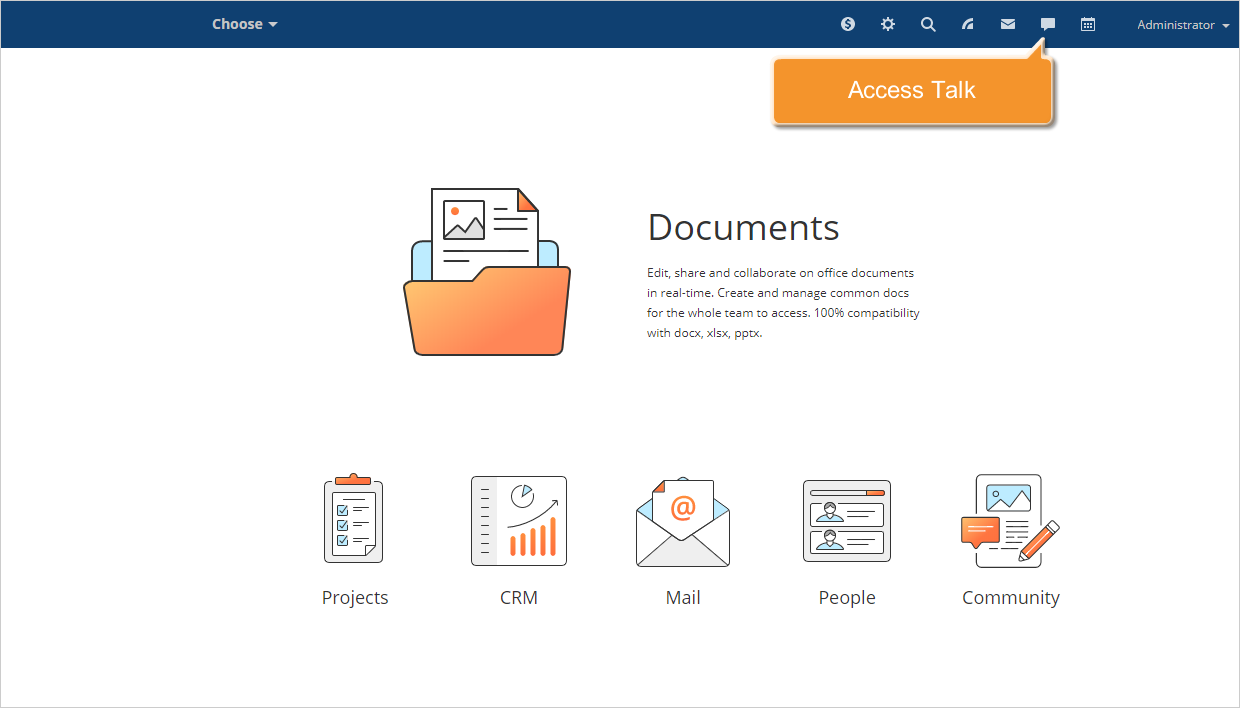
Sign in to your portal and click the Talk  icon at the top of any portal page.
Create a mailing list
The Talk window will open.
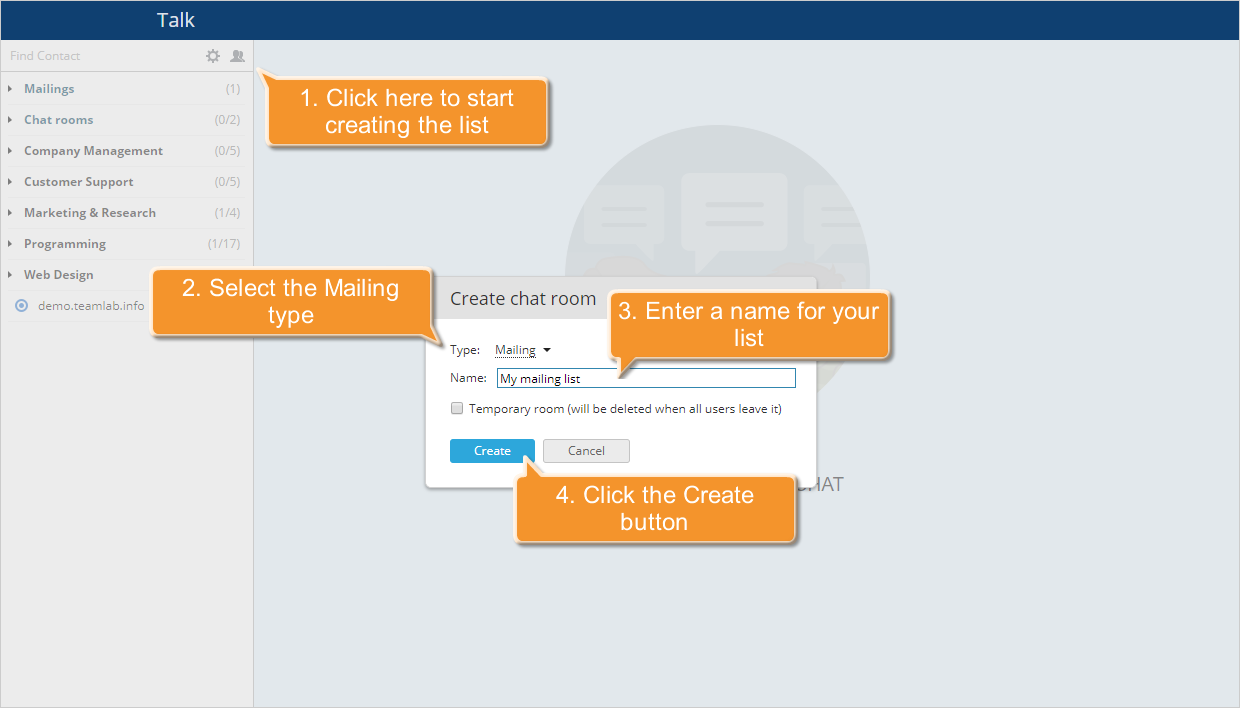
Click Create chat room  above the contact list located on the left. In the new window that opens, select Mailing from the Type list. Enter a name for your mailing list and click Create.
Select a contact to add to the mailing list and click the  button to the right of their name, or drag and drop them to the Talk main area.
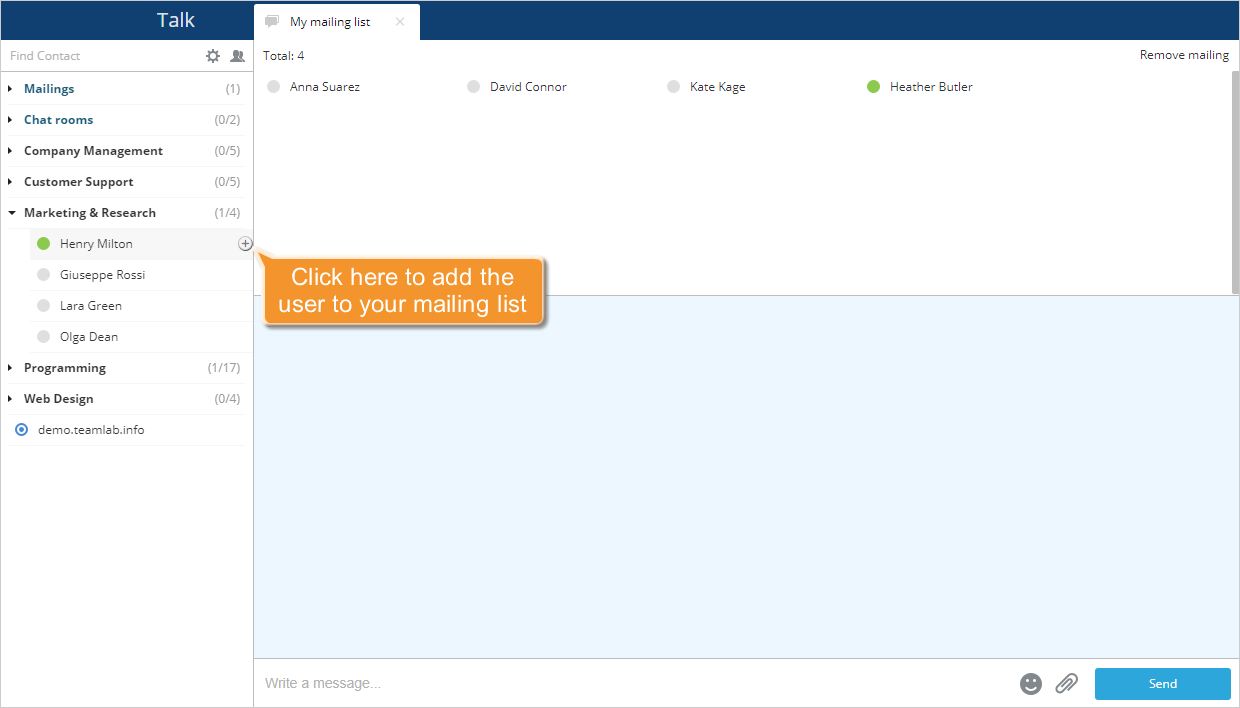
Additional recipients can be added in the same way.
Compose a message for your recipients
"Once all recipients have been added, type your message and click Send.
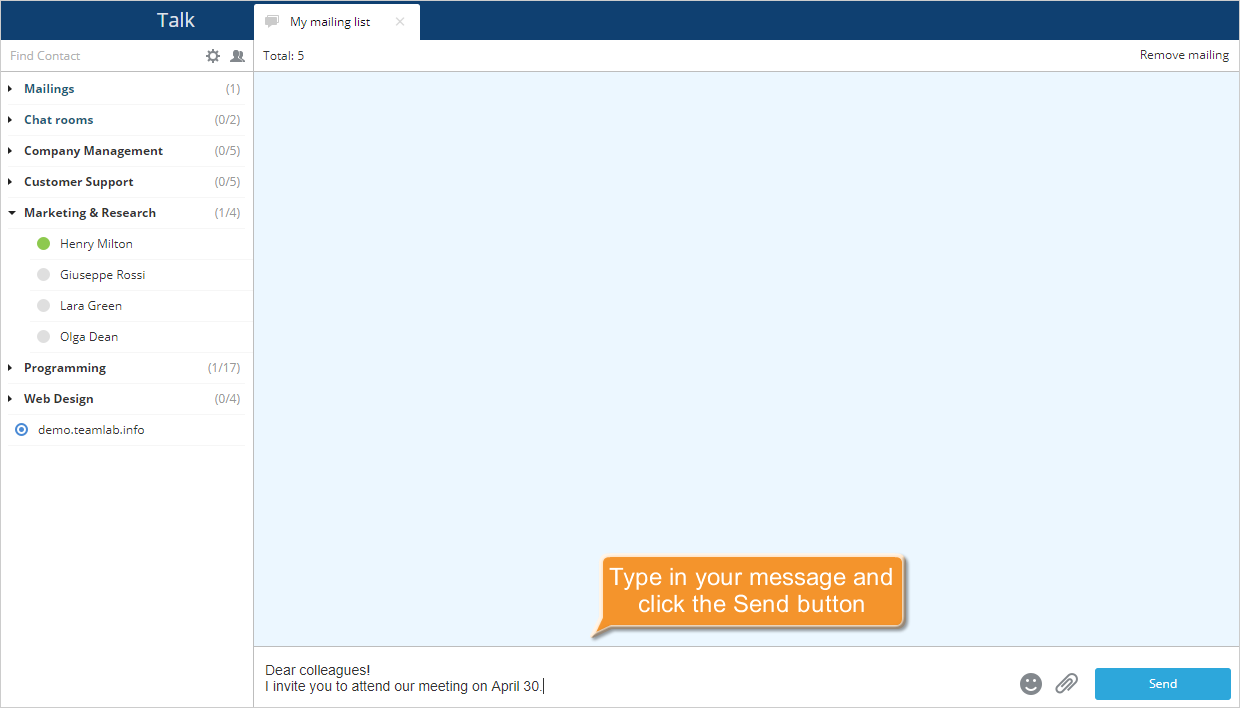
If you need to send a file, click Send File  below the Talk main area, select the file you need and click Open. The file will be sent.
To display all recipients, click Total at the top. If you want to delete a user from the list, hover over their name in the mailing list and click the  icon.
icon.
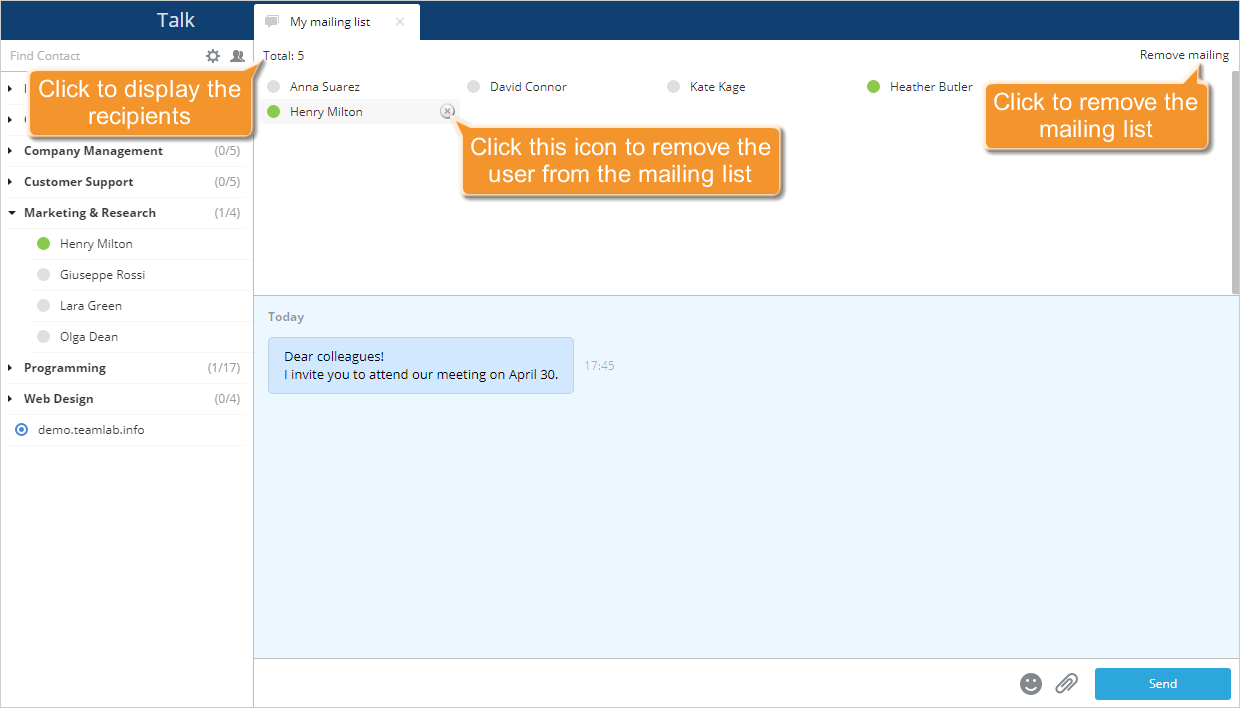
To delete the mailing list, select Remove mailing in the upper-right corner.