Making forums more interactive
Step 1. Access the Community
Sign in to your portal and click the Community link.

If you are already signed in and have been using the portal for some time, you can access the Community module from any portal page: open the drop-down list in the upper-left corner of the page and select the corresponding option.
Step 2. Start a poll
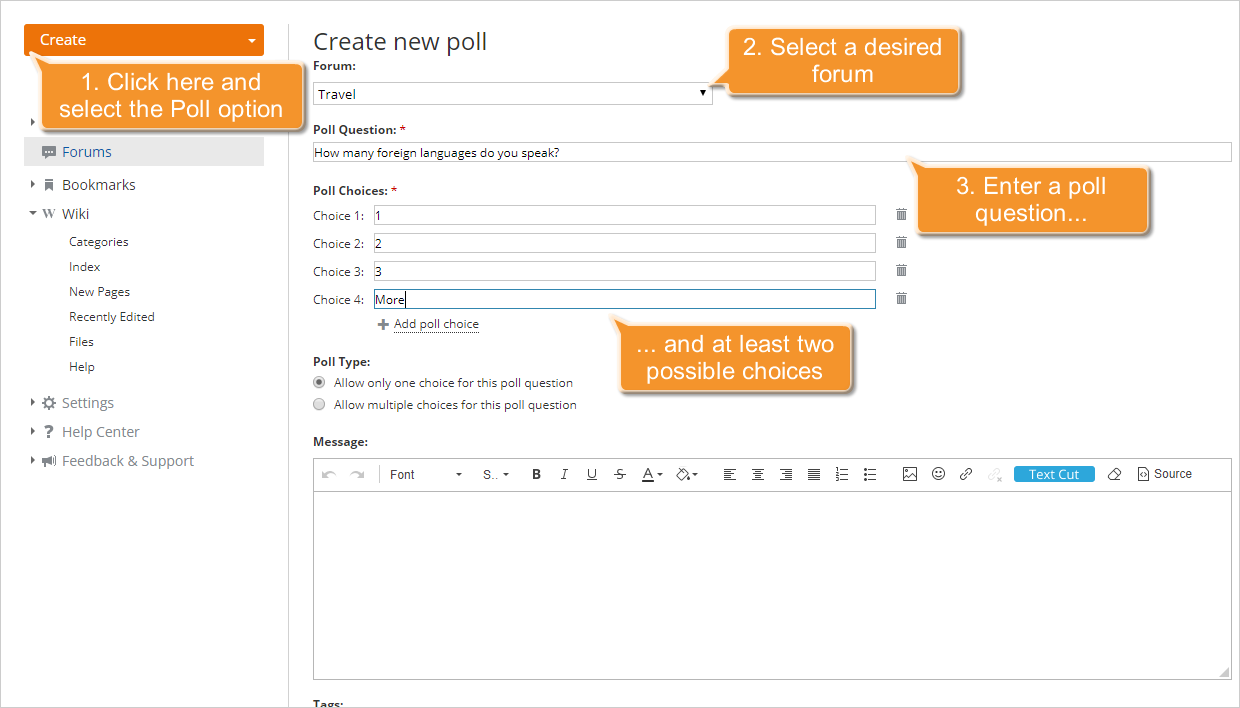
Click Create in the upper-left corner and select the Poll option from the Forums section of the drop-down list.
The Create new poll page will open. Select the forum you want to add a poll to. Enter your poll question, at least two possible choices, and select one of the available poll types:
- Allow only one choice for this poll question: select this option to allow the participants to select only one answer.
- Allow multiple choices for this poll question: select this option to allow the participants to select multiple answers to a single question.
Using the Add poll choice link, you can add up to 15 choices. To delete one of the choices, use the  icon to the right of the entry field.
Step 3. Make your post
To describe the issue you want to discuss with other portal users or add comments to the created poll, enter your post in the Message field and format it using the Formatting Toolbar commands.
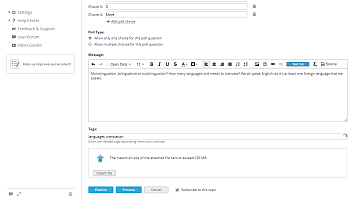
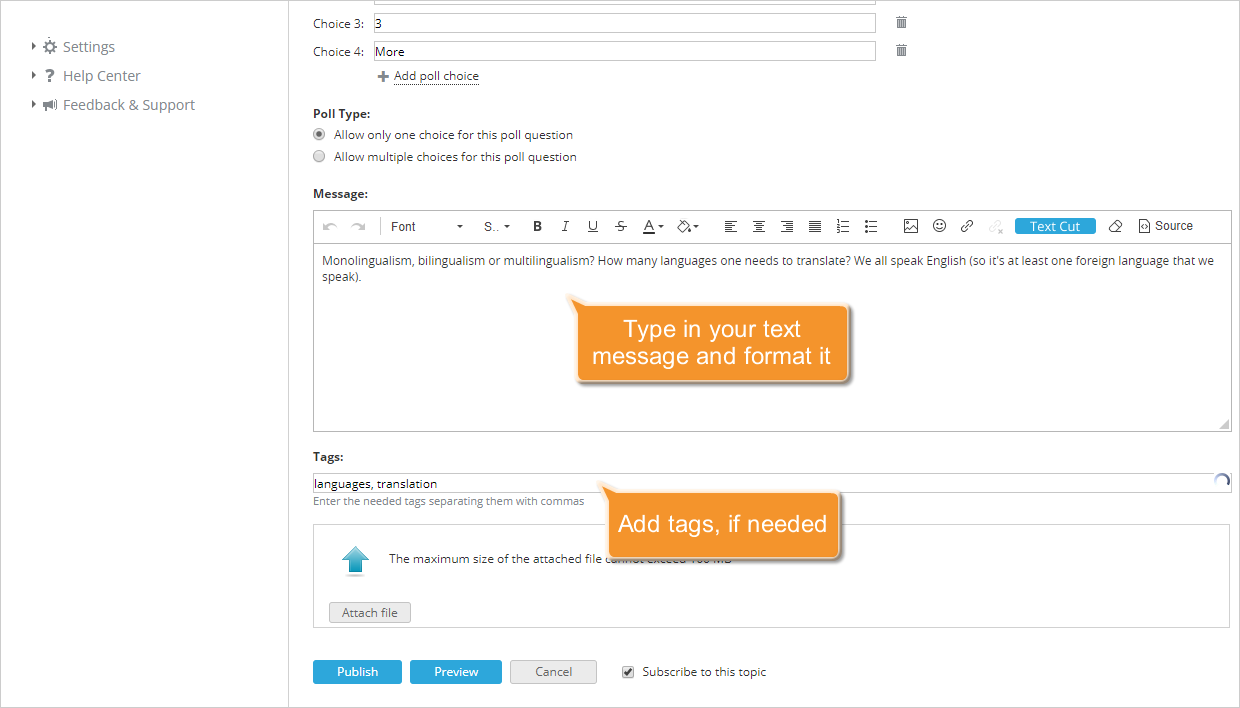
Add tags in the Tags field, separating them with commas. This helps categorize your topic and makes it easier for other users to find it.
Step 4. Add the created poll
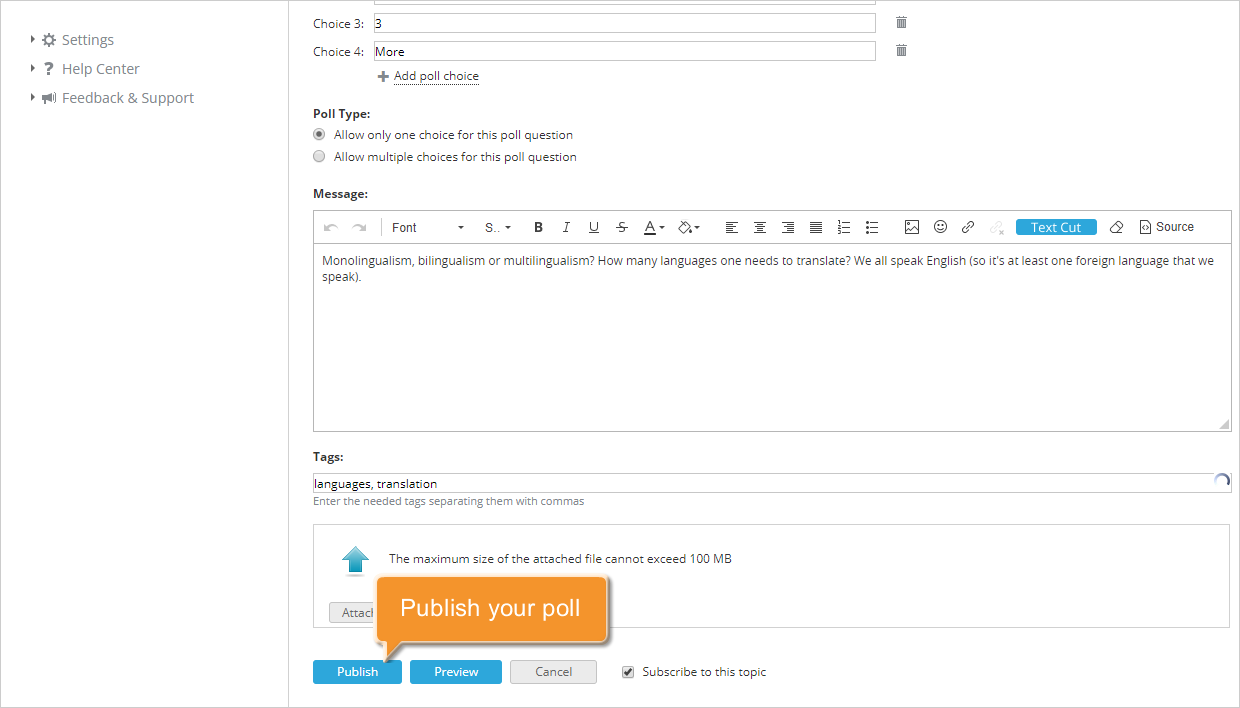
When everything is ready, preview the result using the corresponding button at the bottom of the page. If you are satisfied with it, close the preview area and click Publish.
The created poll will be added to the selected forum. To access it, go to the Forums section by clicking the corresponding link in the left-side panel and selecting the forum from the list.