Migrating Google Workspace data to ONLYOFFICE Workspace
Introduction
This article describes how to transfer Google Workspace data to your ONLYOFFICE portal.
ONLYOFFICE Workspace 12.0.0 supports exporting Google Workspace users, users’ files, sharing settings, and groups.
Export the Google Workspace data
First, you need to export your users' data from the Google Admin console.
-
Sign in to your Google Admin console.
-
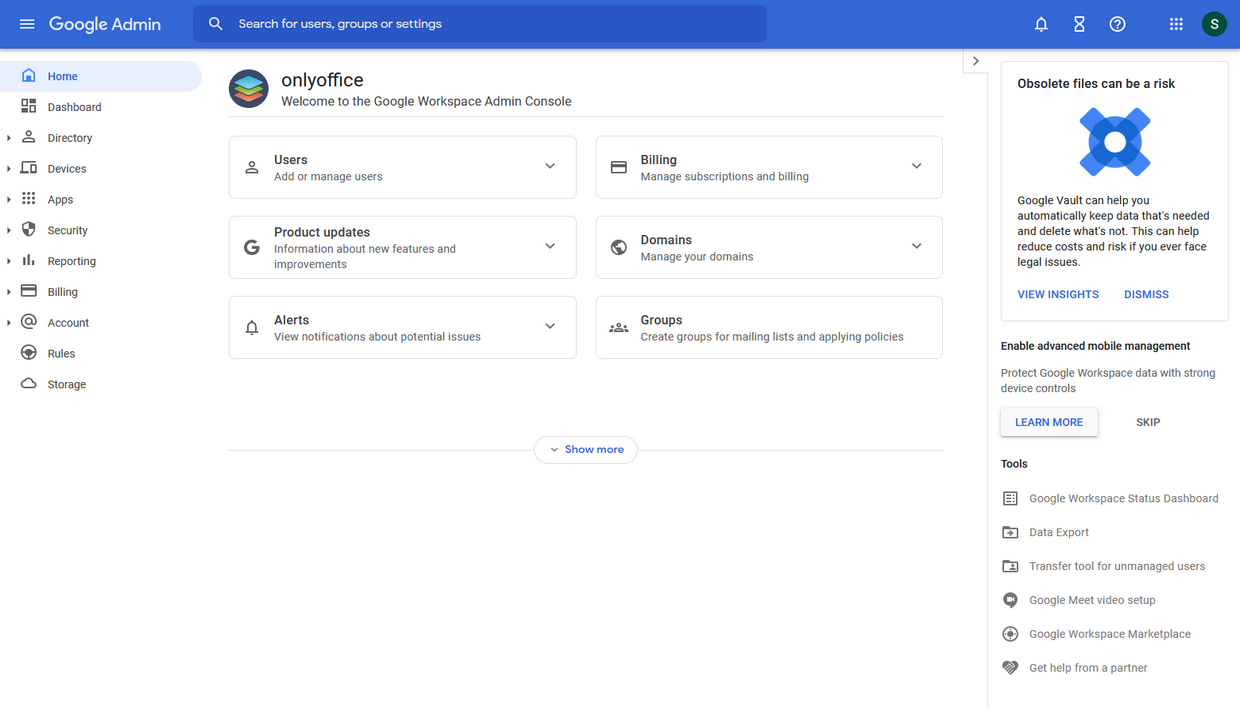
Click Open from the Admin Home page.
-
Under Tools, click Data Export.
-
Click Start Export.
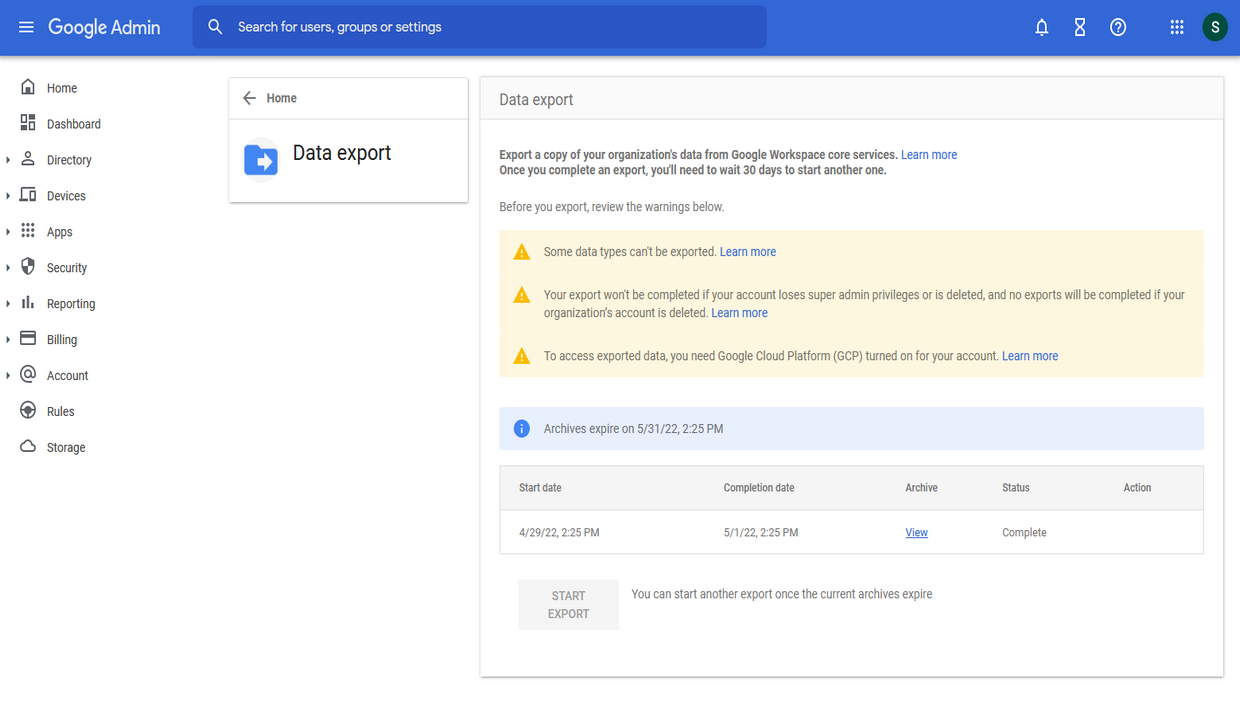
After the data export is complete, another export can be initiated only in 30 days. For more information on Google Workspace data export, refer to this help page.
Upon successful export, you will receive an email with a link to Google Cloud Storage containing a folder with the users’ data. Download the folder and prepare the users' data for import.
To learn more about downloading objects from Cloud Storage, visit the Google Cloud help page.
Prepare the data for import
The downloaded directory contains users' data folders. Each folder corresponds to a particular user. Select the users to be imported to ONLYOFFICE Workspace and compress their folders into a zip archive.
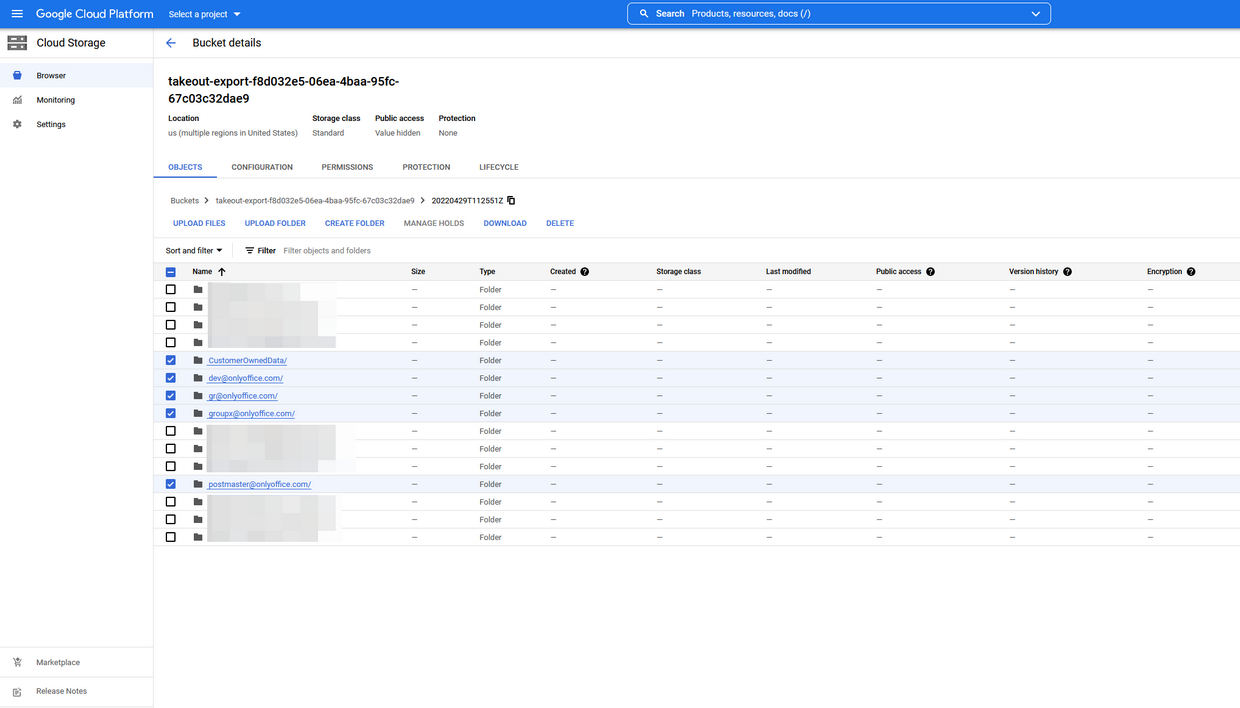
Each archive represents a Google Workspace user. We recommend uploading multiple users’ archives. It allows importing sharing settings along with the users’ files.
Import the data to ONLYOFFICE Workspace
-
Sign in to your ONLYOFFICE Workspace.
-
Go to the Control Panel.
-
Select the Data import option in the PORTAL SETTINGS section.
-
Click INITIALIZE IMPORT in the Google Workspace section.
-
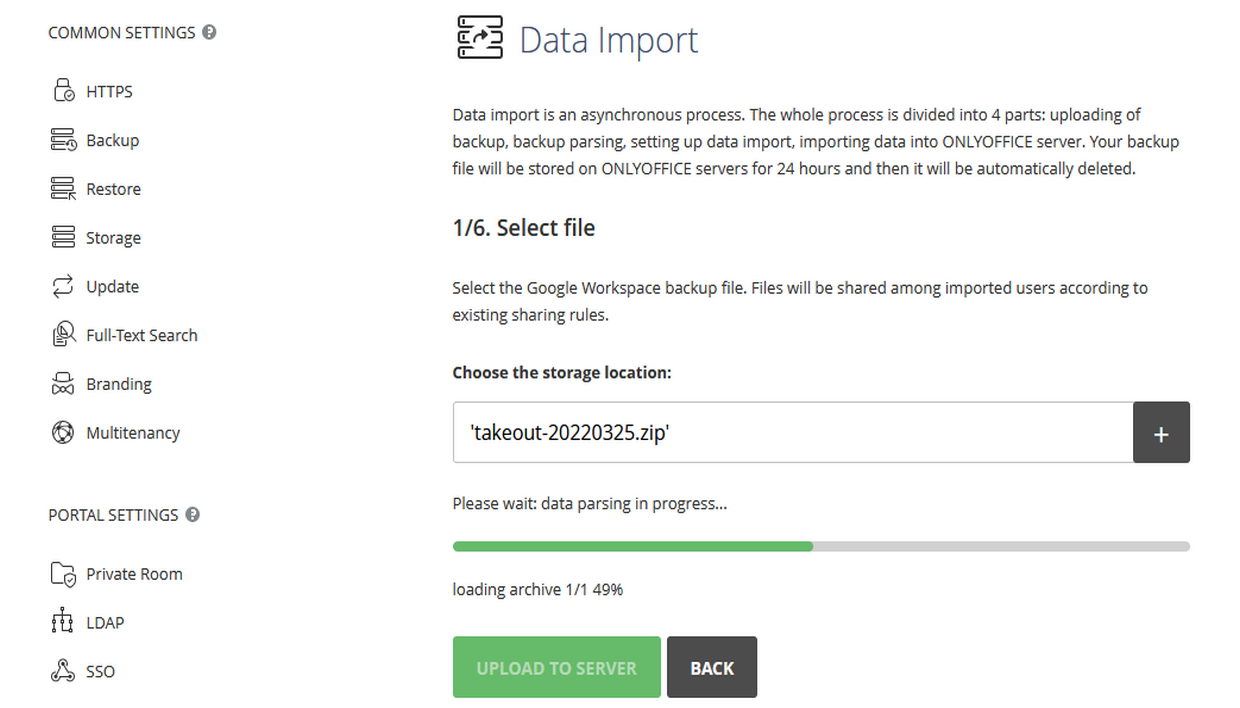
Click the Plus button next to the selection box and select the archives of the users.
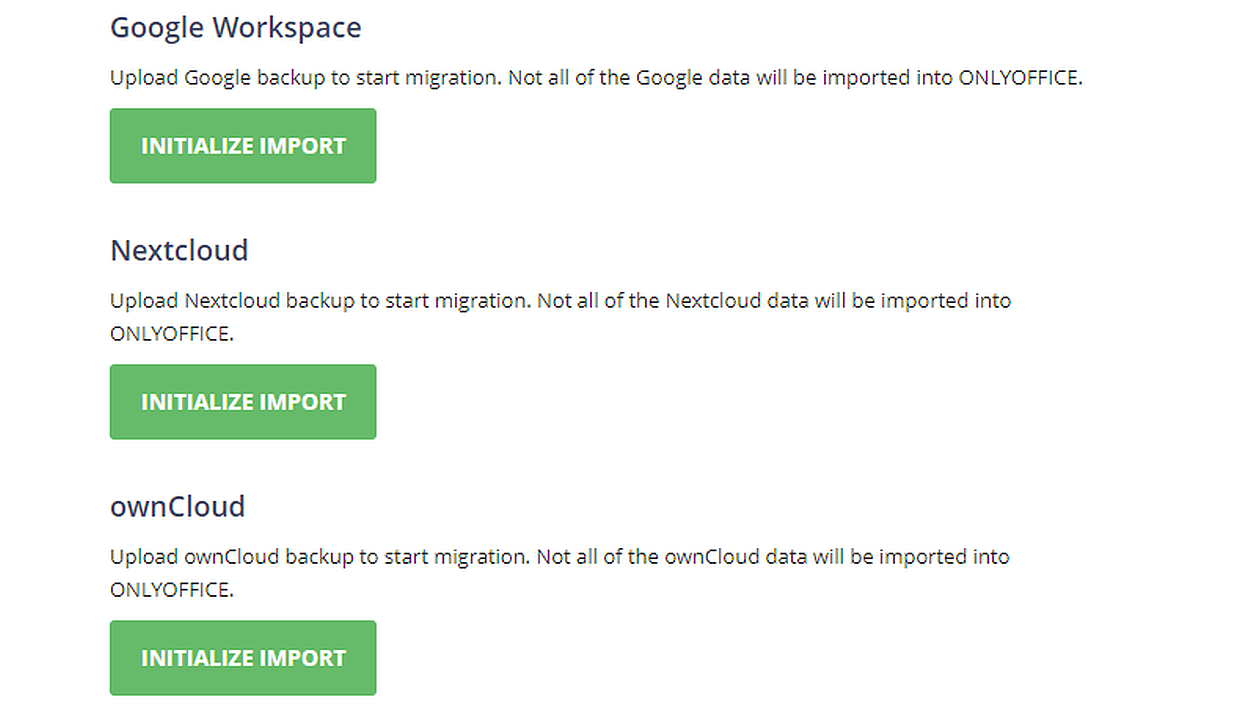
Wait for the archive to load. When the loading is complete, click UPLOAD TO SERVER.
-
Select the users from the list and click NEXT STEP.
-
Select the modules for import. The data will appear in the corresponding modules of ONLYOFFICE. Click START DATA IMPORT to proceed to the final step.
-
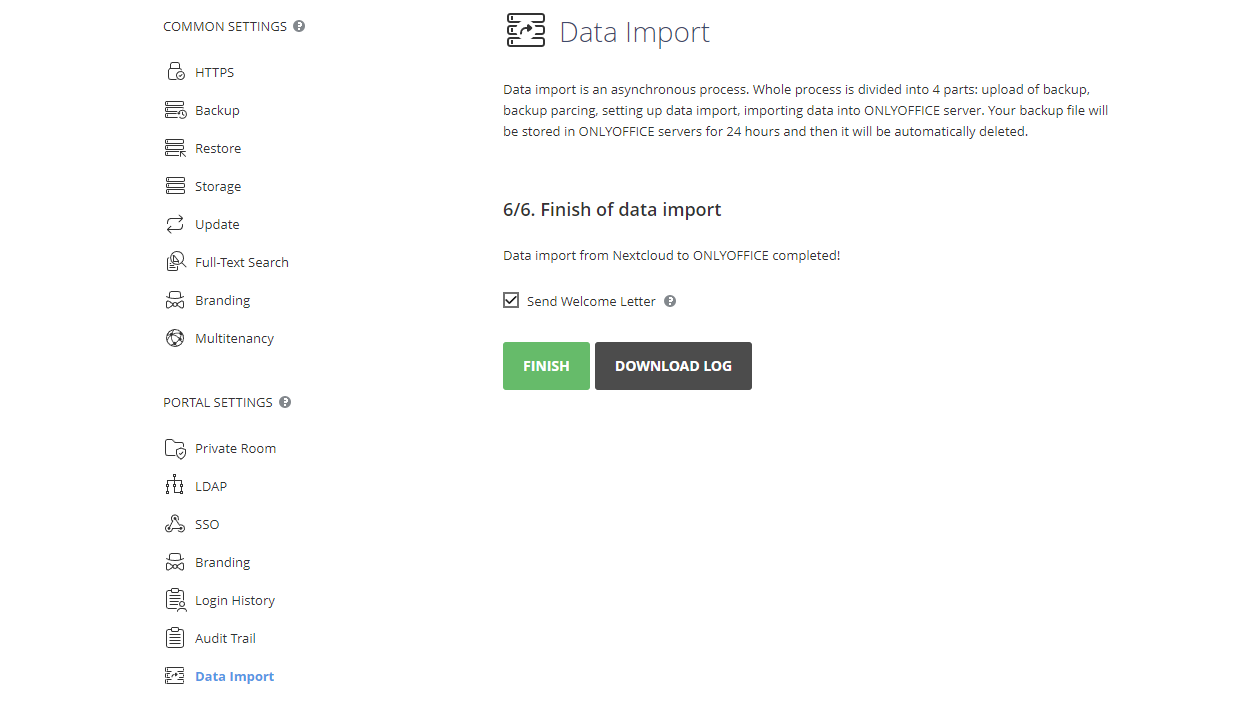
After the data is migrated, click FINISH to complete the data import.
You can also send a welcome letter to the new users. This letter informs your Google Workspace users about the migration to ONLYOFFICE Workspace. It contains a brief description of the main features and a login link. To send the letter, select the Send Welcome Letter option before clicking FINISH.
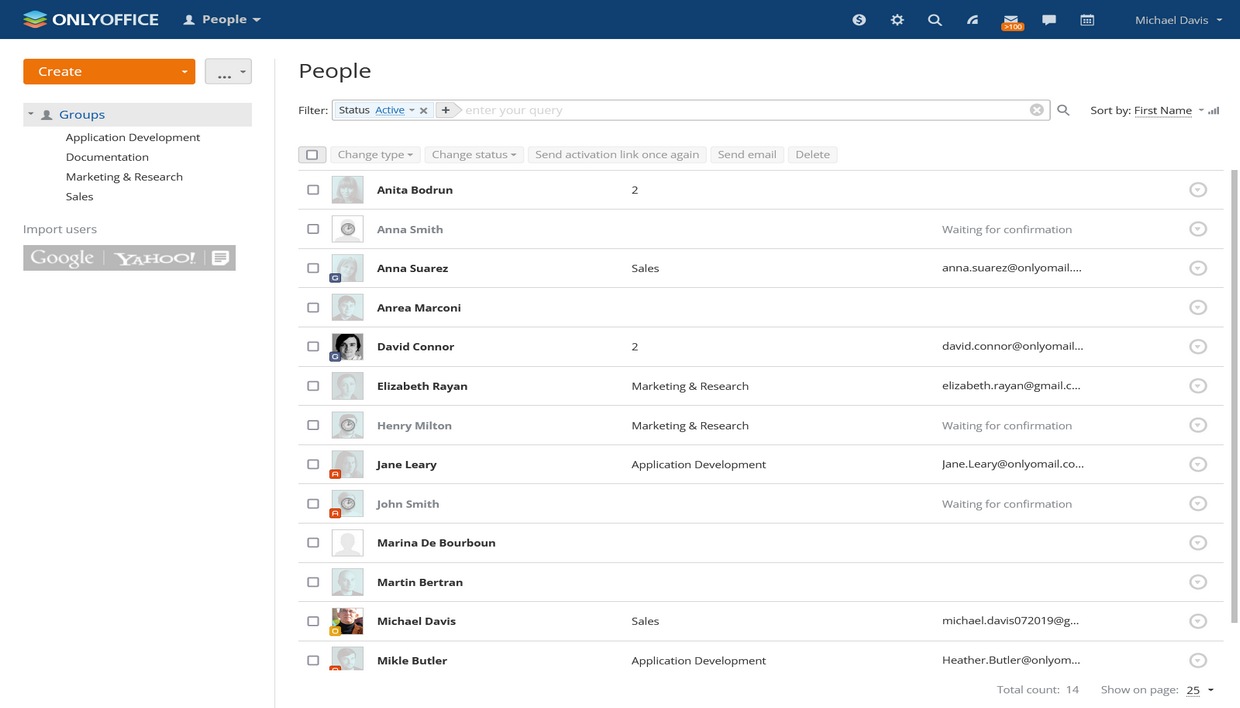
After the migration is complete, the new users can be found in the People module.
The users’ files with the imported sharing settings can be accessed through the Documents module.