Configuring ONLYOFFICE SP and Shibboleth IdP
Introduction
Single Sign-on (SSO) is a technology that allows users to sign in only once and then get access to multiple applications/services without re-authentication.
SSO is always facilitated by the joint operation of two applications: an Identity Provider and a Service Provider (hereinafter referred to as "IdP" and "SP"). ONLYOFFICE SSO implements the SP only. Many different providers can act as an IdP, but this article considers the Shibboleth implementation.
Preparing ONLYOFFICE Workspace for the SSO setup
- Install ONLYOFFICE Workspace v. 11.0.0 for Docker or any later version with the SSO support.
- Add a domain name, e.g., myportal-address.com.
- On your portal, go to the Control Panel > HTTPS, create and apply the letsencrypt certificate for the traffic encryption (to enable HTTPS on your portal).
Creating Shibboleth IdP
Requirements
- To deploy Shibboleth IdP, a clean CentOS 7 host machine is required.
- Time must be set correctly and the time synchronization service must be installed on the host machine for IDP:
timedatectl status yum install ntp systemctl enable ntpd.service ntpdate time.apple.com - The
unzippackage must be installed on the machine:yum install unzip - Docker and Docker Compose must be installed on the machine.
- A domain name must be associated with the machine (for example, your-idp-domain.com)
Creating Shibboleth IdP
To create, configure and start Shibboleth IDP, download and execute the install.sh script.
The script performs the following actions:
- downloads docker files for creating Shibboleth Idp images and containers from github,
- changes the default idptestbed.edu domain in the configuration files to the domain specified when executing the script,
- adds access via the SAML protocol for the specified ONLYOFFICE SP domain,
- specifies which attributes the ONLYOFFICE SP requires in order to retrieve user information from Shibboleth IdP (the Attribute Mapping setting),
- creates and configures LDAP and creates users for issuing,
- enables dynamic loading of metadata from ONLYOFFICE SP to Shibboleth IDP,
- enables Shibboleth Single Logout (SLO), if applicable.
- Download the install.sh script:
curl -L https://help.onlyoffice.co/Products/Files/HttpHandlers/filehandler.ashx?action=download&fileid=6875651&doc=MW9QWHdCQU9HOTN5dlpBWVQxTGtOem55SjJaNWx4L1ZIdTNkQk53QnpDYz0_IjY4NzU2NTEi0 -o install.sh - Make the script executable:
chmod +x install.sh - Execute the script, replacing the parameters with your own values:
./install.sh -id your-idp-domain.com -sd myportal-address.com --no_sloScript parameters:
- -id - a domain name of the current machine for Shibboleth IDP.
- -sd - a domain name where ONLYOFFICE SP is deployed.
- --no_slo - disables Single Logout in Shibboleth IDP (optional parameter).
- Wait for Shibboleth IDP to start after executing the script.
- To verify that Shibboleth IDP started correctly, open the https://your-idp-domain.com/idp/shibboleth link in your browser. An xml file should be displayed.
- Copy the https://{your_idp_domain}/idp/shibboleth link (e.g., https://your-idp-domain.com/idp/shibboleth) and go to the ONLYOFFICE portal signing in as an administrator. Open the Control Panel -> SSO page.
Configuring ONLYOFFICE SP
- Ensure that you are signed in as an Administrator to your ONLYOFFICE Control Panel and click the SSO tab in the PORTAL SETTINGS section on the left sidebar.
You can only register one enterprise Identity Provider for your organization on the ONLYOFFICE portal.
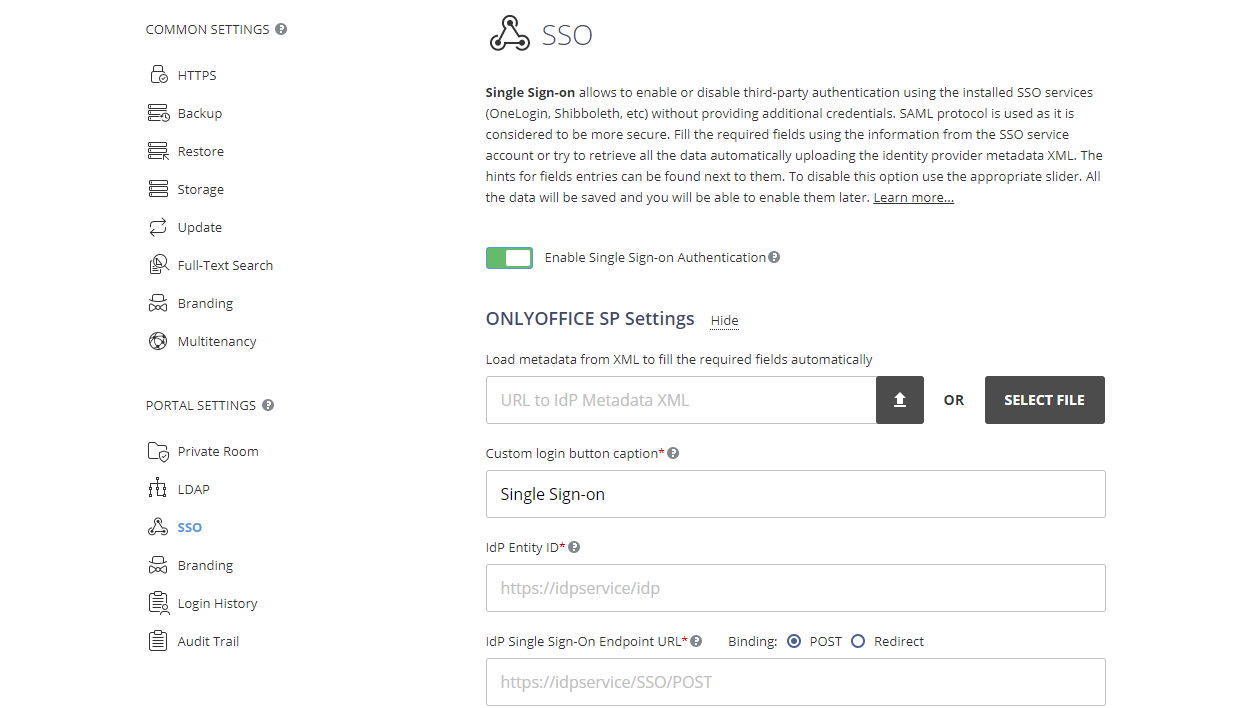
- Enable SSO by clicking the Enable Single Sign-on Authentication toggle and paste the link to the Shibboleth IdP into the URL to Idp Metadata XML field.
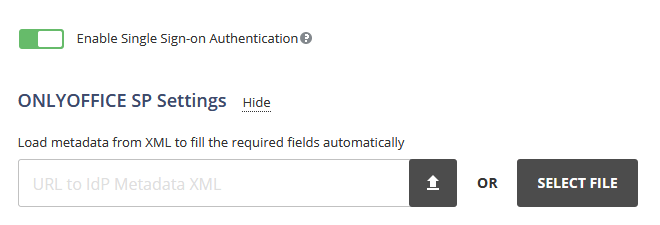
- Click the upload button to load the IdP metadata. Shibboleth IdP will automatically populate the ONLYOFFICE SP Settings form fields.
As we disabled SLO when executing the install.sh script by specifying the
--no_sloparameter, the IdP Single Logout Endpoint URL field will be empty. - Once the IdP metadata is loaded, two certificates will be added to the IdP Public certificates section. A pop-up window will also appear with the following message: 'Multiple IdP verification certificates are not supported. Please retain only the Primary certificate'.
Delete the second certificate in the list and keep the first certificate only, which is the primary certificate. Use the Delete link next to the second certificate to remove it. If the certificate is not removed, the settings cannot be saved.
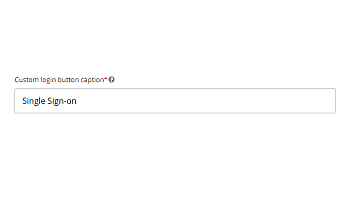
- In the Custom login button caption field, you can enter any text instead of the default one (Single Sign-on). This text will be displayed on the button used to sign in to the portal with the Single Sign-on service at the ONLYOFFICE authentication page.

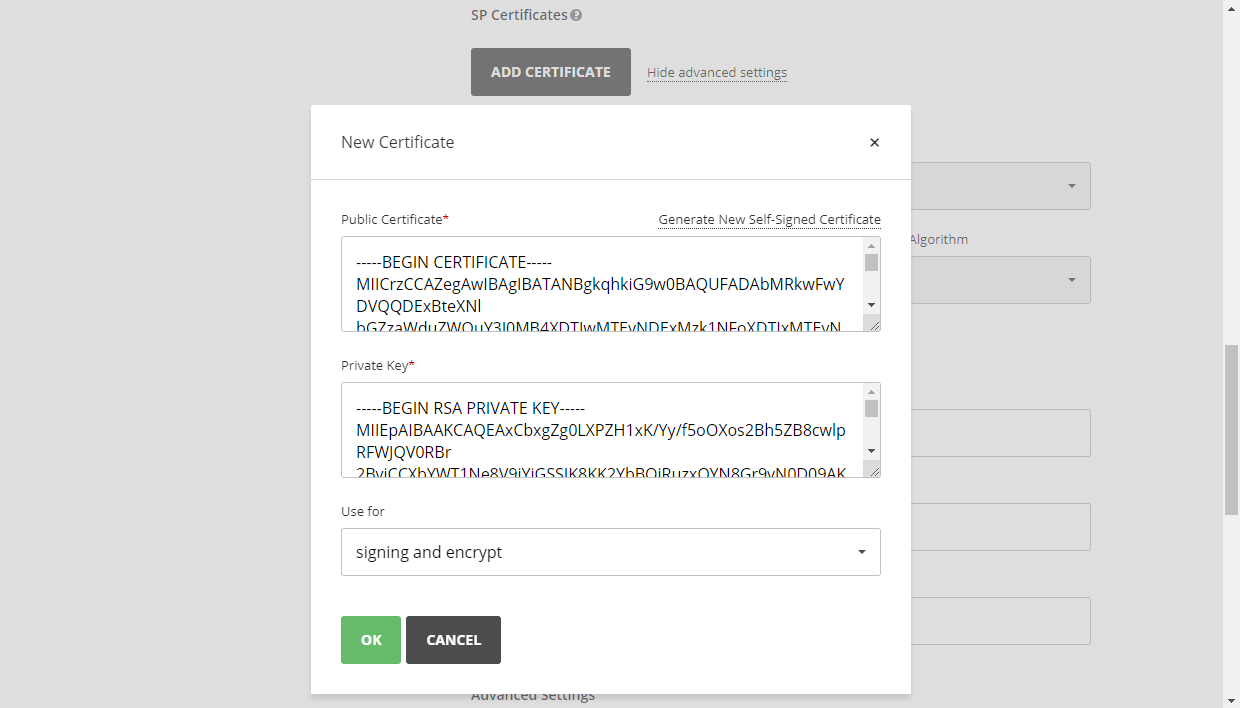
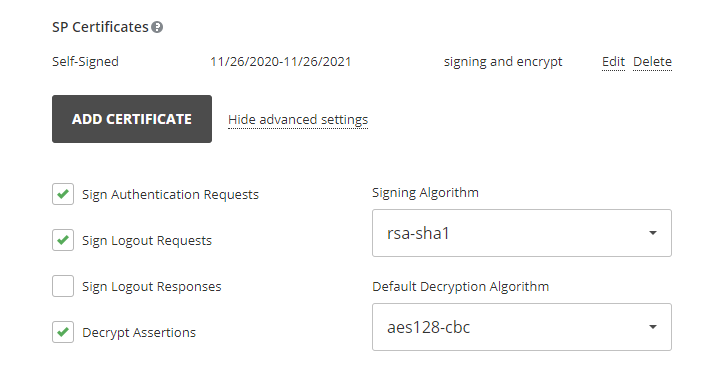
- Now you need to create self-signed certificates or add any other certificates in the SP Certificates section.
ImportantIn the Use for list, select signing and encrypt as the Shibboleth IdP is automatically configured by the install.sh script to verify that data is digitally signed and encrypted.
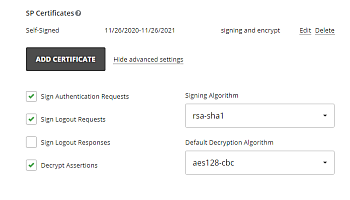
You should get nearly the same result:
- In the Attribute Mapping section, map the fields in the ONLYOFFICE People module to the user attributes that will be returned from the Shibboleth IdP.
First Name urn:oid:2.5.4.42 Last Name urn:oid:2.5.4.4 Email urn:oid:0.9.2342.19200300.100.1.3 Location urn:oid:2.5.4.7 Title urn:oid:2.5.4.12 Phone urn:oid:0.9.2342.19200300.100.1.41 
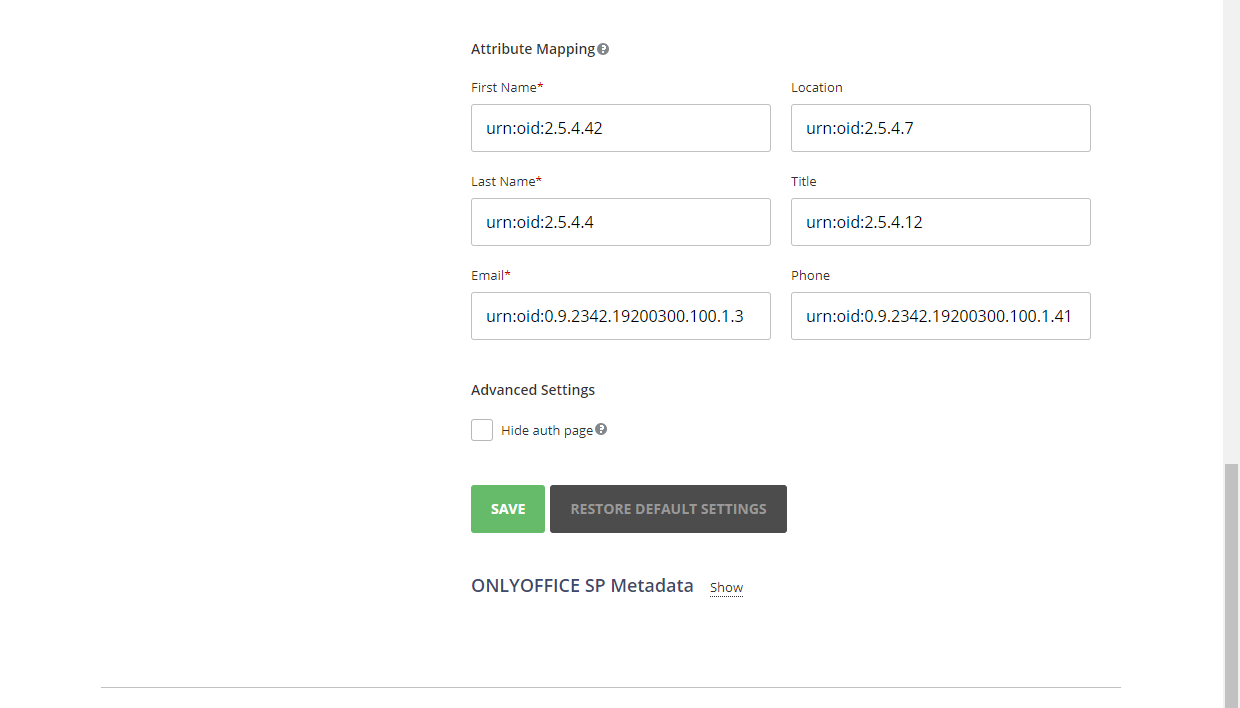
In the Advanced Settings section, you can check the Hide auth page option to hide the default authentication page and automatically redirect to the SSO service.
ImportantIf you need to restore the default authentication page (to be able to access the portal if you your IDP server fails), you can add the/Auth.aspx?skipssoredirect=truekey after the domain name of your portal in the browser address bar. - Click the Save button.
- The ONLYOFFICE SP Metadata section should be opened.
- Verify that our settings are publicly available by clicking the Download SP Metadata XML button. The XML file contents should be displayed.
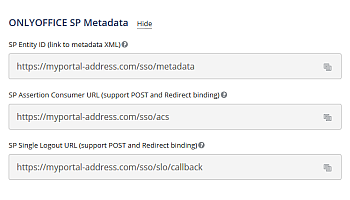
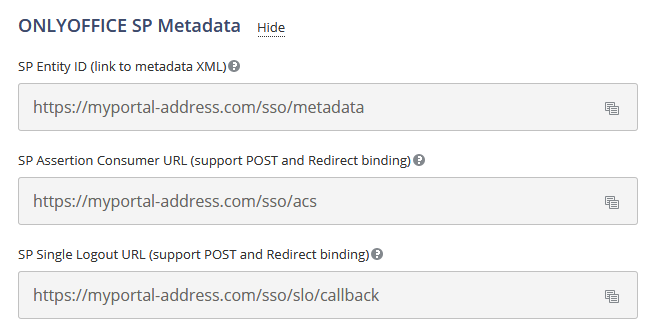
This XML file is typically used to configure Shibboleth IdP; however, because the install.sh script enables
DynamicHTTPMetadataProvider, this step is not required (Shibboleth IDP will download this xml file at the first request for the login).
Verifying the ONLYOFFICE SP configuration with the Shibboleth IdP
The install.sh script creates four test users for testing the work of the ONLYOFFICE SP and the Shibboleth IdP.
| Username | Password | Comment | |
|---|---|---|---|
| student1@{your_idp_domain} | student1 | password | Standard |
| student2@{your_idp_domain} | student2 | password | Without givenName |
| student3@{your_idp_domain} | student3 | password | With umlauts |
| staff1@{your_idp_domain} | staff1 | password | Mandatory fields only |
Signing in to ONLYOFFICE on the SP side
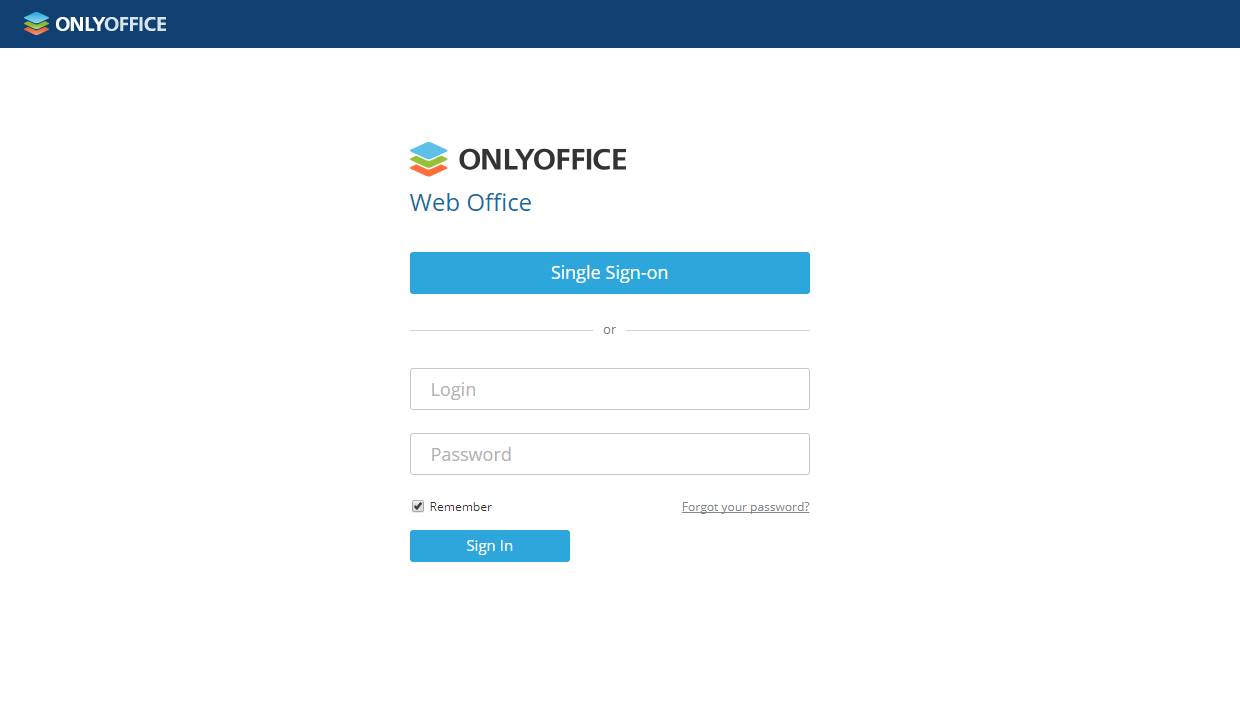
- Go to the ONLYOFFICE Authentication page (e.g., https://myportal-address.com/Auth.aspx).
- Click the Single sign-on button (the caption may differ if you have specified your own text when configuring ONLYOFFICE SP). If the button is missing, this means that SSO is not enabled.
- "If all SP and IdP parameters are configured correctly, you will be redirected to the Shibboleth IdP login form:
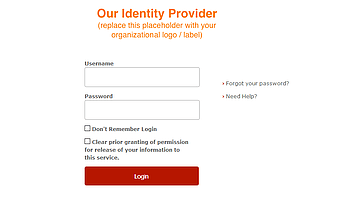
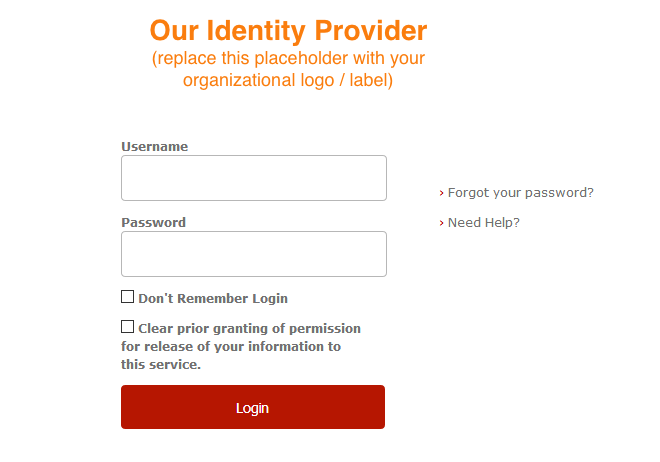
- Enter the username and password of the Shibboleth IdP account (username: student1, password: password) and select the Don't Remember Login checkbox.
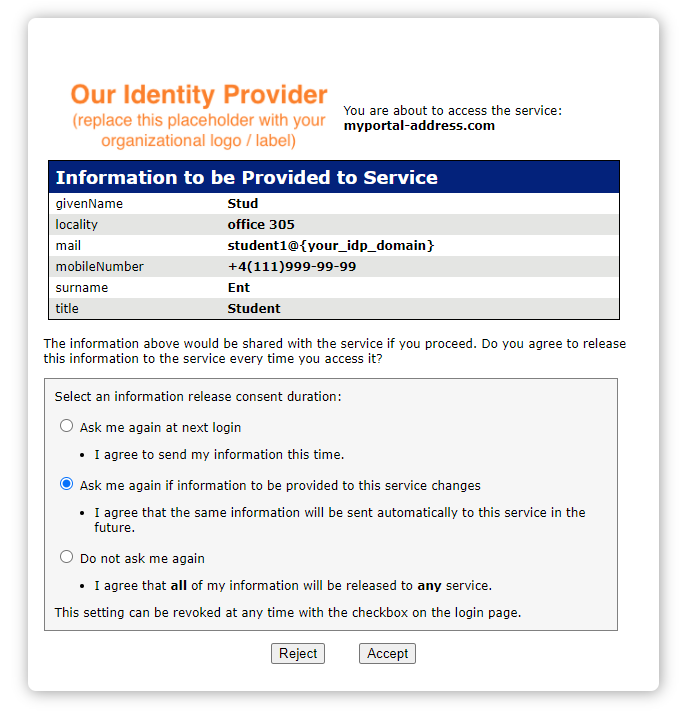
- If the credentials are correct, a new window opens. Allow the service to access your information by clicking the Accept button.
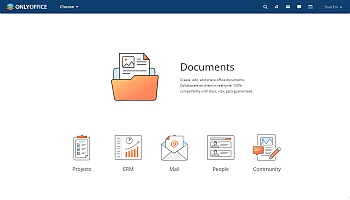
- If the credentials are correct, you will be redirected to the portal home page. The user account will be created automatically if it does not yet exist, or updated if any data has changed in the IdP.
Profiles for users added with SSO authentication
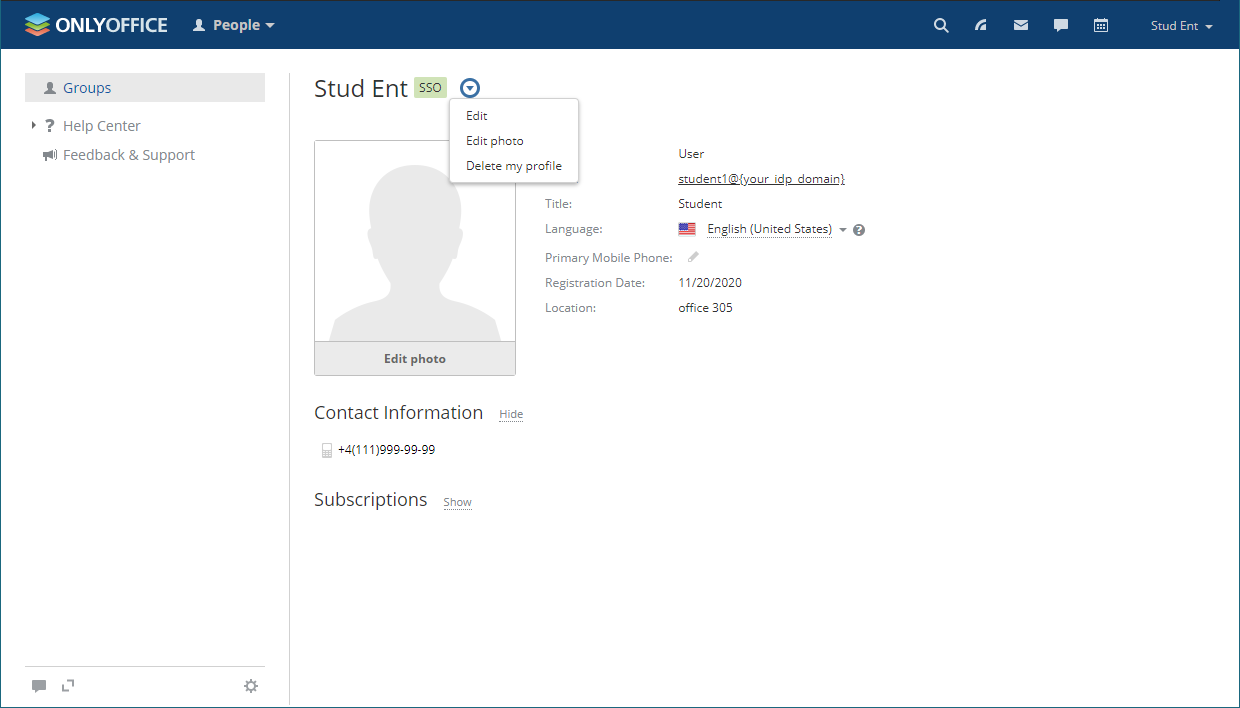
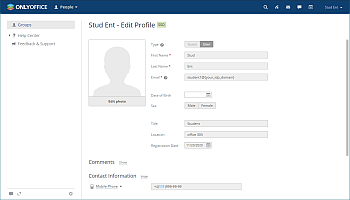
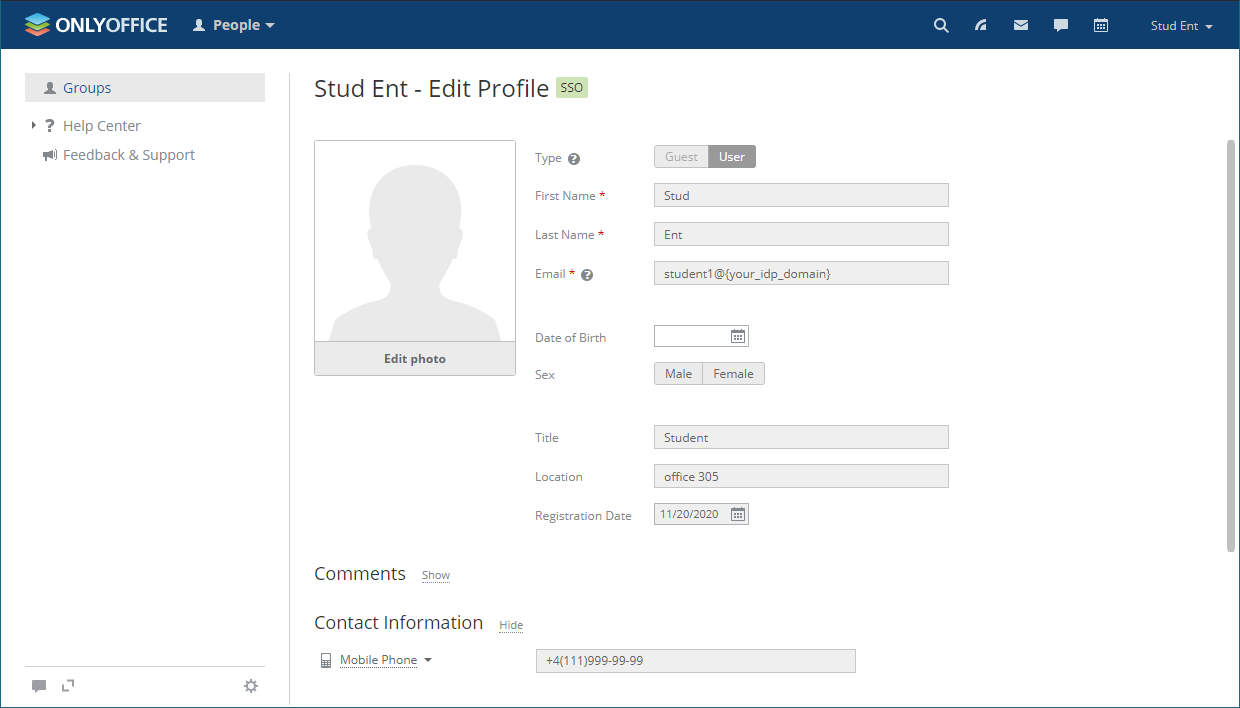
Editing user profiles created via SSO authentication is restricted. The user profile fields received from the IdP cannot be edited (i.e., First Name, Last Name, Email, Title and Location). You can edit these fields from your IdP account only.
The figure below shows the Actions menu for an SSO user:
The following figure shows an SSO user profile opened for editing:
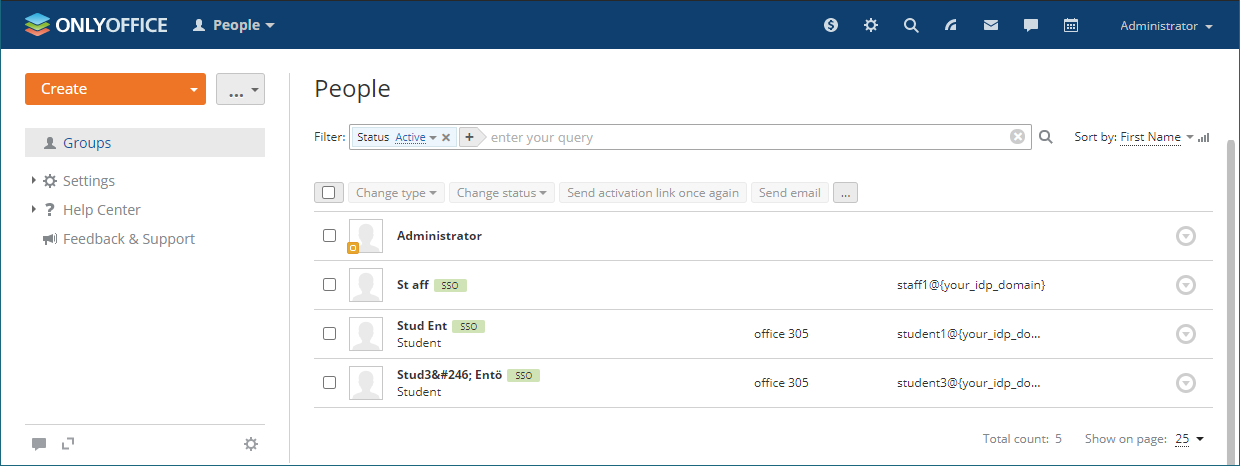
The users created using the SSO authentication are marked with the SSO icon in the user list for the portal administrators:
To log out from the Shibboleth IdP (if you did not select the Don't Remember Login checkbox when signing in, go to the link that looks like this: https://{shibboleth-idp-domain}/idp/profile/Logout