Adding ONLYOFFICE Mail to ONLYOFFICE Workspace installation
If you've installed ONLYOFFICE Workspace on your server using the provided Docker script (for Workspace Community or Workspace Enterprise) but chose to skip the ONLYOFFICE Mail installation for any reason, you can do so at any time, as the Control Panel offers you the quickest and easiest way to install ONLYOFFICE Mail.
To access Control Panel, sign in to your portal and click the Control Panel link on the Start Page. Alternatively, you can navigate to Settings and click the Control Panel link in the left-side panel.
Quick Start
- In the Control Panel, open the Update page in the COMMON SETTINGS section on the left sidebar. On this page, you can view all ONLYOFFICE Workspace components along with their statuses (Installed), as well as Current and the latest Available versions.
Scroll the page down until the Mail Server section appears. The Not installed caption is displayed in place of the current component version. Click the DOWNLOAD button next to its latest available version. Once the download is complete, the INSTALL button will appear.
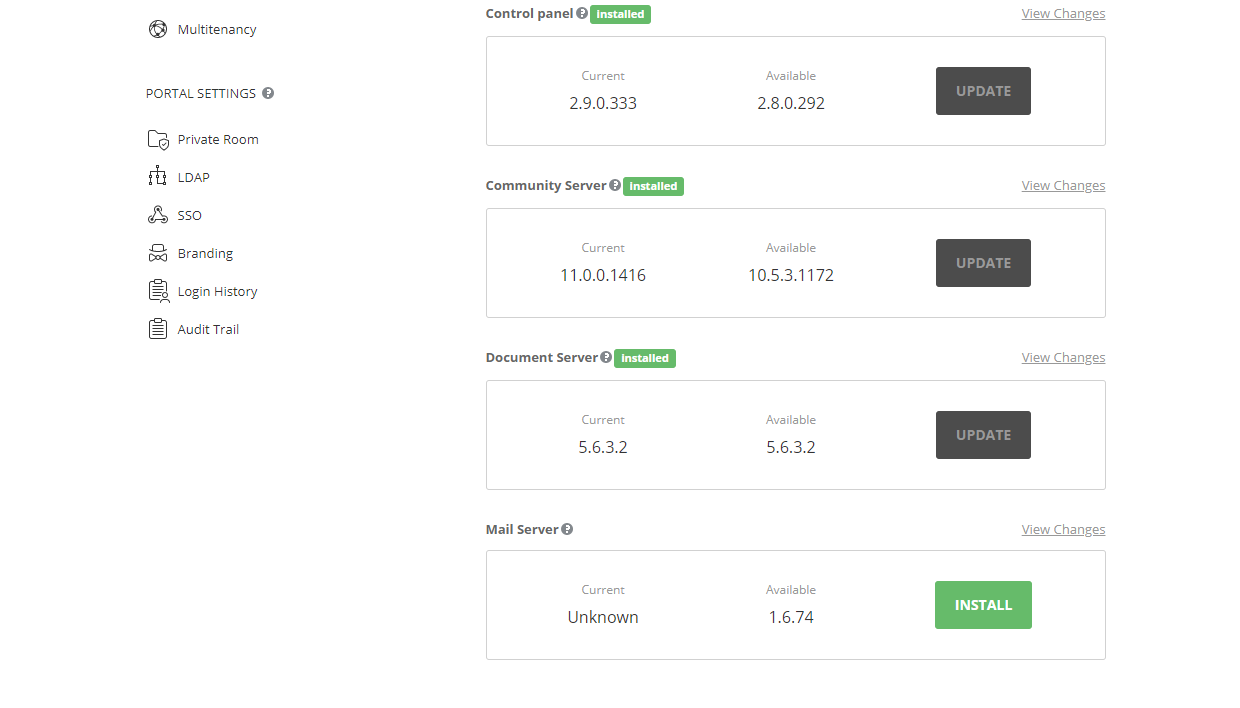
- Click the INSTALL button. The Mail Server setup window will open. In the Mail Server service domain name entry field, specify the service domain name that will be used for ONLYOFFICE Mail and click the OK button to start the installation process.
Your domain that will be used for maintaining correspondence must be valid and configured for this machine (i.e., it should have the appropriate A record in the DNS settings that points your domain name to the IP address of the machine where ONLYOFFICE Mail is installed).
The Mail Server service domain is usually specified in the MX record of the domain that will be used for maintaining correspondence. As a rule, this service domain looks likemx1.onlyoffice.com
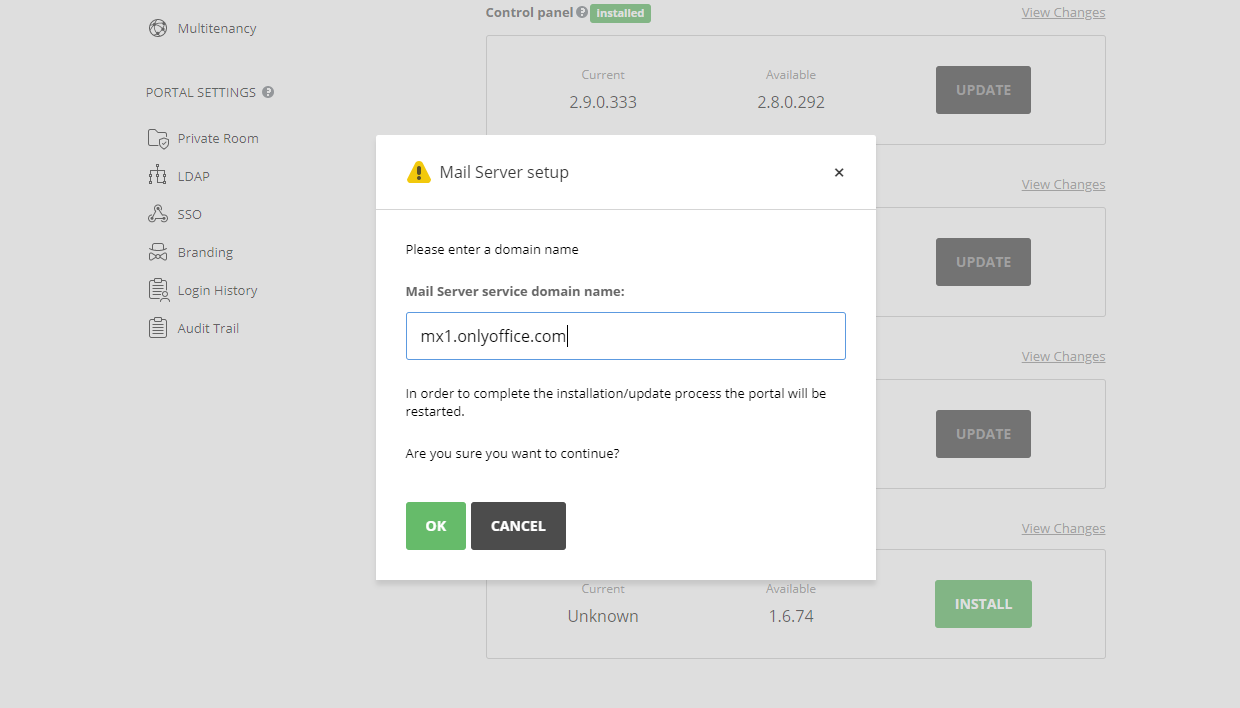
- After that, your Control Panel and portal will restart and become temporarily unavailable. This process may take up to five minutes. Once the installation is complete, the Mail Server component will acquire the Installed status on the Update page. You can scroll up and click the GO TO PORTAL button.
On the portal Start Page, click the Mail Server link to go to the Mail module. Expand the Settings section in the left-side panel and confirm that the Mail Server item is now available.
To learn more on how to configure your domain, refer to these instructions.