Integrating ONLYOFFICE with LinkedIn
Connect your LinkedIn account to log in to your portal quickly.
Connecting LinkedIn to ONLYOFFICE
To connect LinkedIn to your portal:
- Click the
 icon in the upper-right corner to open Settings.
 - Switch to the Integration tab.
- Open the Third-Party Services page.
- Scroll down to LinkedIn and click the toggle to enable it.
- In the LinkedIn window that opens, enter the
LinkedIn IDandLinkedIn Keyobtained in the previous section.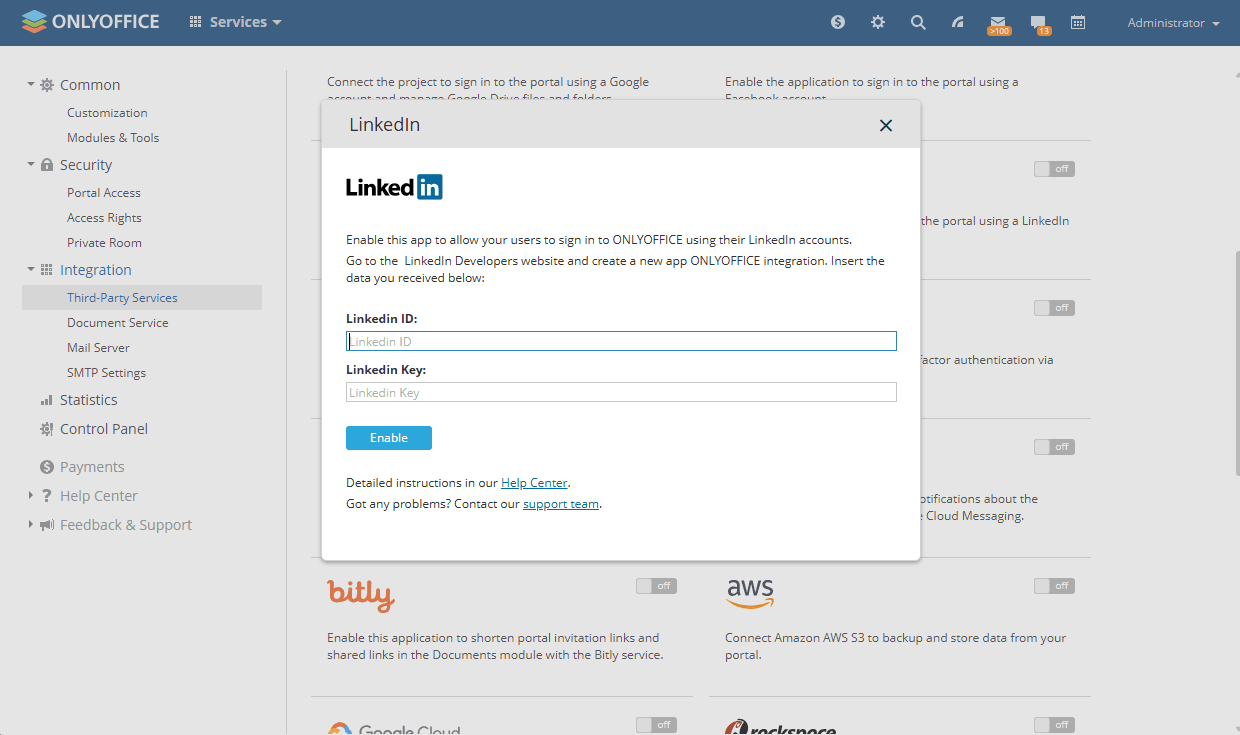
- Click Enable to connect the service.
Once connected, go to your Profile page, find the Login via Social Networks section, select LinkedIn, and click Connect. In the window that opens, grant access to the ONLYOFFICE application and enter your credentials if required.
Watch video
How to connect ONLYOFFICE with LinkedIn
Watch our video tutorial if you don't want to introduce your portal credentials every time you enter it.
Article with the tag:
Browse all tags