Integrating ONLYOFFICE with Google

Connect your Google account to log in to your portal quickly, connect Google Drive to the Documents module, and import users from your contact list.

Obtaining Google access keys

To obtain the access keys required to connect Google to your portal:

  1. Go to the Google Cloud Platform console.
  2. Sign in to your account.
  3. Click Create project. Enter the Project Name and click Create. Once the project is created, click on the project name in the notification to open it.
  4. Enable the necessary APIs:
    • Click the navigation menu in the upper-left corner and select APIs and services > Enabled APIs and services.
    • Click Enable APIs and services.
    • In the Google Workspace section, click Google Drive API link and click Enable.
    • Return to the Enabled APIs and services page and enable Google People API and Contacts API in the same way.
  5. Configure the OAuth consent screen:
    • From the left navigation menu, select OAuth consent screen.
    • Choose the User Type and click Create.
    • Specify the App name and User support email.
    • In the Authorized domains subsection, click Add domain and enter onlyoffice.com.
    • Specify an email in the Developer contact information section and click Save and continue.
    • Click Add or remove scopes. In the Manually add scopes section, enter https://www.googleapis.com/auth/drive and click Add to table, then click Update.
    • Click Save and continue.
    • In the Test users section, click Add users, specify the necessary Google accounts, and click Add.
    • Click Save and continue.
  6. Get the Google ID and Google Key:
    • From the left navigation menu, select Credentials.
    • Click Create credentials and select OAuth client ID.
    • In the Application type list, select Web application.
    • In the Authorized JavaScript origins section, click Add URI and enter https://service.onlyoffice.com.
    • In the Authorized redirect URIs section, click Add URI and enter https://service.onlyoffice.com/oauth2.aspx.
    • Click Create. Your Google ID and Google Key will be displayed in the window that opens. Copy or note them down.

Connecting Google to ONLYOFFICE

To connect Google to your portal:

  1. Click the Settings Icon icon in the upper-right corner to open Settings.
  2. Select the Integration tab.
  3. Open the Third-Party Services page.
  4. Scroll down to Google and click the toggle to enable it.
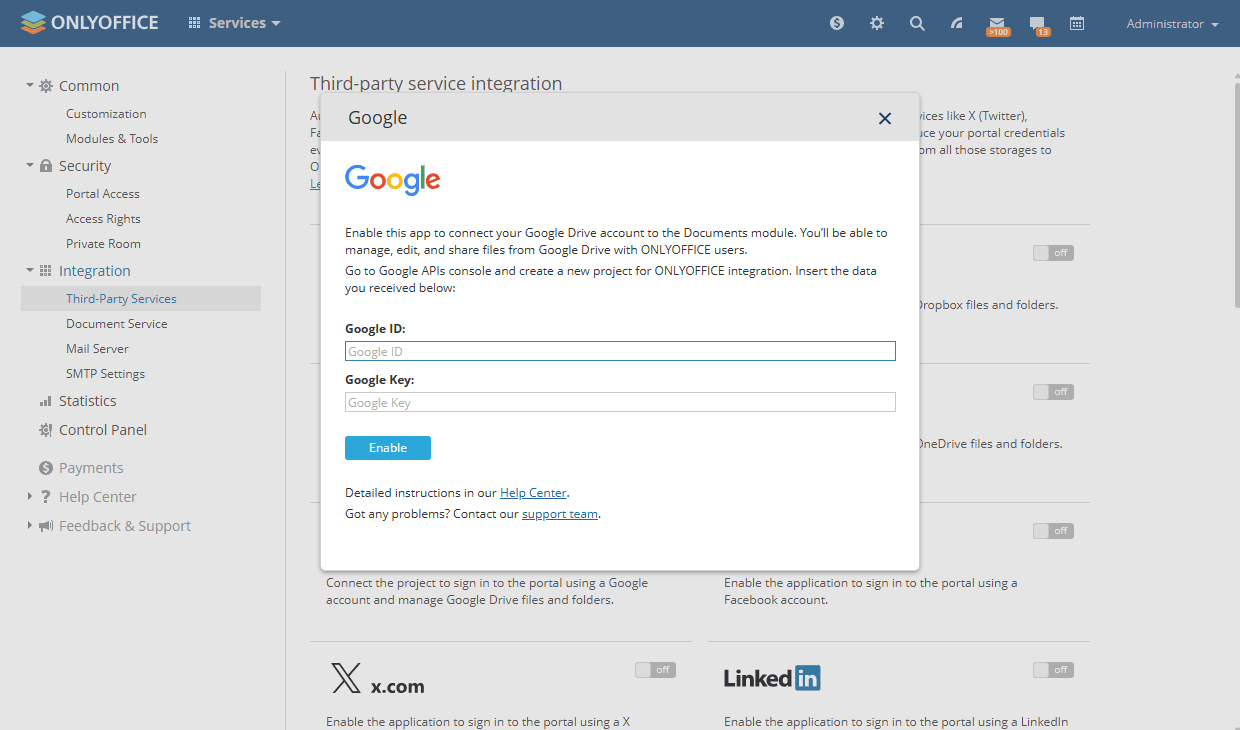
  5. In the Google window that opens, enter the Google ID and Google Key obtained in the previous section.
    Integrate Google Integrate Google
  6. Click Enable to connect the service.

Once connected, go to your Profile page, find the Login via Social Networks section, select Google, and click Connect. In the window that opens, grant access to the ONLYOFFICE application and enter your credentials if required.

Watch video

How to connect ONLYOFFICE with Google

Watch our video tutorial to learn how to connect ONLYOFFICE with Google if you don't want to introduce your portal credentials every time you enter it and to synchronize your Google Docs account.

Article with the tag:
Browse all tags