Integrating ONLYOFFICE with Google Cloud Storage

Connect the Google Cloud Storage service to use it as a third-party storage when creating backups. It is also possible to use this cloud storage to store data and static content from your portal.

If you use the SaaS version, the authorization key parameters for most services are set up automatically. In the SaaS version, you can connect DocuSign, Twilio, AWS, Google Cloud, Rackspace, and Selectel.

Obtaining Google Cloud Storage access keys

To obtain the access keys required to connect Google Cloud Storage to your portal:

  1. Go to the Google Cloud Platform console.
  2. Sign in to your account.
  3. Click the navigation menu in the upper left corner and select IAM & admin > Service accounts.
  4. Select an existing project or create a new one.
  5. Click Create service account.
  6. Specify the Service account name and click Create.
  7. Select the Owner role and click Continue.
  8. Optionally, grant access to this service account by adding the necessary Google accounts and clicking Done.
  9. On the Service accounts page, click the menu button in the Actions column and select Create key.
  10. In the window that opens, select the JSON type and click Create. The .json file containing the private key will be downloaded to your computer.
  11. Open the .json file with a text editor, copy its contents, and paste them into the json field on the portal.

Connecting Google Cloud Storage to ONLYOFFICE

To connect Google Cloud Storage to your portal:

  1. Click the Settings Icon icon in the upper-right corner to open Settings.
  2. Select the Integration tab.
  3. Open the Third-Party Services page.
  4. Scroll down to Google Cloud Storage and click the toggle to enable it.
  5. In the Google Cloud Storage window that opens, paste the contents of the .json file obtained in the previous section.
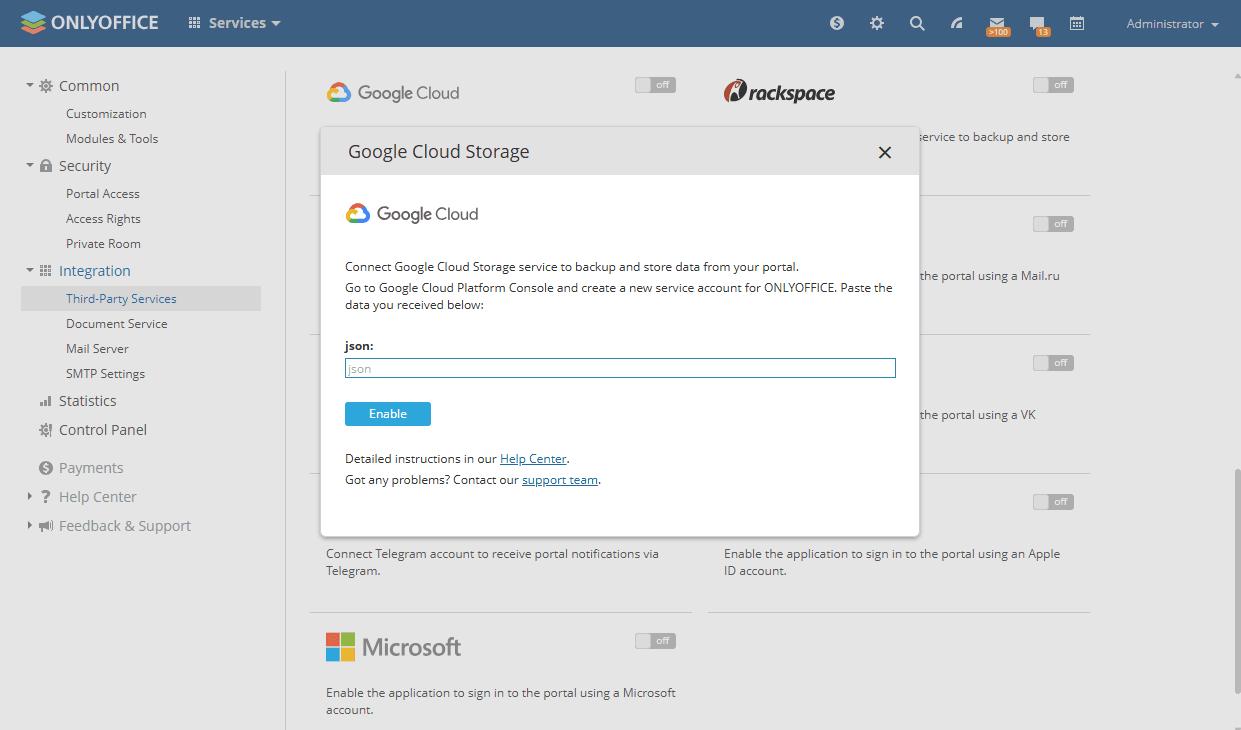
    Integrate Google Cloud Integrate Google Cloud
  6. Click Enable to connect the service.
Article with the tag:
Browse all tags