Integrating ONLYOFFICE with Facebook
Connect your Facebook account to log in to your portal quickly.
Connecting Facebook to ONLYOFFICE
To connect Facebook to your portal:
- Click the
 icon in the upper-right corner to open Settings.
 - Select the Integration tab.
- Open the Third-Party Services page.
- Scroll down to Facebook and click the toggle to enable it.
- In the Facebook window that opens, enter the
Facebook IDandFacebook Keyobtained in the previous section.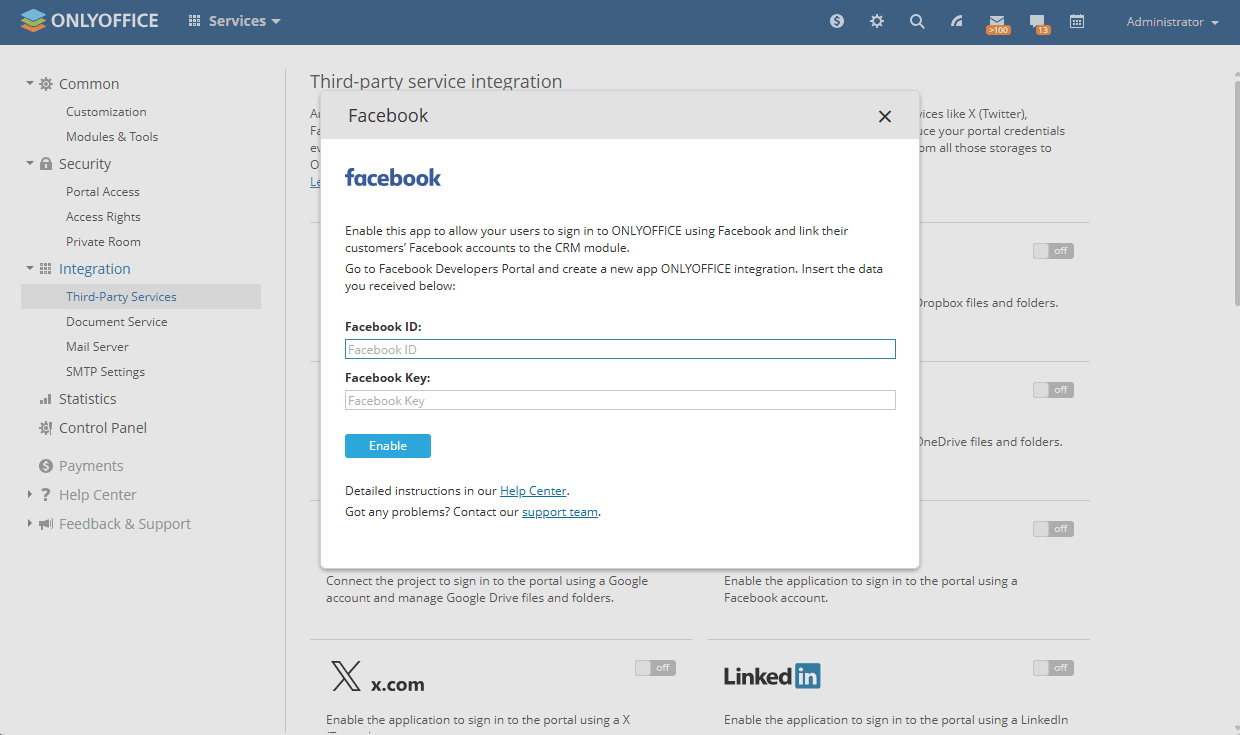
- Click Enable to connect the service.
Once connected, go to your Profile page, find the Login via Social Networks section, select Facebook, and click Connect. In the window that opens, grant access to the ONLYOFFICE application and enter your account credentials if required.
Watch video
How to connect ONLYOFFICE with Facebook
A video tutorial to learn how to connect ONLYOFFICE with Facebook if you don't want to introduce your portal credentials every time you enter it.
Article with the tag:
Browse all tags