Changing the user status to Guest
Guests are portal users with restricted access rights. They can:
- view files available to all portal members,
- download files from the Common Documents folder and documents shared with them,
- upload files to folders shared with them,
- add comments to existing posts,
- attach files to comments,
- and edit their profiles.
This guide explains how to change a portal user's status to Guest. Please note that the option of changing user status is available for portal administrators only.
Changing the user status to “Guest”
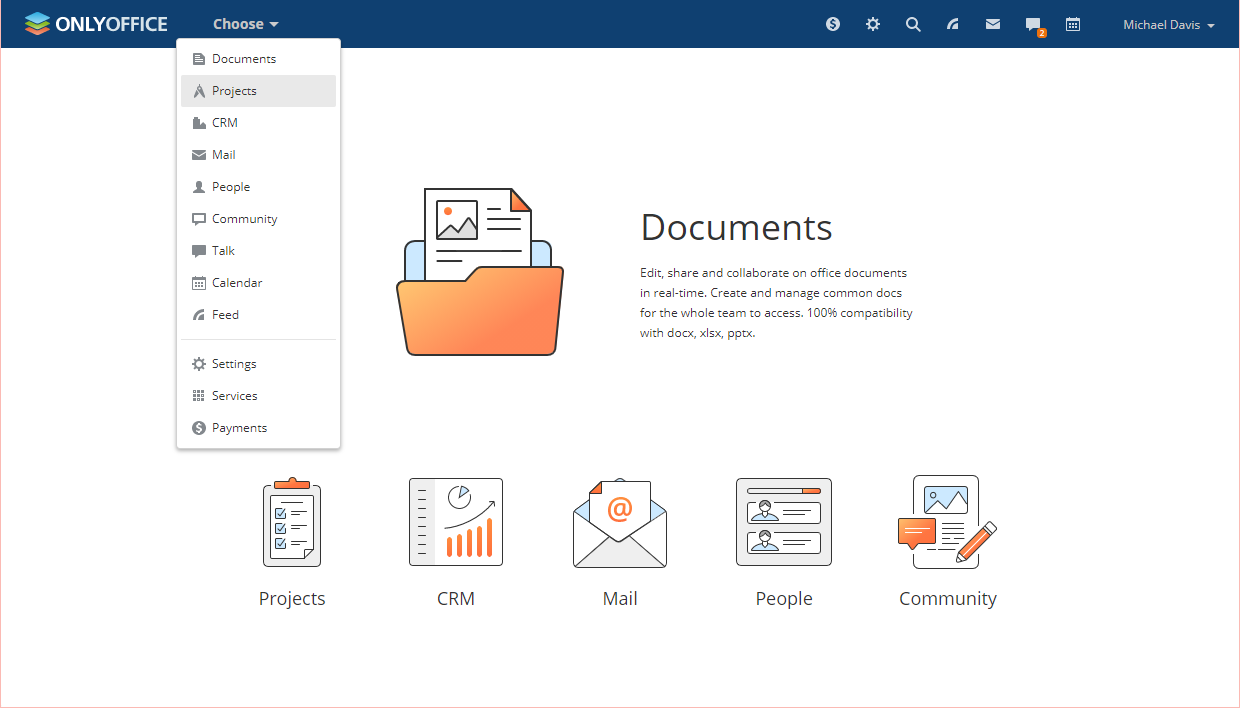
- switch to the People module on your portal,
- find the required user in the list,
- click the
 icon next to the necessary user and select Edit,
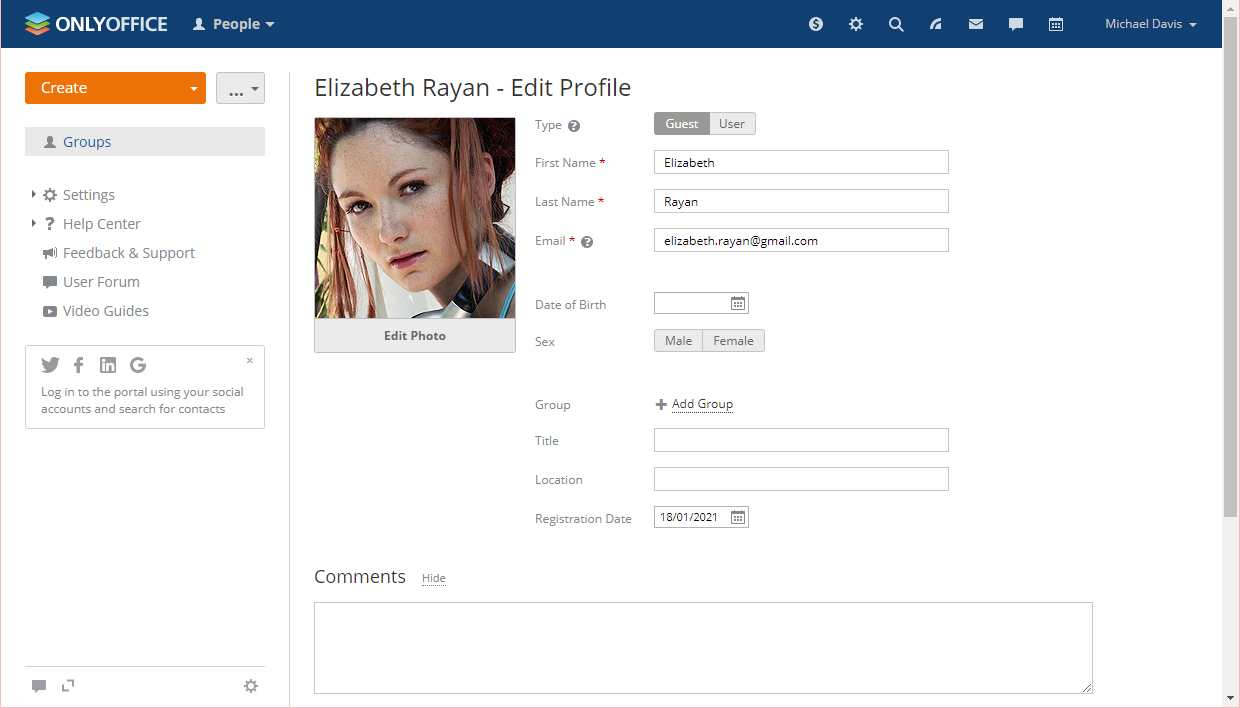
 - change the user status to Guest using the Type toggle next to the profile picture and click Save at the bottom of the page,
or
- select the checkboxes next to the needed users,
- click Change type above the user list and select Guest.
The Guest status cannot be applied to administrators. To change the status of an administrator, their administrator privileges must be revoked first. Read the Revoking administrator privileges section of this guide to learn more.
Revoking administrator privileges
- navigate to Settings in the top menu,
- select Access Rights in the left-side panel,
- click Show next to Administrators,
- click Choose user below the list of administrators,
- deselect the Full access checkbox and any other applicable checkboxes,
- click Save.
To learn more about the People module, please read the corresponding guide.
Watch video
Providing guest access in ONLYOFFICE
This guide will show you how to grant access to the portal to the clients.
Article with the tag:
Browse all tags