Managing versions and revisions
Using the Documents module and the Documents section of the Projects module, you might have already noticed a number next to the file title that shows the number of file versions. This guide describes file versions and revisions in more detail.
Manage intermediate revisions
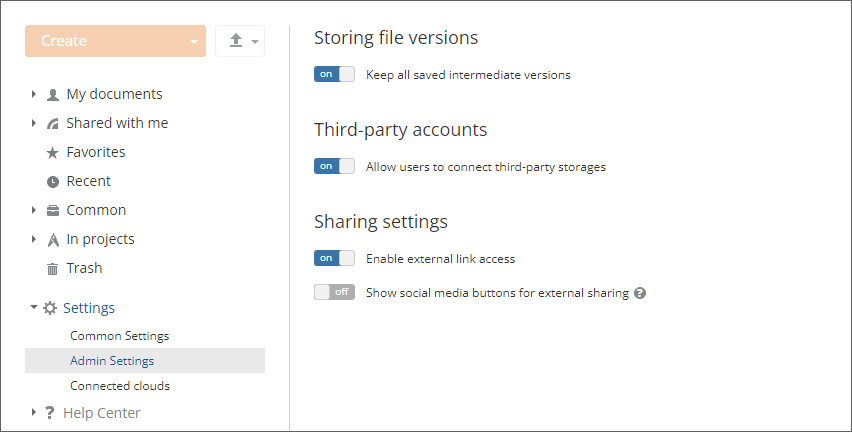
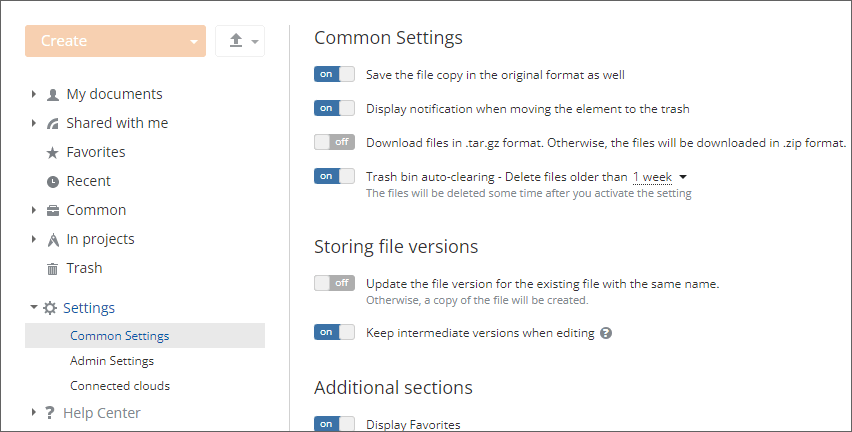
The Storing file versions section of the Documents module Settings allows you to adjust the parameters for storing intermediate revisions:
- By default, each new intermediate revision replaces the previous one in the version history. A full-access administrator or the Documents module administrator can enable the Keep all saved intermediate versions toggle in the Admin Settings section to make it possible for the portal users to store all intermediate revisions. If intermediate revisions are saved automatically, they always replace previous ones, whether the Keep all saved intermediate versions option is enabled or not.
- If the administrator enables the option to store all intermediate revisions, each user can enable the Keep intermediate versions when editing option in the Common Settings section within their account. When this option is enabled, every time the user saves the file by using the Ctrl+S key combination or by using the Save icon in the editor interface, a new intermediate revision is created and displayed in the version history.
Manage versions
You can group multiple revisions in a version. To do that, hover the mouse cursor over the revision you need and click the  icon. All the earlier file revisions as well as the selected one will be grouped in a version. The number of revisions in a version will be indicated as follows:
  . When you group revisions in a version, the number of versions displayed next to the file title will be updated.
You can not only Download any version or revision but also Preview it or Enter a comment using the corresponding icon, which appears when you hover the mouse cursor over the version or revision you need.
Restore previous versions
It might happen that the document you created and shared with multiple colleagues was edited by one of them, and you want to recover one of its previous revisions or versions. To do that, follow the steps below:
- Sign in to your portal using your login details.
- Click the Documents link on the start page.
- Open the folder containing the file whose revision or version you want to restore.
- Click the version icon next to the corresponding file. You will see the Version history list.
- Find the file revision or version you want to restore using its creation date, time, or author. If you are not sure, you can also preview a specific revision or version by hovering your mouse cursor over it and clicking the
 icon.
icon.
When you click this icon, the online editor window will open in a new browser tab with the Version History panel activated. The changes made by the author of the selected version/revision will be marked with the corresponding color in the document text.
- Click the Restore link.
After that, the selected file revision or version will be restored.
Additional Information
Previewing the current version of a document, spreadsheet, or presentation
If you want to preview a file, click the  icon and select the Preview option.
Undoing the Mark as version action
If you want to undo the Mark as version action, hover the mouse cursor over the version you need and click the  icon.
icon.
Editing the current version of a document, spreadsheet, or presentation
By clicking the  icon next to a file within the Documents module or the Documents section of the Projects module, you can edit it using the Document Editor and save the changes you made directly on your portal.
The
icon next to a file within the Documents module or the Documents section of the Projects module, you can edit it using the Document Editor and save the changes you made directly on your portal.
The  icon next to a document title means that you can edit this document simultaneously with other portal users.
Getting notified about updates to a shared file
First, you will be informed about it via the Feed tool. Second, you will see a new icon next to the updated file.