Como conectar o servidor MCP do ONLYOFFICE DocSpace à OpenAI via cabeçalhos personalizados
Introdução
O servidor MCP do ONLYOFFICE DocSpace é uma ferramenta para gerenciar a interação com modelos de linguagem projetados para aumentar a eficiência, otimizar os fluxos de trabalho impulsionados por IA, gerenciamento de documentos e tarefas, e explorar todo o potencial do ONLYOFFICE DocSpace.
O servidor MCP do ONLYOFFICE DocSpace pode ser conectado a clientes que suportam conexão com os servidores MCP em execução em uma máquina remota.
A instância pública está disponível em https://mcp.onlyoffice.com/mcp para clientes que suportam transporte HTTP Streamable moderno e em https://mcp.onlyoffice.com/sse para clientes que suportam apenas o transporte SSE legado. Recomendamos que você use o transporte HTTP Streamable sempre que possível.
Estas instruções demonstram como conectar um cliente MCP a um servidor MCP remoto usando cabeçalhos personalizados, desde que tal cliente permita que você passe cabeçalhos personalizados. Use este método de autenticação apenas se você não puder usar OAuth por algum motivo, pois este método é menos seguro.
Para conectar o servidor MCP do ONLYOFFICE DocSpace à plataforma OpenAI:
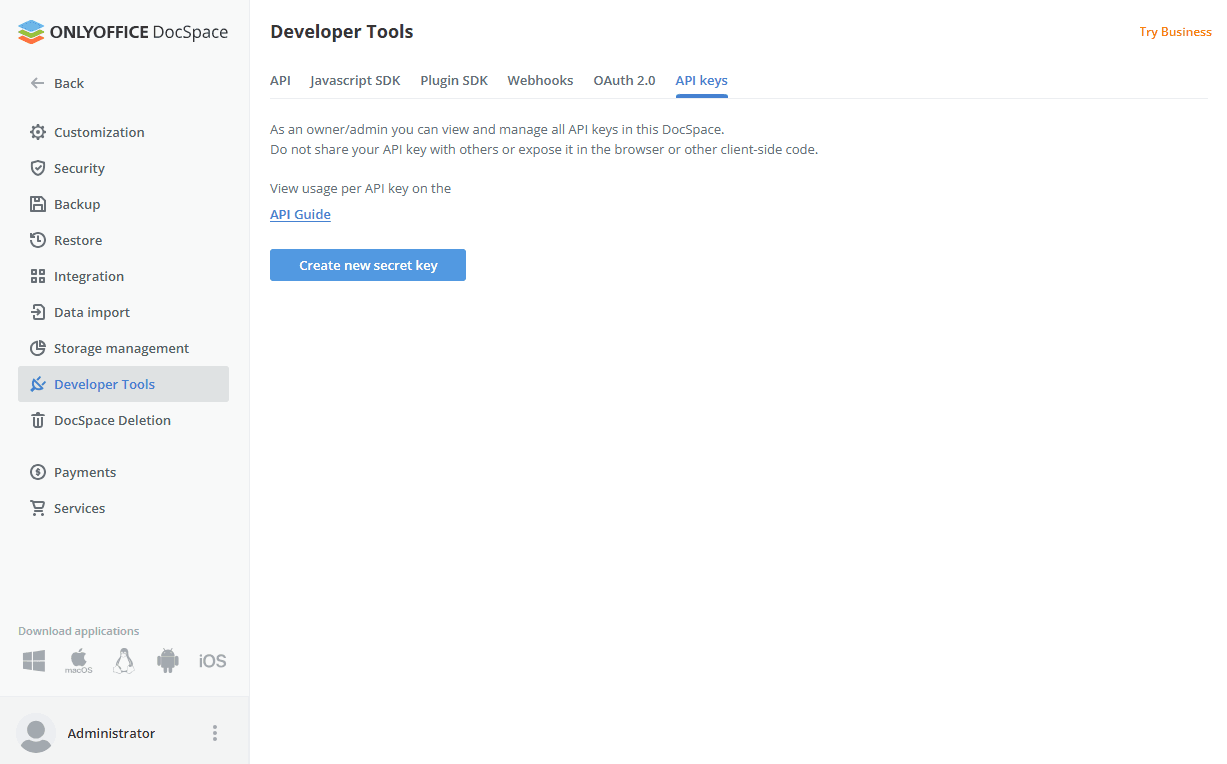
- Gere sua própria chave de API do DocSpace. O método de autenticação por cabeçalhos personalizados é menos seguro em comparação com OAuth, portanto, não é aconselhável usar as chaves de API do Proprietário ou do Gerente de Sala. Para gerar uma chave de API, acesse seu DocSpace. Clique na guia Ferramentas de Desenvolvedor no painel esquerdo. Escolha a guia de chaves de API no topo e clique no botão Criar nova chave secreta. Copie a chave gerada.
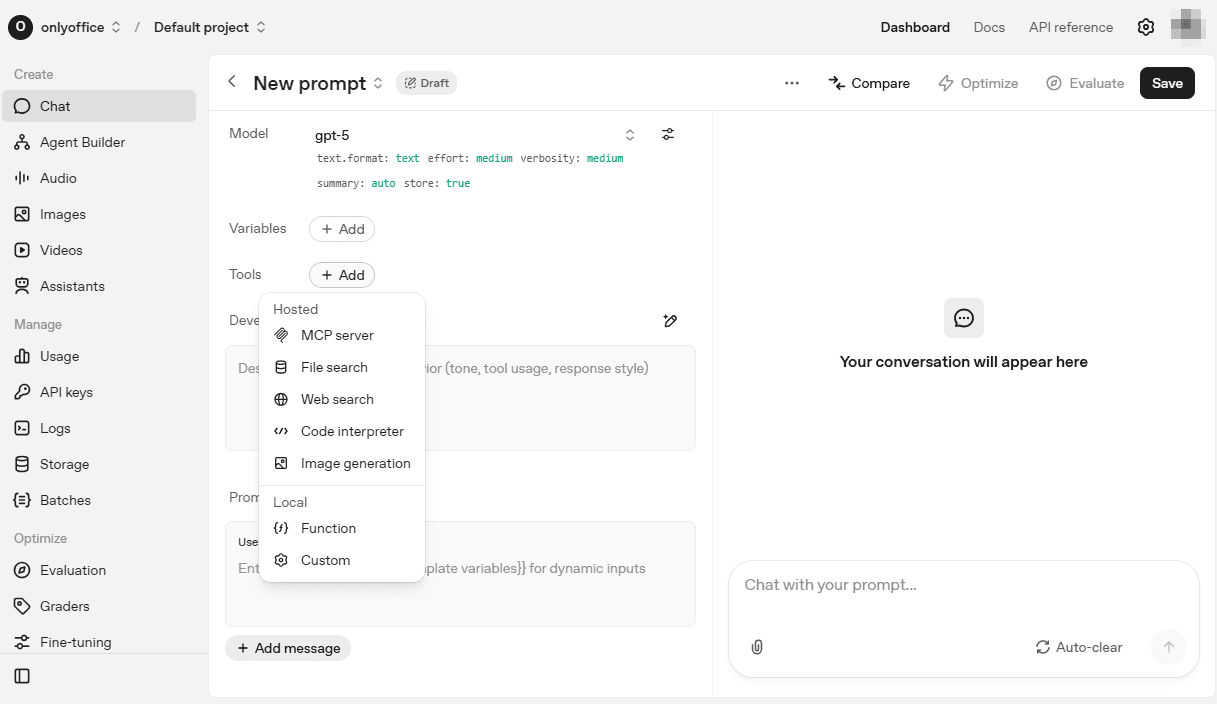
- Acesse sua conta OpenAI e abra um novo prompt em Chat;
- Encontre a opção Ferramentas e clique no botão Adicionar.
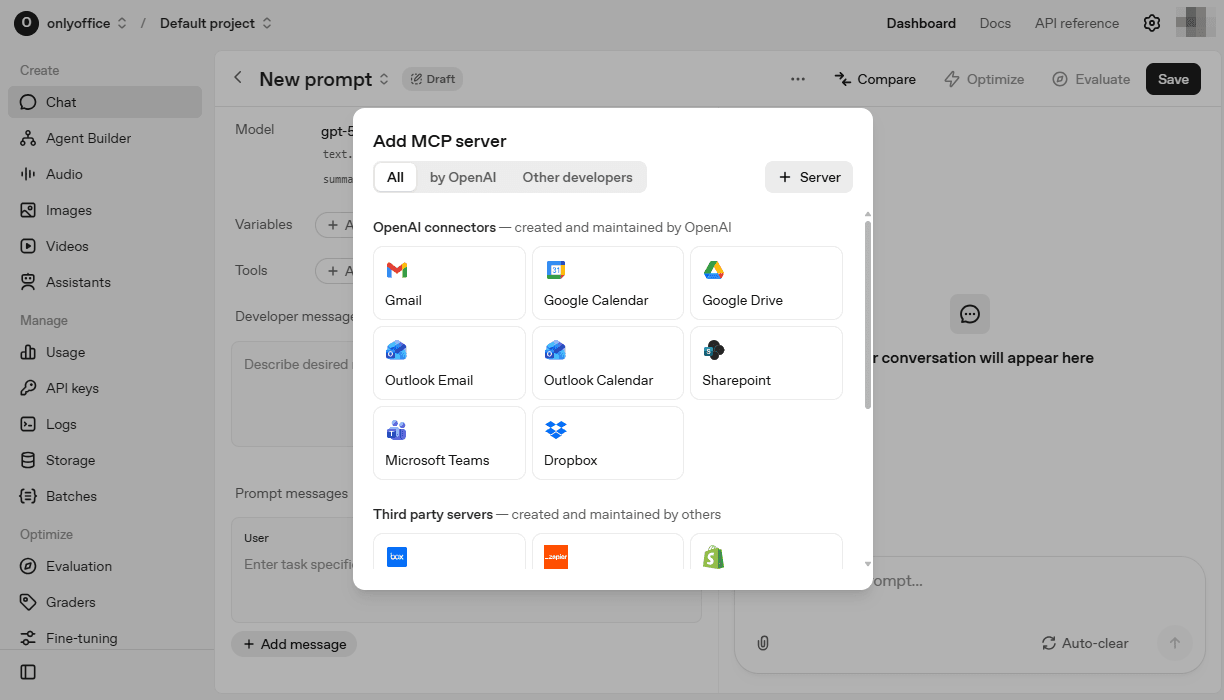
- Na janela que se abre, clique em Servidor no canto superior direito.
-
Preencha os parâmetros necessários do servidor MCP:
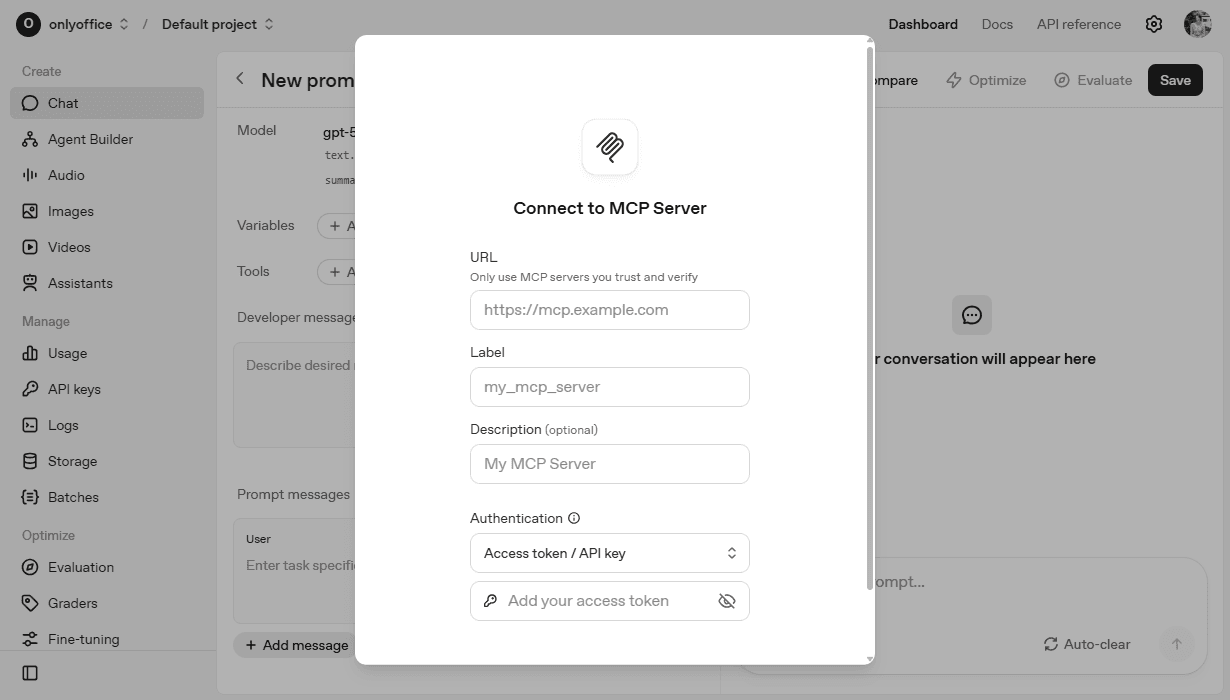
- URL:
https://mcp.onlyoffice.com/mcp - Rótulo – preencha o nome para distinguir o servidor MCP;
- Descrição – forneça uma breve descrição para o servidor MCP para melhorar a identificação do servidor. É um parâmetro opcional;
- Autenticação – defina o método e as configurações de autenticação. Escolha Cabeçalhos personalizados na lista suspensa e use sua
chave de API do DocSpaceeURL basedo seu portal DocSpace para conectar-se. Preencha os campos que se abrem da seguinte forma:X-Mcp-Base-Url: https://sua-instancia.onlyoffice.com/
X-Mcp-Api-Key: sk-a499e...X-Mcp-Base-Url - endereço web do seu DocSpace para que o servidor MCP se conecte ao portal correto.
X-Mcp-Api-Key - a chave de API do DocSpace que foi gerada conforme descrito no Passo 1 acima para autorizar o acesso do servidor MCP ao DocSpace.
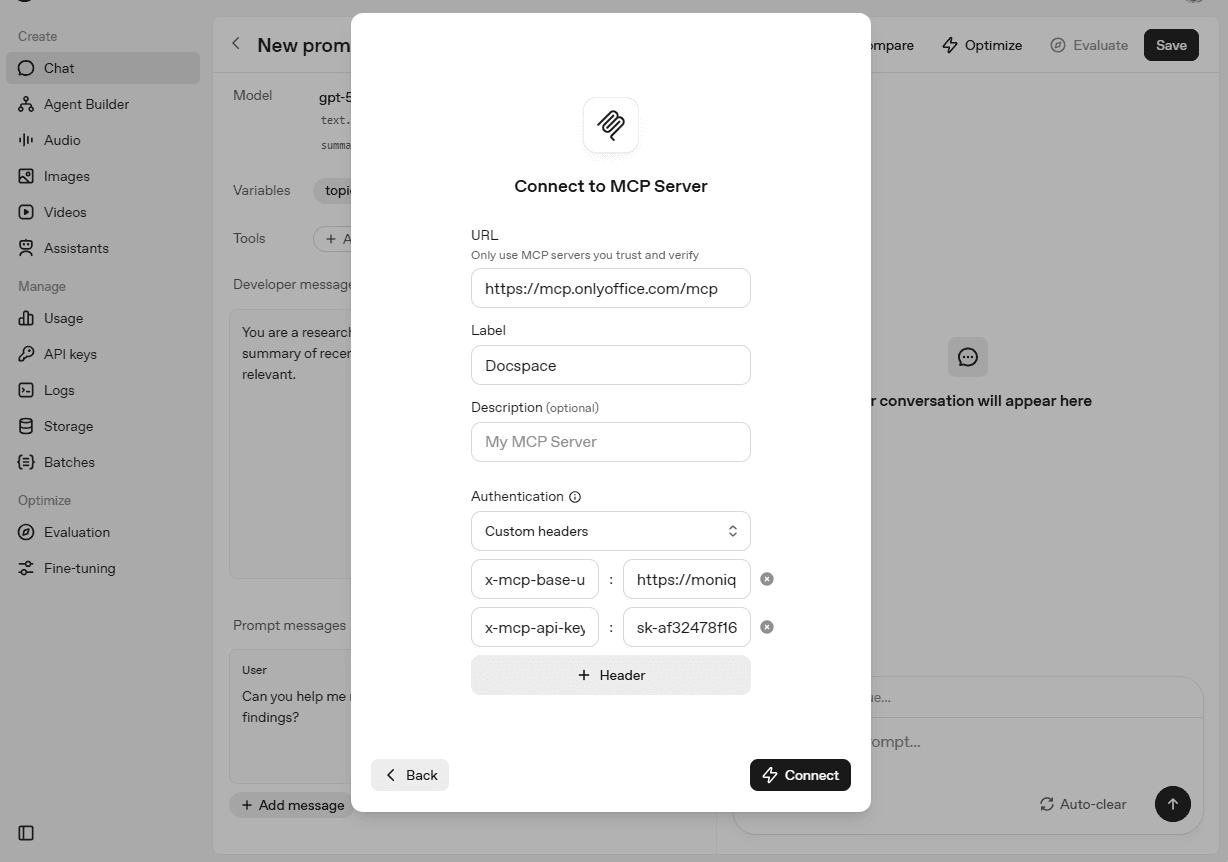
- URL:
- Clique em Conectar e aguarde a conexão ser estabelecida;
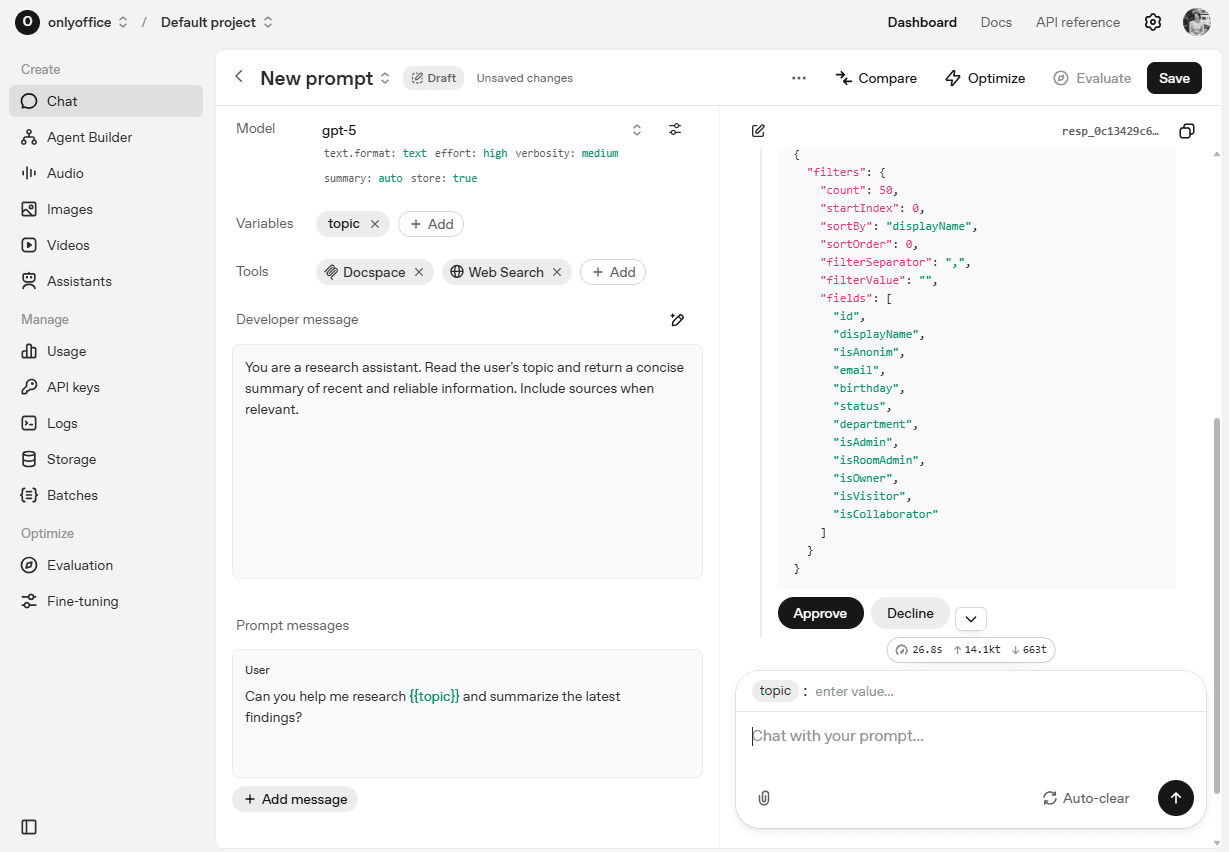
- Assim que o servidor MCP se conectar, você verá a lista de ferramentas do servidor MCP. Escolha as ferramentas necessárias ou escolha todas e clique no botão Adicionar na parte inferior da lista.
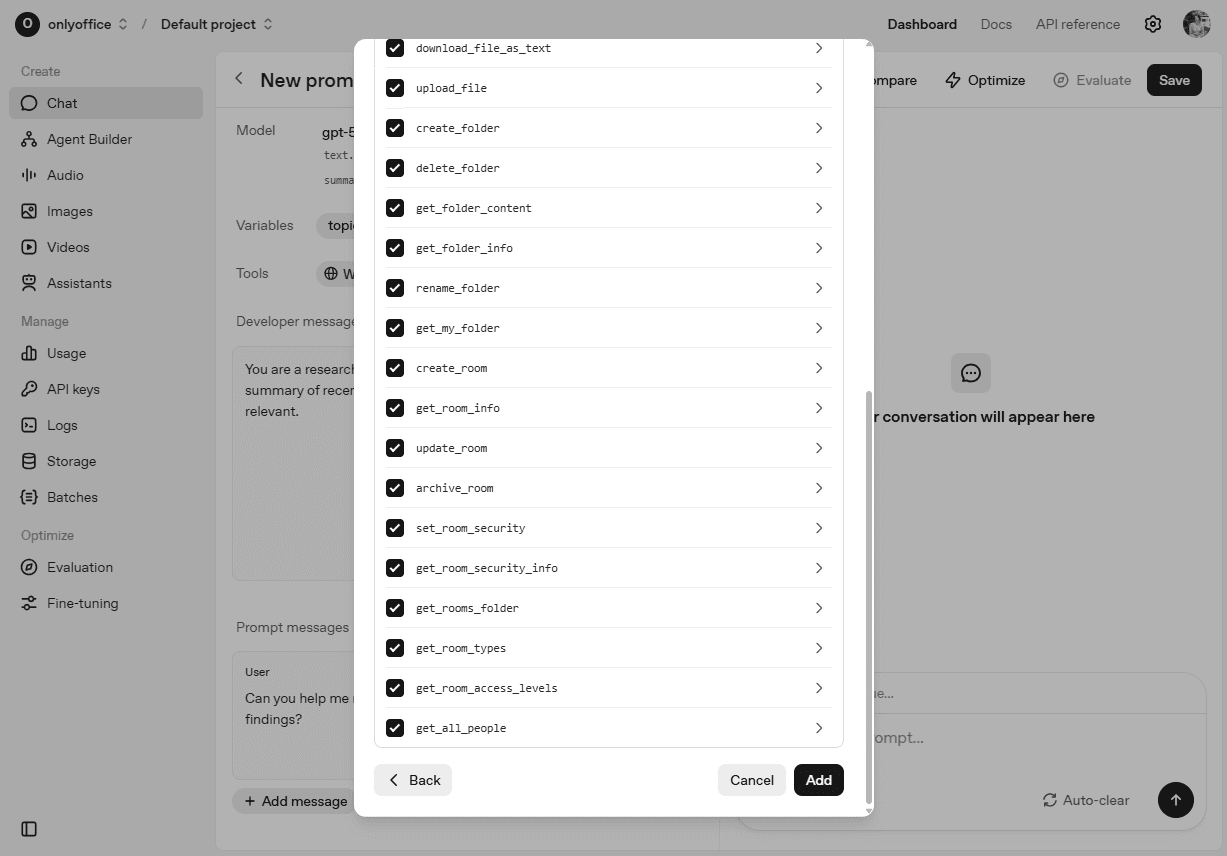
- Use o chat OpenAI com as ferramentas do servidor MCP do DocSpace conectadas. Dê seu prompt, clique em Aprovar para confirmar a lista de ferramentas usadas para responder ao seu prompt.