Selecting, cutting, copying, pasting text
Set the insertion point
To position the cursor, touch a text line in the PDF and hold until the magnifying glass appears to help you position the cursor precisely. Without lifting your finger, drag it to the position where you want to place the insertion point.

When you touch and hold without dragging, the following pop-up menu appears:
- Paste — insert previously copied text or object at the cursor position.
- Delete — delete the next character within the line of text.
- Select — select the next character.
- Select All — select all content in the PDF.
- AI Tools — opens the rewrite, summarize, and proofread panel. To learn more, please refer to the AI assistant section of this guide.
- Edit — open the text/paragraph settings panel.
Select text
-
To select a single word, double-tap it or touch and hold until the pop-up menu with the Select option appears, then tap it.
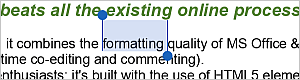
- To select a text passage, drag the selection handles.
- To select an object, tap it.
-
To select all the content of the PDF, touch and hold until the pop-up menu with the Select All option appears, then tap it.

Cut, copy, paste text
To cut, copy and paste text passages or objects within the current PDF, use the corresponding options from the pop-up menu that appears when a text passage or object is selected:
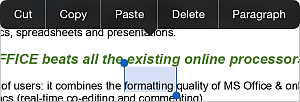
- Cut — select a text fragment or object and use the Cut option from the pop-up menu to delete the selection and send it to the clipboard memory. The cut data can be later inserted to another place in the same PDF.
- Copy — select a text fragment or object and use the Copy option from the pop-up menu to copy the selection to the clipboard memory. The copied data can be later inserted to another place in the same PDF.
- Paste — find the place in your PDF where you need to paste the previously copied text fragment or object and use the Paste option from the pop-up menu. The text or object will be inserted at the current cursor position.
Article with the tag:
Browse all tags