Opening and creating new files and folders
Open existing files for viewing
Tap the necessary file name in the file list. If you have no rights to edit the document, the file will be opened in the Viewing mode. The files opened in the Document Editor will always do so in the viewing mode. To proceed with the editing, tap the  Edit icon in the lower right corner.
In the viewing mode, you can use the  Settings icon at the top toolbar to open the file settings panel and perform the following actions:
 Mobile View — by default, files open in the Standard View. To enable the Mobile View for better viewing, turn on the corresponding toggle.
  Protection — protect your document with a password or encrypt the file,
 Find — search for the necessary text within the document/spreadsheet/presentation,
 Download as — download the document/spreadsheet/presentation selecting one of the available formats,
 Export — export the document/spreadsheet/presentation selecting one of the available formats,
 Send a copy — send a copy of the document/spreadsheet/presentation in the original format,
 Print — print the document or save it as PDF,
 Document info — view the information about the document/spreadsheet/presentation such as Title, File size, Last modified date, and other Statistics,
 Help & Feedback — visit the help center or open the support contact form and provide feedback,
 About — view the information about the application.
To close the Settings panel, tap the  icon in the upper left corner.
To close the file, tap the  arrow in the upper left corner.
You can also view media files and images stored on the portal in the most popular formats, including mp4, webm, bmp, jpg, jpeg, png, etc. To open a media file, tap the necessary file name in the file list.
To navigate through all available media files in the view mode, swipe left or right. You can tap the  icon to see the list of all stored media files.
To exit the view mode, tap the cross in the upper left corner.
Using the On Device section, you can view pre-downloaded media files and images from a portal.
Open existing files for editing
To open the file in the Editing mode:
- Tap the icon to the right of the necessary document in the file list.
- Select the
 Edit document menu item.
Alternatively, if the file is already open, tap the icon in the lower right corner.
If the file format differs from the DOCX/XLSX/PPTX one, the file will be converted to the Office Open XML format for faster viewing and editing. The converted copy of the file will be opened.
If the file is currently being edited by another user, you'll be able to edit the file collaboratively in real time.
Create new files
You can long press the app icon and choose the necessary option: New document, New spreadsheet, or New presentation.
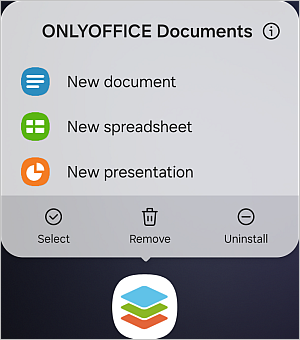
Alternatively, launch the app and tap the
 icon in the lower right corner and select the necessary file type from the menu:
 Text document,
 Spreadsheet,
 Presentation.
Enter the file name in the dialog window that appears and tap Create.
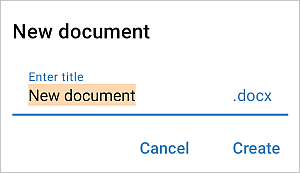
A new blank .docx document, or .xlsx spreadsheet, or .pptx presentation will be opened. Tap an empty space in the document, or a cell within the spreadsheet, or a text placeholder in the presentation and the keyboard will appear allowing you to start typing.
Create new folders
Tap the
icon in the lower right corner, select the  Folder option from the menu, enter the folder name in the dialog window that appears and tap Create.
Upload files from your device
Tap the
icon in the lower right corner and select one of the options:
 Make photo — to take a new photo using your device camera and upload it to the Documents app. The captured picture will be displayed in the file manager.
 Import file — to add an existing file stored on your device to the Documents app.
- Text document from photo — to take a new photo using your device camera and add the text from the photo in a new document.
Connect third-party storages
In addition to adding third-party clouds within the  Clouds application section, you can connect third-party services in two ways: directly within your ONLYOFFICE account, or through a public room in DocSpace.
Connect via ONLYOFFICE Workspace
Note: This option is available for ONLYOFFICE Workspace accounts only and is not available for DocSpace.
In the Clouds application section switch to the connected ONLYOFFICE Workspace account. Tap the icon in the lower right corner and select the  Connect third-party storage option from the menu. The Select service panel will open.
- Select the necessary service from the available ones: Nextcloud, ownCloud, SharePoint, Box, Dropbox, OneDrive, Yandex.Disk, or Other WebDAV storage (for accounts which support the WebDAV protocol).
-
On the Connect service panel, sign in to your third-party account using your Login and Password.
When connecting your SharePoint or ownCloud/Nextcloud account, you'll also need to specify the Connection URL. For example, the URL that allows to access your Nextcloud files via WebDAV looks like this: https://yourdomain.com/remote.php/webdav/. This URL address can be found in the following way: sign in to your Nextcloud account, tap the Settings icon in the lower left corner and copy the entire URL from the WebDAV field. Then switch to the ONLYOFFICE Documents app and paste the entire copied URL address, including the protocol, into the Connection URL field.
In some cases, you will also need to allow ONLYOFFICE to access your third-party account by tapping the corresponding button. - Change the Folder name, if necessary.
- Tap the SAVE button.
The third-party storage folder will be added. You can use the folder menu to Share, Move, Copy, Rename the folder, or Disconnect storage. If you disconnect the storage, the third-party service will be disconnected from the Documents app, and all the documents stored in the folder will be still available in your third-party account.
Connect via DocSpace public room
If you are using ONLYOFFICE DocSpace, you can access third-party storage content by connecting it to DocSpace through a public room. A public room can be used to share files stored in a third-party service with other users without requiring them to have an account in that service.
Note: The steps below describe the general flow.
- In DocSpace, create a public room or open an existing one.
- Connect the third-party storage to the room via the room settings.
- In the Clouds application section, switch to your connected DocSpace account.
- Navigate to the public room — the connected third-party storage content will be accessible from within the room.
To learn more about public rooms in DocSpace, please refer to the corresponding article.