この記事はAIによって翻訳されました
ONLYOFFICE DocSpace MCP ServerをClaude Webに接続する
はじめに
ONLYOFFICE DocSpace MCP Serverは、AI駆動のワークフローやドキュメント、タスク管理を効率化し、ONLYOFFICE DocSpaceの可能性を最大限に引き出すためにカスタマイズされた言語モデルとのインタラクションを管理するツールです。
ONLYOFFICE DocSpace MCP Serverは、リモートマシン上で動作するMCPサーバーへの接続をサポートするクライアントに接続できます。
パブリックインスタンスは、モダンなストリーム可能なHTTPトランスポートをサポートするクライアント向けにhttps://mcp.onlyoffice.com/mcpで、レガシーSSEトランスポートのみをサポートするクライアント向けにhttps://mcp.onlyoffice.com/sseで利用可能です。可能な限りストリーム可能なHTTPトランスポートを使用することをお勧めします。
ONLYOFFICE DocSpace MCP ServerをClaudeに接続するには、OauthとURLエンコーディングパスとクエリパラメータの2つの認証方法を使用できます。後者はカスタムヘッダーを渡すことができないMCPクライアントで使用されます。可能な限りOAuth認証を使用することをお勧めします。
ONLYOFFICE DocSpace MCP ServerをClaudeに接続する手順:
- Claudeアカウントにアクセスし、設定に移動します。
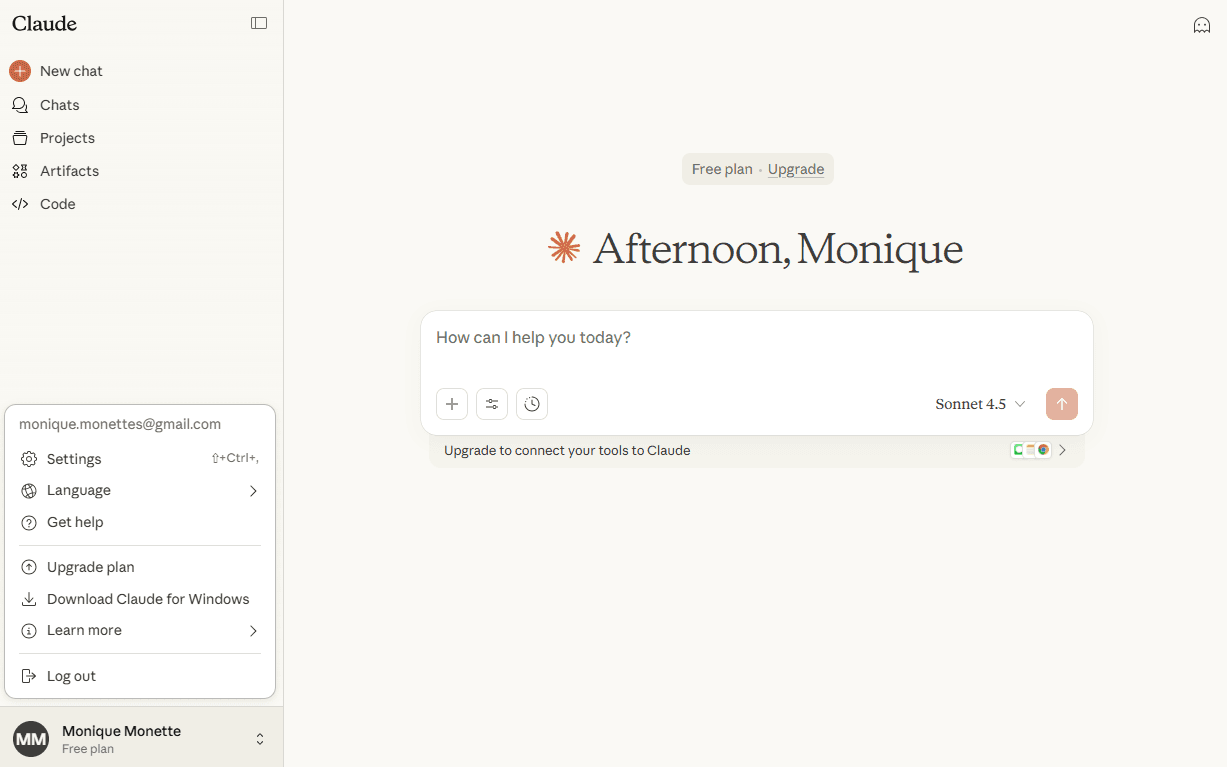
- 設定ページでコネクタに移動し、カスタムコネクタを追加ボタンをクリックします。
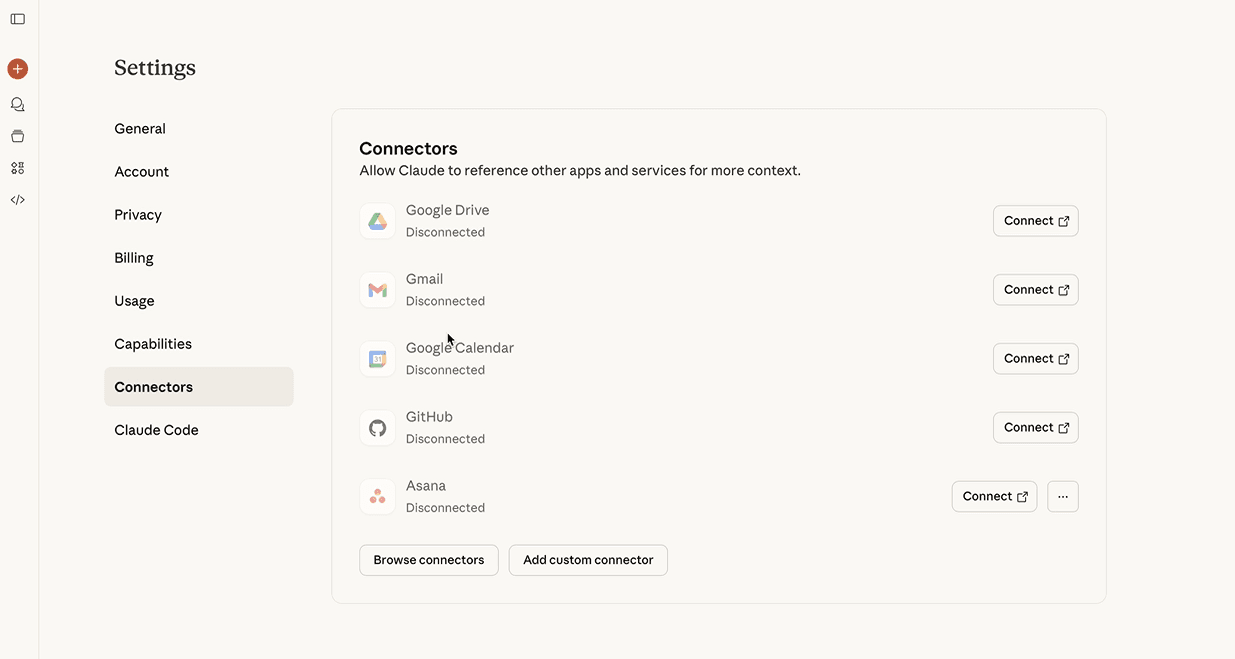
OAuth認証
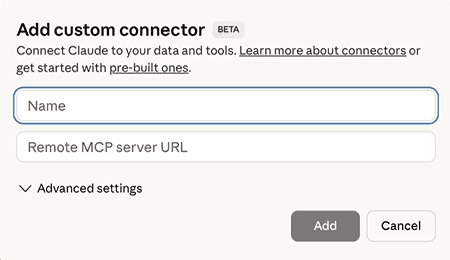
- コネクタ名を入力します。
- リモートMCPサーバーURL - ONLYOFFICE MCP ServerのURLを入力します:
https://mcp.onlyoffice.com/mcp - 追加ボタンをクリックして認証を完了します。
- 新しく追加されたコネクタの横にある接続ボタンをクリックします。
- DocSpaceのログインとパスワードを入力します。
- サーバーのアクセスと共有を管理するためのMCPサーバーのインストールスコープレベル(ローカル/プロジェクト/ユーザー)を確認し、適切なものを選択して許可をクリックします。
- Claudeにリダイレクトされるのを待ちます。
URLエンコーディングパスとクエリパラメータ
- コネクタ名を入力します。
- リモートMCPサーバーURL - URLエンコードされた資格情報、ONLYOFFICE MCPサーバーURL、およびクエリパラメータ内のベースURLを使用して接続します。クエリパラメータを介して資格情報を渡すために、Docspaceのログインとパスワードの両方をURLエンコードする必要があります。以下の構造に従います:
https://your-url-encoded-login:your-encoded-password@mcp.onlyoffice.com/mcp?base_url=https://your-instance.onlyoffice.com/ - 追加ボタンをクリックします。
ONLYOFFICE MCP Serverの使用
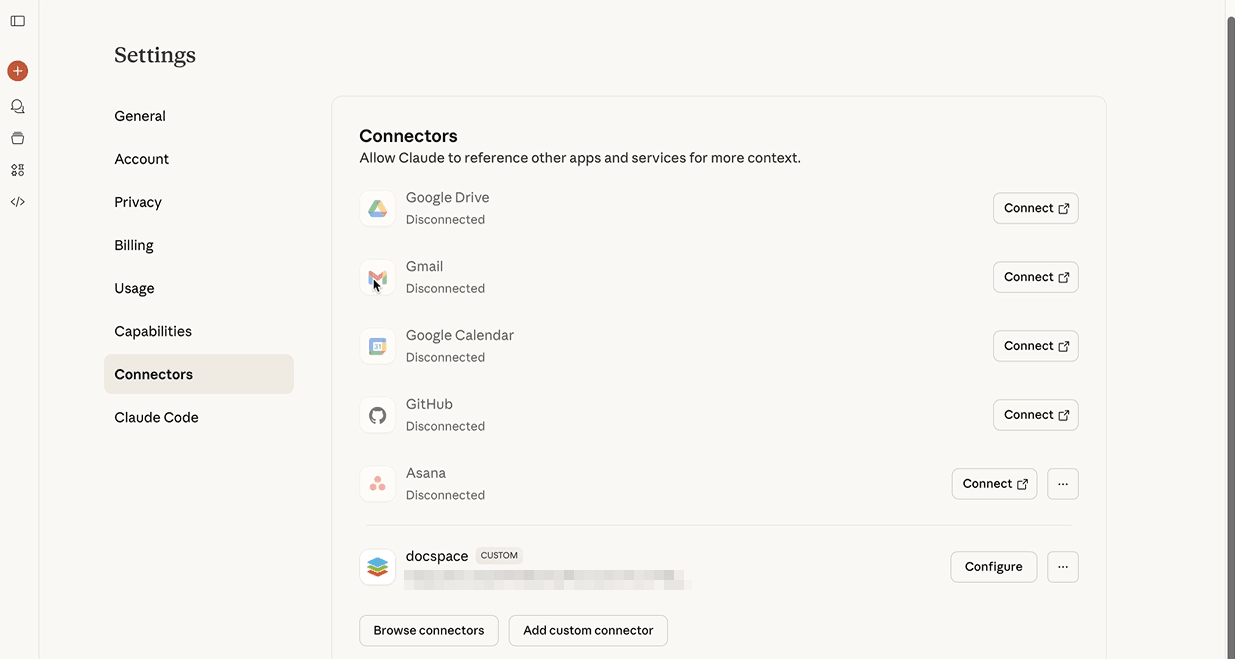
- 認証が成功すると、コネクタが利用可能なコネクタのリストに追加されます。
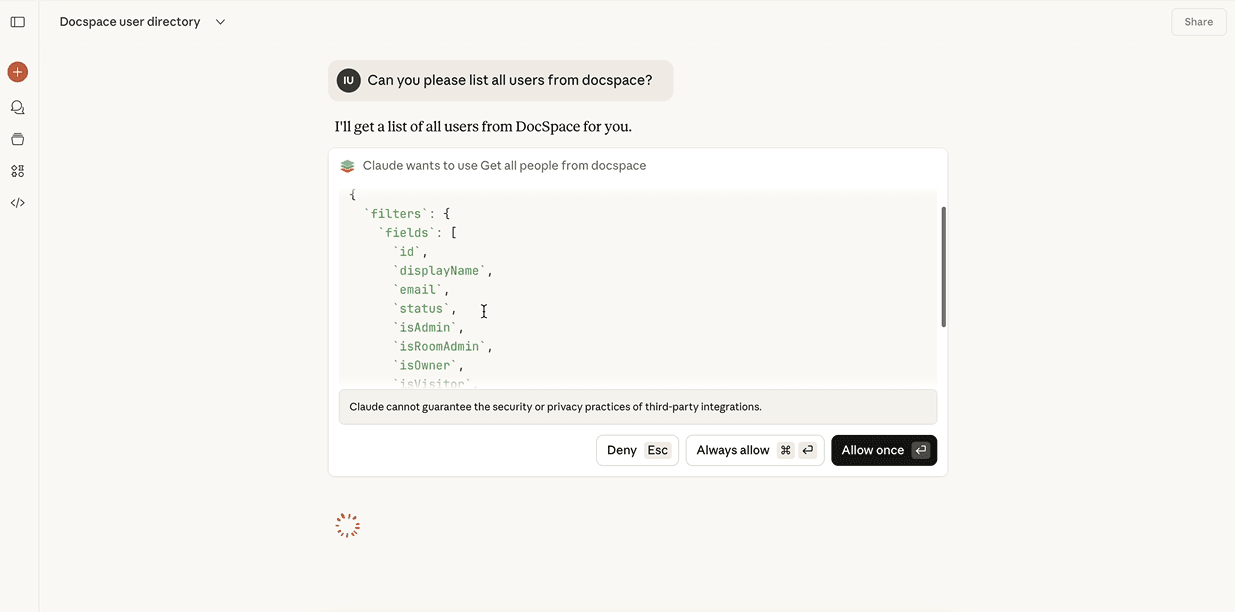
- チャットを開いてプロンプトを入力し、使用するツールのリストを確認するために常に許可または一度だけ許可をクリックします。
次の項目が含まれている記事:タグ:
すべてのタグを見る