Collegare il server MCP di ONLYOFFICE a Claude Desktop
Introduzione
Il server MCP di ONLYOFFICE DocSpace è uno strumento per gestire l'interazione con modelli linguistici progettati per migliorare l'efficienza, ottimizzare i flussi di lavoro guidati dall'AI, la gestione dei documenti e delle attività e per sfruttare appieno il potenziale di ONLYOFFICE DocSpace.
Il server MCP di ONLYOFFICE DocSpace può essere collegato a client che supportano la connessione ai server MCP in esecuzione su una macchina remota.
L'istanza pubblica è disponibile su https://mcp.onlyoffice.com/mcp per i client che supportano il moderno trasporto HTTP Streamable e su https://mcp.onlyoffice.com/sse per i client che supportano solo il trasporto SSE legacy. Si consiglia di utilizzare il trasporto HTTP Streamable ogni volta che è possibile.
Il server MCP di ONLYOFFICE DocSpace può essere collegato a Claude Desktop in tre modi diversi:
- Connettore - adatto alla maggior parte degli utenti;
- Estensione - adatta per ambienti di sviluppo locale;
- MCP Locale - adatto per configurazioni avanzate e sviluppatori che desiderano utilizzare Docker e file di configurazione.
Prima di tutto, scarica e installa Claude Desktop per il tuo sistema operativo. Claude Desktop è disponibile per macOS e Windows. Se Claude Desktop è già installato, controlla la versione in uso. Clicca sul menu Claude Desktop e seleziona Controlla aggiornamenti.
Connettore
- Apri Claude Desktop.
- Accedi al menu e seleziona Impostazioni.
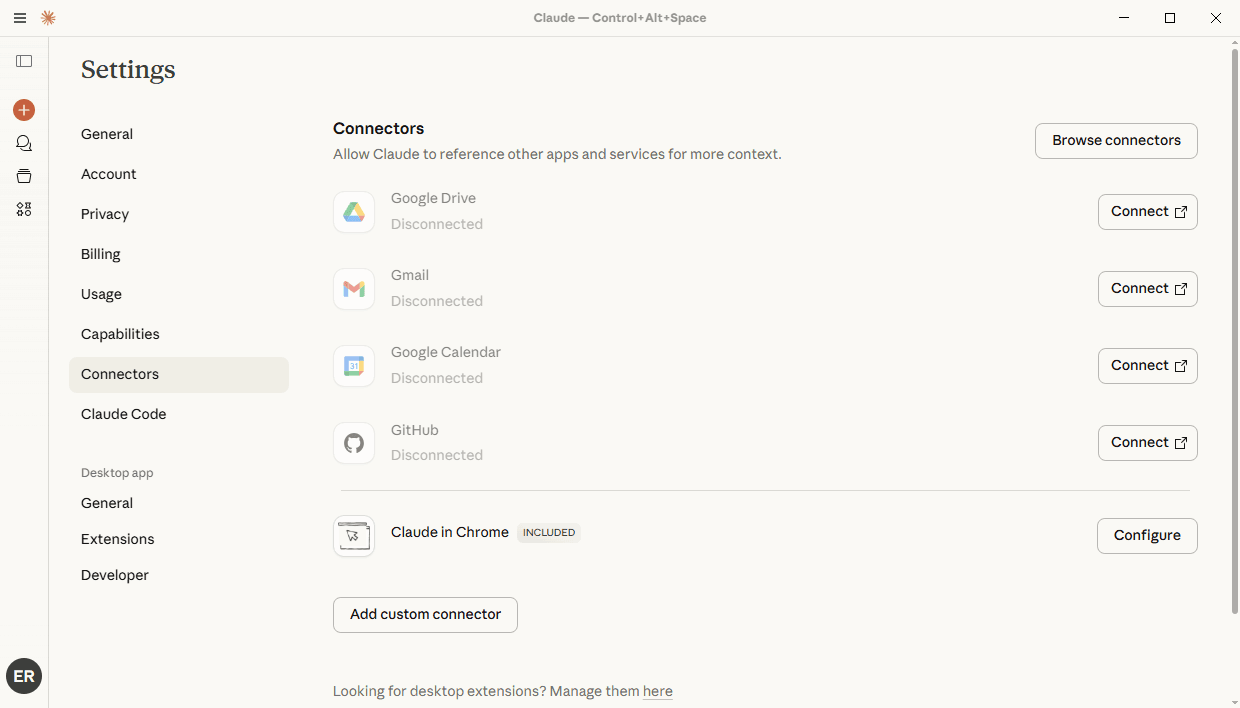
- Nella pagina Impostazioni, vai su Connettori e clicca sul pulsante Aggiungi connettore personalizzato.
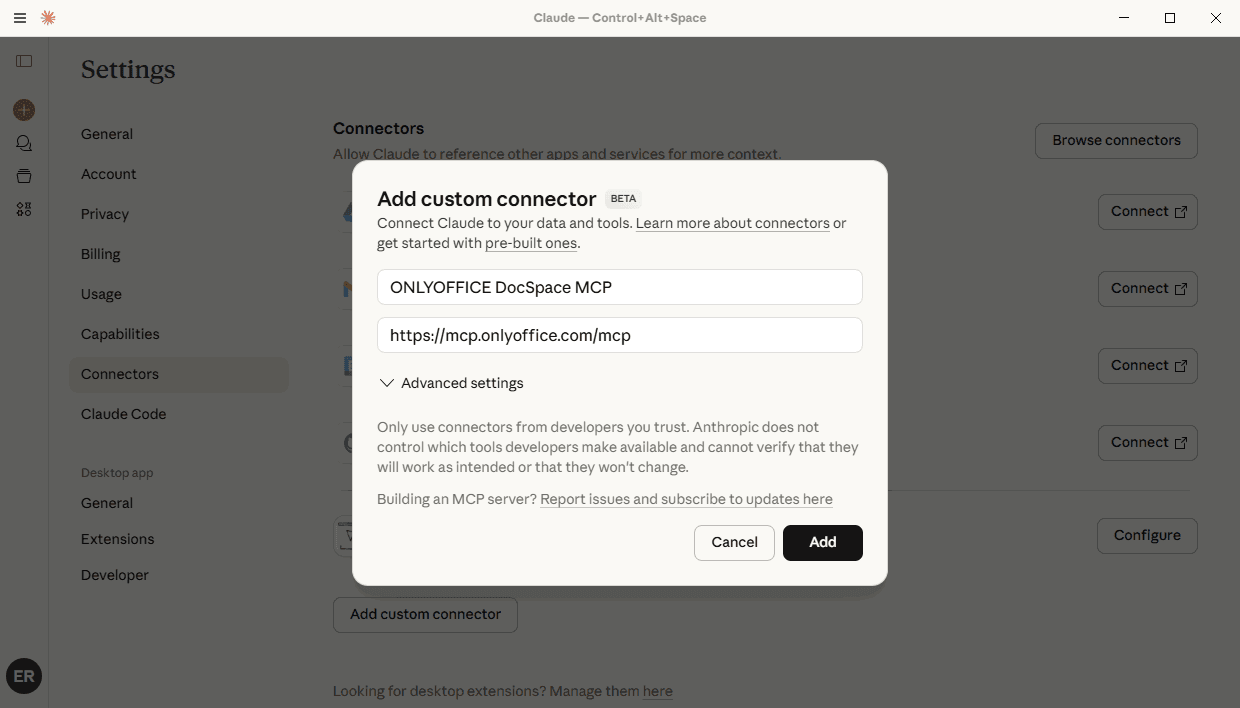
- Inserisci il nome del connettore (es., "ONLYOFFICE DocSpace MCP").
- Inserisci l'URL:
https://mcp.onlyoffice.com/mcp - Clicca sul pulsante Aggiungi.
- Clicca su Connetti accanto al connettore appena aggiunto.
- Completa il processo di autenticazione OAuth.
Estensione
Claude Desktop Extension è un altro modo per connettersi al server MCP in esecuzione locale.
Il server MCP richiede Node.js. Assicurati di utilizzare la versione 18 o successiva di Node.js, quindi scarica il file mcpb da GitHub Releases. Se Node.js non è installato, accedi a nodejs.org per scaricarlo.
- Apri Claude Desktop.
- Accedi al menu e seleziona Impostazioni.
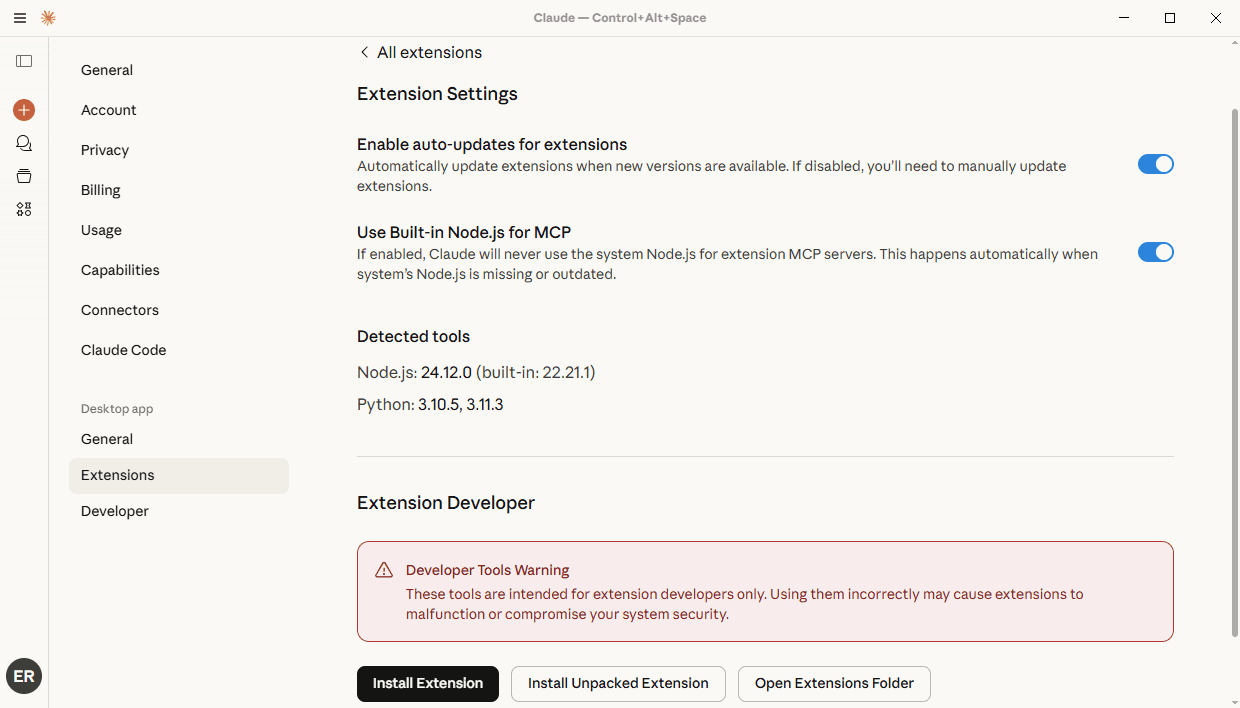
- Nella pagina Impostazioni, vai su Estensioni e clicca su Impostazioni avanzate.
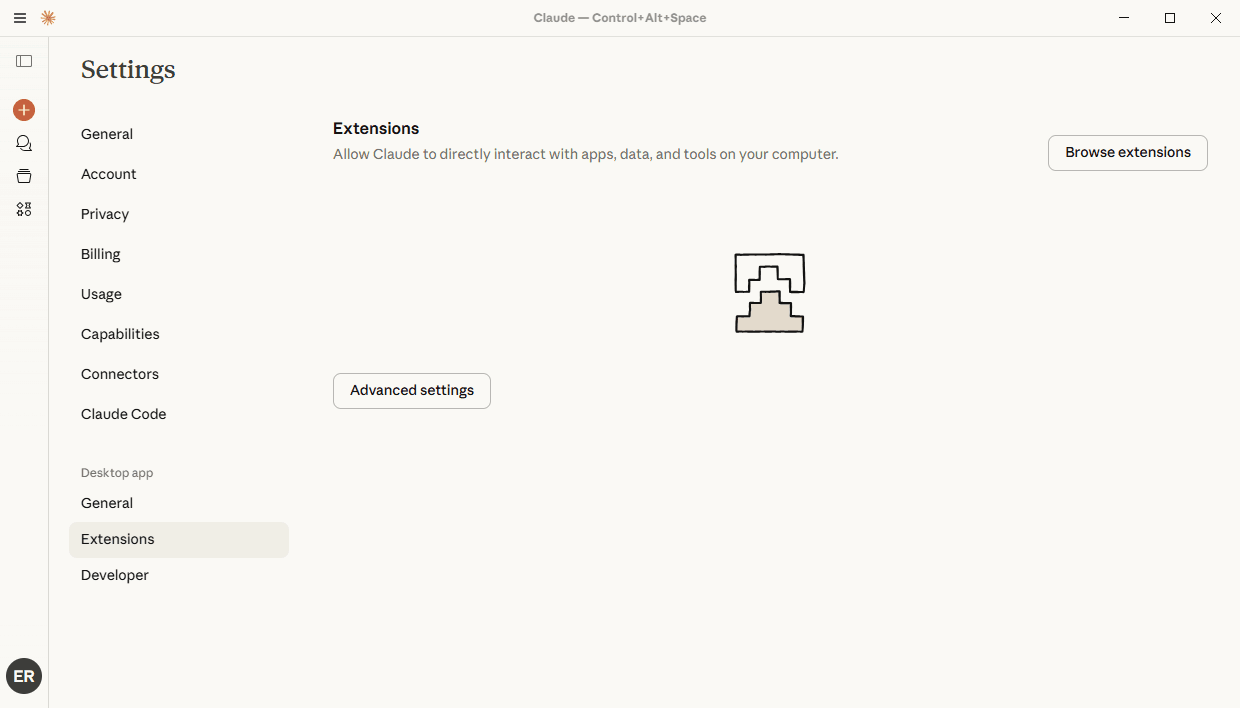
- Clicca su Installa estensione
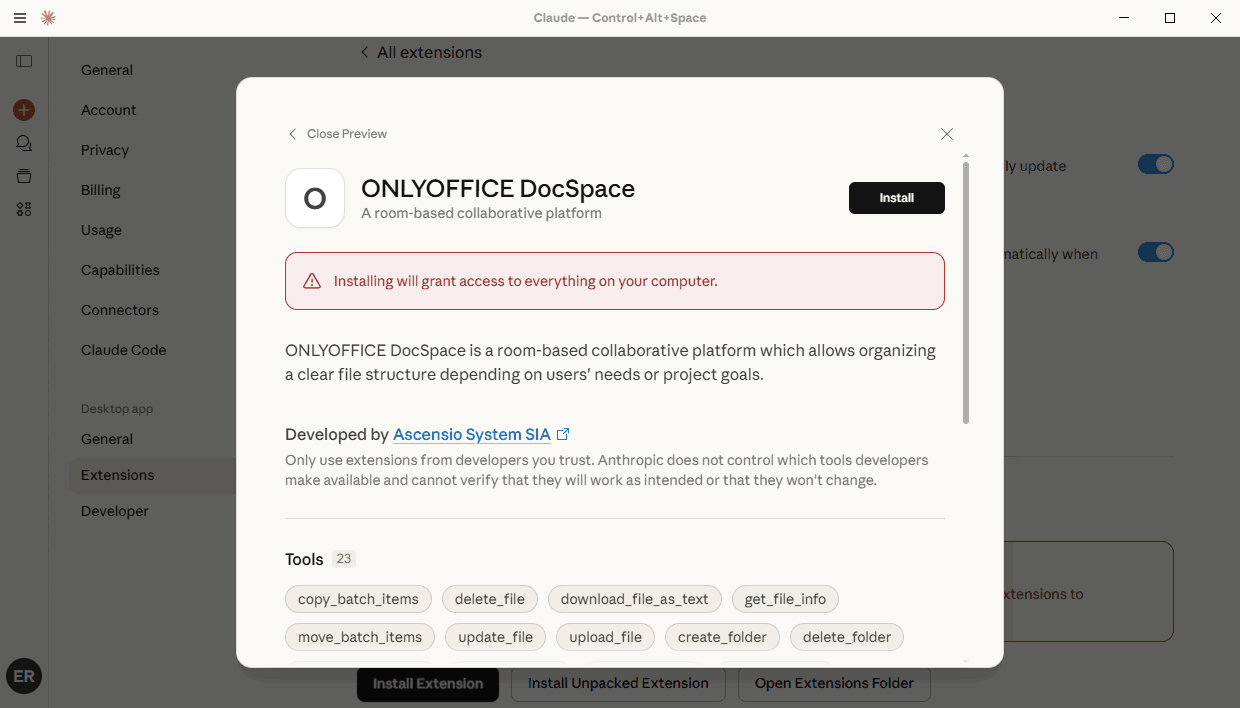
- Seleziona il pacchetto MCP scaricato
MCP Locale
Claude Local MCP servers è il terzo modo per connettersi al server MCP in esecuzione locale.
Assicurati che Docker sia installato e in esecuzione sul tuo sistema.
Genera una chiave API DocSpace. Vai al tuo DocSpace, clicca sulla scheda Strumenti per sviluppatori nel pannello di sinistra. Scegli la scheda Chiavi API in alto e clicca sul pulsante Crea nuova chiave segreta. Copia la chiave generata.
- Apri Claude Desktop.
- Accedi al menu e seleziona Impostazioni.
- Nella pagina Impostazioni, naviga alla scheda Sviluppatore nella barra laterale sinistra.
- Clicca sul pulsante Modifica config
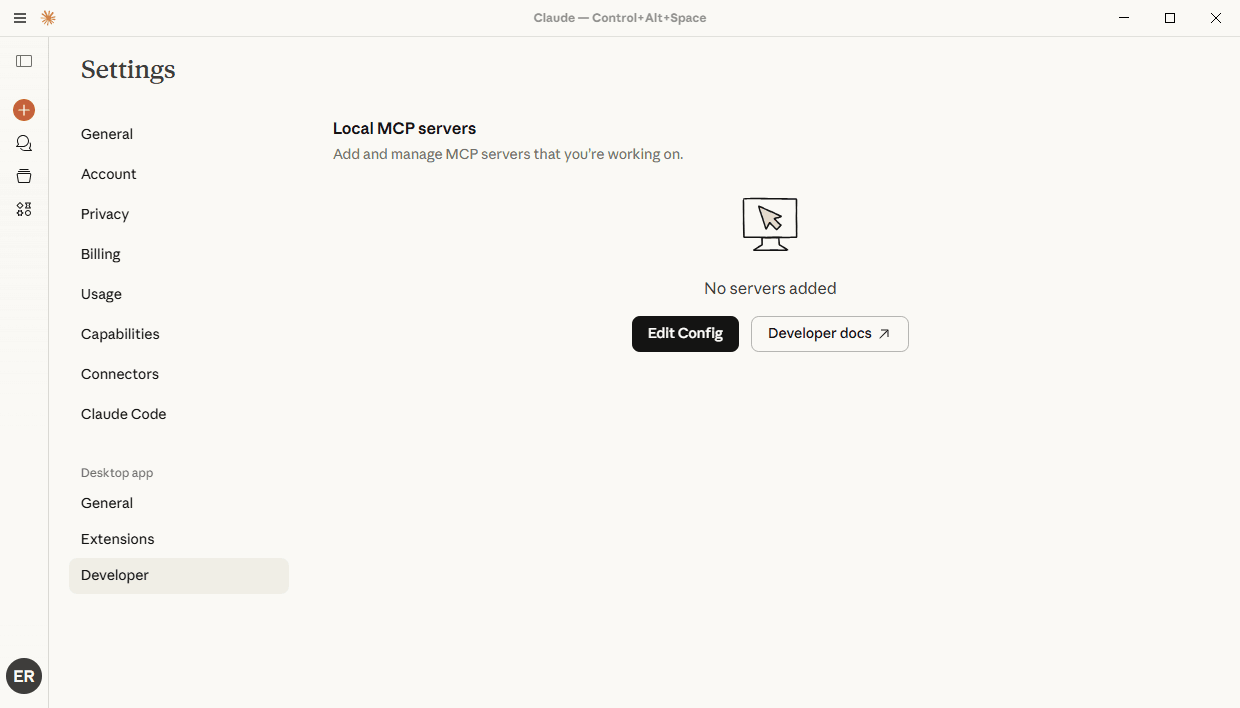
- Apri il file di configurazione in un editor di testo. Il percorso del file:
- Su macOS:
~/Library/Application Support/Claude/claude_desktop_config.json - Su Windows:
%APPDATA%\Claude\claude_desktop_config.json
- Su macOS:
- Aggiungi la seguente struttura JSON:
{ "mcpServers": { "onlyoffice-docspace": { "command": "docker", "args": [ "run", "--interactive", "--rm", "--env", "DOCSPACE_BASE_URL", "--env", "DOCSPACE_API_KEY", "onlyoffice/docspace-mcp" ], "env": { "DOCSPACE_BASE_URL": "https://your-instance.onlyoffice.com", "DOCSPACE_API_KEY": "your-api-key" } } } }- DOCSPACE_BASE_URL - Indirizzo del portale DocSpace
- DOCSPACE_API_KEY - Chiave API DocSpace generata come da istruzioni sopra.
- command: "docker" - il comando utilizzato per avviare il server MCP tramite Docker
- onlyoffice/docspace-mcp - l'immagine Docker del server MCP
- Salva il file e riavvia Claude Desktop
Utilizzo del server MCP di ONLYOFFICE
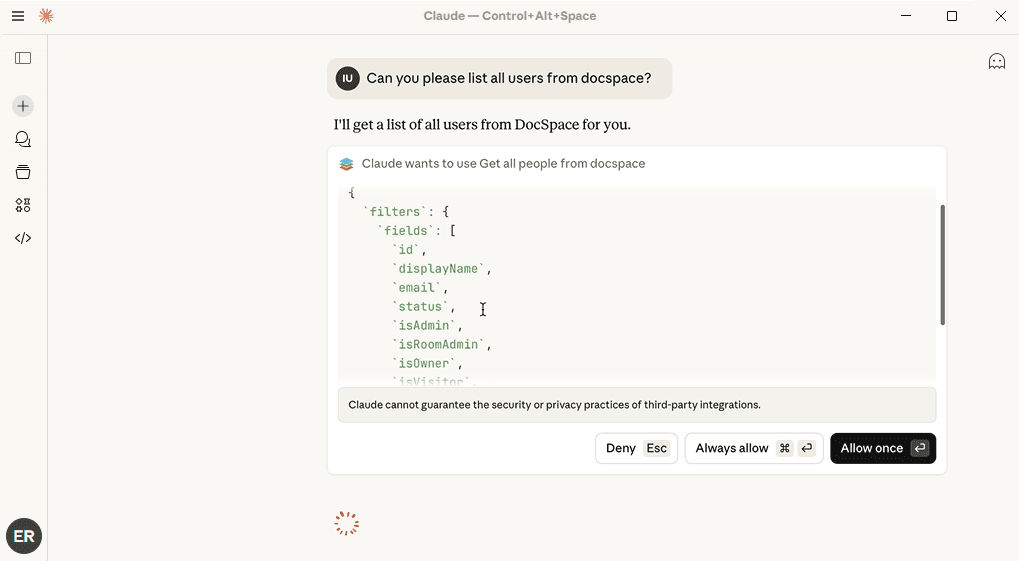
- Dopo un'autenticazione riuscita, apri la chat e inserisci il tuo prompt, clicca su Consenti sempre o Consenti una volta per confermare l'elenco degli strumenti utilizzati per rispondere al tuo prompt.