OpenRouter
OpenRouter est une plateforme de routage d'IA. Elle donne accès à de nombreux modèles de différents fournisseurs en utilisant une seule clé API. Vous n'avez pas besoin de clés séparées pour chaque fournisseur.
Voici un guide étape par étape pour installer et configurer OpenRouter pour ONLYOFFICE Docs et ONLYOFFICE DocSpace.
Configurer OpenRouter pour l'application de bureau ONLYOFFICE
ONLYOFFICE Docs 9.2 présente l'agent IA intégré pour vous aider à générer et résumer des documents, gérer des fichiers, analyser du contenu, et bien plus encore.
- Accédez à l'Agent IA dans l'éditeur de bureau ONLYOFFICE.
- Cliquez sur Ajouter un fournisseur et sélectionnez OpenRouter dans la liste déroulante.
- Nommez votre Agent.
- Saisissez votre clé API dans le champ approprié. La clé API est émise par votre fournisseur d'IA. Il est possible de générer une clé sur le site web officiel OpenRouter.
- Cliquez sur Enregistrer.
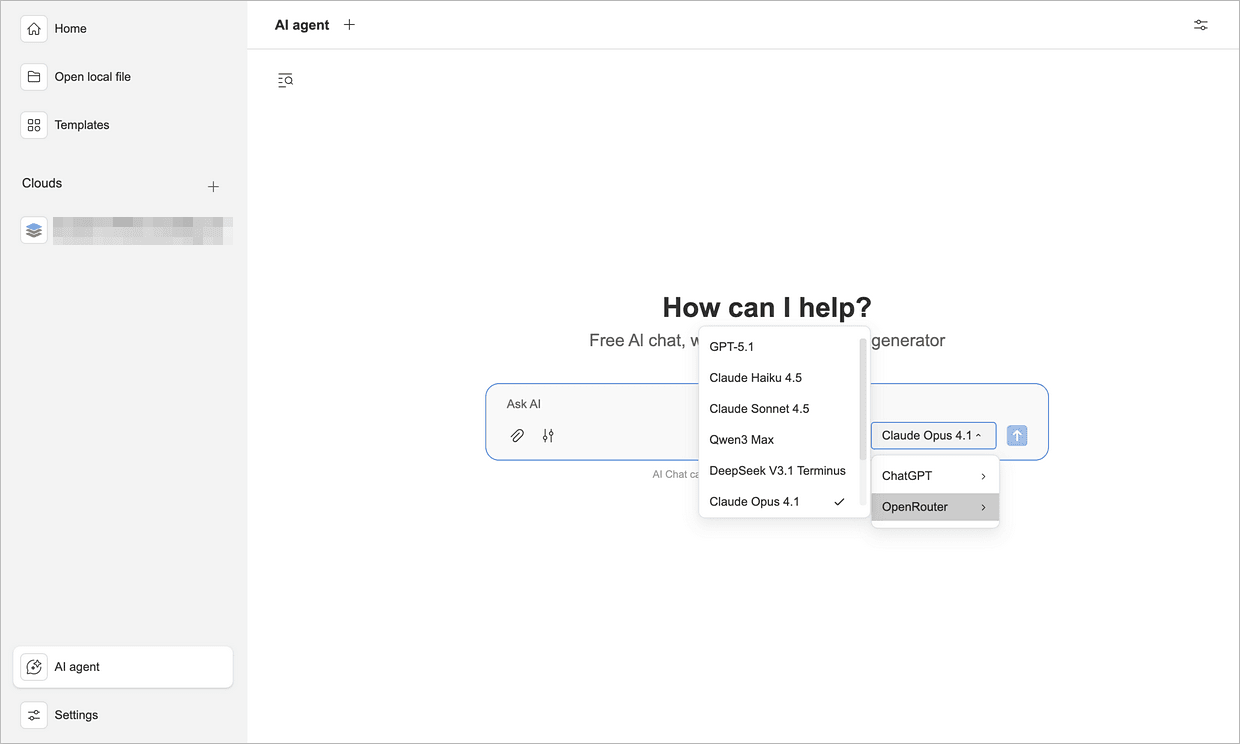
Désormais OpenRouter est disponible pour vos agents IA. Vous pouvez également basculer entre différents modèles d'IA à tout moment à l'aide du menu de l'agent IA sur la page d'accueil.
Configurer OpenRouter pour ONLYOFFICE DocSpace
À partir de la version 3.6, les agents d'IA sont intégrés dans ONLYOFFICE DocSpace pour faciliter le travail sur des documents.
Étape 1. Ajouter OpenRouter en tant que votre fournisseur d'IA
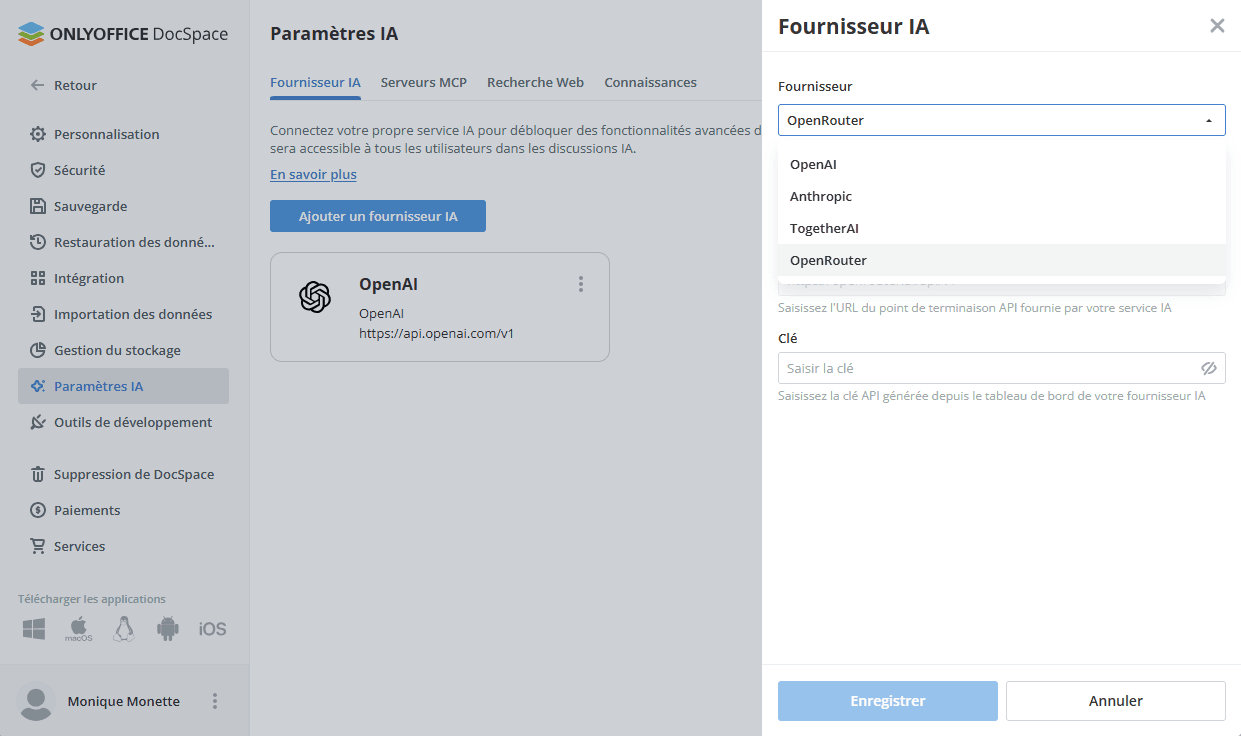
- Passez à Paramètres → Paramètres d'IA → Ajouter un fournisseur d'IA.
- Dans la liste déroulante, sélectionnez OpenRouter.
- Sélectionnez un nom pour votre Agent.
- Saisissez votre clé API dans le champ approprié. La clé API est émise par votre fournisseur d'IA. Il est possible de générer une clé sur le site web officiel OpenRouter.
- Cliquez sur Enregistrer.
Étape 2. Activez le serveur MCP
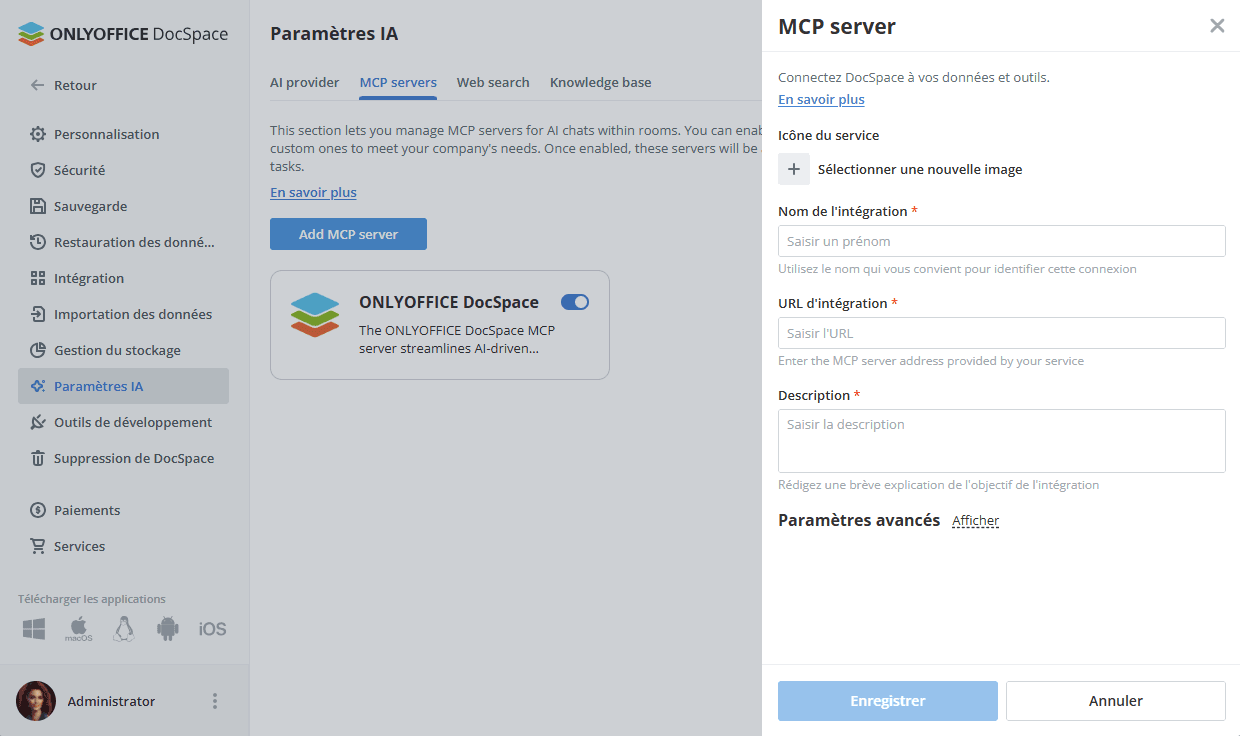
Les agents IA ont besoin d'un serveur MCP pour fonctionner dans DocSpace.
- Accédez à la section Serveurs MCP .
- Vous pouvez utilisez le serveur MCP ONLYOFFICE DocSpace intégré ou connectez votre serveur MCP.
Étape 3. Configurer la Recherche sur le Web et la Base de connaissances
Ceci est une étape facultative mais recommandée.
Pour permettre aux agents d'utiliser des données web en direct:
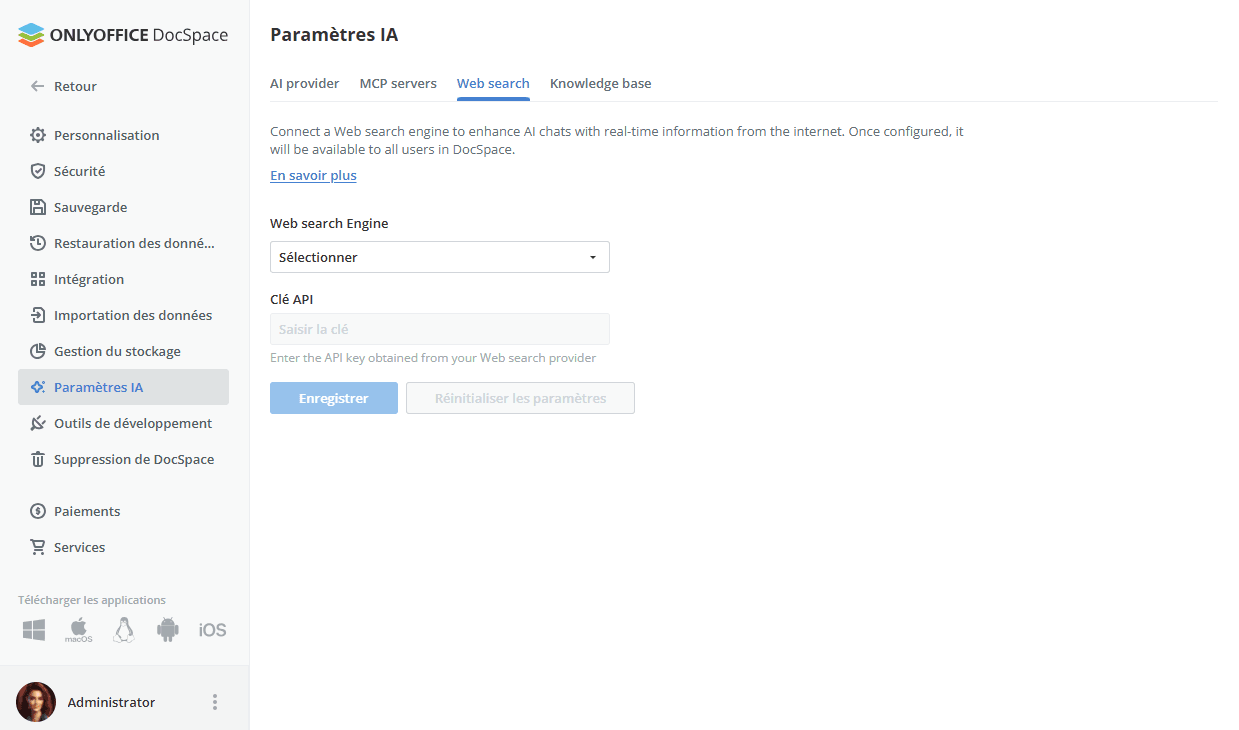
- Accédez à Paramètres → Paramètres d'IA → Recherche sur le Web.
- Choisissez le Moteur de recherche Web dans la liste déroulante.
- Saisissez la clé API dans le champ approprié.
- Cliquez sur Enregistrer.
Veuillez consulter cet article pour en savoir plus sur la Recherche sur le Web.
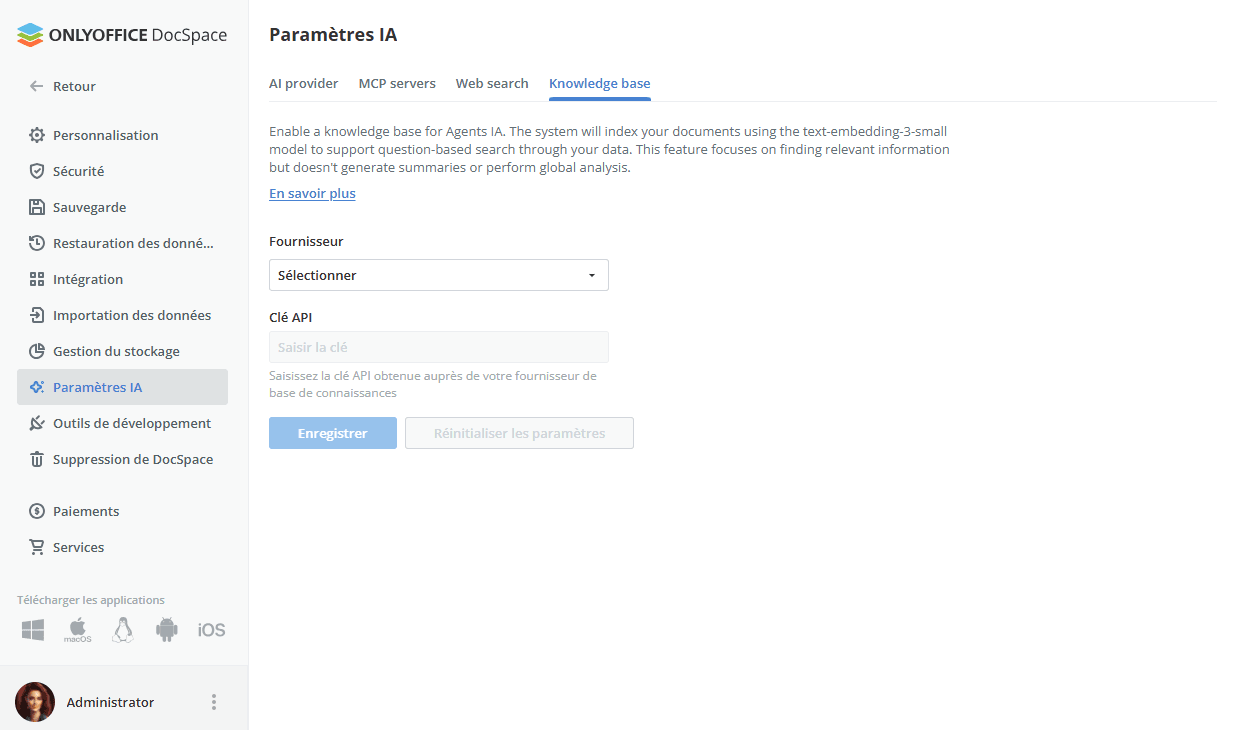
Pour activer la base de connaissances :
- Accédez à Paramètres → Paramètres d'IA → Connaissances.
- Dans la liste des Fournisseurs, choisissez OpenRouter.
- Saisissez la clé API dans le champ approprié.
- Cliquez sur Enregistrer.
Veuillez consulter cet article pour en savoir plus sur les bases de connaissances.
Étape 4. Créer votre agent IA
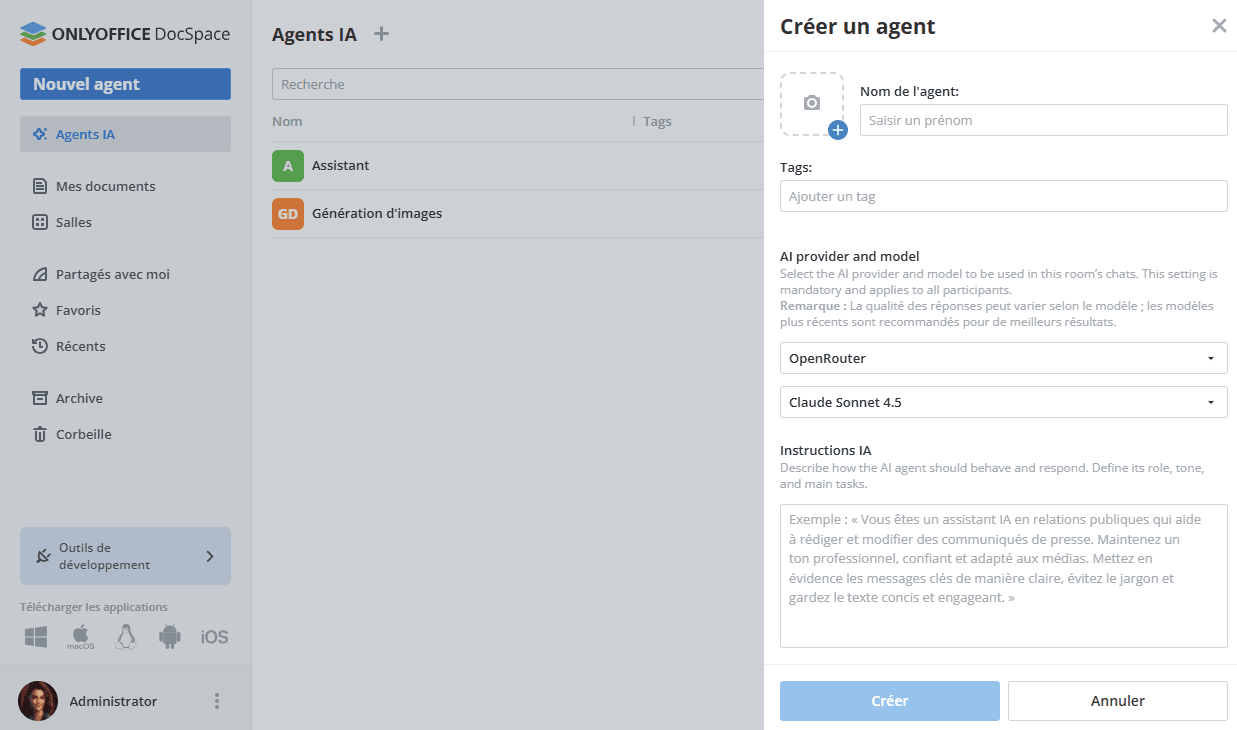
- Accédez à Agents IA → cliquez sur Créer un nouvel agent IA.
- Saisissez les détails suivants:
- Nom
- Image de couverture
- Tags
- Nom du fournisseur et modèle d'IA
- La description des objets de l'agent IA
- Outils MCP
- Cliquez sur Créer.
Configurer OpenRouter pour les éditeurs ONLYOFFICE Docs
Vous pouvez également utiliser OpenRouter dans les éditeurs en ligne ONLYOFFICE Docs pour gérer le contenu assisté par l'IA.
- Veuillez suivre ce guide pour une configuration générale.
- Une fois le module complémentaire installé, ajoutez des modèles d'IA. Passer à l'onglet AI et accédez aux Paramètres.
- Sélectionnez Modifier les modèles d'IA dans le coin inférieur gauche de la fenêtre et cliquez sur Ajouter.
- Dans la fenêtre qui s'affiche, sélectionnez OpenRouter de la liste déroulante.
- Saisissez votre clé API dans le champ approprié. La clé API est émise par votre fournisseur d'IA. Il est possible de générer une clé sur le site web officiel OpenRouter.
- Sélectionnez un modèle OpenRouter (OpenAI, Anthropic, Meta, DeepSeek, etc.) et affectez celui-ci aux tâches variées qui sont afficjées au-dessous de l'option Utiliser le modèle pour.
- Cliquez sur OK. Le modèle apparaîtra dans la liste Modèles d'IA.
Cliquez sur OK encore une fois.
- Dans la fenêtre Configuration d'IA, sélectionnez le modèle que vous souhaitez utiliser pour effectuer les diverses tâches.
- Toutes les fonctionnalités sont disponibles sous l'onglet AI ou sélectionnez du texte et faites un clic droit pour accéder les fonctionnalités de l'IA du menu contextuel.