Adding text callouts
A text callout lets you point to a specific part of a .pdf while leaving a comment next to it, without covering up the content underneath. A callout consists of an arrow pointing to the area you want to highlight, connected to a text box where you can type your comment. Text callouts appear on the same Comments panel as regular comments.
To add a text callout:
- Place the cursor where you want the text callout to point.
-
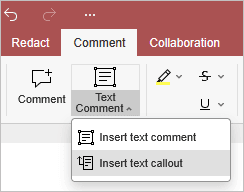
Go to the Comment tab, open the drop-down list next to the Text Comment button, and select Insert text callout.
- The callout appears as an arrow with a text box at the end. Type your comment into the text box.
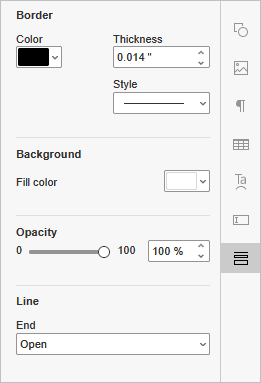
Once a text callout is added, the Annotation Settings become available on the right-side panel, where you can customize the following:
- Border - set the border color, thickness, and style.
- Background - choose the fill color of the text box.
- Opacity - use the slider to adjust the transparency of the callout, from 0 to 100.
- Line - choose the style of the callout's end point: None, Open, Closed, Open (Reverse), Closed (Reverse), Butt, Diamond, Circle, Square, or Slash.
Text callouts appear together with regular comments on the Comments panel on the left, with no visual distinction between the two. You can edit, delete, or resolve a text callout the same way you would a regular comment.
Article with the tag:
Browse all tags