Adding a signature
The PDF Editor allows you to create and insert a signature into your .pdf.
To create a signature:
- Go to the Comment tab and click the Signature button.
- Click Create new signature.
-
In the Signature window that opens, choose one of the three tabs: Upload, Draw, or Type.
-
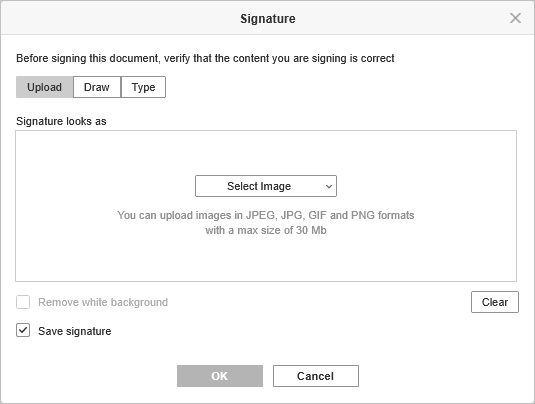
Upload - click Select image and choose the image from file, from URL, or from storage. Once the image is uploaded, activate the Remove white background checkbox if you want to remove it.
-
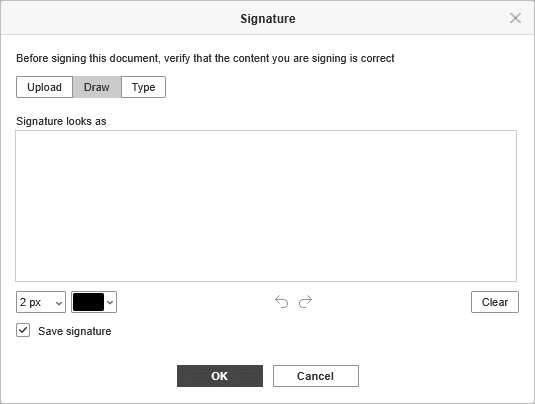
Draw - draw your signature in the field using your mouse, a graphic tablet, or your finger on a touch screen. Customize the size and color of the stroke below the field. Use the Undo and Redo icons if necessary.
-
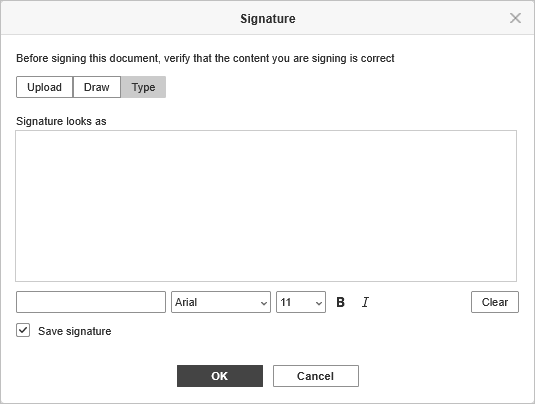
Type - type your signature into the field below and adjust its font, size, and formatting (bold or italic).
-
Upload - click Select image and choose the image from file, from URL, or from storage. Once the image is uploaded, activate the Remove white background checkbox if you want to remove it.
- Deactivate the Save signature checkbox below the signature field if you don't want the signature to be saved for future use. This checkbox is available on all three tabs.
- Click the Clear button in the bottom right corner of the Signature window at any point if you want to clear the signature field. This button is also available on all three tabs.
- Click the OK button once the signature is ready. The signature will be inserted into the document at the cursor's location.
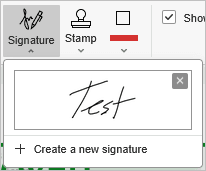
Once you've created one or more signatures with the Save signature checkbox activated, they become available in the same Signature menu on the Comment tab, so you can choose an existing signature instead of creating a new one each time. A signature created with the Save signature checkbox deactivated is used once and is not added to this menu.
Article with the tag:
Browse all tags