Redacting and removing hidden information
ONLYOFFICE PDF Editor allows you to remove sensitive or unwanted information from a .pdf. You can black out, i.e. redact, visible text and pages, or strip out hidden data such as metadata, comments, and embedded files that aren't visible on the page but remain stored in the file.
Redact information
In order to redact information:
-
Go to the Redact tab.

-
Choose your preferred way to redact text:
- Mark for Redaction - manually select the text for redaction as you would with the basic selection tool.
- Redact Pages - choose whether you want to mark the current page or select a range of pages for redaction.
-
Find & Redact - switch to the Search tool and enter the text piece you want to redact.
- Choose whether you want to mark just the current match (Mark for Redaction) or all matches (Mark All) in your .pdf.
- Customize your search parameters by making the search case sensitive or by matching whole words only.
Or select the text you want to redact and click it with the right mouse button to open the pop-up panel → Redact text.

-
Change the redacted text color, if necessary:
- Click the Select tool button on the top toolbar.
- Click on the redacted text you want to customize.
-
Choose the Color option in the pop-up menu and apply the required color.
Please note that the color is valid only for the text part you applied it to.
- Click the Apply Redactions button on the top toolbar to apply your changes.
 Remove hidden information button.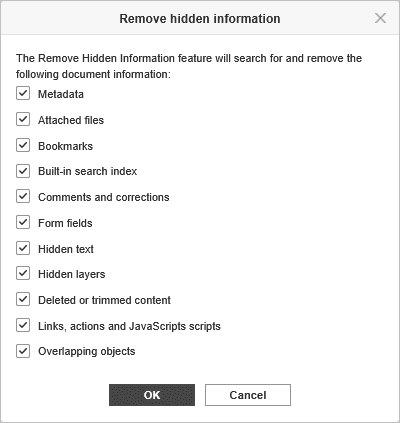
Article with the tag:
Browse all tags