Changing color scheme
In the Document Editor, you can quickly change the appearance of your document because they define the Theme Colors palette for different document elements (font, background, tables, autoshapes, charts). Color schemes are applied to the whole document.
If you applied some Theme Colors to the document elements and then select a different Color Scheme, the applied colors in your document will change correspondingly.
To change a color scheme:
- Click the downward arrow next to the Colors
 icon on the Layout tab of the top toolbar.
 - Select the required color scheme from the list: Aspect, Blue Green, Blue II, Blue Warm, Blue, Grayscale, Green Yellow, Green, Marquee, Median, Office 2007-2010, Office 2013-2022, Office, Orange Red, Orange, Paper, Red Orange, Red Violet, Red, Slipstream, Violet II, Violet, Yellow Orange, Yellow, and New Office.
The selected color scheme will be highlighted in the list.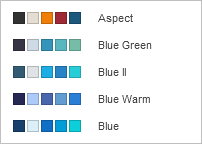
Once you select a color scheme, choose colors from the color palette for the document element you want to format. To open the palette, click the colored box on the right sidebar after selecting the element.
For the font, this window can be opened using the downward arrow next to the Font color  icon on the Home tab of the top toolbar. The following palettes are available: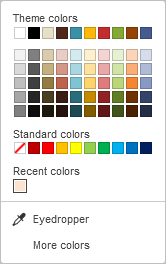
- Theme Colors - the colors that correspond to the selected color scheme of the document.
- Standard Colors - a set of default colors. The selected color scheme does not affect them.
- You can also apply a custom color using two different options:
- Eyedropper - use this option to choose the required color by clicking it in the document.
-
More colors - click this option if the required color is missing among the available palettes.
- Select the necessary color range moving the vertical color slider and set a specific color dragging the color picker within the large square color field.
- Once you select a color with the color picker, the appropriate RGB and sRGB color values will be displayed in the fields on the right.
- You can also define a color on the base of the RGB color model by entering the corresponding numeric values into the R, G, B (red, green, blue) fields or enter the sRGB hexadecimal code into the field marked with the # sign.
- The selected color appears in the New preview box.
- If the object was previously filled with any custom color, this color is displayed in the Current box so you can compare the original and modified colors.
- When the color is defined, click the Add button:
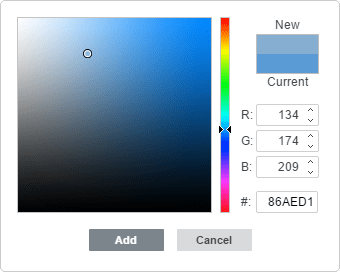
The custom color will be applied to the selected element and added to the Recent colors palette.
If you want to add a color to the entire page, click on Page Color icon on the Layout tab of the top toolbar.