Adding borders and horizontal lines
Add borders
To add borders to a paragraph, page, or the whole document in the Document Editor:
- Place the cursor within the required paragraph, or select several paragraphs with the mouse or the whole text by pressing the Ctrl+A key combination.
- Click the right mouse button and select the Paragraph Advanced Settings option from the menu, or use the Show advanced settings link on the right sidebar.
- Switch to the Borders & Fill tab in the opened Paragraph - Advanced Settings window.
- Set the needed value for Border Size and select a Border Color.
- Click within the border preset area or use buttons to select borders and apply the chosen style to them.
- Click the OK button.
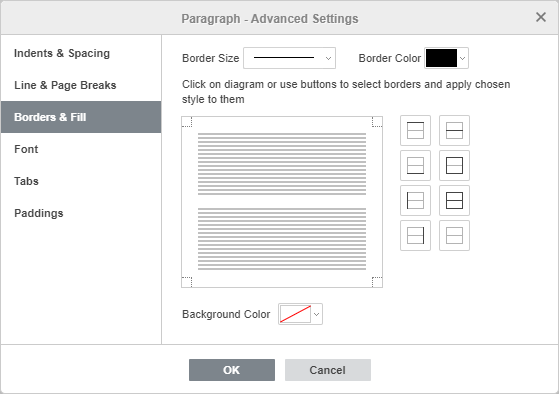
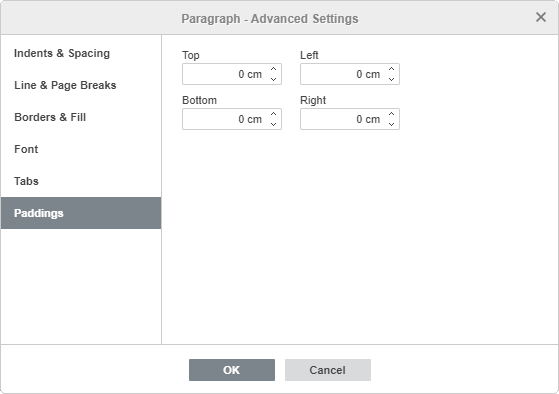
After adding the borders, you can also set paddings, i.e., distances between the right, left, top and bottom borders and the paragraph.
To set the necessary values, switch to the Paddings tab of the Paragraph - Advanced Settings window:
Add a horizontal line
To add a horizontal line at the current cursor position:
- Place the cursor where the horizontal line should be inserted.
- Switch to the Home tab of the top toolbar.
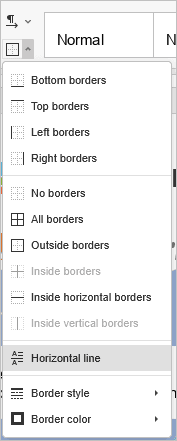
- Click the Borders icon.
- Choose the Horizontal Line option from the drop-down list.
Adjust horizontal line settings
To change the horizontal line properties, double-click the line, or right-click it and select the Horizontal Line Settings option from the contextual menu. The Horizontal Line Settings window will open:
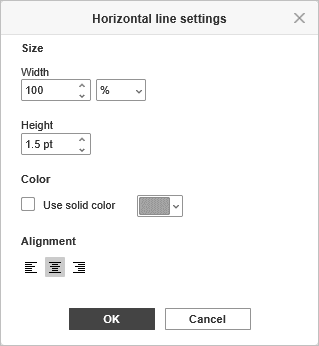
The Horizontal line settings window allows you to change the following parameters:
- Width - sets the length of the horizontal line. The value can be specified as a percentage of the page width or in absolute units, i.e., centimeters.
- Height - sets the thickness of the line in absolute units, i.e., Points.
- Color - allows you to change the color of the horizontal line. Click the color field to select a color from the available color sets or specify any color you like.
- Alignment - allows you to set the horizontal position of the line on the page: Left, Center, or Right. This parameter is relevant when the Width value is less than 100%, as a full-width line occupies the entire space between page margins.
When all the necessary changes are made, click the OK button to apply them.
Article with the tag:
Browse all tags