Setting up AI tools
Overview
The ONLYOFFICE AI Tools add-on integrates AI into ONLYOFFICE Desktop. Once the add-on is installed and configured, two tabs become available on the left navigation panel: AI Chat, a contextual assistant, and AI Tools, a set of ready-made tools for common file operations.
With AI you can:
- Generate and rewrite text. Create content from scratch or enhance existing text without switching between apps. Generate summaries, expand ideas, rephrase sentences, or adapt tone and style simply by describing what you need in natural language.
- Format your documents smarter. Apply formatting without searching through menus. You do not need to look for where a certain button or function is located — type in your request, and the editor updates the content.
- Analyze and visualize data. Aggregate, sort, and filter information within your spreadsheets, and generate visual representations from selected ranges or entire sheets. Create data-driven diagrams and images for your slides based on simple descriptions.
This article describes how to install the add-on and configure AI. To learn how to use it, refer to the Using AI Chat and Using AI Tools articles.
Installing the add-on
ONLYOFFICE Desktop Editors is distributed in two versions: the Community version, available under AGPL v.3, and the Enterprise version. In the Enterprise version, the ONLYOFFICE AI Tools add-on is supplied with the application and is available right after the installation.
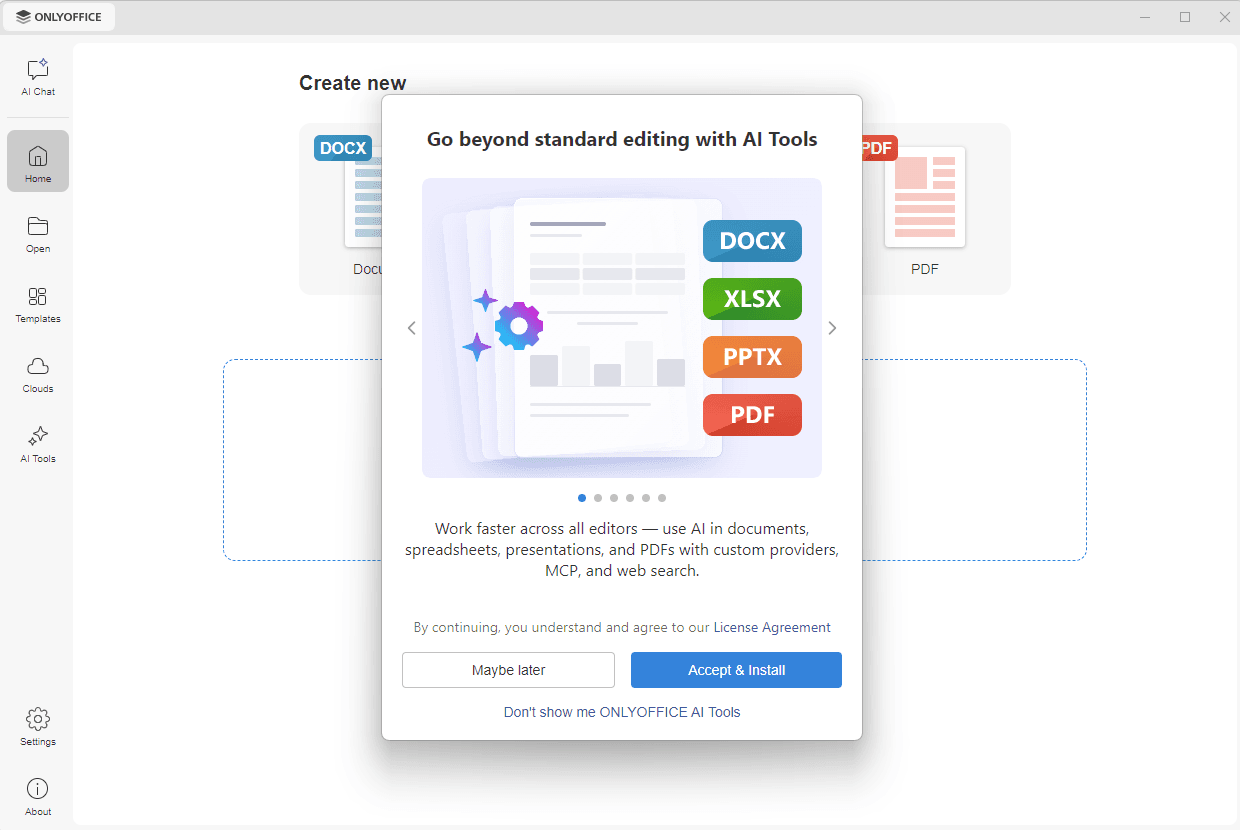
In the Community version, the add-on is not included in the installation package. When you start the application for the first time, click the AI chat or the AI tools button in the left navigation panel, or any icon in the AI tools tab in a document, a window opens where you can:
- click Accept & Install to accept the License Agreement and install the add-on, or Maybe later to close the window and be prompted again the next time you start the application,
- click Don't show me ONLYOFFICE AI Tools to close the window and stop displaying it. The Enable AI features option is switched off and the AI Chat and AI Tools tabs are hidden.
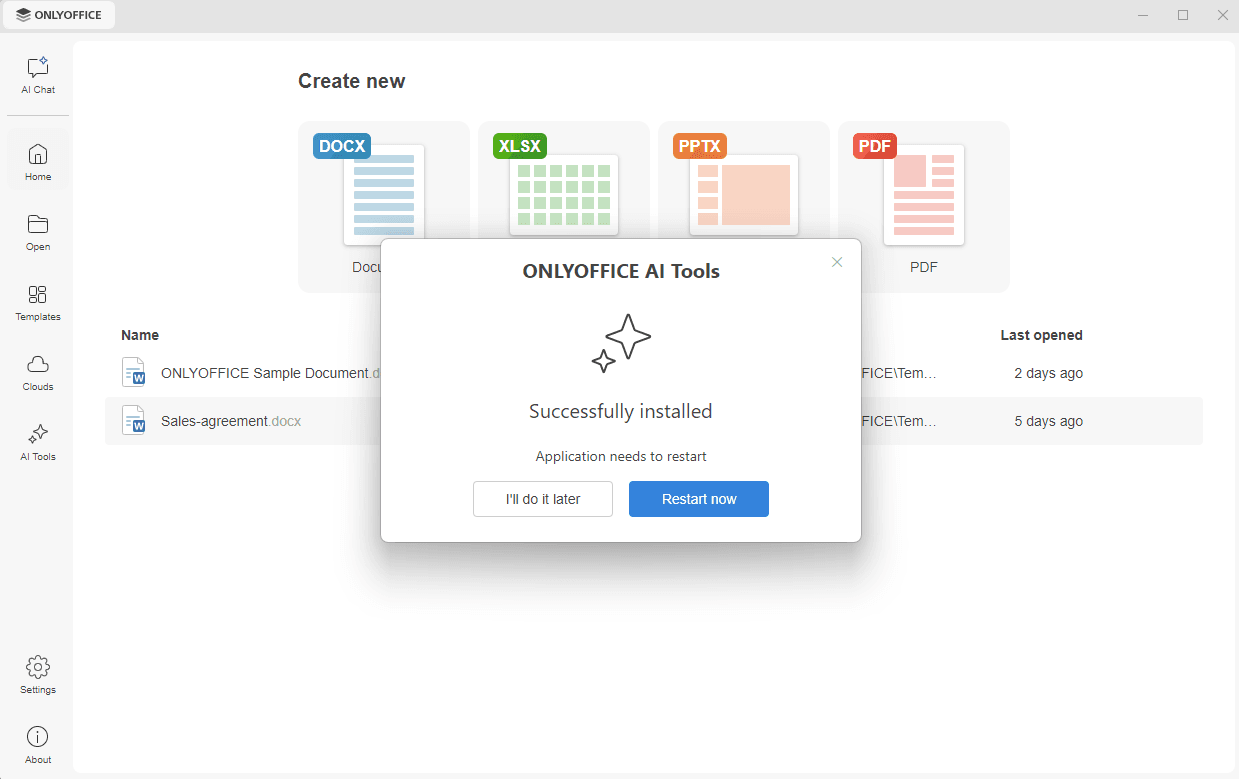
The download starts, and the Successfully installed message appears when it is complete. The application needs to be restarted for the add-on to become available: click Restart now to restart it immediately, or I'll do it later to restart it yourself afterward.
Enabling AI features
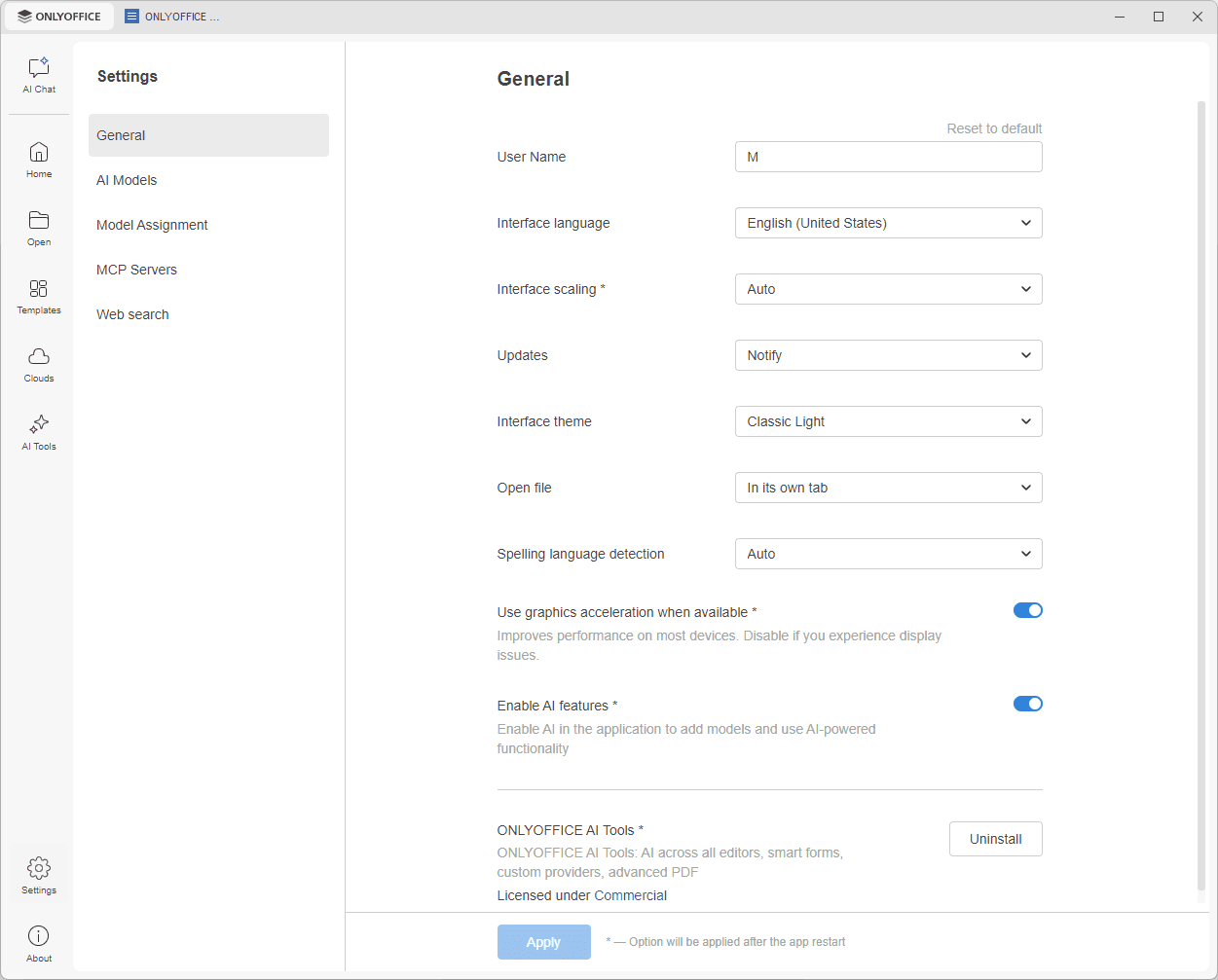
The AI Chat and AI Tools tabs and the AI sections of the Settings tab are displayed only when the Enable AI features option is switched on. To change it, go to the Settings tab on the left navigation panel, switch the Enable AI features option on or off, and click Apply.
When the add-on is installed, the ONLYOFFICE AI Tools block is displayed at the bottom of the General section. Use the Uninstall button to remove the add-on.
Once the add-on is installed and AI features are enabled, the Settings tab displays the AI Models, Model Assignment, MCP Servers, and Web search sections described below.
AI Models
Use the AI Models section to connect your own AI source, either via an API key from a provider or as a locally hosted model for full control over data privacy.
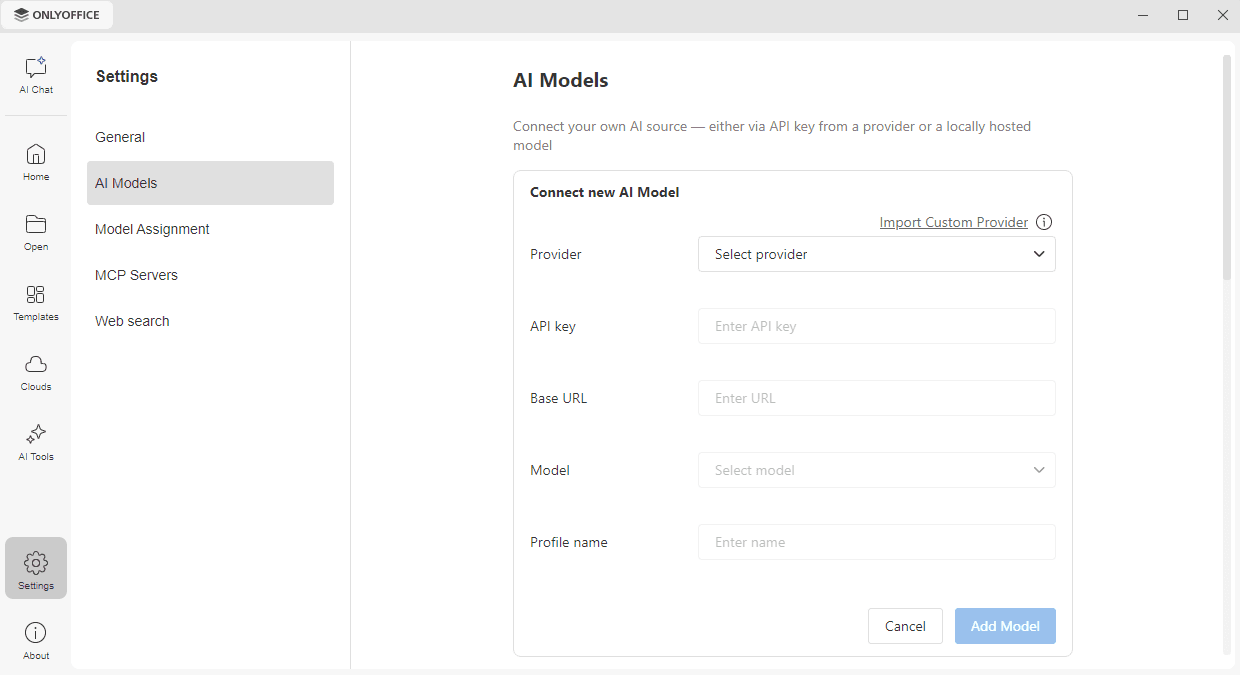
- Click the Add Model button. The Connect new AI Model form opens.
- Choose a provider from the Provider drop-down list. The AI providers available so far are OpenAI, Google AI, Anthropic, xAI, Stability AI, DeepSeek, Mistral, TogetherAI, Groq, OpenRouter, Ollama, LM Studio, Zhipu, GPT4All, and OpenAI Compatible.
- Enter the API key obtained from your provider account.
- In the Base URL field, leave the default endpoint or specify the one required by your provider.
- Choose the necessary model from the Model drop-down list.
- Type in the Profile name to recognize this model in the list.
- Click the Add Model button to complete the setup, or Cancel to discard your changes.
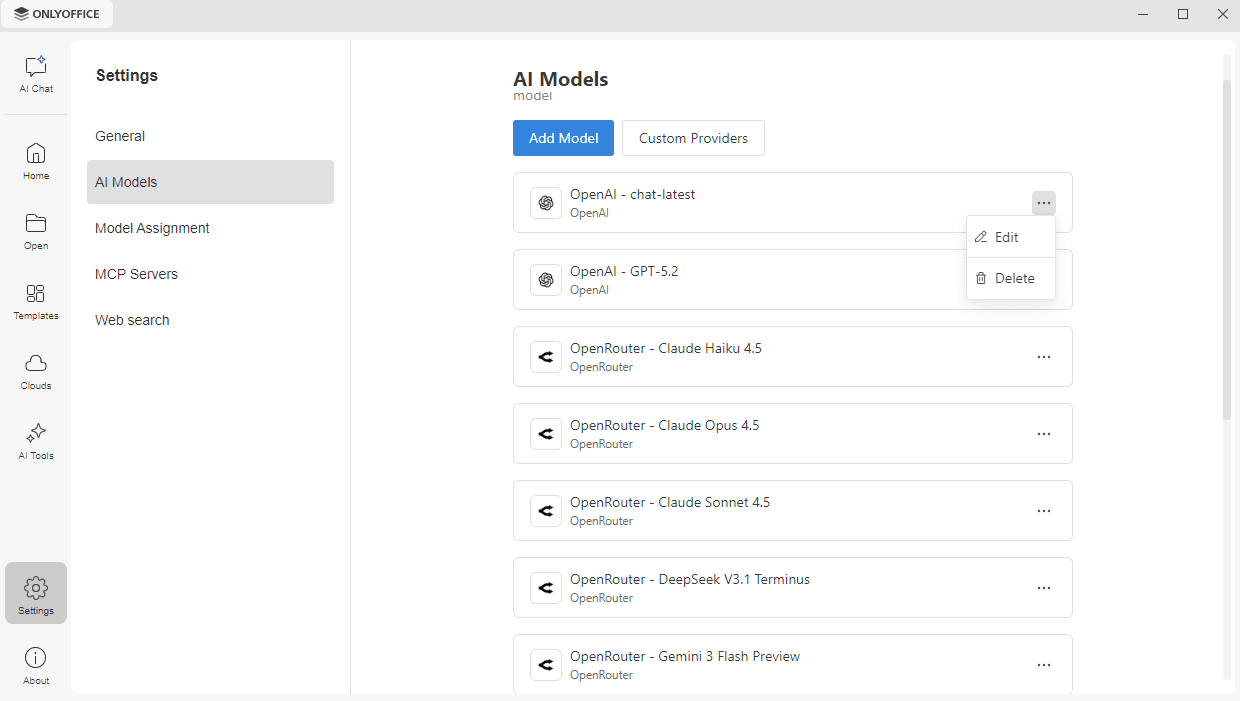
The model appears in the list, showing the profile name, the model, and the provider. Click the ... icon on the right of a model to Edit its settings or to Delete it.
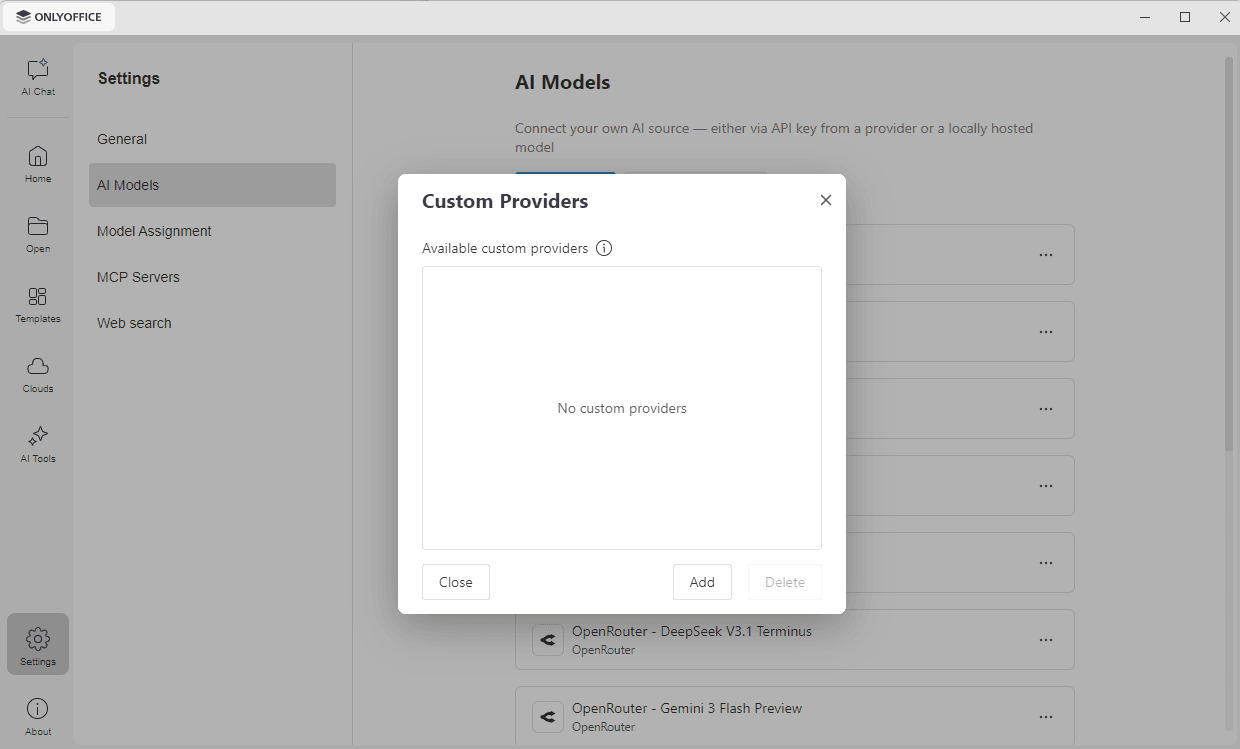
To connect a provider that is not available in the Provider list, add it as a custom provider. Click the Custom Providers button in the AI Models section to open the list of the providers you have added, and click Add. You can also click the Import Custom Provider link in the Connect new AI Model form.
In both cases, enter the configuration for the AI Model API in JS format, providing the model name, endpoint URLs, and headers. Use the Download template link to get the custom-provider-template.js file to start from.
To remove a custom provider, select it in the Custom Providers list and click Delete. Click Close to close the window.
Model Assignment
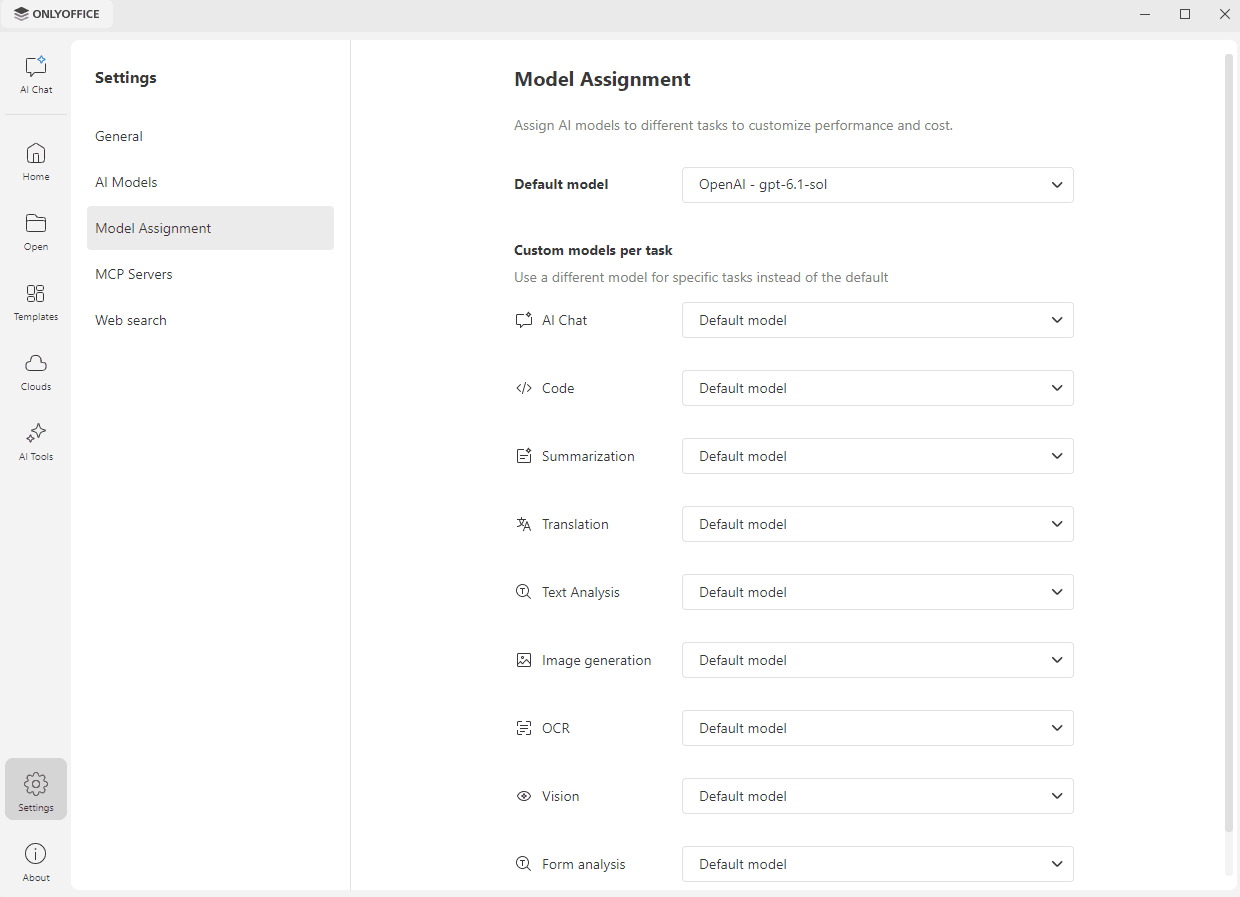
Use the Model Assignment section to assign AI models to different tasks and customize performance and cost. Choose the model to be used by default from the Default model drop-down list.
Under Custom models per task, you can use a different model for a specific task instead of the default one. The following tasks are available:
- AI Chat,
- Code,
- Summarization,
- Translation,
- Text Analysis,
- Image generation,
- OCR,
- Vision.
- Form analysis.
Leave Default model selected for a task to use the default model for it.
MCP Servers
Use the MCP Servers section to set up MCP servers and enable their tools for use in AI Chat. MCP tools extend the AI capabilities beyond your local environment.
Adding a server
No MCP server is set up in Desktop Editors by default – add the one you need yourself. For example, add the ONLYOFFICE DocSpace MCP server to connect Desktop Editors to your DocSpace account so that AI Chat can work with the files, folders, and rooms stored there.
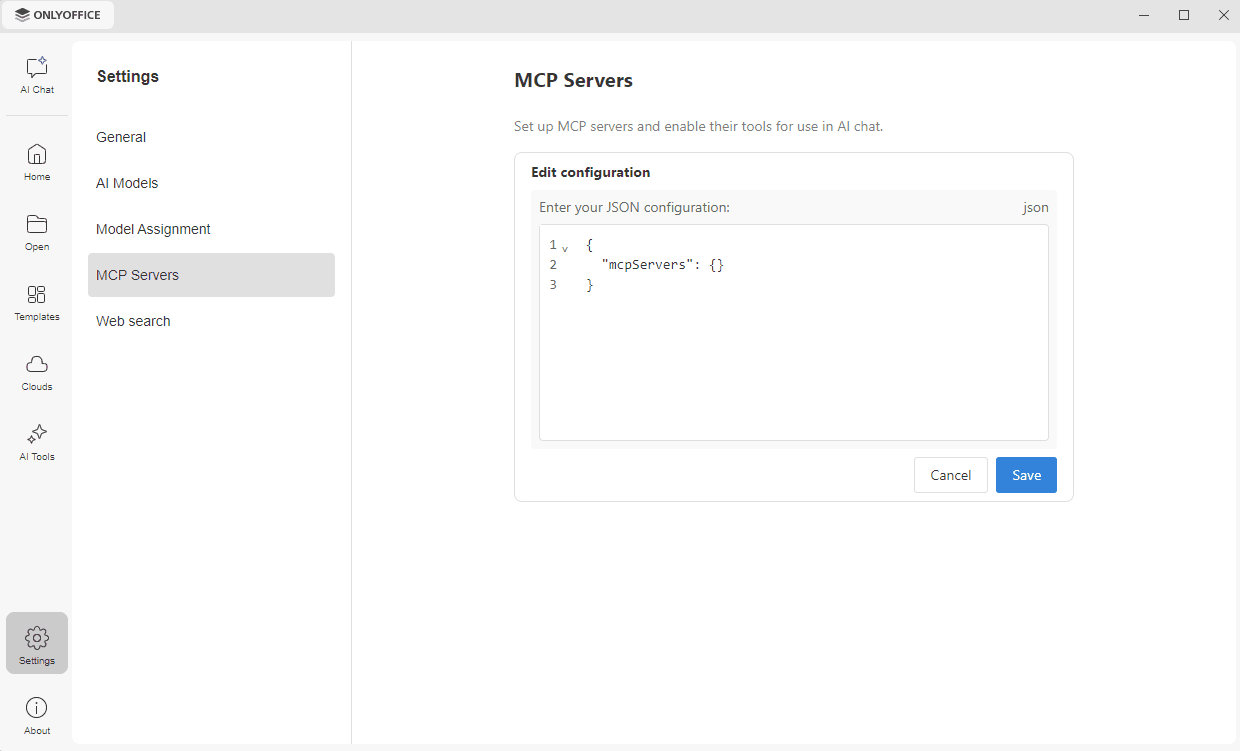
If no server has been set up yet, the section displays the Edit configuration box. Enter the JSON configuration obtained from the MCP server provider and click Save. Click Cancel to discard your changes.
For the ONLYOFFICE DocSpace configuration, refer to the ONLYOFFICE Apps MCP server documentation. Any other MCP-compatible server that follows the protocol specification is added the same way.
Managing tool permissions
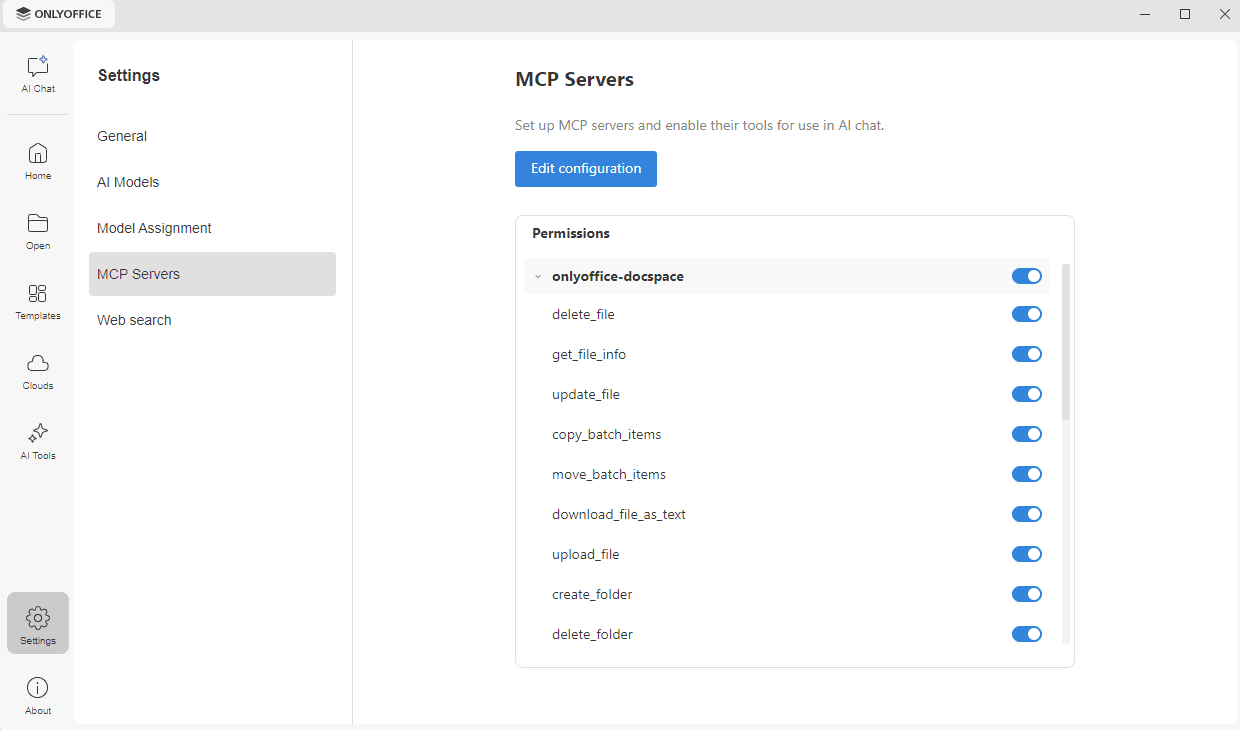
Once a server is added, the section displays the Edit configuration button and the Permissions list. Click Edit configuration to change the JSON configuration.
The Permissions list groups the available tools by server and displays the server name as it is specified in the configuration, for example, onlyoffice-docspace. Click a server name to expand or collapse the list of its tools. All the tools are allowed by default. Use the switch next to a tool to allow or forbid this tool, or the switch next to the server name to allow or forbid all of its tools at once.
Web search
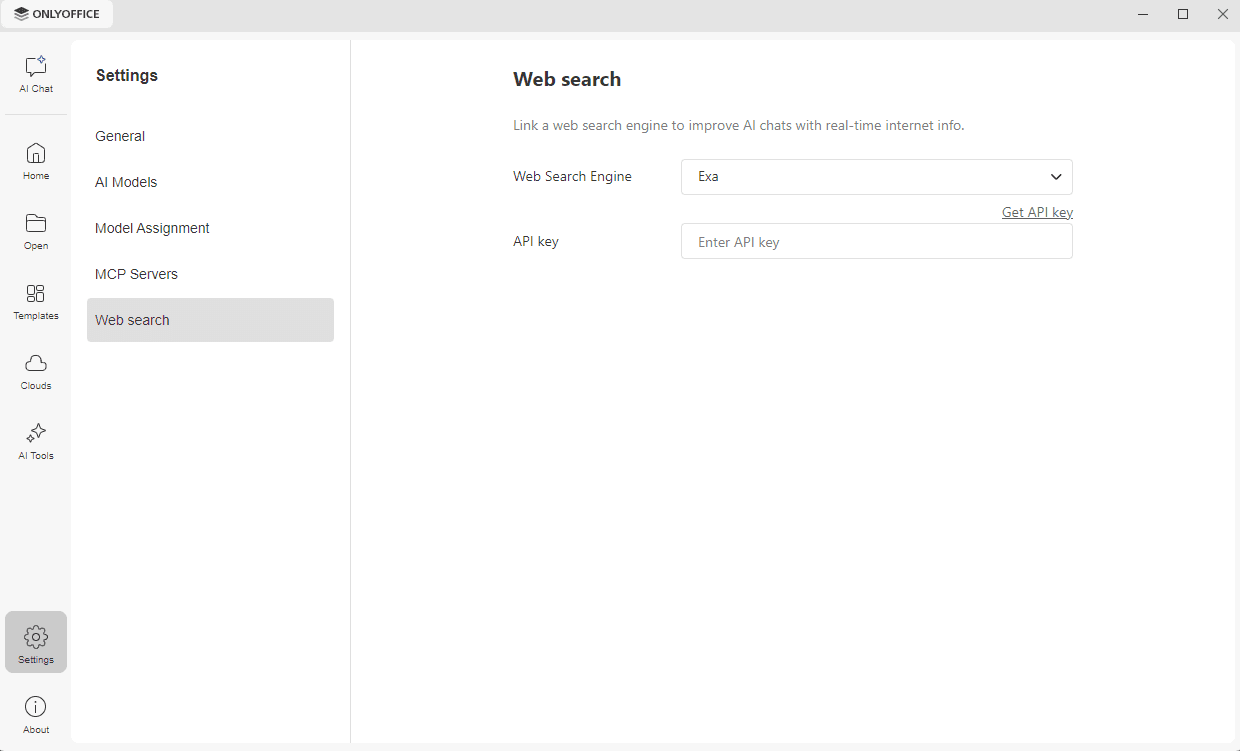
Use the Web search section to link a web search engine and give AI Chat access to real-time information from the Internet.
- Use the Web Search Engine drop-down list to choose a search engine. Exa is the only search engine available so far.
- Click the Get API key link, or go to the Exa website, to obtain an API key.
- Paste the key into the API key field.