Using AI chat
Overview
AI Chat is a contextual assistant available in ONLYOFFICE Desktop. You can ask it a question, work on a file you attach to the conversation, or continue a previous conversation from where you left off.
Before you start, install the ONLYOFFICE AI Tools add-on and connect at least one AI model. Refer to the Setting up AI article.
Opening AI Chat
Click the AI Chat tab on the left navigation panel.
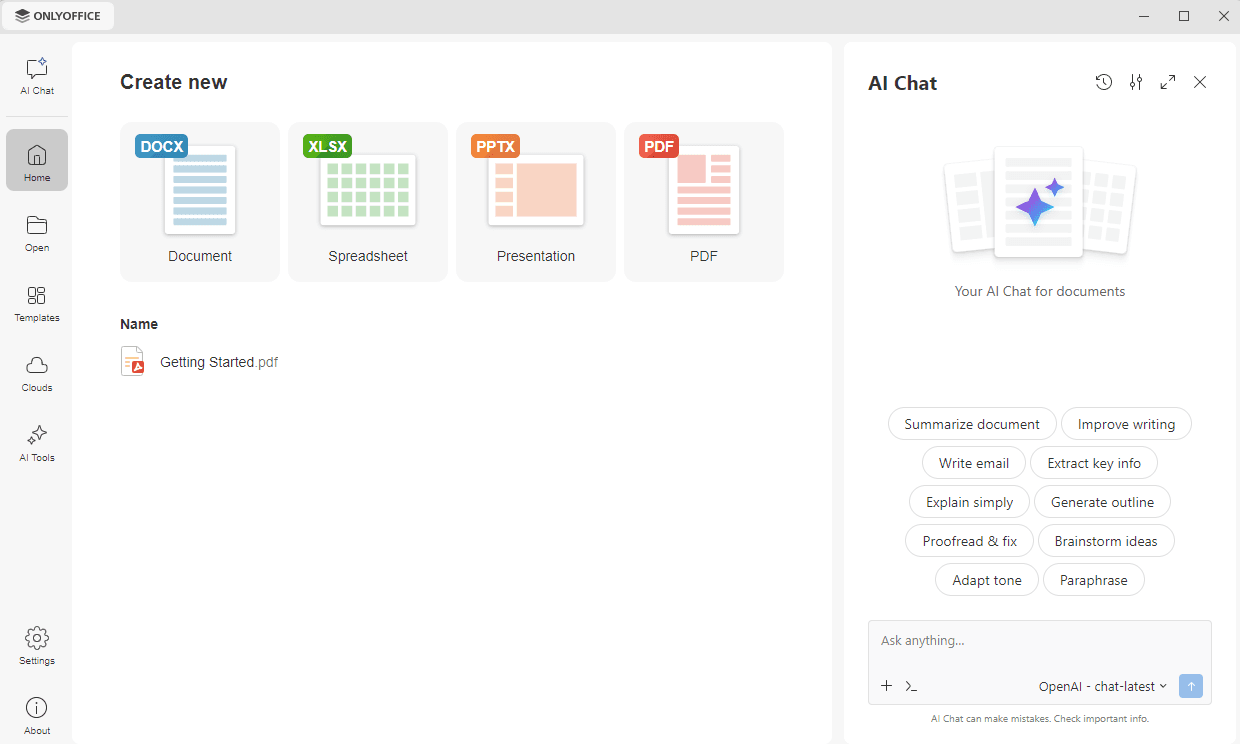
AI Chat can also be displayed as a panel on the right side of the window, next to the AI Tools tab.
The AI Chat operation buttons give access to the following:
- New chat – to start a new conversation. The button is displayed when a conversation is open.
- Chat history – to open the list of your previous conversations.
- Settings – to go to the AI settings of the Settings tab. To learn more, refer to the Setting up AI article.
- Collapse – to display AI Chat as a panel instead of the whole window.
When AI Chat is displayed as a panel, use the Expand button in the same header to display it in the whole window again, or close the panel with the Close button.
Asking a question
Type your request in the prompt field and click the arrow icon to submit it. You can also click one of the suggested actions displayed above the box: Summarize document, Improve writing, Write email, Extract key info, Explain simply, Generate outline, Proofread & fix, Brainstorm ideas, Adapt tone, and Paraphrase. The ready-made prompt is added to the box, where you can edit it or add your own details before submitting it.
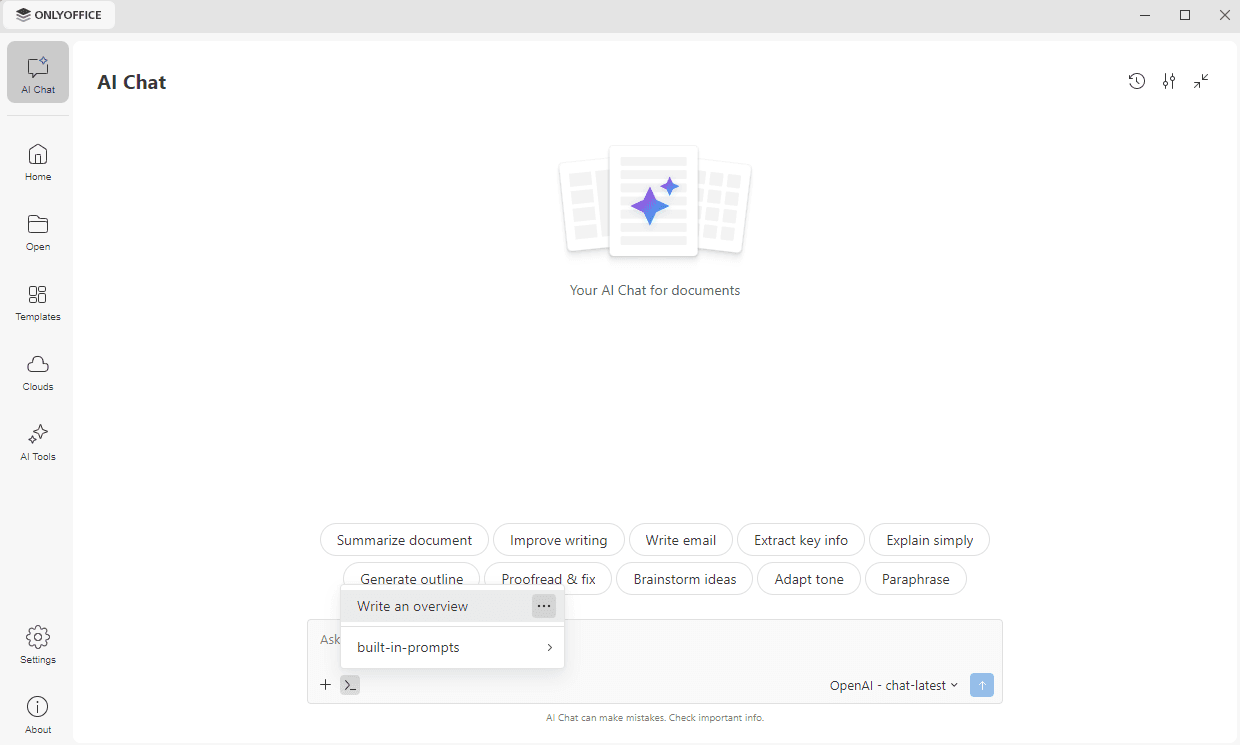
Once a conversation has started, the suggested actions are no longer displayed above the box. Click the >_ icon in the lower left corner of the prompt field to open the list of prompts. The prompts you have saved yourself are listed first, and the built-in-prompts option opens the list of the suggested actions. Click a prompt to add it to the prompt field. To manage a saved prompt, click the ... icon next to it and choose Edit AI Prompt or Delete.
Choosing a model
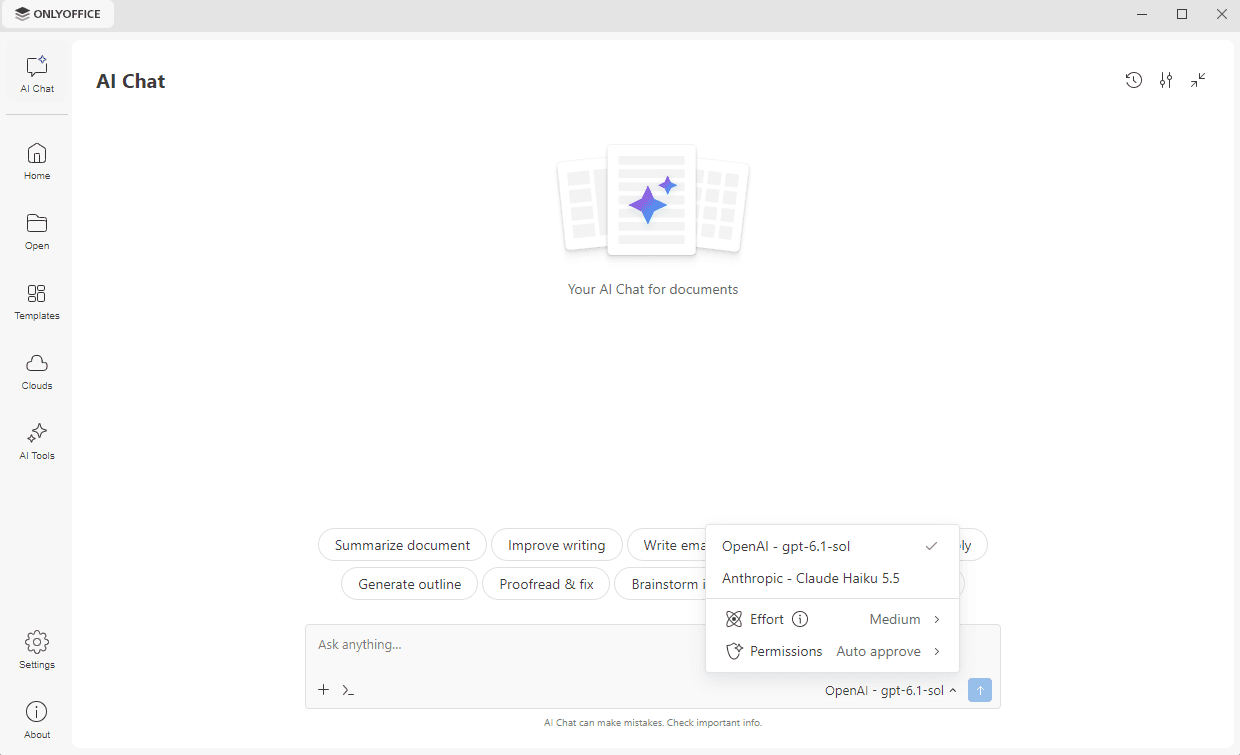
The model used for the current conversation is displayed in the lower right corner of the prompt field. Click it to choose another model from the list. The available models are the ones you connected in the AI Models section of the Settings tab. In the drop-down menu that opens, you can also set the following options:
- Effort – to choose how much reasoning the model applies to your request: Low, Medium, High, or Maximum.
- Permissions – to control how a model interacts with your files and tools:
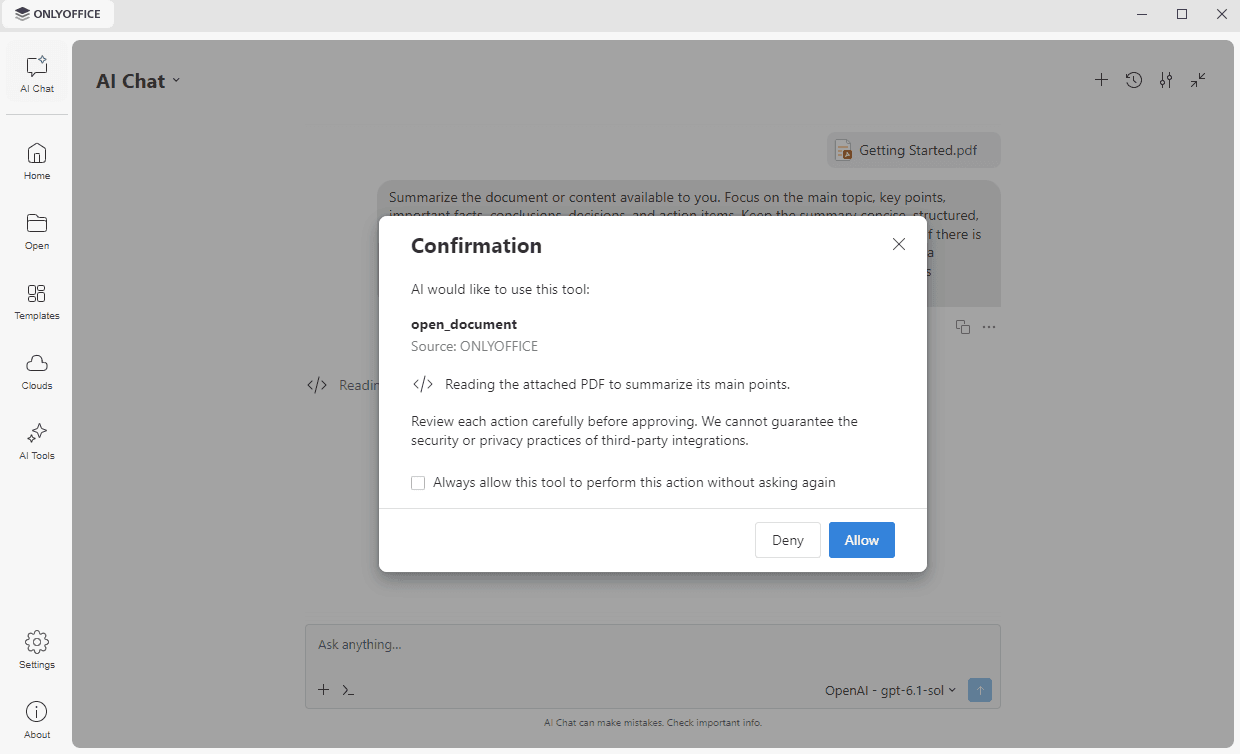
- Ask every time – AI Chat pauses before performing an action and waits for your approval. The Confirmation window displays the tool and the action requested: click Allow to continue or Deny to stop the action. Check the Always allow this tool to perform this action without asking again option if you do not want to be asked for this action again.
- Auto approve – routine actions that are considered safe are performed without a confirmation. Anything AI Chat considers risky still opens the Confirmation window.
- Allow without asking – all the actions are performed immediately, without any confirmation.
- Ask every time – AI Chat pauses before performing an action and waits for your approval. The Confirmation window displays the tool and the action requested: click Allow to continue or Deny to stop the action. Check the Always allow this tool to perform this action without asking again option if you do not want to be asked for this action again.
Attaching files and setting options
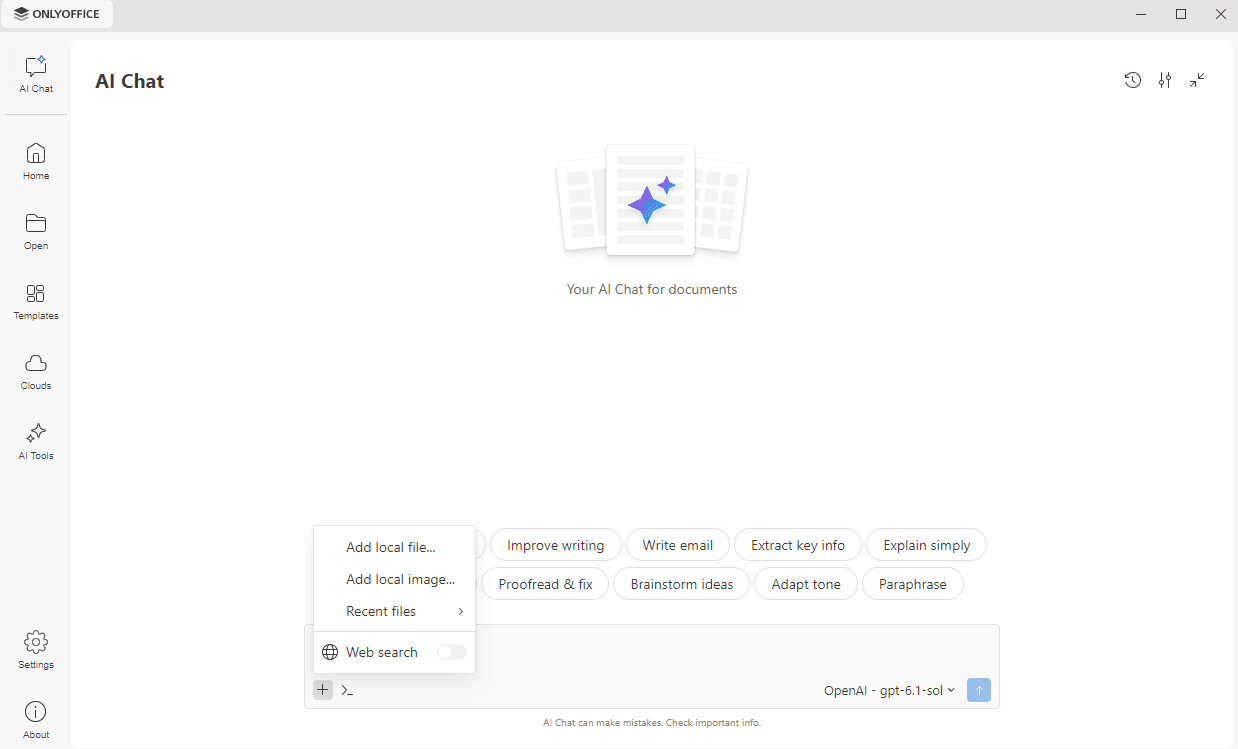
Click the + icon in the lower left corner of the prompt field to open the menu with the following options:
- Add local file – to attach a file stored on your computer. The AI response will be based on the attached file.
- Add local image – to attach an image stored on your computer.
- Recent files – to attach one of the files you opened recently.
- Web search – to enable or disable the web search for this conversation. The search engine is connected in the Web search section of the Settings tab.
Working with the output
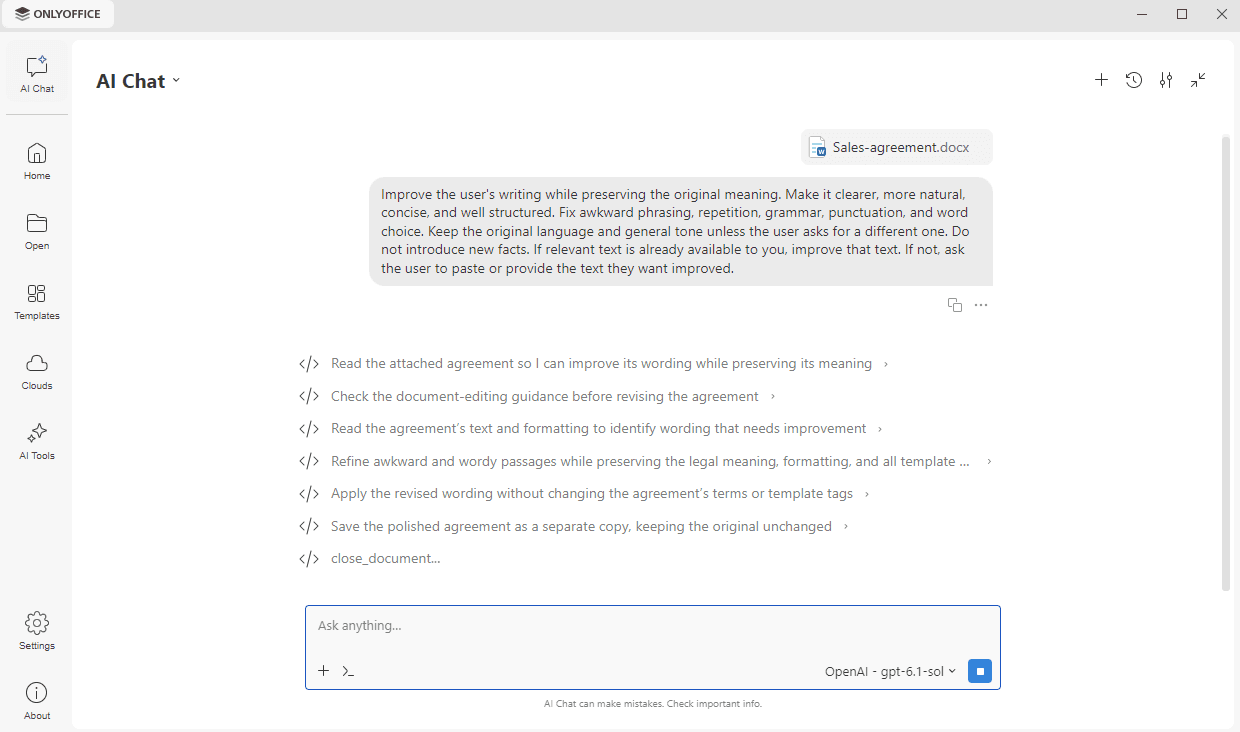
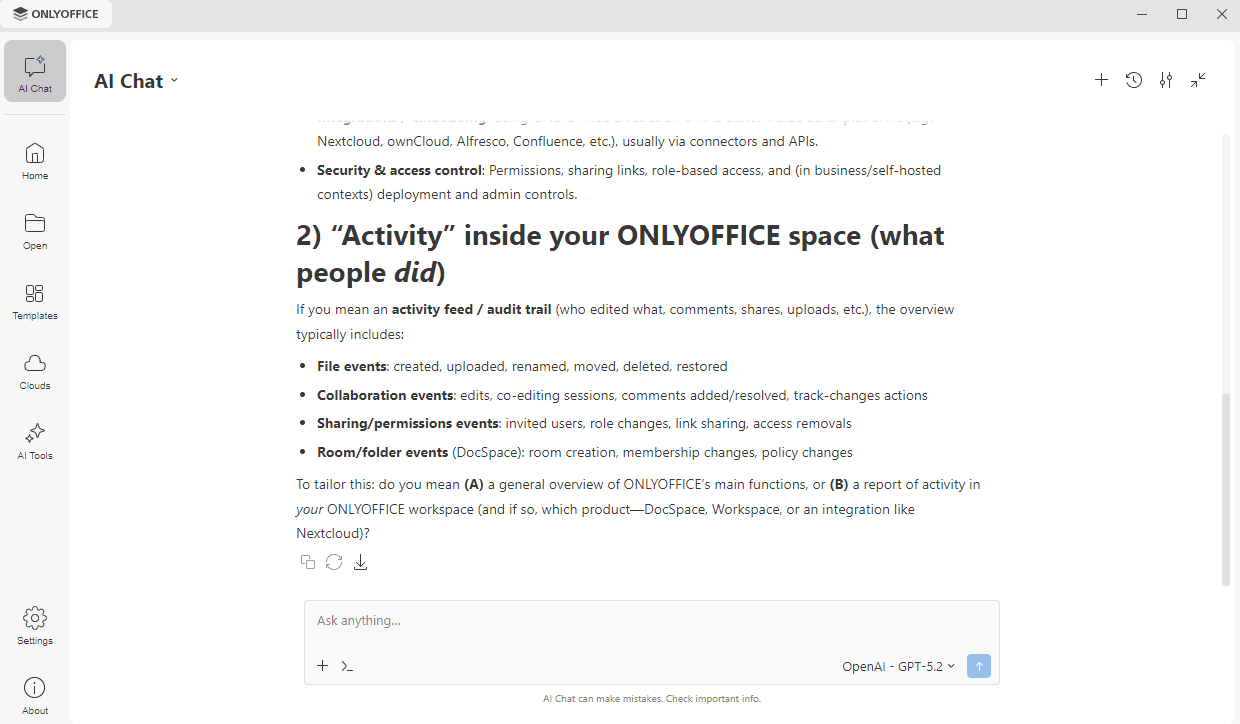
The answer appears in the chat. Use the icons below it to Copy to clipboard, Regenerate the answer, or Save as docx to your computer.
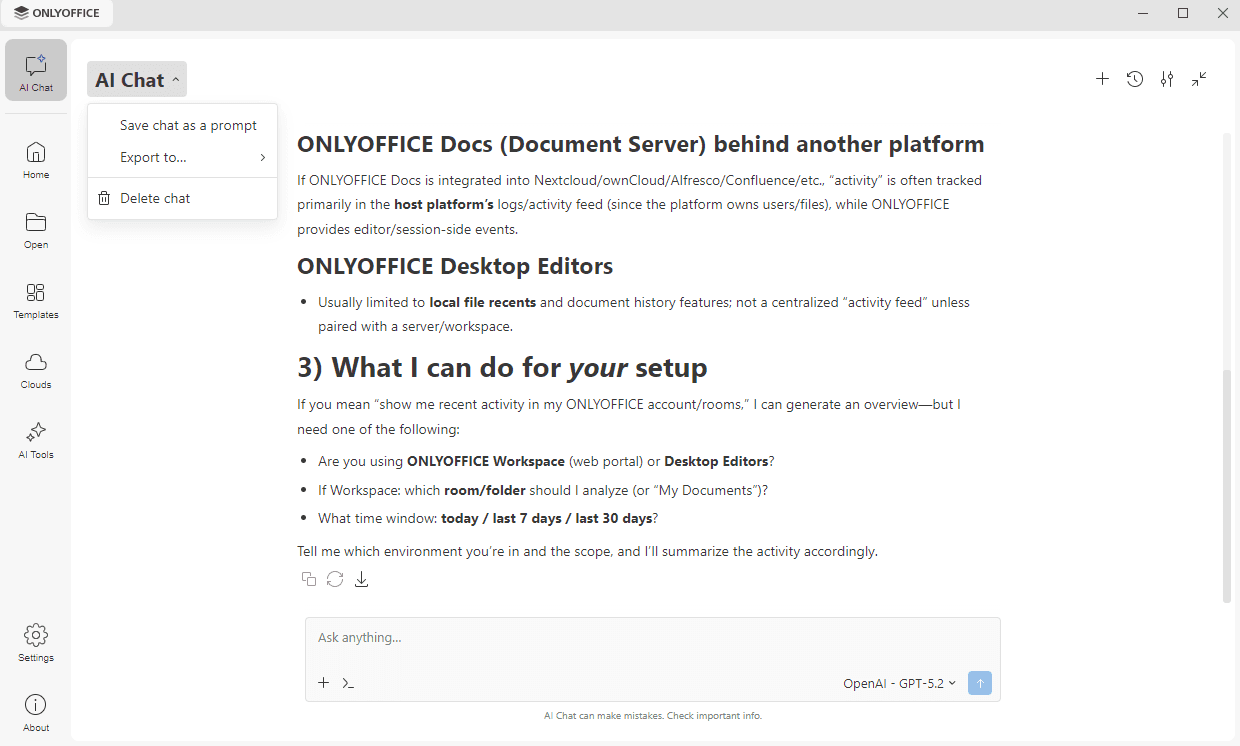
To manage the current conversation, click the arrow next to the AI Chat title and choose one of the available options:
- Save chat as a prompt – to save the conversation as a prompt that you can reuse later.
- Export to – to save the conversation to your computer as a .pdf document, a .docx document, or an .md file.
- Delete chat – to remove the conversation permanently.
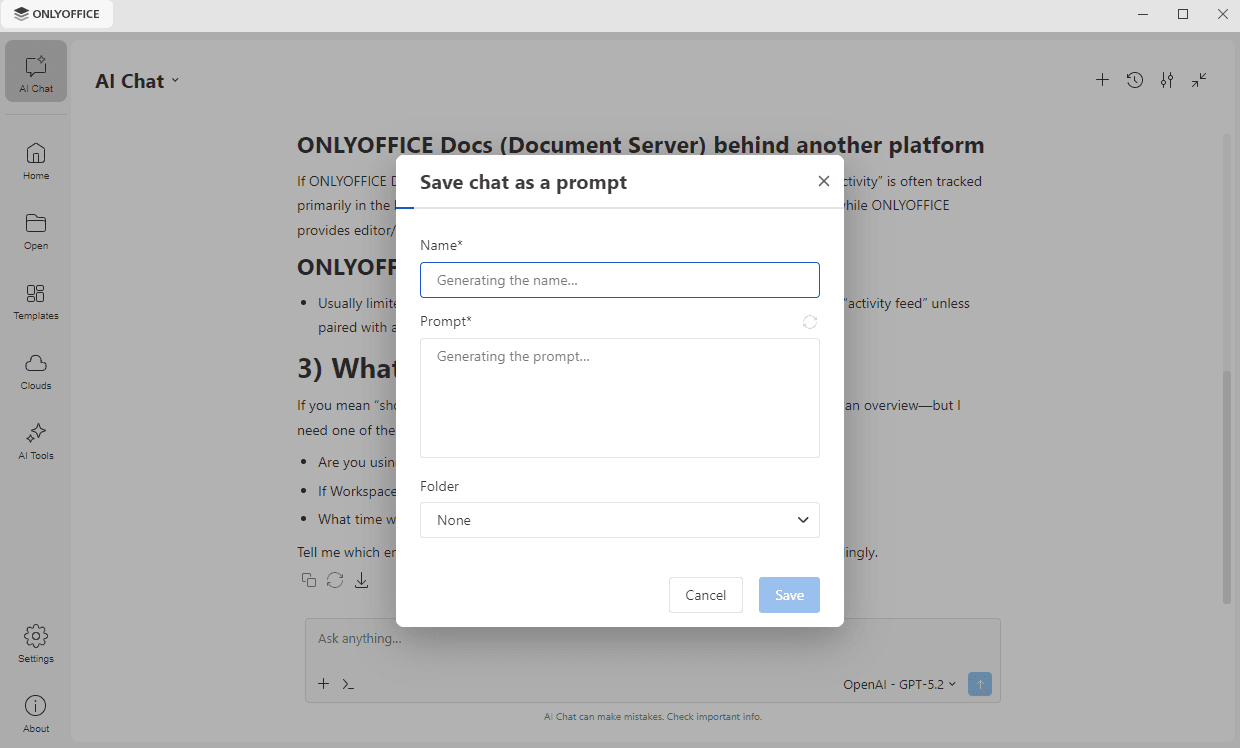
When you choose Save chat as a prompt, the Name and the Prompt are generated from the conversation. Edit them if necessary, or use the icon next to the Prompt field to generate the prompt again, then click Save. The saved prompt is added to the list that opens with the >_ icon in the prompt field.
Chat history
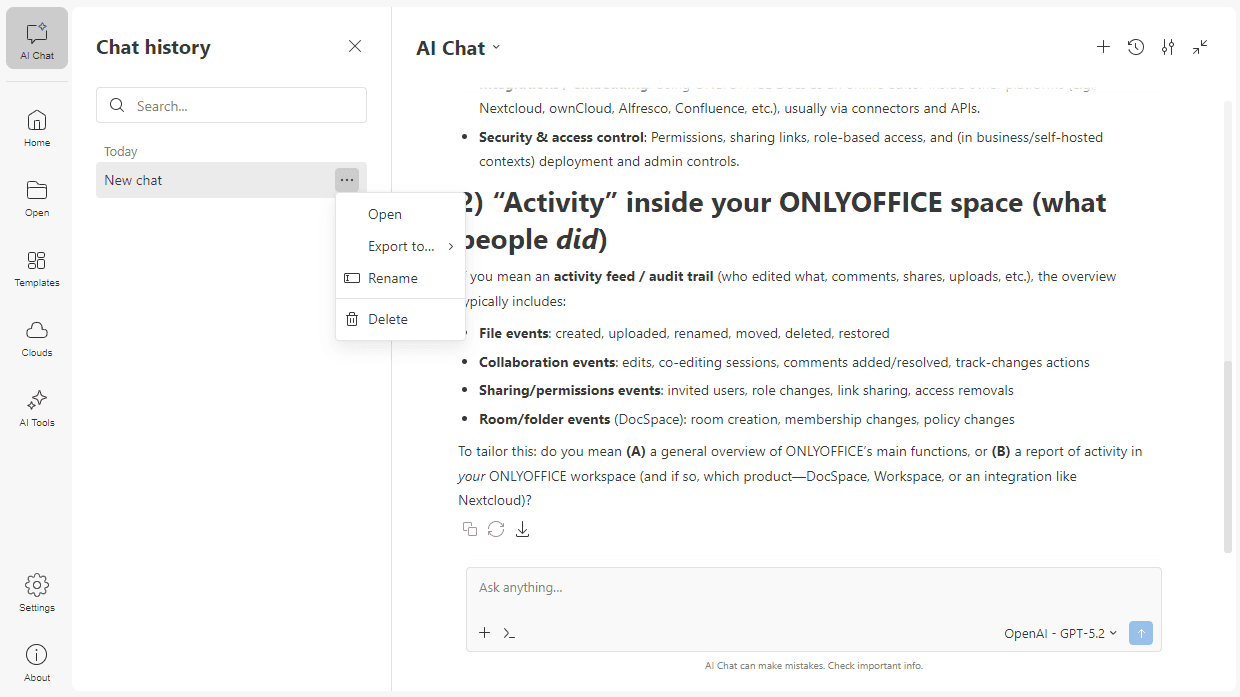
AI Chat keeps the history of your conversations so that you can review, export, or remove them. Click the Chat history button in the AI Chat header. The panel opens on the left, and the conversations are grouped by date.
- Use the Search field to find previous conversations by name.
- Click the ... icon next to a conversation to open the menu with the following options:
- Open – to open the conversation,
- Export to – to save the conversation to your computer as a .pdf document, a .docx document, or an .md file,
- Rename – to change the conversation title,
- Delete – to remove the chat from history permanently.
When you select a conversation, its full content appears on the right, and you can continue interacting with the AI from where you left off. Click the Close icon to close the Chat history panel.