Using AI tools
Overview
The AI Tools tab gives access to a set of ready-made prompts for common file operations — converting, comparing, reviewing, protecting, and so on. Instead of describing the task yourself, you pick the tool that matches it, and its prompt is added to AI Chat for you.
Before you start, install the ONLYOFFICE AI Tools add-on and connect at least one AI model. Refer to the Setting up AI article.
Running a tool
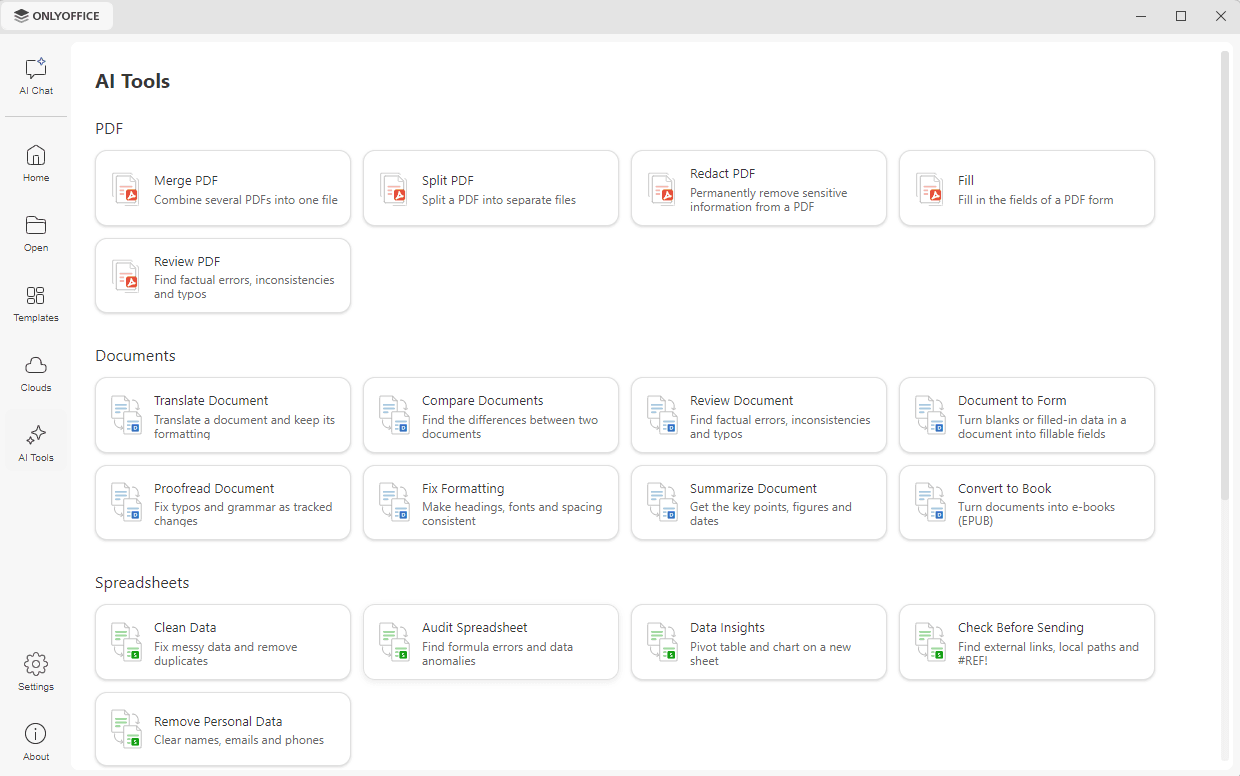
- Click the AI Tools tab on the left navigation panel. The available tools are displayed as cards grouped by the type of file they are applied to.
- Click the card of the tool you need. AI Chat opens as a panel on the right side of the window, and the prompt corresponding to the selected tool is added to the prompt field — for example, Attach PDF files or name a folder, in the order to merge them for the Merge PDF tool.
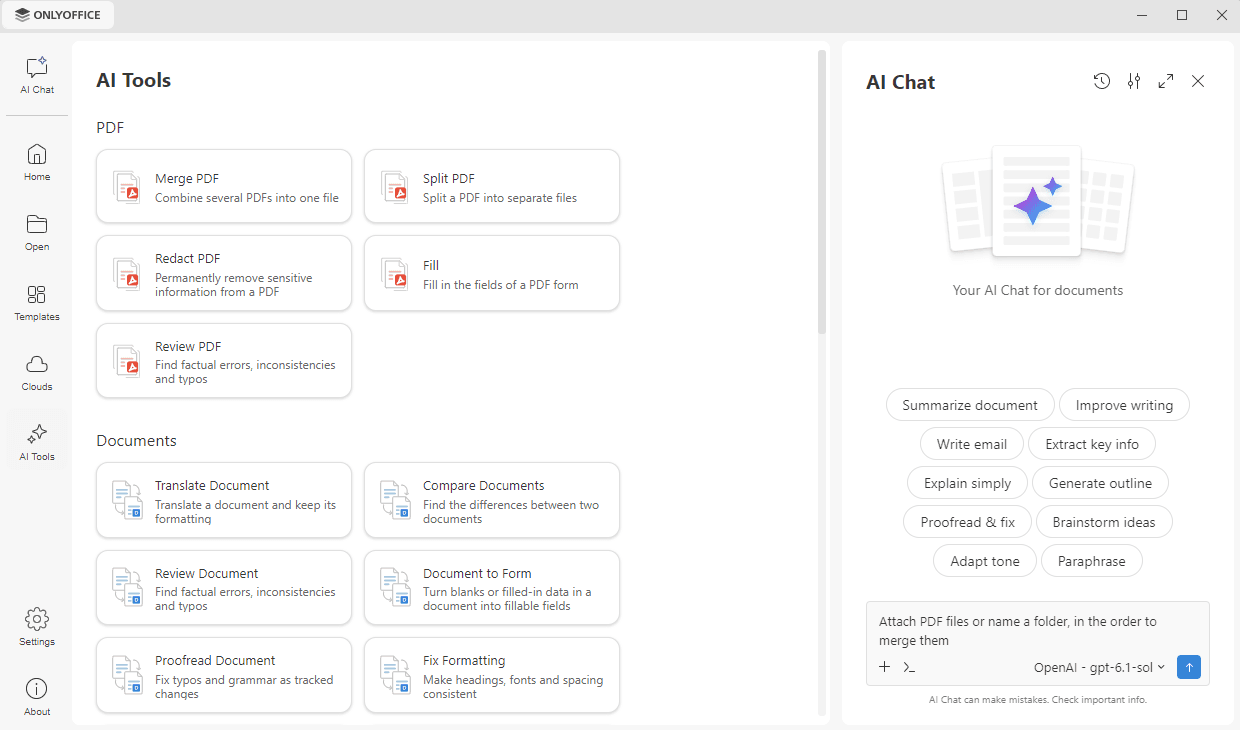
- Add your own details to the prompt if necessary and click the arrow icon to submit it.
A tool only prepares the prompt for you. From this point the conversation continues like any other one: attaching files, choosing a model, and working with the answer are described in the Using AI Chat article.
Available tools
- Merge PDF – combine several PDFs into one file.
- Split PDF – split a PDF into separate files.
- Redact PDF – permanently remove sensitive information from a PDF.
- Fill – fill in the fields of a PDF form.
- Review PDF – find factual errors, inconsistencies, and typos.
Documents
- Translate Document – translate a document and keep its formatting.
- Compare Documents – find the differences between two documents.
- Review Document – find factual errors, inconsistencies, and typos.
- Document to Form – turn blanks or filled-in data in a document into fillable fields.
- Proofread Document – fix typos and grammar as tracked changes.
- Fix Formatting – make headings, fonts, and spacing consistent.
- Summarize Document – get the key points, figures, and dates.
- Convert to Book – turn documents into e-books (EPUB).
Spreadsheets
- Clean Data – fix messy data and remove duplicates.
- Audit Spreadsheet – find formula errors and data anomalies.
- Data Insights – create a pivot table and a chart on a new sheet.
- Check Before Sending – find external links, local paths, and #REF! errors.
- Remove Personal Data – clear names, emails, and phone numbers.
Presentations
- Generate Presentation – describe a topic or upload a brief and get a finished deck.
- Document to Slides – turn a report into a presentation, keeping its structure.
- Rewrite Slides – shorten, translate, fix mistakes in, or change the tone of the slide text.
- Prepare Talk – generate notes for each slide from its content.
- Check Before Presenting – find overflowing text, off-slide objects, empty placeholders, and typos.
Other Tools
- Convert Files – convert files between different formats.
- Protect Files – add a password to documents and PDFs.
Article with the tag:
Browse all tags