Infomaniak
Introduction
ONLYOFFICE allows you to edit the files stored in your infomaniak account and collaborate on them using online and desktop ONLYOFFICE editors. Thereby, you can use not only online collaboration tools, but also the features available in your desktop application:
- access to system fonts, the clipboard, and system printers.
Step 1. Connect to infomaniak Cloud
Launch ONLYOFFICE Desktop Editors. To connect Desktop Editors to your infomaniak cloud, perform the following actions:
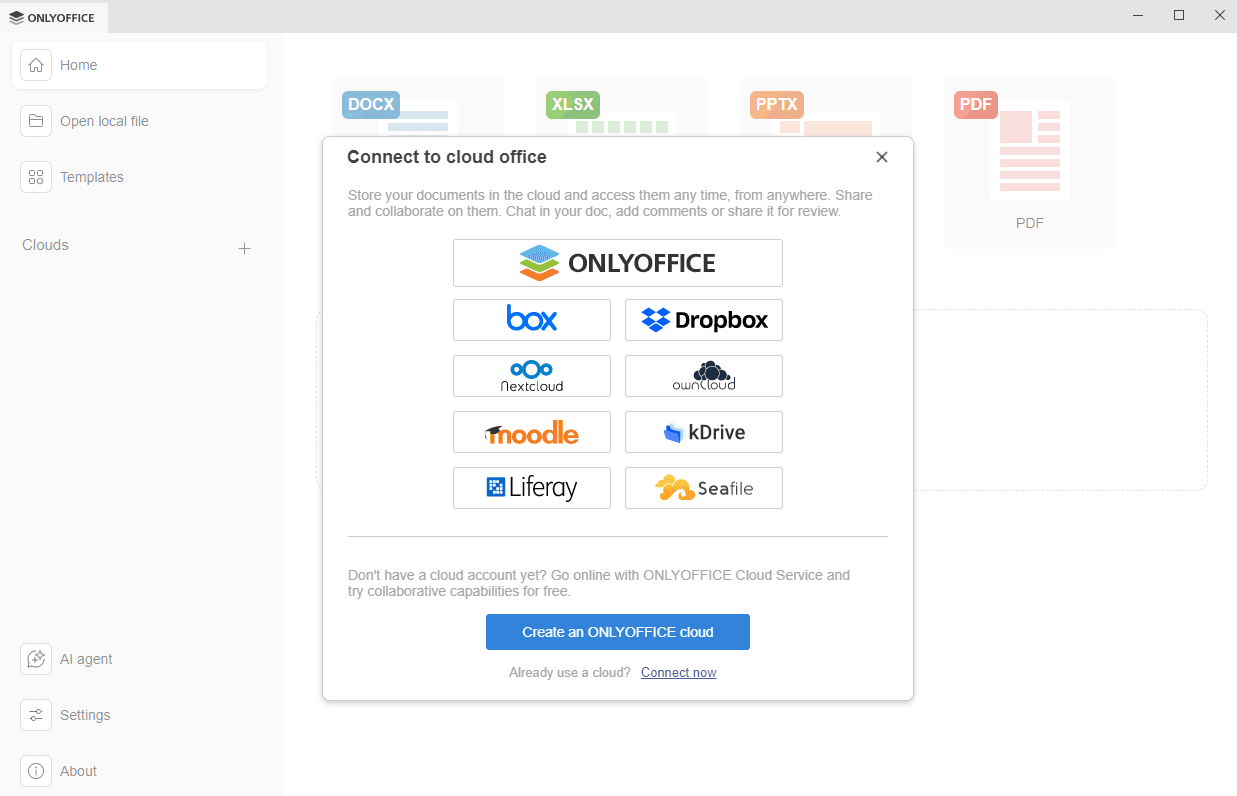
- Click the Plus button
 next to the Clouds section on the left side panel.
 - Click the infomaniak kDrive cloud service button, or use the Connect now link at the bottom.
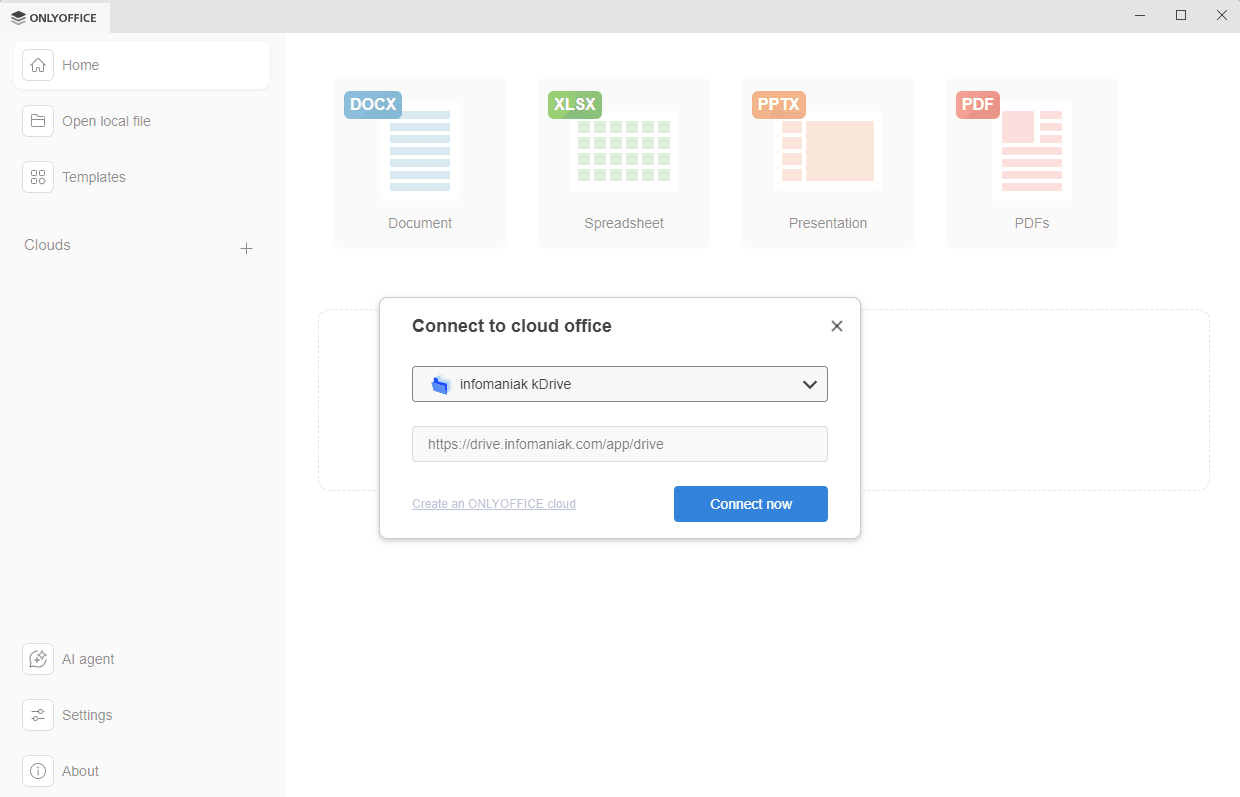
- If you pressed the kDrive service button, the Connect to cloud office window opens with the infomaniak kDrive selected. If you used the Connect now link, choose the infomaniak kDrive cloud storage from the drop-down list. Your infomaniak server domain is set by default. When ready, click the Connect now button.
-
The infomaniak sign-in page will open in a new tab of the Desktop Editors interface.
- Specify your Login email address and the Password you use to access your infomaniak account,
- Click the Connection button.


The kDrive main page will open. Now you can edit your existing files and create new ones, share your documents, and collaborate on them with kDrive users using ONLYOFFICE editors.
Step 2. Manage your connected accounts
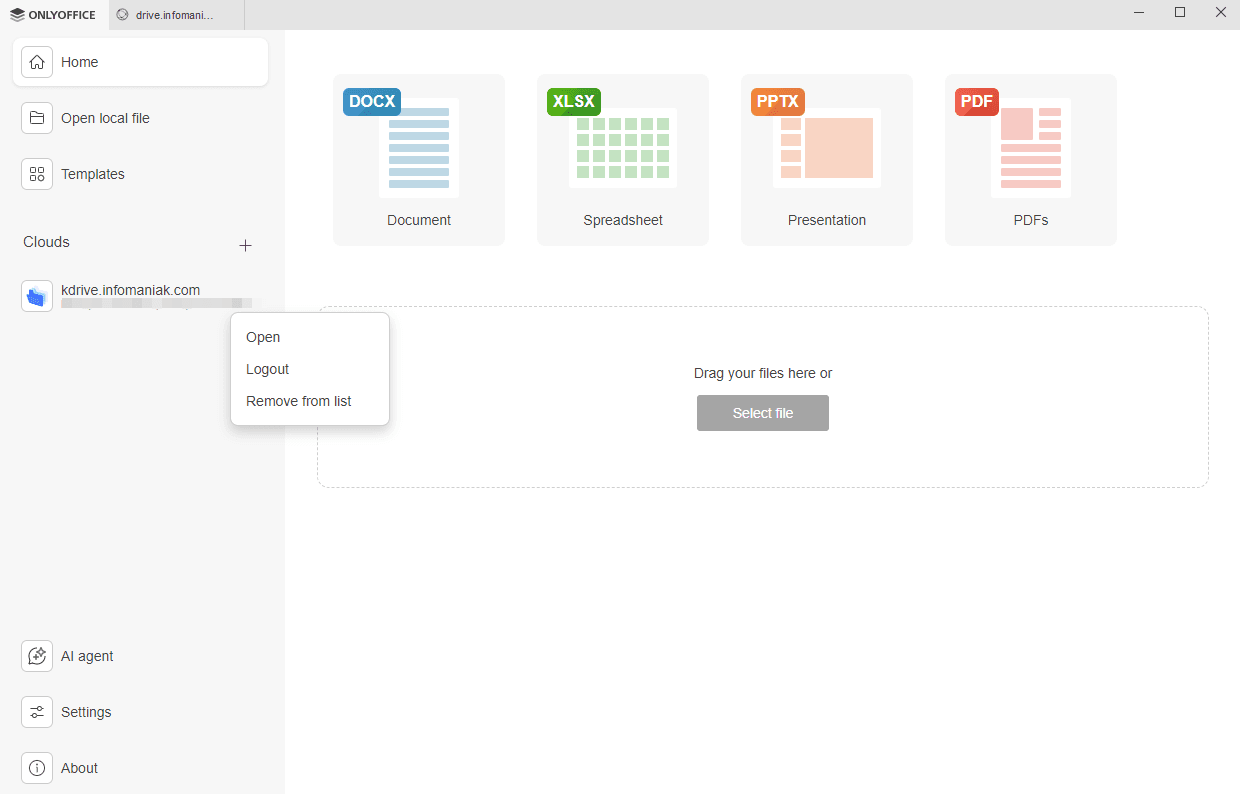
Click the logo in the upper left corner of the Desktop Editors interface to return to the main program window. All the connected cloud accounts appear on the left-side panel below the Clouds section. Click the three dots  that appear as you hover the mouse over the connected cloud to access the cloud contex menu options:
- Open - to switch to the corresponding cloud storage tab if you are already logged in to this account, or to open the Connect to cloud office window if you are not currently logged in (in such a case, you will need to enter your credentials),
- Logout - to exit from your account,
- Remove from list - to disconnect the selected account and remove it from the list.
To add several accounts or clouds, click the Plus button next to the Clouds section on the left side panel .