Creating an AI assistant
The Create AI assistant feature in the Document Editor lets you turn a repetitive text task into a dedicated button on the AI Tools tab. You write the instruction once, and the assistant then checks the whole document or a selected fragment with a single click. All results are shown on the left panel, where you review them and decide which ones to apply.
AI assistants are different from Quick AI Actions: a Quick AI Action runs once on the selected text, while an AI assistant can keep working in the background and collects all its suggestions on the left panel for you to accept or reject.
Creating an AI assistant
-
Go to the AI Tools tab and click Create AI assistant. The Create a new assistant window will open.
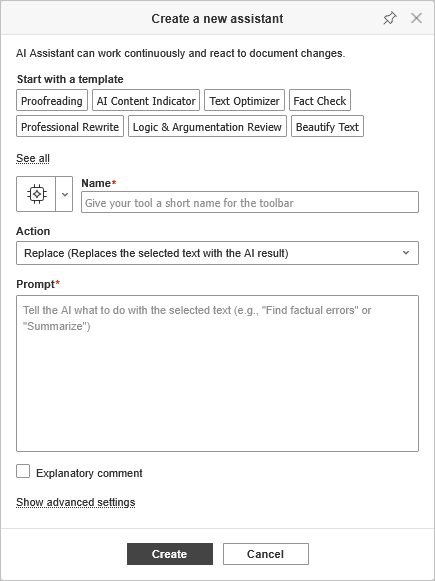
- Optionally, select one of the ready-made templates at the top of the window, for example, Proofreading, AI Content Indicator, Text Optimizer, Fact Check, Professional Rewrite, Logic & Argumentation Review, or Beautify Text. Click See all to view the full list. A template fills in the fields for you, and you can edit them afterwards.
-
Fill in the fields:
- Icon - click the icon button to the left of the Name field and select an icon from the list. It will be displayed on the assistant's button on the AI Tools tab.
- Name (required) - enter a short name for your assistant. It will be displayed on the toolbar.
- Action - select what the assistant does: Hint, Replace, General text analysis, or Document extractor. To learn more, please read the Action types section below.
- Prompt (required) - enter the instruction the AI will follow every time the assistant is used, for example, Find factual errors or Rewrite the text in a formal tone.
-
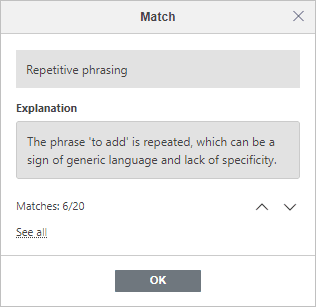
Explanatory comment - check this box to have the AI add a comment explaining each suggested change. This option is available for the Hint and Replace actions.
For the Document extractor action, also set the document type and the fields to extract. To learn more, please read the Document extractor section below.
-
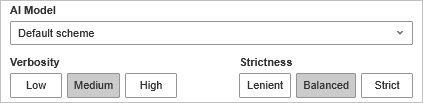
Optionally, click Show advanced settings to fine-tune the assistant:
- AI Model - select the model this assistant will use from the list of models available for your connected AI provider. Once selected, the model is used by this assistant every time it runs. Default scheme means the assistant uses the model assigned on the Model Assignment tab of the AI Settings window.
- Verbosity - set how detailed the result should be: Low, Medium, or High.
- Strictness - set how closely the AI follows your prompt: Lenient, Balanced, or Strict.
- Click Create. The assistant appears as a new button on the AI Tools tab and stays on the top toolbar.
Action types
The assistant never changes your text directly. Whatever action type you choose, the results are first shown on the left panel for you to review.
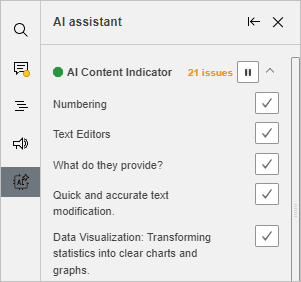
- Hint - suggests ways to improve the text based on your prompt. Review the hints on the left panel and choose which improvements to apply.
- Replace - prepares replacements for the text according to your prompt. The text is replaced only after you approve the change on the left panel.
- General text analysis - assesses the overall quality of the text and shows the analysis results on the left panel.
- Document extractor - finds specific data in the document, for example, dates, parties, or amounts in a contract. See the section below for details.
Using an AI assistant
- By default, the assistant checks the whole document. To check only a part of it, select the required text fragment.
- Go to the AI Tools tab and click the button of the assistant you want to use. The assistant starts working automatically.
-
Review the results on the left panel. To apply a suggestion, click the checkmark next to it, or click Accept All at the bottom of the list to apply all of them at once.
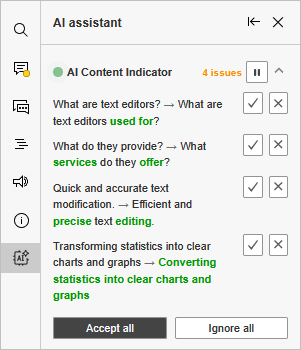
If you use several assistants, each of them has its own tab on the left panel, so you can switch between their results. You can keep an assistant running in the background while you continue working on the document, or stop it temporarily using the  Pause button. To resume, click the
  Start button.
If an assistant cannot perform the requested action, for example, when the prompt is unrelated to text editing, a warning is displayed and the operation is stopped.
You can create as many assistants as you need, each with its own icon, name, action type, and prompt.
Editing an AI assistant
- Go to the AI Tools tab and click the arrow under the assistant's button.
- Select Edit from the menu. The Edit window will open.
- Change the icon, Name, Action, Prompt, or Explanatory comment setting. Click Show advanced settings to change the AI model, verbosity, or strictness.
- Click Save.
Deleting an AI assistant
- Go to the AI Tools tab and click the arrow under the assistant's button.
- Select Delete from the menu.
- In the confirmation window, click Yes. The assistant is removed from the toolbar.
Deleting an assistant cannot be undone.
WarningAI-generated content may not always be accurate or complete. It is processed by an AI service of your choosing. ONLYOFFICE assumes no responsibility for the accuracy or completeness of AI-generated content. Please review and verify any critical information before relying on it.