Creating quick AI actions
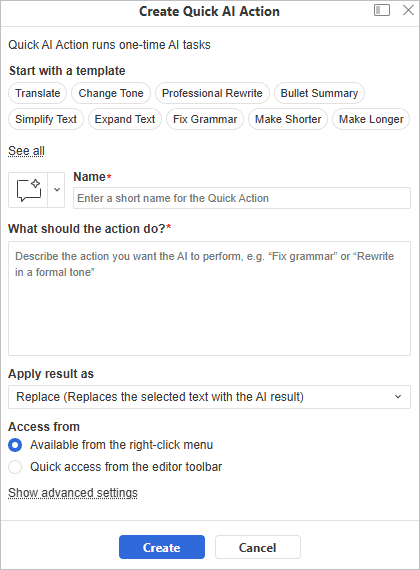
In the Document Editor and when editing PDF forms in the PDF Editor, you can save your own AI instructions as Quick AI Actions. Create an action once, then run it again from the right-click menu or the toolbar, no need to retype the same prompt into AI Chat.
Creating a Quick AI Action
- Go to the AI Tools tab on the top toolbar and click
 Create Quick AI Action.
 -
Pick a starting point:
-
choose a template — Translate, Change Tone, Professional Rewrite, Bullet Summary, Simplify Text, and more:
A template fills in the Name, icon, What should the action do? and Apply result as fields for you. For example, Fix Grammar sets Apply result as to Review. You can change any of these settings; or
more
Expand Text, Fix Grammar, Make Shorter, Make Longer, Extract Key Points, Create Table, Add Examples, Explain Simply. - build your own from scratch.
-
choose a template — Translate, Change Tone, Professional Rewrite, Bullet Summary, Simplify Text, and more:
- Enter a Name. Change the icon if you like, using the picker next to the Name field.
-
Under What should the action do?, describe the task, e.g., "Fix grammar" or "Rewrite in a formal tone".
-
Under Apply result as, choose how the result is applied:
Option What it does Replace Replaces the selected text with the AI result Review Suggests edits using tracked changes Comment Adds the result as a comment on the selected text End Document Inserts the result at the end of the document - Under Access from, choose where the action should live: the right-click menu or the toolbar.
- Optional: open Show advanced settings to set the AI Model or Output style (Concise, Standard or Detailed).
- Click Create.
Running a saved Quick AI Action
Select the text you want to run the action on, then:
- From the right-click menu - right-click the selected text, choose Quick AI Actions, select your action and click Run.
- From the toolbar - click the action's button on the toolbar. The action runs immediately.
The AI applies the result the way you set up in Apply result as.
To change an action's settings or remove it, use the Edit and Delete options. In the right-click menu, they are next to Run under the action's name. For toolbar actions, they are in the drop-down list of the action's button.
Limitations and considerations
- Quick AI Actions need a connected AI model to run.
- Results depend on the AI model you've connected, and quality and speed will vary.
- Review AI-generated output before relying on it, especially when applying it as a direct replacement.
WarningQuick AI Action results are generated by an AI service of your choosing. ONLYOFFICE assumes no responsibility for the accuracy of AI-generated content. Always verify important facts.
For a broader look at what AI can do in the editors, see AI user guides.