Enabling AI in Docs
Enabling AI in Docs
ONLYOFFICE lets you connect AI models and use them right in the editors. The AI Tools tab gives you access to all AI features, and you can assign specific tasks to different models depending on what each model can do.
If the AI Tools tab is not displayed on the top toolbar, go to the Plugins tab, click Background Plugins, and make sure the AI Tools switch is turned on.

Step 1. Connecting an AI model
You can connect a model from an AI provider using an API key, or a locally hosted model. There are two places where you can do this: the AI Settings window and the AI Chat panel.
Via the AI Settings window
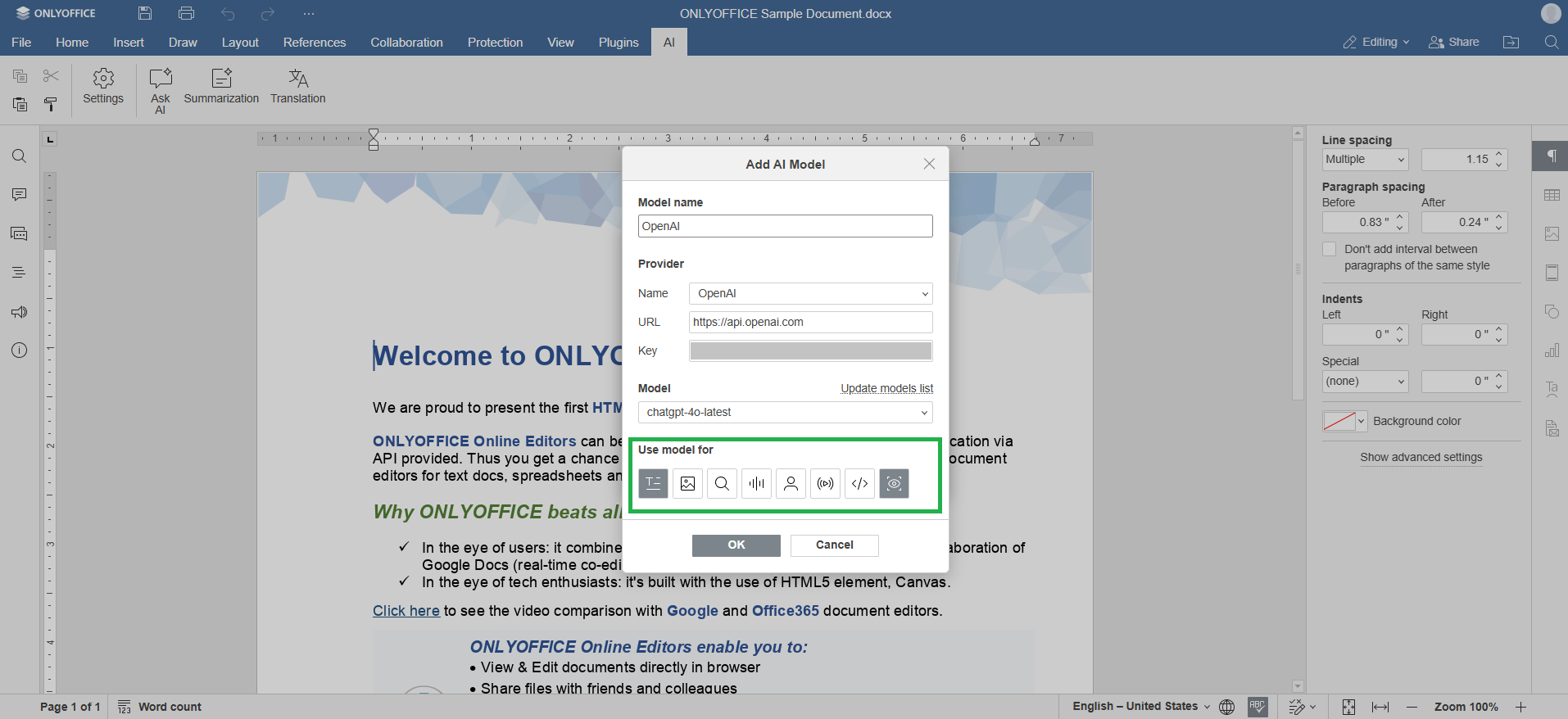
- Go to the AI Tools tab and click Settings. The AI Settings window will open on the AI Models tab.
- Click Add Model.
- Select a Provider and enter your API key.
- Click Add Model again to save the model.
Via the AI Chat panel
- Go to the AI Tools tab and click AI Chat. The AI Chat panel will open on the right.
- If no model is connected yet, the panel will prompt you to connect one. Select a Provider and enter your API key.
- Click Add Model.
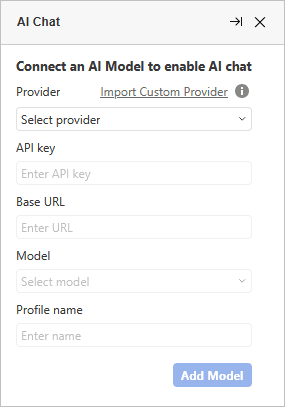
In both cases, you only need to fill in two fields: Provider and API key. The other fields are filled in automatically.
- Provider — select an AI provider from the list. To use a provider that is not on the list, click Import Custom Provider.
- API key — enter the API key you received from your provider. If you don't have one, click the Get API key link to open the key creation page of the selected provider.
- Base URL — filled in automatically when you select a provider. Change it only if you use a custom provider or a locally hosted model.
- Model — this list is unavailable until you enter a valid API key. Once the key is accepted, a model is selected automatically. You can choose a different one from the list.
- Profile name — filled in automatically. You can replace it with any name you like.
If the API key is not valid, an error message appears under the API key field, and the Add Model button remains unavailable. Check the key and enter it again.
Step 2. Assigning models to tasks
Once your model is connected, assign it to tasks:
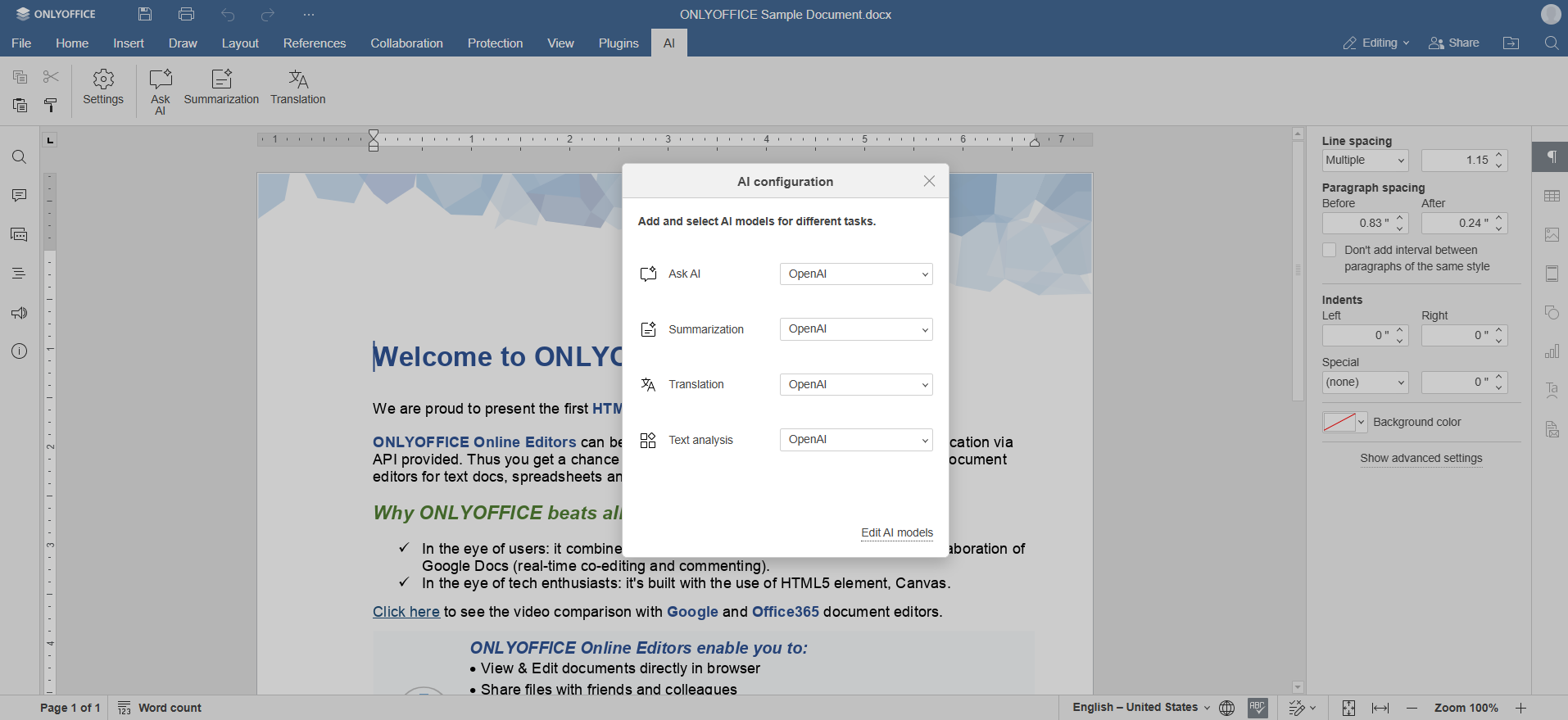
- Go to the AI Tools tab and click Settings.
- Switch to the Model Assignment tab.
- Select a model for each task. If you have connected several models, you can use a different model for each task.
The AI Settings window also has the MCP Servers and Web search tabs, where you can connect MCP servers and set up web search for your AI assistant.