LM Studio
Introduction
LM Studio is a local AI model manager that allows you to run open source large language models such as Mistral, Llama and Phi directly on your computer.
Instead of using cloud APIs, LM Studio runs models locally and exposes a local API endpoint that other applications can connect to.
This setup is useful if you:
- Need full control over your data
- Work in an offline environment
- Must comply with internal security policies
- Want to avoid external API costs
Before you begin, make sure LM Studio is installed and running, and that the AI plugin is installed and enabled in ONLYOFFICE.
System requirements
| Component | Requirement |
| OS | Windows (x64, ARM64), macOS (Apple Silicon), Linux (x64) |
| CPU | AVX2 instruction set support required (x64 systems) |
| RAM | 16 GB recommended |
| GPU | 4 GB VRAM recommended; running on CPU only is possible but significantly slower |
Quick setup
Step 4. Connect LM Studio to ONLYOFFICE
- Open the AI tab → Settings → Edit AI models and click the + icon to add a new model.
-
Enter the following:
- Model name: LM Studio
- URL: the base URL displayed in the Server tab in LM Studio, for example,
http://127.0.0.1:1234/v1
When connecting via a web browser, Enable CORS must be turned on in the Server settings. Without it, the browser will block requests to the LM Studio API. - The list of the models is updated automatically. If you want to do it manually, click Update models.
- Assign the tasks you want this model to handle, then save.
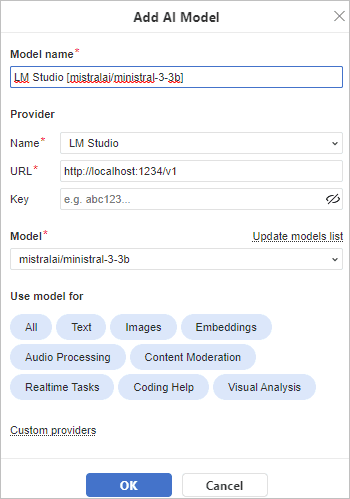
If the connection is successful, ONLYOFFICE will route requests to your local model.
Troubleshooting
Collapse all
-
Verify that the server is running in the Server tab and that the URL in ONLYOFFICE matches exactly what LM Studio displays, including the port number. If the connection still fails, check whether a firewall or antivirus application is blocking localhost traffic. Restart both applications after making any changes.
-
Slow responses are almost always a hardware limitation, not a configuration problem. Larger models consume more RAM and benefit from GPU acceleration. Switching to a smaller quantized model and closing other memory-intensive applications will generally improve response times.
-
If the panel opens but no answer is generated, the most common cause is that no model is loaded. The API server can run without a model, but it cannot process requests in that state. Confirm a model is downloaded and actively loaded in LM Studio. Also ensure that the model is assigned to the Chat task in AI settings in ONLYOFFICE.
-
The API server must be running before ONLYOFFICE is opened. If you started LM Studio after opening the editor, restart ONLYOFFICE and refresh the model list.