Entering notifications section
This article explains how to manage portal notification subscriptions: subscribing, unsubscribing, and changing the notification type.
All manageable subscriptions are found on your profile page. To access it, follow the steps below:
- Sign in to your portal.
- Click your name in the upper-right corner and select Profile.
- Find the Subscriptions section and click Show next to it.
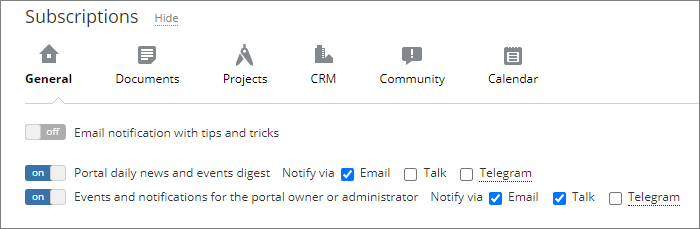
The following subscription categories will be displayed:
Unsubscribing from notifications within Project and Community modules
Once you unsubscribe from notifications in the Projects or Community categories on your profile page, you cannot resubscribe from the same page, as these options will no longer be available there.
To subscribe to notifications within the 'Projects' module, proceed through these simple steps:
- Open the Projects module.
- Select the relevant section in the left-side panel and click the required item.
- Click the
 icon next to the needed item title.
 - Select the Follow option.
You can also unsubscribe from notifications by clicking the icon and selecting the Unfollow option.
To subscribe to notifications within the 'Community' module, proceed through these simple steps:
- Open the Community module.
- Select the relevant section in the left-side panel and click the required item.
- Click the
 icon next to the item title.
You can also unsubscribe from notifications by clicking the  icon.
icon.
Additional Information
Available notification subscriptions in the Projects, Community, and People modules
You can subscribe/unsubscribe from the following notifications within the 'Projects', 'Community', and 'People' modules:
Projects
By clicking the
icon next to the project title on its main page and selecting Follow, you will receive what's new notifications about newly created tasks, discussions, uploaded documents, and other content (excluding comments).Switching to the Tasks section at the left-side panel and selecting a task, you can click the
icon next to its title and select the Follow the task/Unfollow the task option.Switching to the Discussions section at the left-side panel and selecting a discussion, you can subscribe to comments on this discussion by clicking the
icon next to its title and selecting Subscribe to comments.Community
Switching to the Events section at the left-side panel, you can subscribe to new comments on a specific event by selecting it and clicking the
icon next to its title.Adding a new post to Blogs or Forums, the Subscribe to post comments checkbox is selected by default for you to receive notifications about new comments to your post.
Switching to the Blogs section at the left-side panel, you can also subscribe to comments within a certain post.
Switching to the Forums section at the left-side panel, you can also subscribe to a certain forum or topic within a forum.
Switching to the Bookmarks section at the left-side panel, you can subscribe to new comments within a certain bookmark.
Switching to the Wiki section at the left-side panel, you can subscribe to a certain page to be informed about all its changes.
People
Switching to the Birthdays section at the left-side panel, you can enable the reminder by clicking Remind about the birthday.
Watch video
How to activate Telegram notifications for ONLYOFFICE Workspace
Get notified about everything on your ONLYOFFICE Workspace portal with Telegram notifications.