Creating an all-day event
An all-day event is an event that lasts an entire day or longer. For example, if you plan a seminar or a training for two days, you can select a start and end date and check the All-day event feature instead of entering the time.
This guide explains how to create an all-day event in the Calendar.
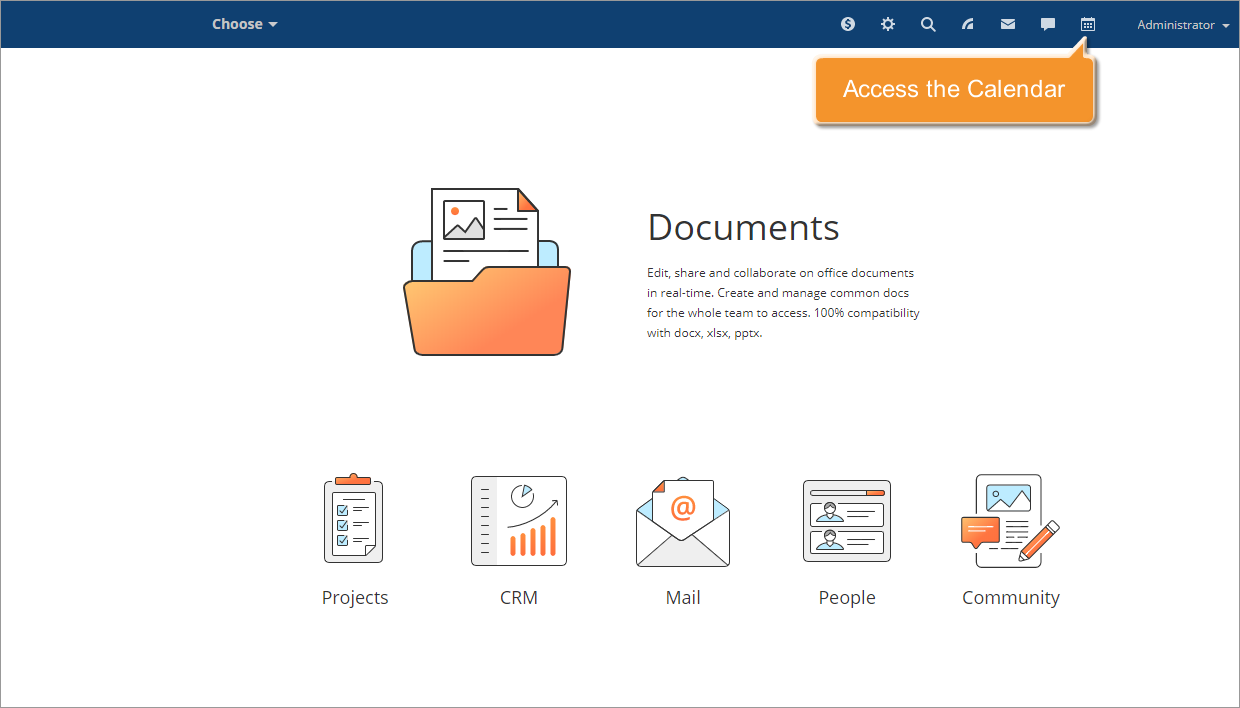
Access the Calendar
Sign in to your portal and click the Calendar  icon at the top of the page.
Add a new event
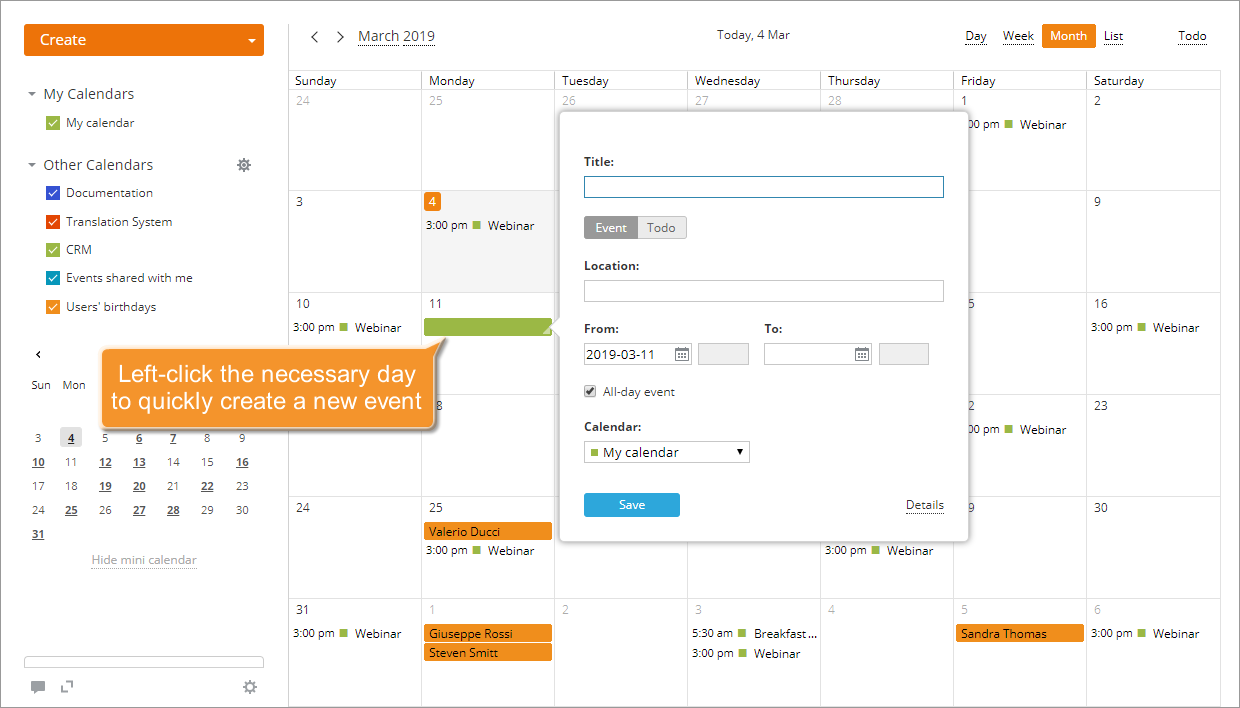
Left-click the required day to create a new all-day event and enter the basic information..
Configure your event settings
Enter as much information as you wish about your event. Enter a title. the start and end dates in the From: and To: fields using the keyboard or by clicking the  icon and selecting a date.
Ensure the All-day event option is selected.
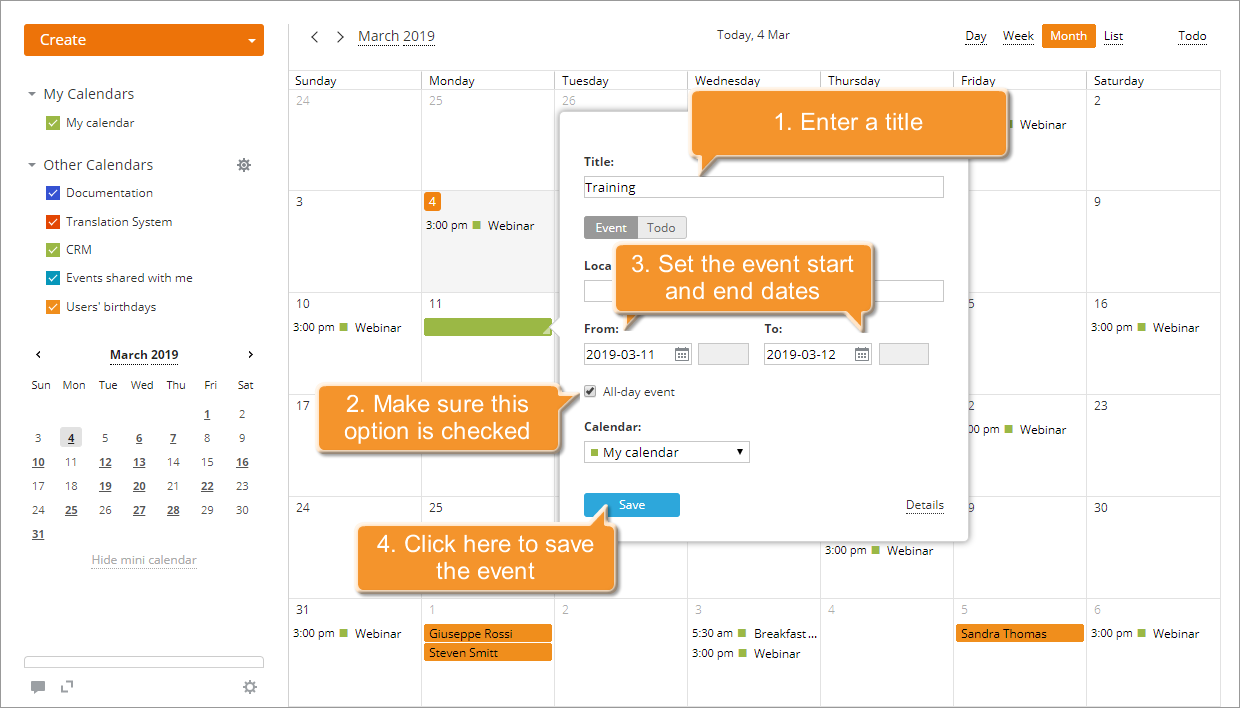
To invite guests, set a recurrence period, change the reminder settings, share the event, or add a description, switch to the advanced mode by clicking Details.
To save the event, clickSave at the bottom of the window. The created event will be immediately added to your calendar.
Edit the created all-day event
All-day events are displayed at the top of each day and highlighted in a color associated with a calendar they belong to.
To edit the event settings, follow the same steps as for a single event. Click the all-day event title and click Edit at the bottom of the pop-up window.
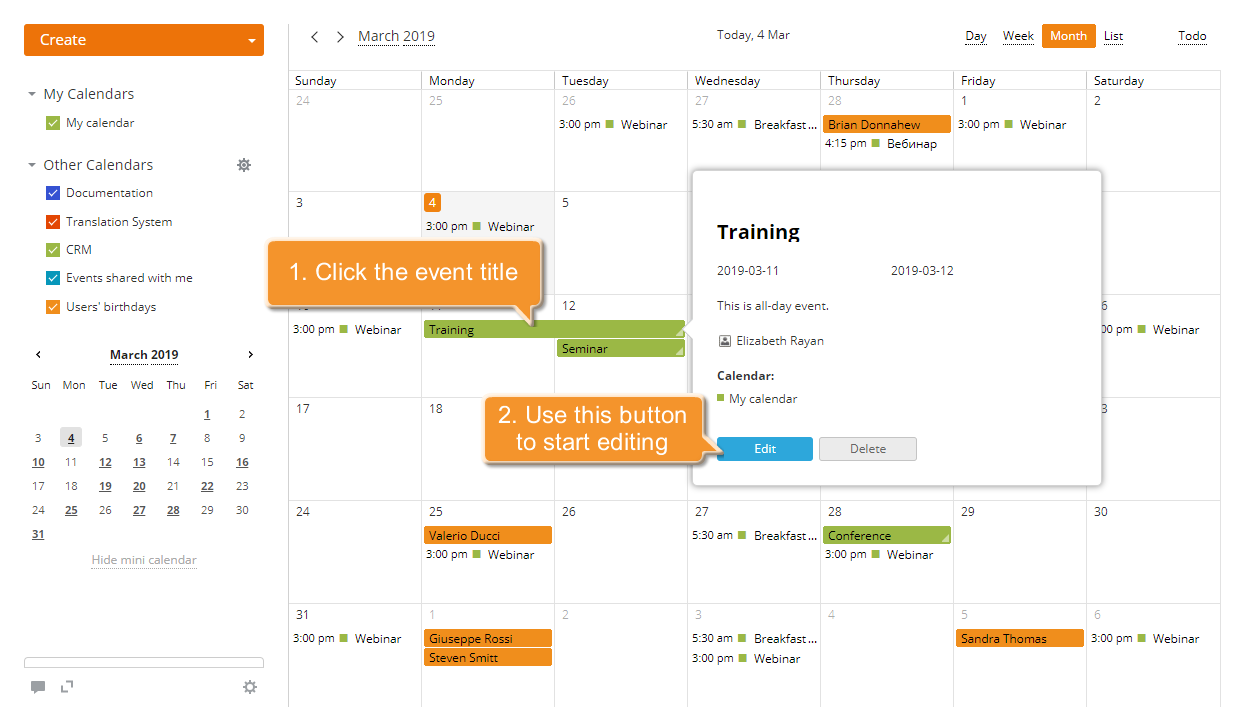
To apply the changes, click Save.
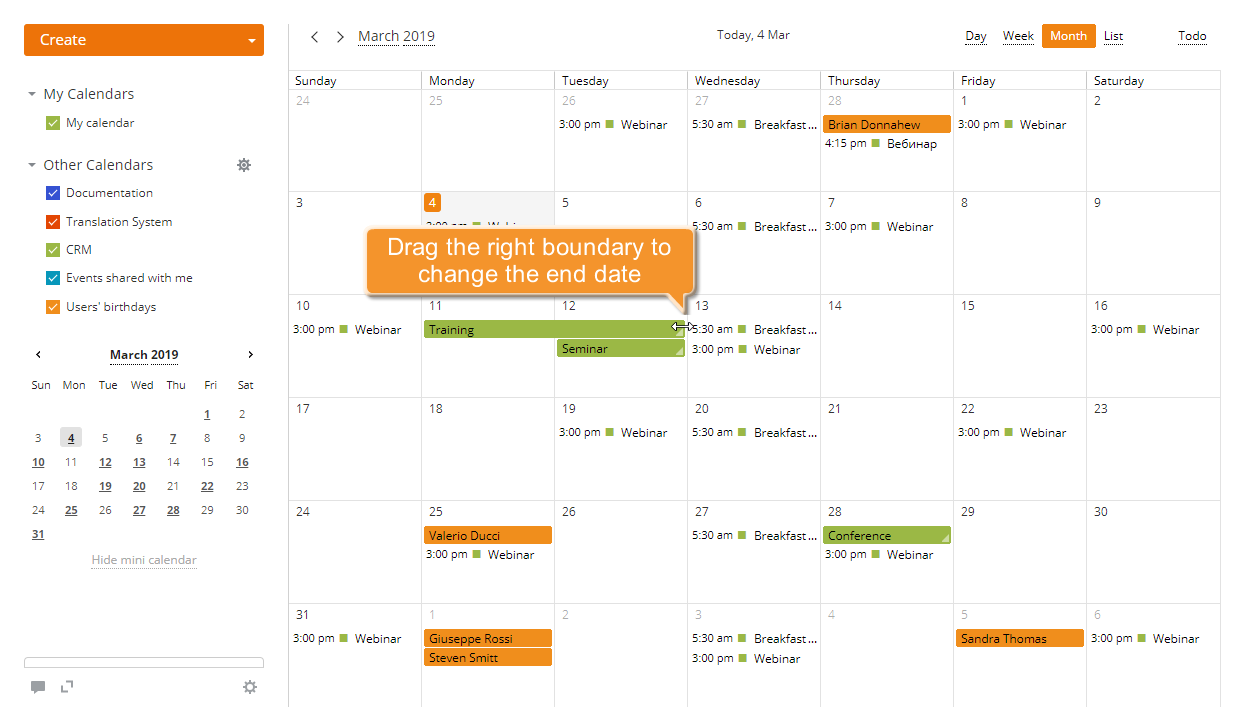
You can also change the event end date directly in the calendar without opening the editing window.
Position the cursor at the right edge of the event box. The cursor will change to a bidirectional arrow. Without releasing the mouse button, drag to change the event end date.
Delete an all-day event
follow the same steps as for a single event. Click the all-day event title and click Delete at the bottom of the pop-up window.
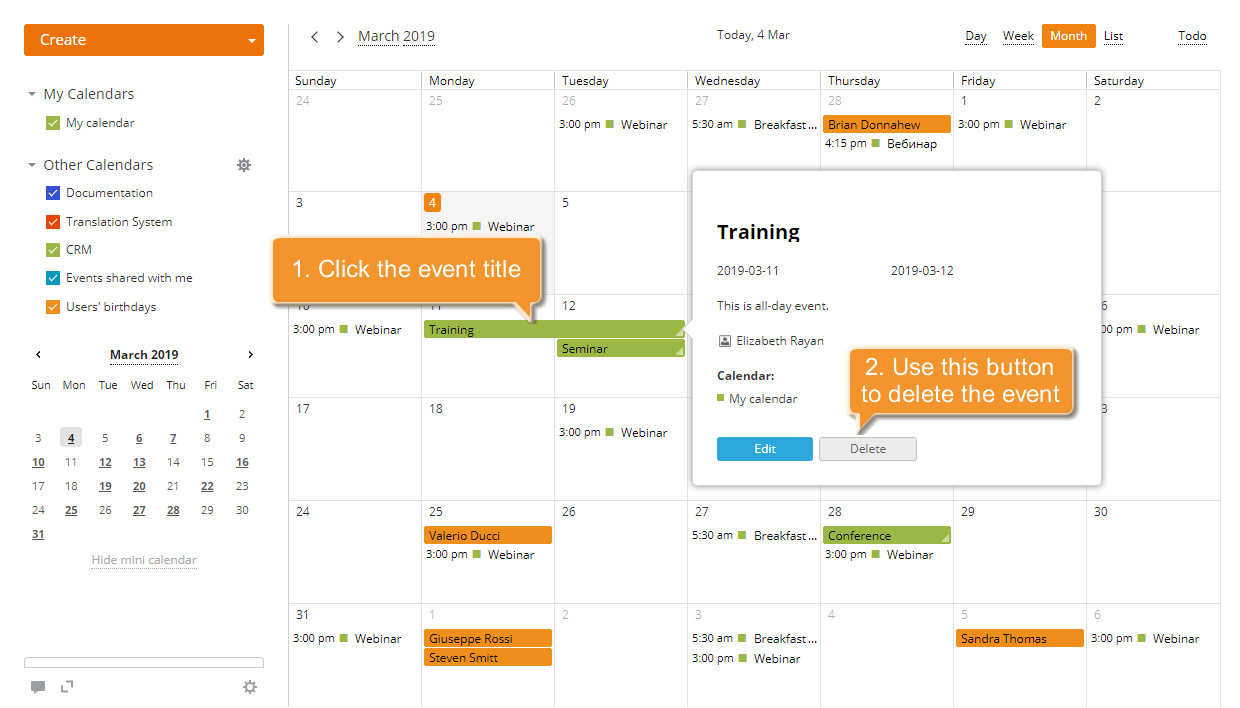
The selected event will be removed from your calendar.
Watch video
How to create an all-day event with ONLYOFFICE?
This guide will show you how to create an all-day event in your Calendar.