Importing users from a CSV file
Introduction
This guide explains how to add multiple users to the portal at once using a CSV file.
Follow the steps below to save your contacts in a .csv file and import them to your portal.
Step 1. Create a CSV file
If you already have a .csv file containing the contact information you need to import, proceed to Step 2.
If you store your contact information in a spreadsheet, check it and save it to a CSV (Comma Separated Values) file format, for example, using the Documents module.
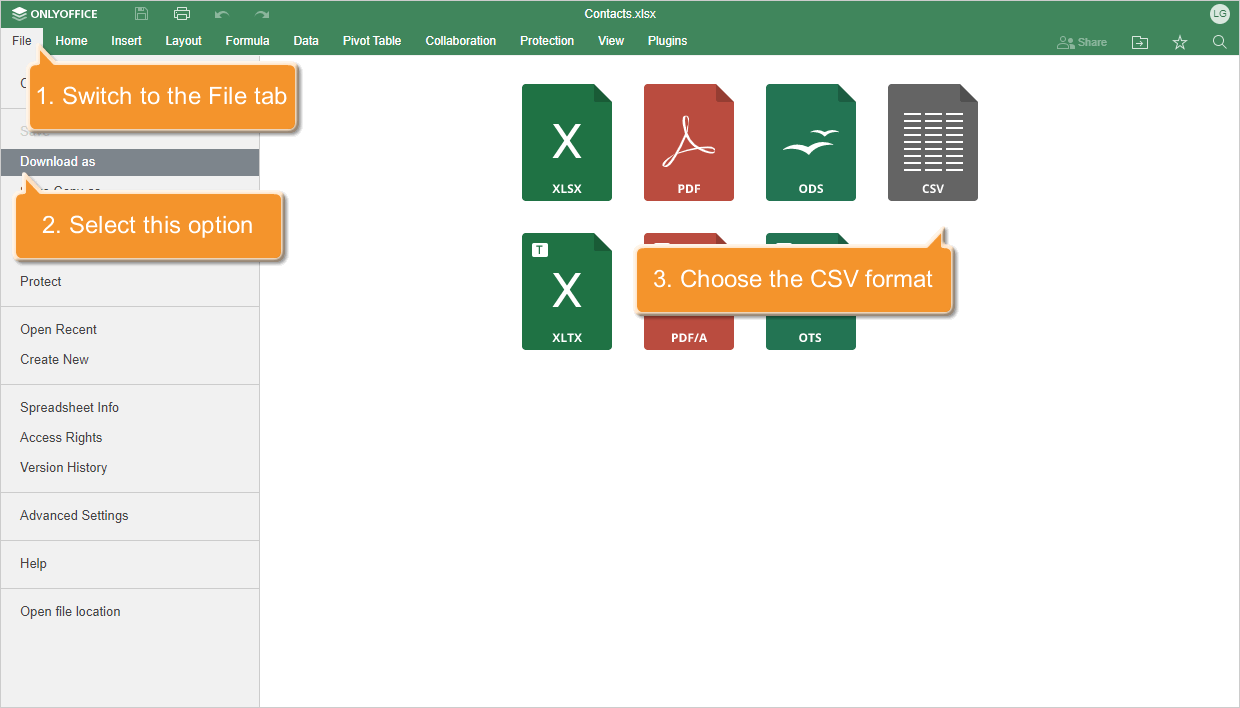
You can also create a new spreadsheet directly on your portal.
Step 2. Access the People
Sign in to your portal and click People link.
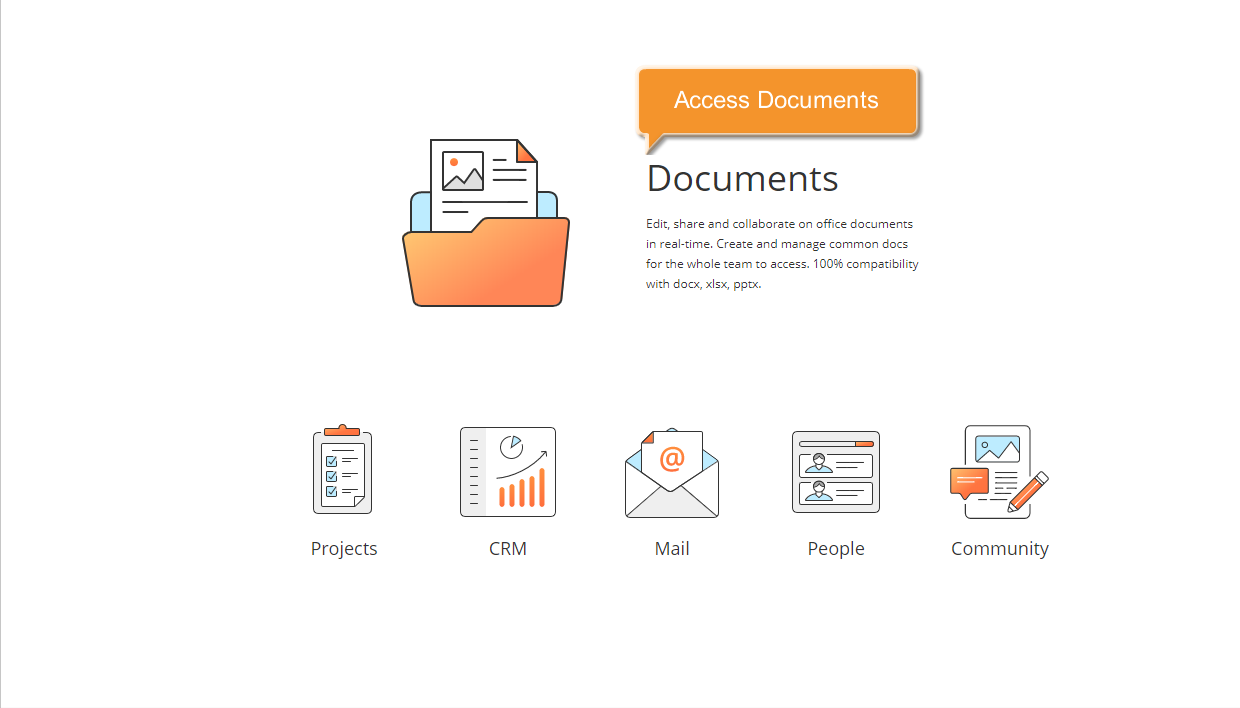
If you are already signed in, access the People module from the drop-down list in the top-left corner of the page and select the corresponding option.
Step 3. Upload the CSV file to the portal
Click the button next to Create in the upper-left corner and select Import People, or click Import People in the left side panel. The Add users to the portal wizard opens.
Select the From File option. The File Upload window opens. Browse your computer for the .csv file and click Open.
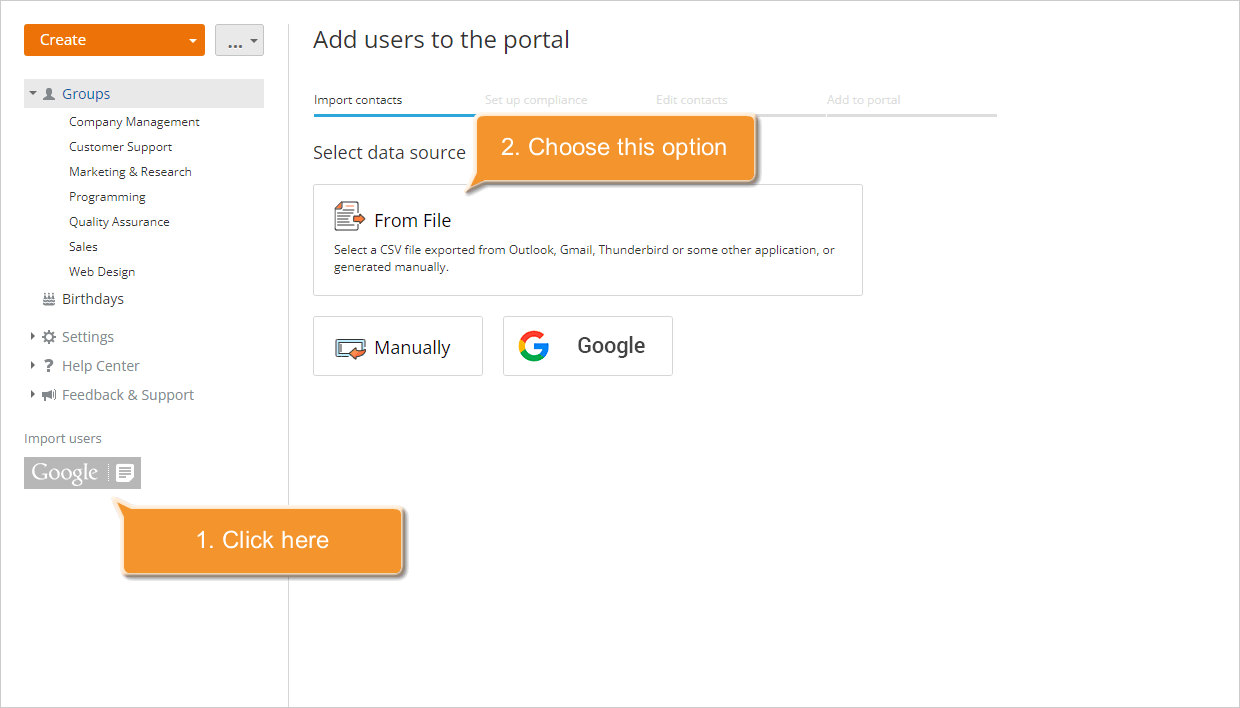
The file will be loaded. To replace it, click Select another source.
Step 4. Verify the .csv file data
In the Add users to the portal wizard, verify the .csv file settings and set up compliance between the .csv file fields and the fields on the portal that are required to add a user.
For proper importing, you can change the loaded .csv file settings:
- Encoding - Specify the encoding type used while saving your .csv file. The default type is UTF-8.
- Delimiter - Use this drop-down list to select the character used to separate values in your .csv file. The default delimiter is Comma.
- Text Delimiter - Use this drop-down list to specify the character used to enclose the fields in your .csv file.
If your .csv file has a header row with the field/column names, select the Display field names checkbox - the field names will be displayed in the Fields in file section.
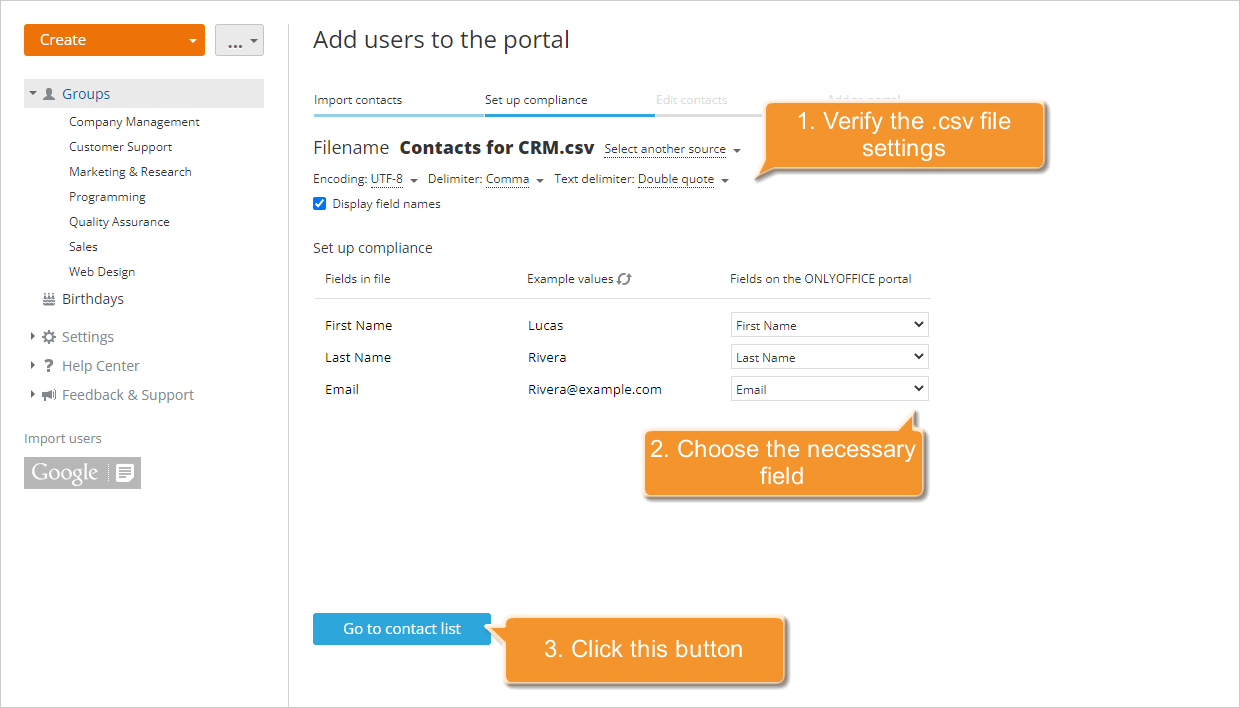
Below you can set up compliance between the .csv file fields and the fields on the portal.
- Fields in file - a row of your .csv file containing the column/field names.
- Example values - the available file column values. To refresh values, use the
 icon.
icon. - Fields on the portal - the portal fields corresponding to the field/column names from your file.
If the field names in the .csv file match the mandatory fields required to import users to the portal (First Name, Last Name, and Email), they will be automatically selected in the Fields on the portal section. You can also map fields manually by selecting the appropriate value from the list.
When everything is done, click the Go to contact list button below to proceed to the next step.
Step 5. Manage the contact list and start importing
All the available contact information will be displayed within the Add users to the portal wizard.
Check the list. Specify the user's first and last name if absent.
To exclude users from the import, select multiple users and click Not import at the top or select Not import from the menu to the right of a user.
If you wish to add users as guests, select several users and use the Guest button on the top or choose the Guest menu item to the right of the certain user. To learn more about the user/guest rights on the portal, refer to this section.
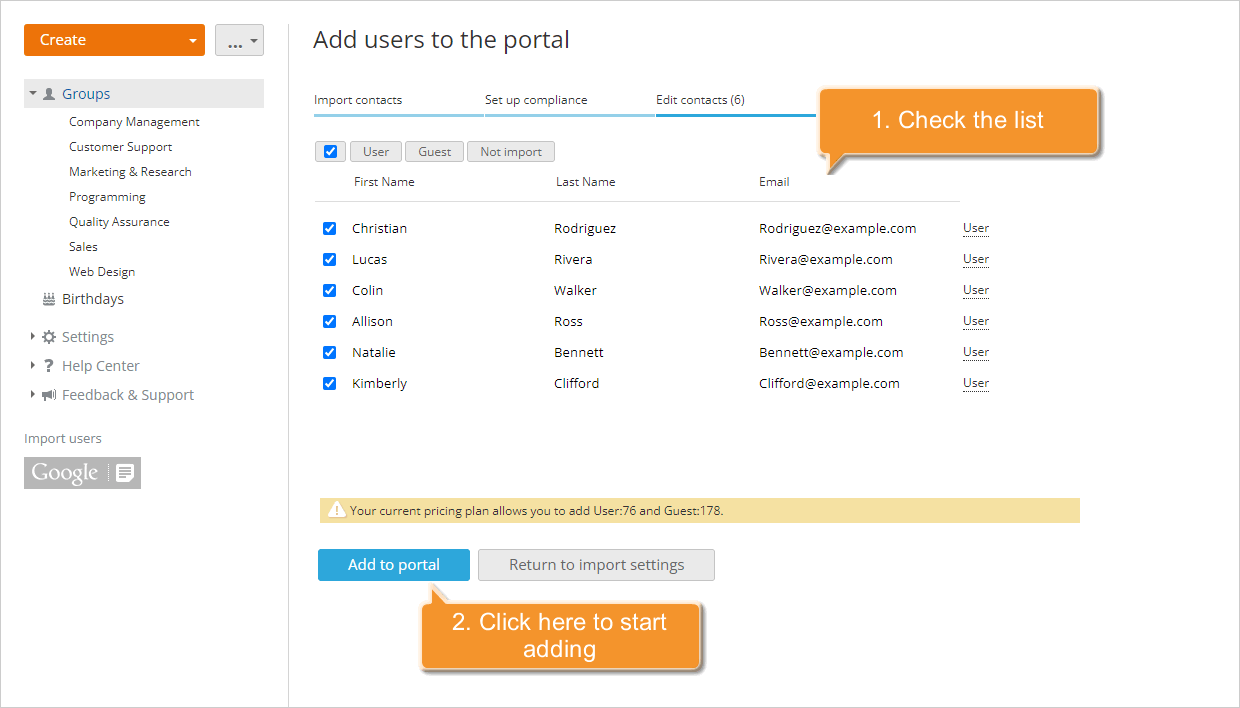
When everything is done, click the Add to portal button to start adding.
The selected users will be added to the portal right away and will receive an email notification with a link to your portal.
To add a single user with known details, use the Create New User option.