Este artigo foi traduzido por IA
Google Gemini
Google Gemini é uma família de modelos de IA avançados desenvolvidos pelo Google, projetados para lidar com texto, imagens, áudio, vídeo e código em um único sistema.
Este é um guia passo a passo sobre como instalar e configurar o Google Gemini para o ONLYOFFICE Docs.
Conectando e configurando modelos do Google Gemini
- Siga este guia para a configuração geral.
- Uma vez que o plugin esteja instalado, adicione modelos de IA. Vá para a aba IA e abra Configurações.
- Selecione Editar modelos de IA no canto inferior esquerdo da janela e clique em Adicionar.
- Na janela que aparece, selecione Google Gemini na lista suspensa.
- Insira sua chave de API no campo fornecido. A chave de API é emitida pelo provedor de IA e pode ser gerada no site oficial do Google AI Studio. Clique no botão Atualizar lista de modelos.
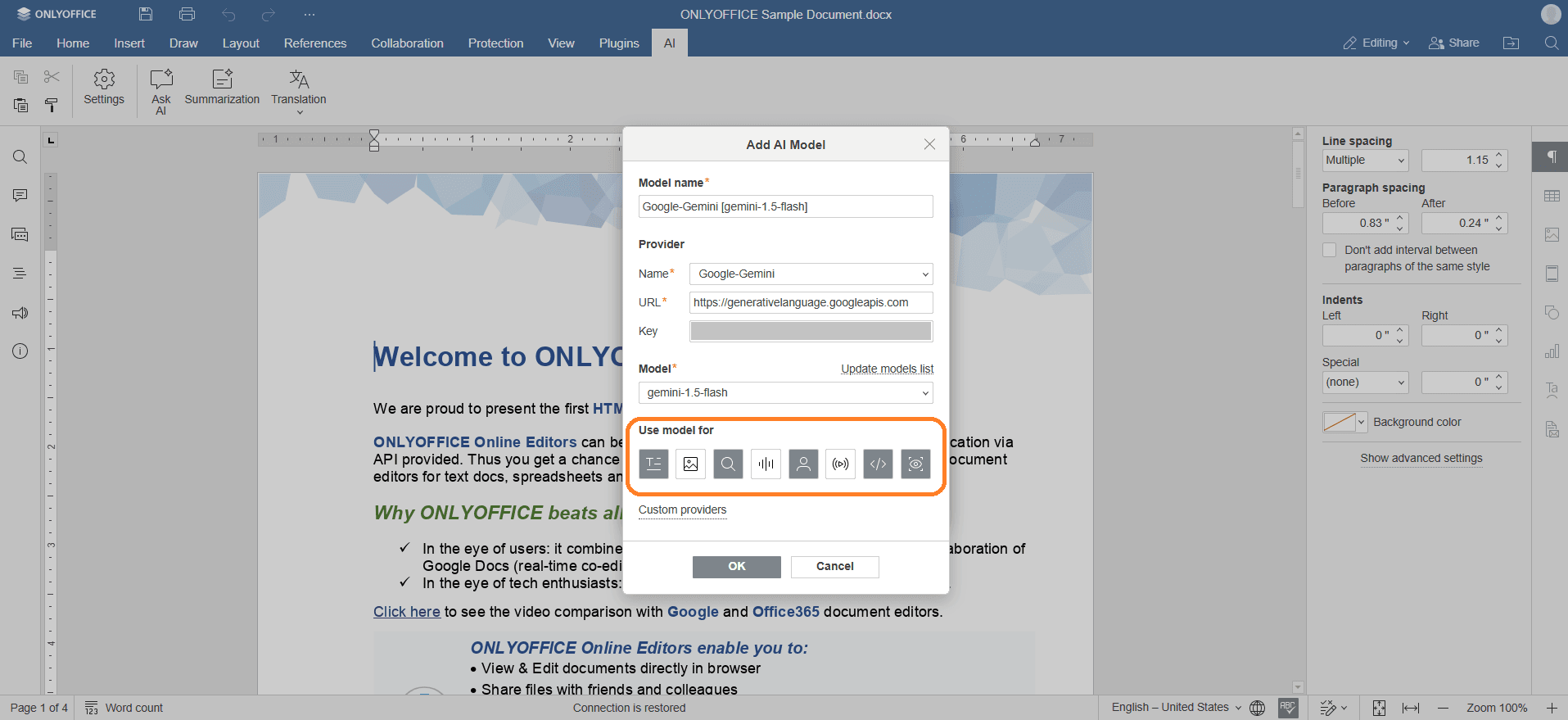
- O primeiro modelo da lista é selecionado automaticamente. Escolha o modelo que melhor se adapta às suas necessidades na lista suspensa, por exemplo, gemini-2.0-flash para tarefas de propósito geral.
- Na linha de ícones, selecione o modelo que será usado para texto, imagens, embeddings, processamento de áudio, moderação de conteúdo, tarefas em tempo real, ajuda com codificação e análise visual.
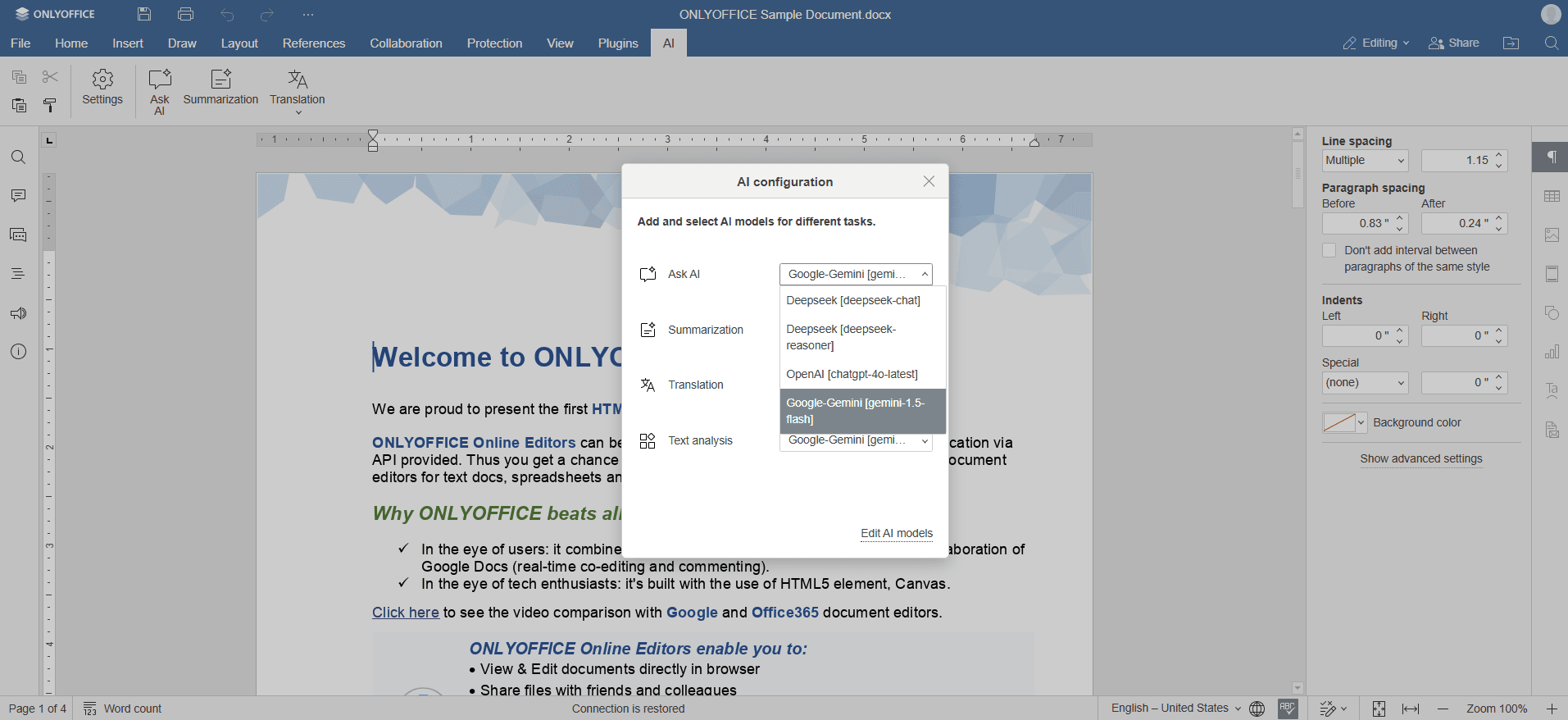
- Clique em OK. O modelo aparecerá na lista de Modelos de IA. Clique em OK novamente.
- Na janela de Configuração de IA, selecione o modelo que deseja usar para realizar as várias tarefas.
- Acesse os recursos de IA através da aba IA ou selecionando texto e clicando com o botão direito para abrir o menu de contexto.
Artigo com o tag:
Veja todas as etiquetas